[AEM Assets]{class="badge positive" title="Applies to AEM Assets)."}
Cascading Metadata Assets View cascading-metadata-assets-view
When capturing the metadata information of an asset, users provide information in the various available fields. You can display specific metadata fields or field values that are dependent on the options selected in the other fields. Such conditional display of metadata is called cascading metadata. In other words, you can create a dependency between a particular metadata field/value and one or more fields and/or their values.
Use metadata Forms to define rules for displaying cascading metadata. For example, if your metadata form includes an asset type field, you can define a pertinent set of fields to be displayed based on the type of asset a user selects.
Here are some use cases for which you can define cascading metadata:
- Where user location is required, display relevant city names based on the user’s choice of country and state.
- Load pertinent brand names in a list based on the user’s choice of product category.
- Toggle the visibility of a particular field based on the value specified in another field. For example, display separate shipping address fields if the user wants the shipment delivered at a different address.
- Designate a field as mandatory based on the value specified in another field.
- Change options displayed for a particular field based on the value specified in another field.
- Set the default metadata value in a particular field based on the value specified in another field.
Configure cascading metadata in Experience Manager configure-cascading-metadata-in-aem
Consider a scenario where you want to display cascading metadata based on the type of asset that is selected. For example-
- For a video, display applicable fields such as format, codec, duration, and so on.
- For a Word or PDF document, display fields, such as page count, author, and so on.
We are using a dropdown field named Image as an example to categorize files based on their image type. The dropdown contains options representing supported image extensions (such as JPG/JPEG, GIF, etc.). To ensure data consistency and prevent unsupported formats from being selected or processed, a validation rule is applied to this field. The rule evaluates the selected dropdown value and enforces constraints that align with the accepted image formats.
Irrespective of the asset type chosen, display the copyright information as a required field. You can use the pre-defined metadata components and assign metadata to a folder.
Build Metadata Forms build-metadata-schema-forms
Consider the steps below to create a new Metadata Form:
-
Select the Experience Manager logo, and go to Settings > Metadata Forms > Create.
-
From the Type dropdown, select the appropriate form type: File, Folder, or Collection.
-
Specify the title of the metadata form in the Name field.
-
Alternatively, choose an existing metadata form template from the Choose from existing form template dropdown.
-
A blank Metadata Form appears. Add a new tab.
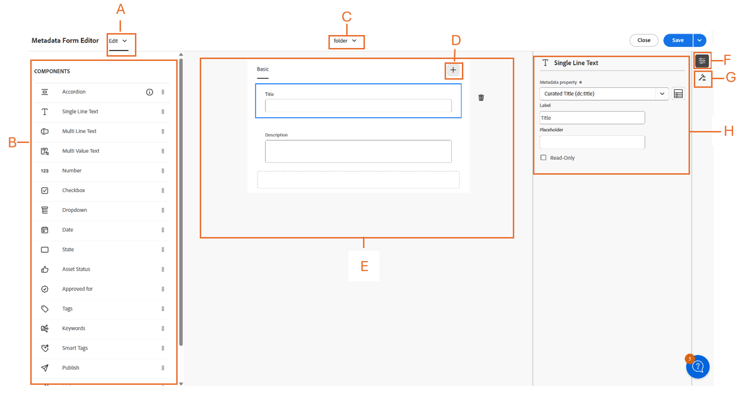
- A: Switch between Edit or Preview
- B: Components of Metadata Form
- C: Switch to other Metadata Form
- D: Add a new tab
- E: Canvas
- F: General settings for the selected component
- G: Rules tab
- H: Component properties
Watch this video to view the sequence of steps, Setup Metadata Forms.
Modify an existing Metadata Form modify-existing-metadata-form
To modify an existing metadata form, follow the steps below:
-
Open an existing Metadata Form and navigate to the pre-defined components that you want to add in the form and drop the elements on your canvas.
In accordance with the Image use case, add a dropdown field to define image asset types. Specify the name and property path in Settings, and optionally configure the field as Read-Only or Multiple Selections.
-
Provide the key-value options for the dropdown either by entering them manually, specifying a JSON path, or importing a CSV file.
-
To specify the values manually, select Add Manually under Choices and click
Addand specify the option label and value. For example, specify Video, PDF, and Image asset types.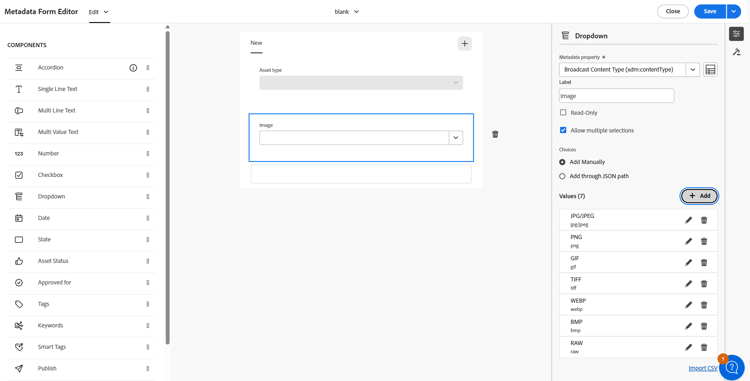
-
To fetch values from a JSON path, select Add through JSON Path and specify the path of the JSON file.
note NOTE Ensure to store JSON file in a shared location accessible to all DAM editors and authors. 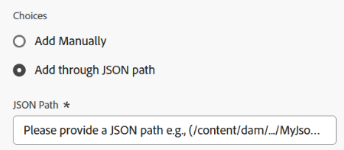
-
To fetch the values from a CSV dynamically, click Import CSV and provide the path of the CSV file. Experience Manager fetches the key-value pairs in the real time when the form is presented to the user.
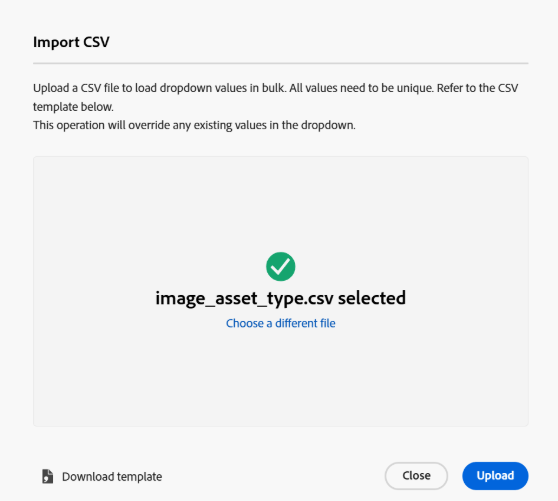
note NOTE You cannot import the options from a CSV file and edit them manually as both the options are mutually exclusive. -
-
To create a dependency between the Image field and other fields, select the dependent field and open the Rules tab. Each component supports a specific set of rules. For this use case, Image Asset Type options are used to define the rule logic.
-
Under Required, choose the Required based on new rule option. Click

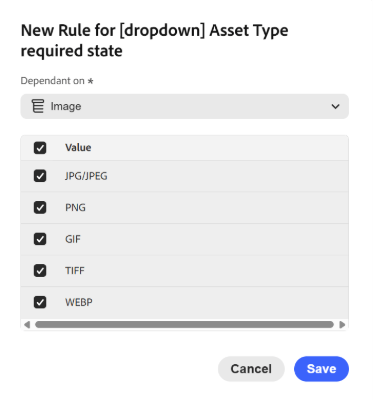
In the current use case, the Asset Type field is required when the image asset format is JPG/JPEG, PNG, GIF, TIFF, or WEBP. Additionally, click


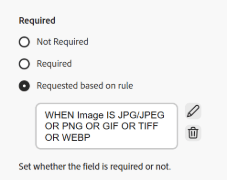
-
Under Visibility, choose the Visible, based on new rule option. Click
note NOTE You can apply the Requirement condition and Visibility condition independent of each other. 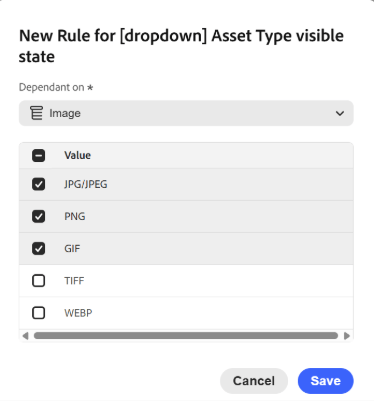
In the current use case, the Asset Type field is visible when the image asset format is JPG/JPEG, PNG, or GIF. Additionally, click
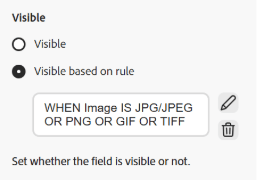
-
Select Choices based on rule to create a dependency and define rule. Click
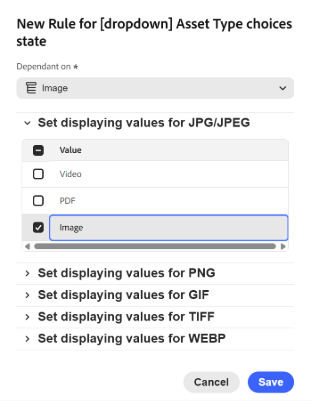
To configure rule-based choices for the Asset Type dropdown, create a rule and set Image as the dependent field. Then define the display values for each image format by selecting Image for JPG/JPEG, PNG, GIF, and TIFF, and selecting Video for WEBP, ensuring only the intended values are checked for each format to dynamically display relevant options. Additionally, click
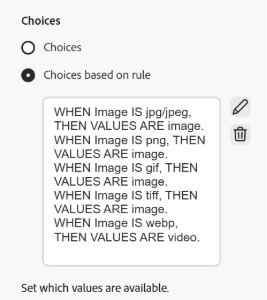
-
Similarly, repeat the steps to create dependency between the other assets such as PDF and Word in the Asset Type field and fields such as Page Count and Author.
-
Click Save. Apply the metadata form to a folder.
-
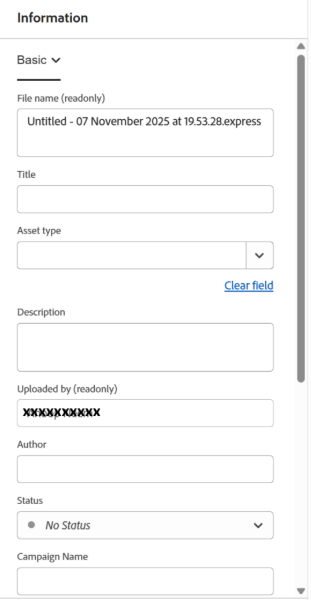
Navigate to the folder to which you applied the Metadata Form and open the properties page of an asset. Depending upon your choice in the Asset Type field, pertinent cascading metadata fields are displayed.
Next Steps next-steps
-
Provide product feedback using the Feedback option available on the Assets view user interface
-
Provide documentation feedback using Edit this page


-
Contact Customer Care
See also
- Translate Assets
- Assets HTTP API
- Assets supported file formats
- Search assets
- Connected assets
- Asset reports
- Metadata schemas
- Download assets
- Manage metadata
- Manage Dynamic Media templates
- Manage reports in Assets view
- Search facets
- Manage collections
- Bulk metadata import
- Publish Assets to AEM and Dynamic Media