[AEM Assets]{class="badge positive"}
Generate Brand Aware Metadata generate-ai-metadata-brand-aware
Adobe Experience Manager Assets Brand Aware Metadata (BAM) is an AI-powered capability that automatically generates custom metadata values for assets when they are uploaded or reprocessed. It reduces the need for manual metadata entry, helping you manage metadata consistently and make assets easier to find and use.
BAM uses a layered prompting approach to define how AI generates values for specific metadata properties. You can use brand prompts to provide reusable brand and campaign context and property prompts to define instructions for individual metadata properties. You can also provide additional context through referenced properties and restrict generated values to predefined options using controlled vocabulary. BAM also provides a Prompt Playground to preview generated metadata and a Prompt Enhancer to improve prompt instructions.
You can use Brand Aware Metadata to generate values for metadata properties such as alt text, product attributes, asset classification, region, and language. Generated metadata is applied to assets through processing profiles.
Before you begin before-you-begin
Ensure the following:
- Access to Adobe Experience Manager Assets as a Cloud Service.
- Administrator permissions to access AEM Assets.
- Brand Aware Metadata enabled for your environment.
- Required permissions to access Prompt Editor and configure metadata.
Get access to Brand Aware Metadata get-access-to-brand-aware-metadata
Brand Aware Metadata is currently available in beta.
To request access:
- Send an email to
aem-assets-brandawaremetadata@adobe.com. - Join an introductory call to discuss your use case and the environments to enable.
Configure Brand Aware Metadata configure-brand-aware-metadata
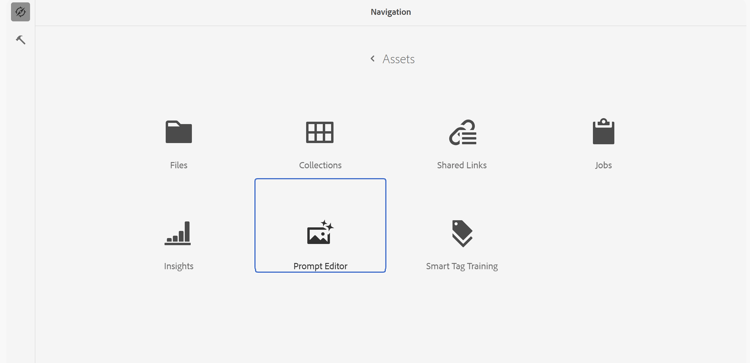
Before creating prompts, open the Prompt Editor.
- In Adobe Experience Manager Assets, switch to Admin view, then navigate to Assets.
- Select Prompt Editor.
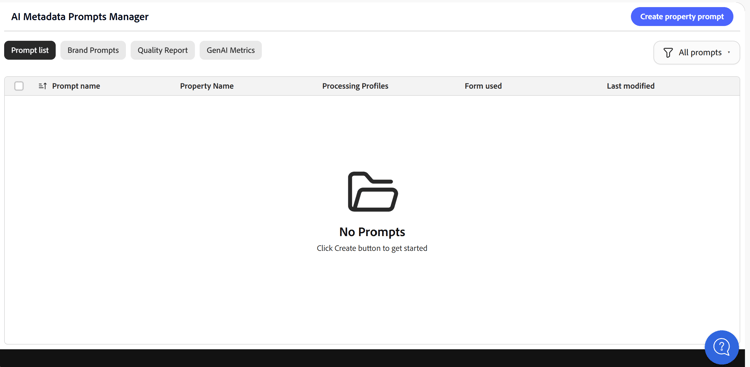
The AI Metadata Prompts Manager displays the available property prompts, brand prompts, quality reports, and GenAI metrics.
If you need to access Prompt Editor using Assets view, navigate to the following URL:
https://experience.adobe.com/?repoId=author-<Program-ID>-<Environment ID>.adobeaemcloud.com#/@aemshowcase/assets/prompteditor
where aemshowcase refers to an example organization name
Create prompts create-prompts
Create a brand prompt (Optional) create-brand-prompt
A brand prompt provides common brand and campaign context that is applied during metadata generation.
Use a brand prompt to define:
- Brand information.
- Campaign context.
- Tone requirements.
- Naming conventions.
- Content rules.
For example:
We are Frescopa Coffee, currently running our Taste of Milan campaign with WKND; always append this campaign context to descriptions.
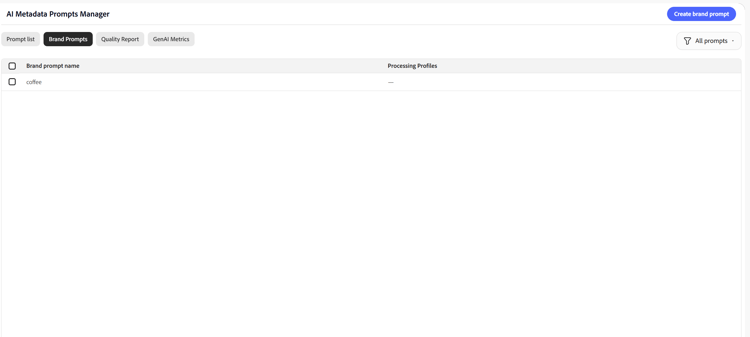
To create a brand prompt:
-
Open the Brand Prompts tab.
-
Click Create brand prompt.
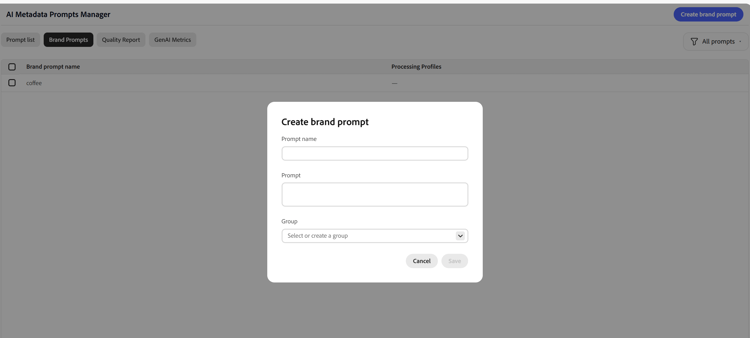
-
In the Prompt name field, enter a name for the brand prompt.
-
In the Prompt field, enter natural language instructions that describe your brand context and always-on rules.
-
In the Group field, select an existing group or create a new group.
-
Click Save.
You can create multiple brand prompts and organize them into groups. Brand prompts can then be associated with different processing profiles based on your requirements.
Create a property prompt create-property-prompt
A property prompt defines instructions for generating values for a specific metadata property.
For example, you can create a property prompt to generate alt text for assets.
To create a property prompt:
-
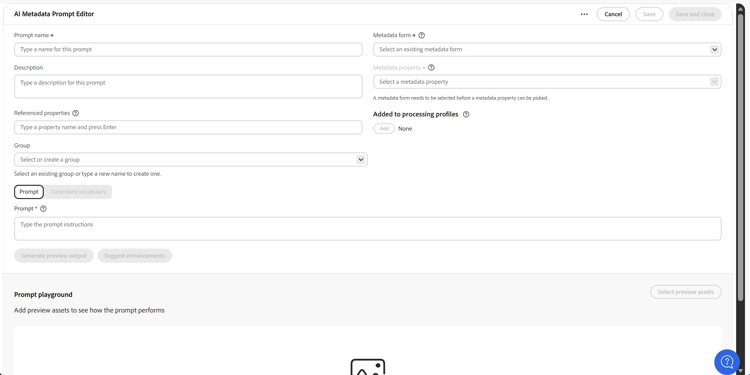
In Prompt Editor, click Create prompt.
-
In the Prompt name field, enter a name for the prompt.
-
Optional: In the Description field, enter a description for the prompt.
-
Optional: In the Referenced properties field, specify metadata properties that can be used as input when generating values.
-
Optional: In the Group field, select an existing group or create a new group.
-
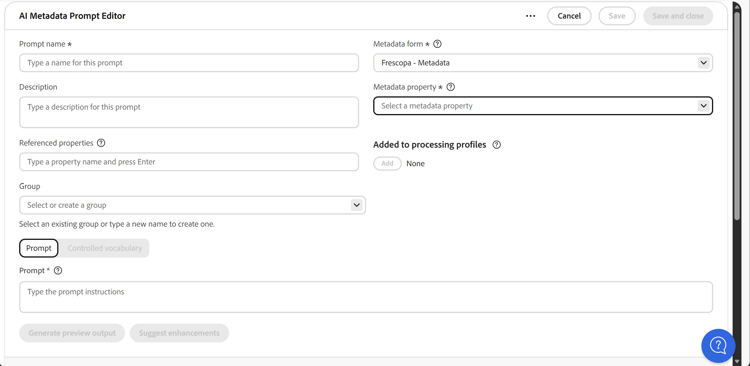
From the Metadata form list, select a metadata form.
Selecting a metadata form loads the available metadata properties.
-
From the Metadata property list, select the metadata property that you want AI to populate.
-
In the Prompt field, enter instructions for generating the metadata value.
For example:
Write concise alt text describing the main subject of the image.
-
Optional: Click Generate preview output to test the prompt and review the generated output.
-
Optional: Use Suggest enhancements to improve the prompt instructions.
-
In the Prompt Playground section, select preview assets to evaluate how the prompt performs against sample assets.
-
Click Save or Save and close.
You can add the property prompt to one or more processing profiles and use Prompt Playground to refine the prompt before deploying it.
Use referenced properties (optional) use-referenced-properties
Referenced properties provide additional asset metadata or file path information as context when generating metadata values. You can use existing information such as product details, campaign information, metadata values, dates, or asset file path information to provide additional context to the property prompt.
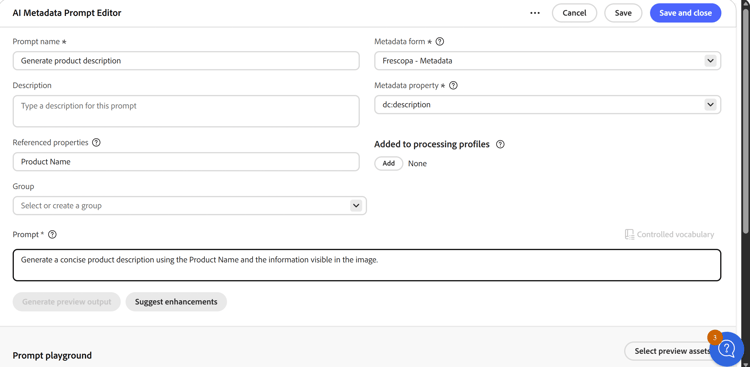
For example, if an asset contains an existing product name, you can reference that property so that AI can use the product name when generating another metadata value.
To add referenced properties:
- In the property prompt editor, open the Referenced properties field.
- Add the metadata property or asset information that you want to provide as additional context.
- In the Prompt field, specify how AI should use the referenced information.
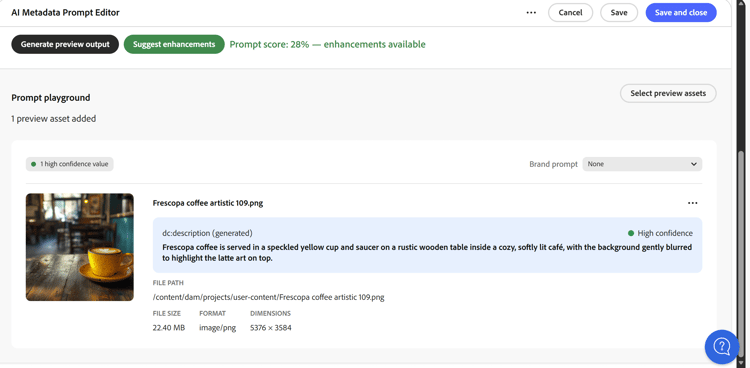
- Use Prompt Playground to preview the generated output.
- Refine the prompt if required.
Configure controlled vocabulary (optional) configure-controlled-vocabulary
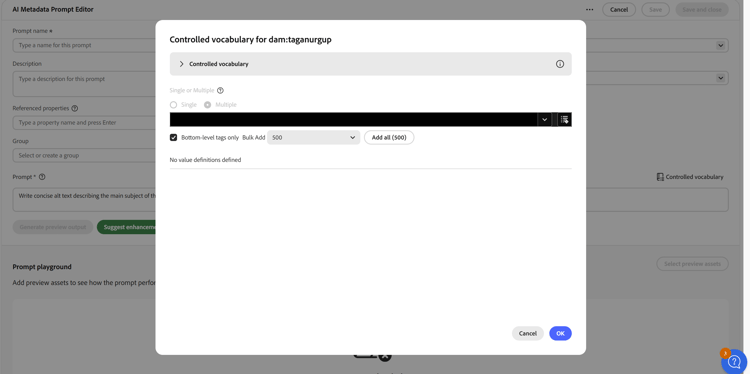
Controlled vocabulary restricts AI-generated metadata values to a predefined set of approved options. Use controlled vocabulary when a metadata property must use values from an established list, such as product categories, regions, asset classifications, or other brand-specific terminology.
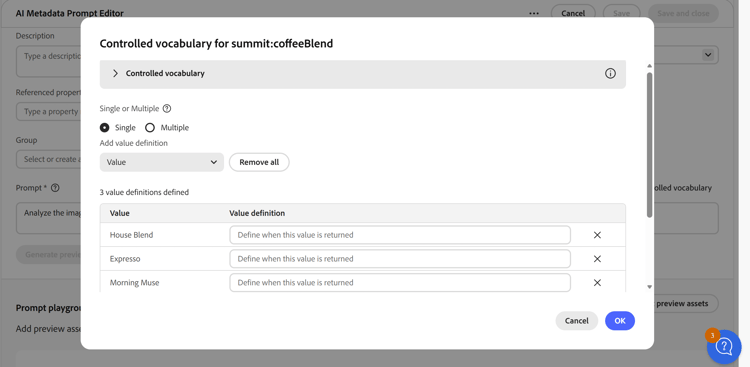
For example, if a Coffee Blend metadata property supports only House Blend, Espresso, and Morning Muse, you can configure these values as controlled vocabulary. For each value, provide a description that explains when the value should be selected. BAM uses these descriptions to determine the appropriate value for an asset.
You can configure controlled vocabulary to return either a single value or multiple values for a metadata property.
Add controlled vocabulary values add-controlled-vocabulary-values
To configure controlled vocabulary for a metadata property:
-
In the property prompt editor, select the metadata property for which you want to configure controlled vocabulary.
-
Enable Controlled vocabulary.
-
Select whether the property should return a single value or multiple values.
-
Add the approved values that AI can return.
-
For each value, provide a description that explains when the value should be selected.
-
Add additional values as required.
-
Review the configured values and their descriptions.
-
Save the property prompt.
For example, you can configure House Blend, Espresso, and Morning Muse as approved values for a Coffee Blend property. Define each value with a description that explains when AI should select it.
The value descriptions provide additional context that helps AI select the appropriate predefined value.
After configuring the controlled vocabulary, use Prompt Playground to test how AI selects values for sample assets.
Enhance prompts using Prompt Enhancer (optional) prompt-enhancer
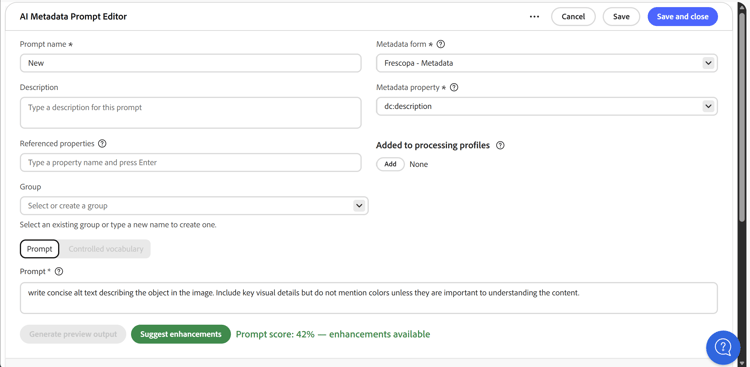
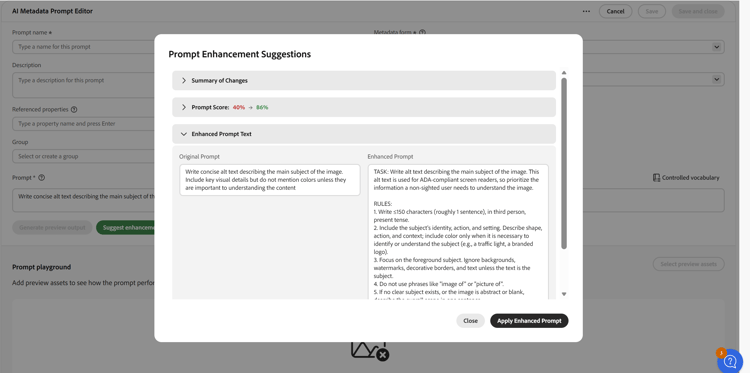
Prompt Enhancer converts simple prompts into structured prompts with suggested improvements.
To enhance a prompt:
-
Enter a prompt for the metadata property.
-
Click Suggest Enhancements.
-
Review the suggested improvements and confidence metrics.
-
Apply the enhancement if required.
Test prompts using Prompt Playground test-prompts-using-playground
Prompt Playground allows you to test prompts against sample assets before applying them to your asset library.
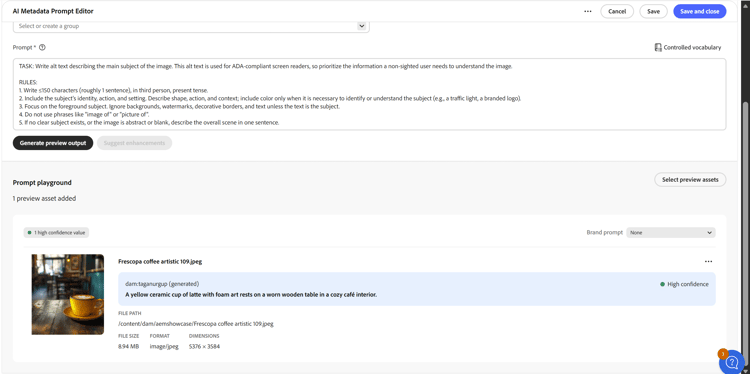
To test a prompt:
- Scroll to Prompt Playground in the property prompt editor.
- Select one or more preview assets.
- Click Generate.
- Review the generated values and confidence score.
- Refine the prompt if required.
Apply AI metadata using processing profiles apply-ai-metadata-at-scale
After creating brand prompts and property prompts, associate them with a processing profile to apply AI-generated metadata during asset processing workflows.
Processing profiles determine which prompts are executed and where generated metadata is applied.
To associate a prompt with a processing profile:
- In the Prompt list, select the prompt that you want to use.
- Click Add to Processing Profile from the action bar.
- Select the processing profile where you want to use the prompt.
- Save the configuration.
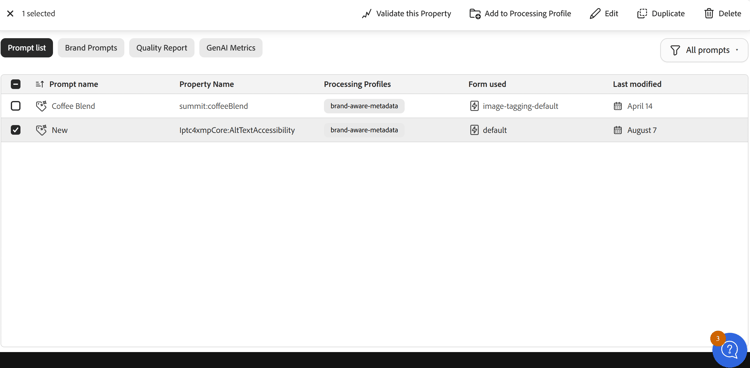
Once associated with a processing profile, the prompt can be executed when processing existing assets or automatically when new assets are uploaded to configured folders.
Brand Aware Metadata supports the following processing workflows:
- Reprocess existing assets to populate metadata.
- Automatically process newly uploaded assets.
Apply BAM to existing assets apply-bam-to-existing-assets
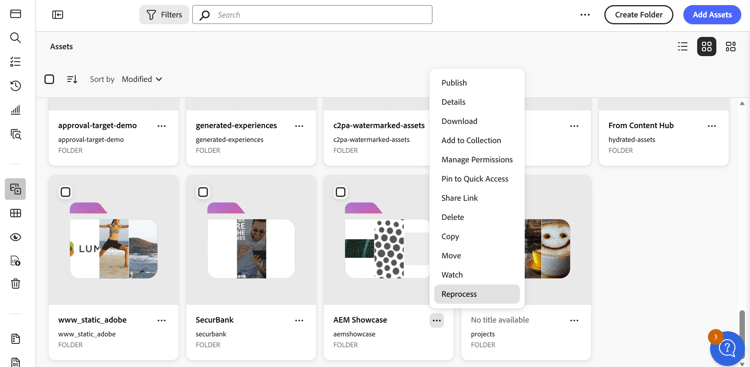
Reprocess a folder to populate metadata for assets that already exist in your DAM.
To apply Brand Aware Metadata to existing assets:
-
Navigate to the folder that contains the assets.
-
Select the folder.
-
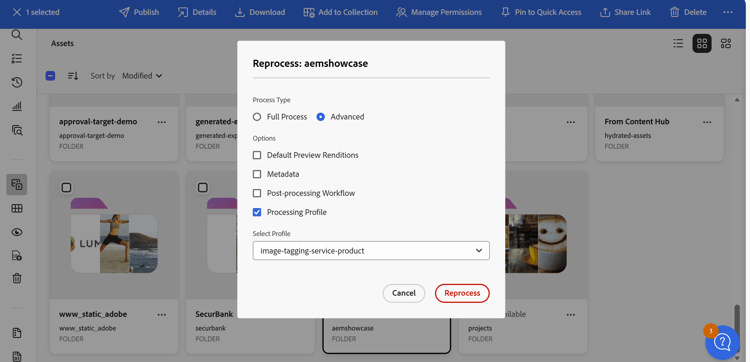
Apply the required processing profile.
-
Start the reprocessing operation.
-
Wait for processing to complete.
-
Open an asset and verify that the configured metadata fields are populated.
Process new assets automatically process-new-assets
Configure a folder to automatically process newly uploaded assets using a Brand Aware Metadata processing profile.
To automatically process new assets:
- Open the folder configuration.
- Associate the required Brand Aware Metadata processing profile.
- Save the configuration.
- Upload new assets to the configured folder.
- Verify that metadata is generated after processing completes.
Verify generated metadata verify-generated-metadata
After processing completes:
- Open the processed asset.
- Click Properties.
- Review the metadata fields configured in the processing profile.
- Verify that the generated values match the expected output.
Limitations limitations
Brand Aware Metadata is currently available in beta.
Keep the following considerations in mind before applying BAM at scale:
-
BAM evaluates images only. To use additional information such as another metadata field value or file path information, configure referenced properties.
-
Processing overwrites existing metadata values. There is currently no option to populate only empty fields.
-
BAM uses a general-purpose GPT model. Highly specialized recognition, such as identifying an exact product SKU, may not always produce reliable results.
-
Brand Guidelines configured in governance are not automatically applied during metadata generation. Include brand context directly in the brand prompt.
-
For dropdown and taxonomy-backed fields, use controlled vocabulary to restrict generated values to existing options.
-
Quality Report data is updated overnight and includes asset processing completed during the previous day. As a result, newly processed assets may not appear in the report immediately.
Troubleshooting troubleshooting
Error when selecting a metadata property
If you experience an error when selecting a value from the Metadata property list, the metadata form may contain more than 1,000 nodes.
To resolve the error:
- Open the OSGi configuration for
org.apache.sling.servlets.get.DefaultGetServlet. - Set the
json.maximumresultsproperty to10000. - Save the configuration.
- Return to the property prompt and select the metadata property again.