Setting Up JetBrains with GitHub Copilot and AEM MCP setup-jetbrains-copilot
Follow these steps to connect GitHub Copilot in a JetBrains IDE (such as IntelliJ IDEA, WebStorm, or PyCharm) to AEM’s MCP servers.
-
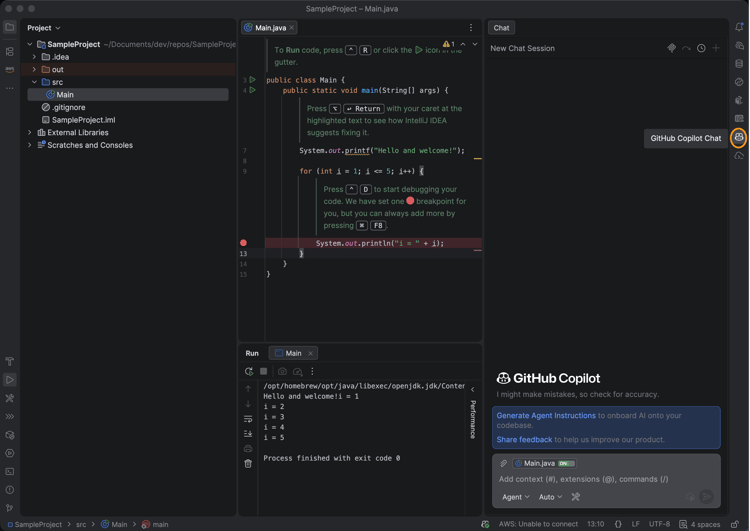
Open GitHub Copilot Chat in your JetBrains IDE by clicking the GitHub Copilot Chat icon on the right side of the editor.
-
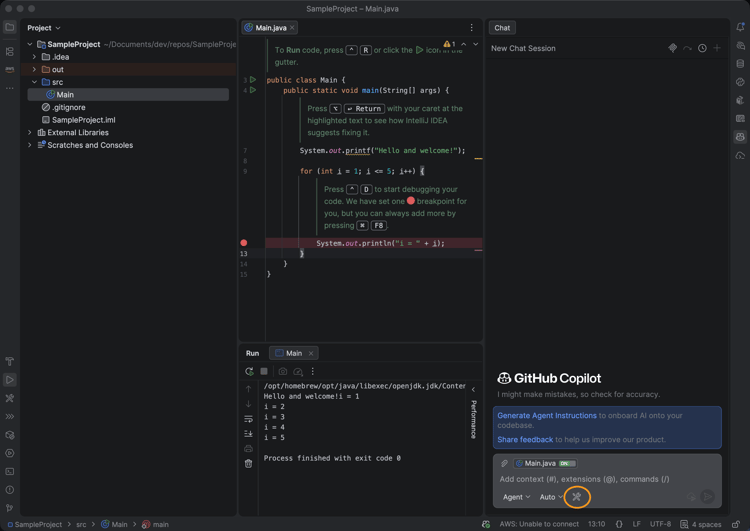
Click the settings icon in the Copilot Chat panel to open the MCP configuration.
-
In Settings, navigate to Tools > GitHub Copilot > Model Context Protocol (MCP) and click Configure to open the
mcp.jsonconfiguration file.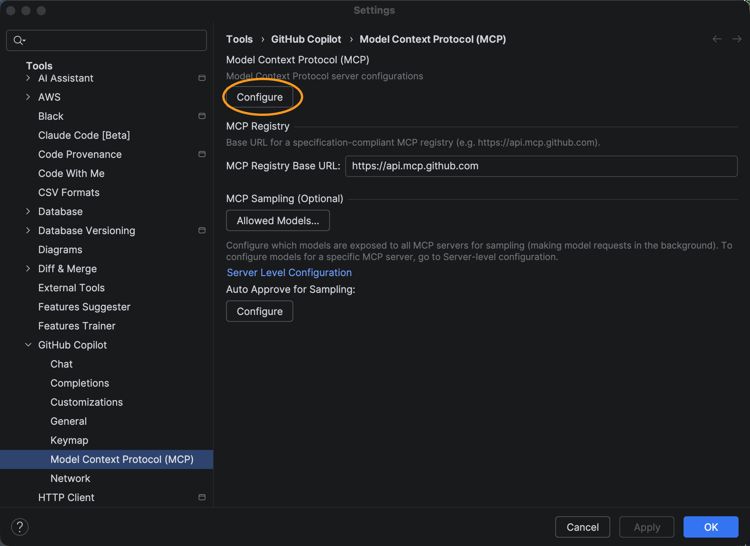
-
Add one or more AEM MCP server URLs to the
mcp.jsonfile. For example:code language-json { "servers": { "aem": { "url": "https://mcp.adobeaemcloud.com/adobe/mcp/aem" } } }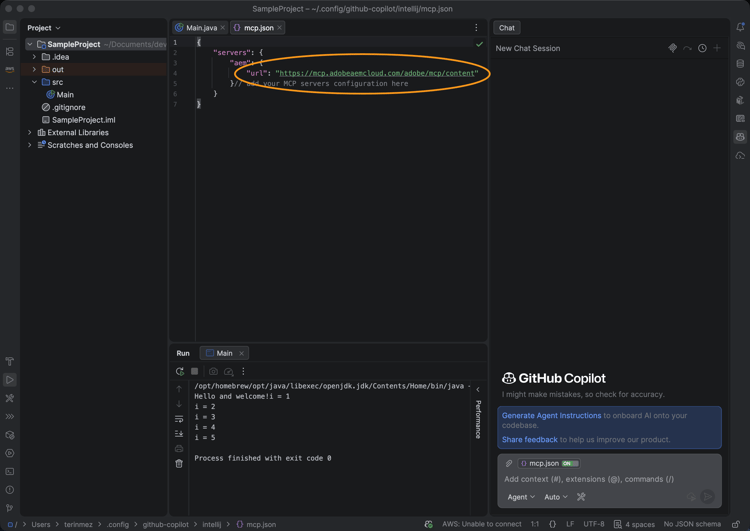
-
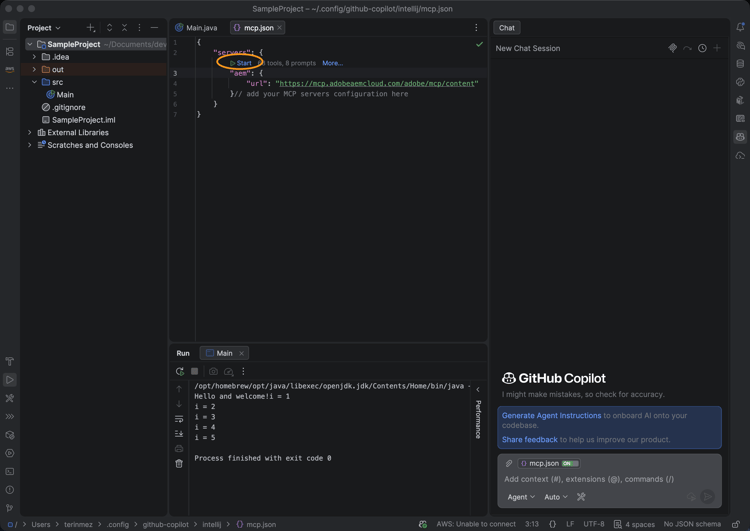
Save the file. GitHub Copilot detects the new server configuration automatically and shows a Start action.
-
Click the Start action and When prompted, sign in with your Adobe ID to complete the authentication flow.
-
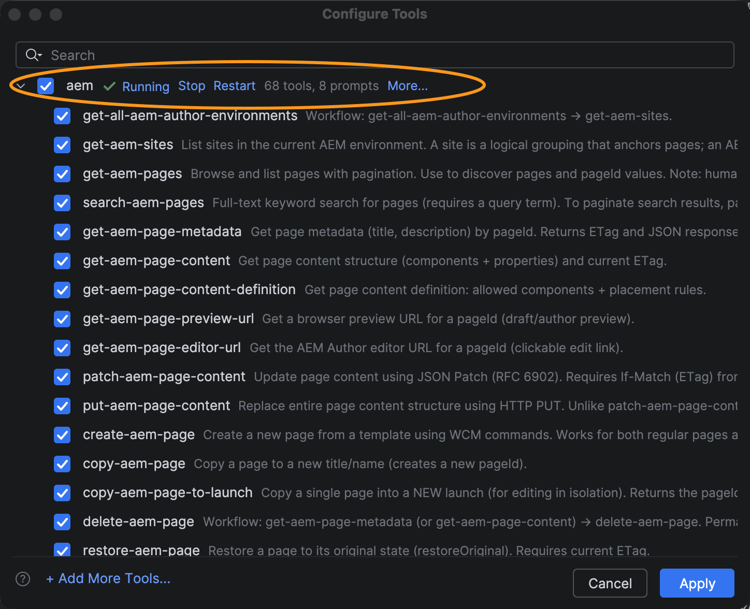
You can review and manage discovered tools by clicking the tools indicator that appears in the Copilot Chat panel. Optionally, enable or disable individual tools.
-
Use GitHub Copilot Chat to invoke AEM tools as part of your development or content workflows.