How to Import a Brand Policy how-to-import-a-brand-policy
Overview overview
Experience Context provides Adobe Experience Manager (AEM) agents with organization-specific knowledge and guidance, enabling them to understand the context in which they operate. It can capture brand identity, tone of voice, terminology, editorial guidance, and other standards that are important for creating consistent and relevant experiences.
Importing a brand policy is one way to establish this Experience Context in AEM. The Governance Agent processes your organization’s existing brand policy and transforms it into structured, precise, and actionable context. From this context, the Governance Agent can derive governance checks to evaluate content against specific brand requirements.
Experience Context goes beyond governance checks. Once established, it can provide AI-powered and agentic capabilities with the relevant and targeted context they need for a given task. This enables agents to use the appropriate brand guidance when generating, updating, or evaluating content, rather than relying on generic instructions or the complete brand policy for every interaction.
What is a Brand Policy in the Governance Agent what-is-a-brand-policy-in-the-governance-agent
A brand policy contains the principles, guidelines, and requirements that define how your organization’s brand should be represented, including tone of voice, terminology, messaging, visual identity, and other brand-specific guidance.
When a brand policy is imported, the Governance Agent analyzes its content and transforms the relevant guidance into structured Experience Context. This makes the information easier for AI-powered and agentic capabilities to consume and apply to specific tasks.
As part of this process, the Governance Agent derives governance checks from the Experience Context. These checks translate specific brand requirements into actionable criteria that can be used to evaluate content for brand compliance.
Experience Context itself remains broader than these checks. It provides a reusable source of precise brand knowledge that can be segmented and surfaced according to the needs of different agentic workflows.
This approach allows teams to reuse their existing brand documentation while benefiting from automated governance and scalable content production.
How Brand Policies are Used how-brand-policies-are-used
After a brand policy is imported and processed, the resulting Experience Context can be used across AI-powered and agentic workflows in AEM.
Experience Context enables agents to retrieve and apply the specific brand knowledge that is relevant to the task they are performing, rather than relying on the complete brand policy for every interaction. Agents select the appropriate context based on the brand, content, or task at hand.
For governance use cases, the Governance Agent derives actionable checks from this context. These checks can be used to:
- Analyze existing content and identify brand inconsistencies
- Flag deviations from specific brand requirements
- Provide actionable guidance for content updates
- Help ensure generated or updated content remains aligned with the brand
Beyond governance, Experience Context can also provide other AI-powered and agentic capabilities with precise, relevant brand guidance when generating, updating, or evaluating content.
Import a Brand Policy import-a-brand-policy
To import a brand into the Governance Agent:
-
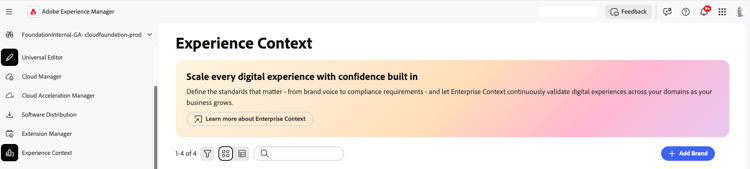
In AEM, select Experience Context from the left navigation. The Experience Context console displays the brands available in your organization. To create Experience Context for a new brand, select + Add Brand.
-
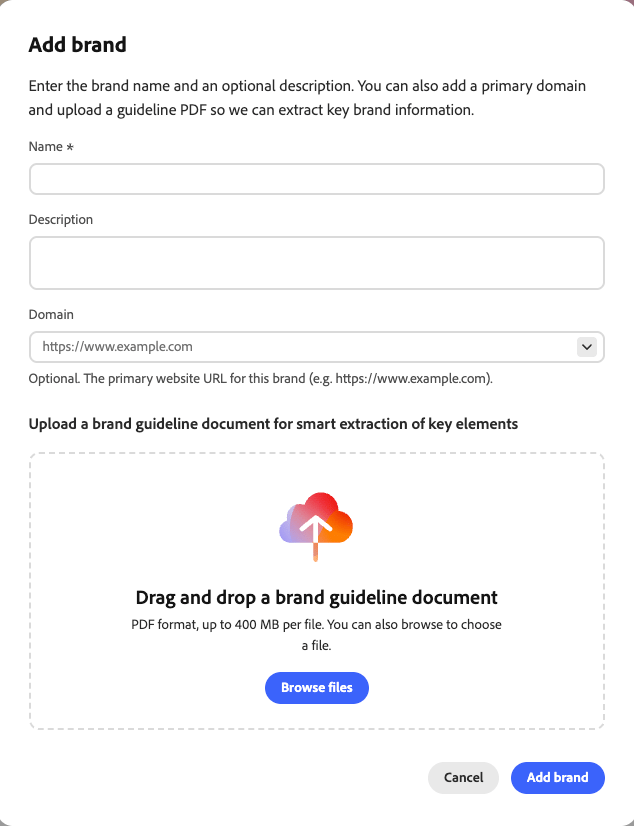
In the Add brand dialog, enter the information used to establish the brand and its initial Experience Context:
- Name — Enter the name of the brand. This field is required.
- Description — Optionally provide a description of the brand.
- Domain — Optionally specify the primary website URL associated with the brand.
- Brand guideline document — upload an existing brand guideline in PDF format. The Governance Agent analyzes the document to extract key brand information and uses it to establish structured context for the brand.
You can drag and drop the brand guideline document, or select Browse files to choose it. When finished, select Add brand.
-
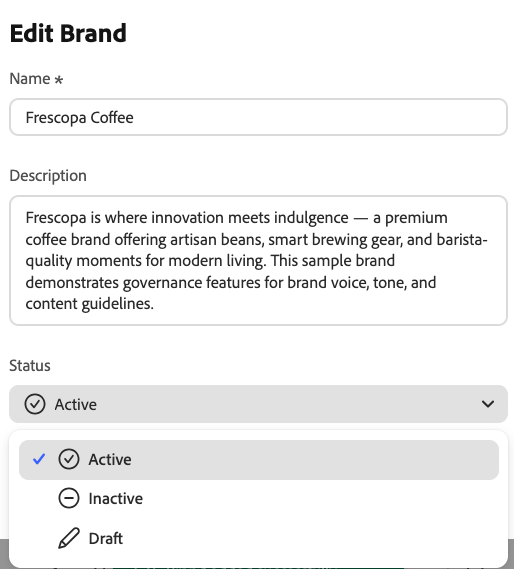
New brands are created in draft status. Make sure you change your newly created brand to an Active status by clicking on your brand’s card, pressing the edit (pencil) icon in the top right corner of the screen, setting the Status to Active in the following window, and clicking Save Changes. You need to enable the brands by setting them to Active before being able to use them.
-
To manage the domains associated with a brand, open the brand and select Enterprise Knowledge, then select Domains in the left navigation. The Allowed Domains section lists the domains associated with the brand. From here, you can add a new domain by entering its URL and selecting Add Domain, edit an existing domain, or delete a domain that is no longer needed. Wildcards are supported for subdomains. For example,
*.example.comallows subdomains ofexample.com.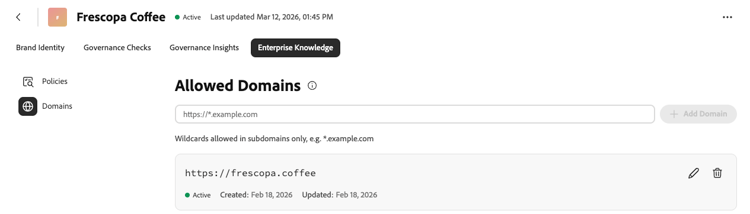
note important IMPORTANT Just like new brands, new domains are created with a default Draft status. To change this, edit your domain using the pencil icon and set its status to Active. -
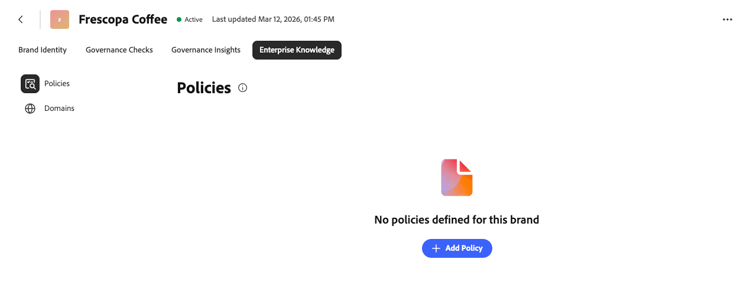
After configuring your brand, you can add a brand policy by opening the brand, selecting Enterprise Knowledge, then Policies, and pressing + Add Policy.
-
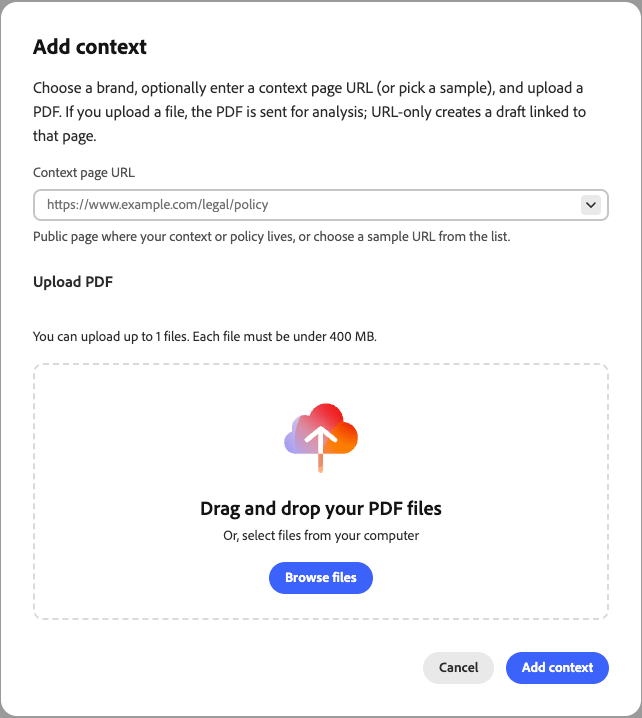
Pressing + Add Policy opens the Add context dialog, where you provide the actual policy content: a Context page URL, a PDF document, or both:
- Context page URL — Specify the public page where the relevant context or policy is available.
- Upload PDF — Upload a PDF containing the brand guidelines or policy information that you want to add to the brand’s Experience Context.
Select Add context to start processing the information.
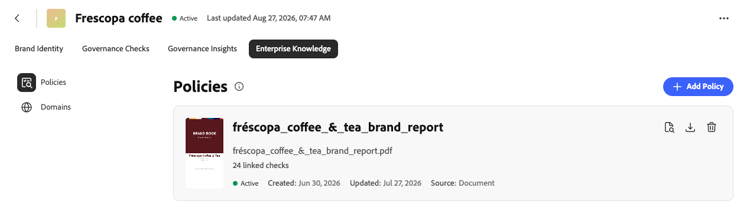
The Governance Agent analyzes the submitted document or page using natural language, and extracts the checks obtained from it, translating them into actual tasks. This processing can take some time; you can return to the Policies view to check the status. Once processing is complete, the policy is displayed with its status and the number of governance checks linked to it, as shown below:
For details on how checks are created, categorized, and managed, see the Checks section of Experience Context.