Service pack updates for Development environments (private beta) stage-prod-only
Learn how you can initiate service pack updates for Development environments through the Cloud Manager user interface.
Overview service-pack-updates-overview
You can initiate service pack updates for Development environments through the Cloud Manager user interface. This feature lets you check for available service pack updates and manage the installation process independently.
Key benefits
- Provides greater control over Cloud Manager service pack updates.
- Reduces dependency on Adobe Customer Success Engineers (CSEs) for initiating updates.
- Tracks the entire update process through Cloud Manager.
Current limitations
- The self-service update option is only available for Development environments.
- Limited error reporting is available for failed updates.
- If issues arise, you must contact Adobe CSEs for further investigation.
Initiate a service pack update
-
Log in to Cloud Manager with Deployment Manager privileges.
-
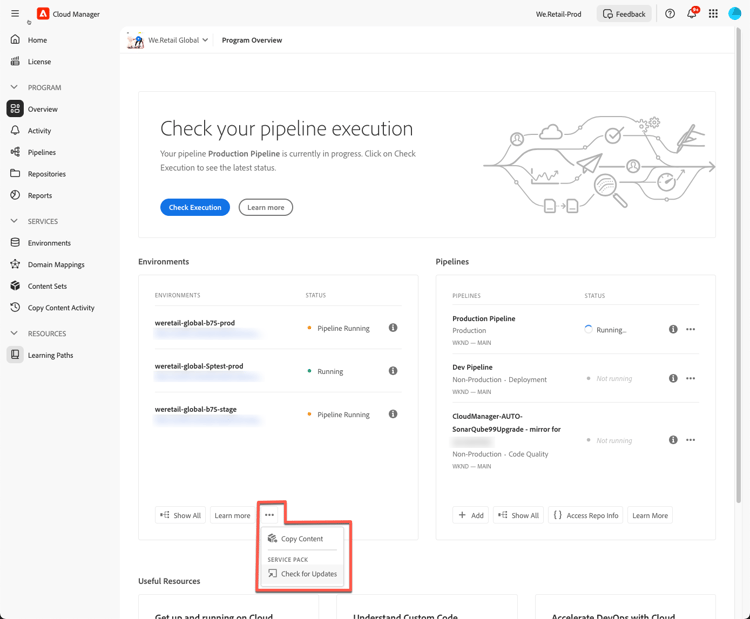
Navigate to the Program Overview page.
-
Under the Environments section, click

-
From the drop-down menu, click

-
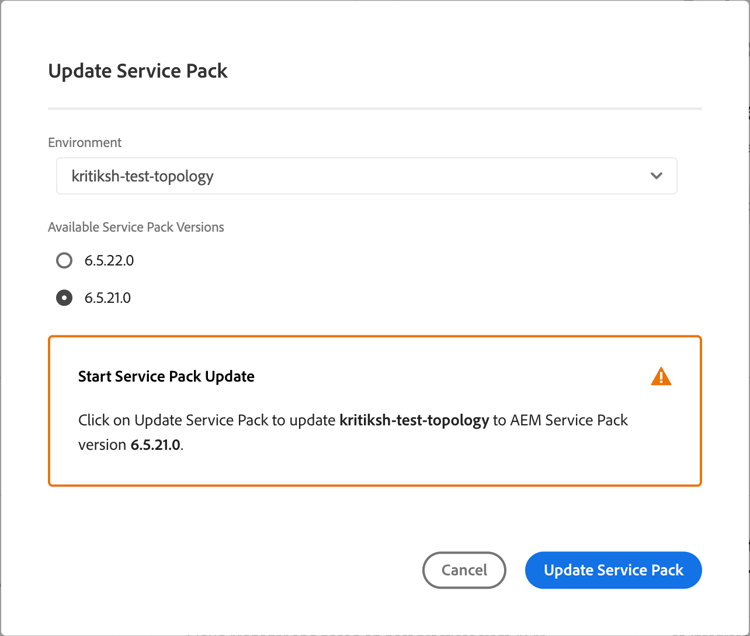
Click on the desired service pack version from the list.
-
Click Update Service Pack to begin the update process.
-
In the confirmation dialog box, review the details and confirm the update.
Once confirmed, the installation process starts, and progress can be tracked in Cloud Manager.
Track the service pack update
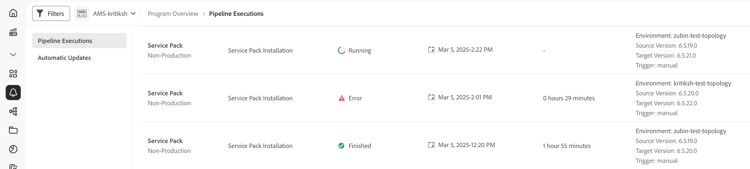
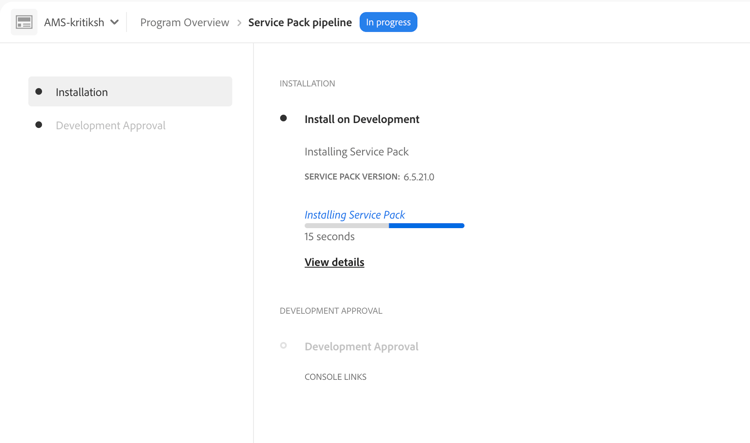
After initiating the update, you can monitor the progress in Cloud Manager’s Activity Page.
To track the service pack update:
-
Navigate to the Activity Page from the Cloud Manager dashboard.
-
Look for the Service Pack Installation entry.
-
Click on the entry to view detailed progress and status updates similar to the following:
Troubleshoot installation failures
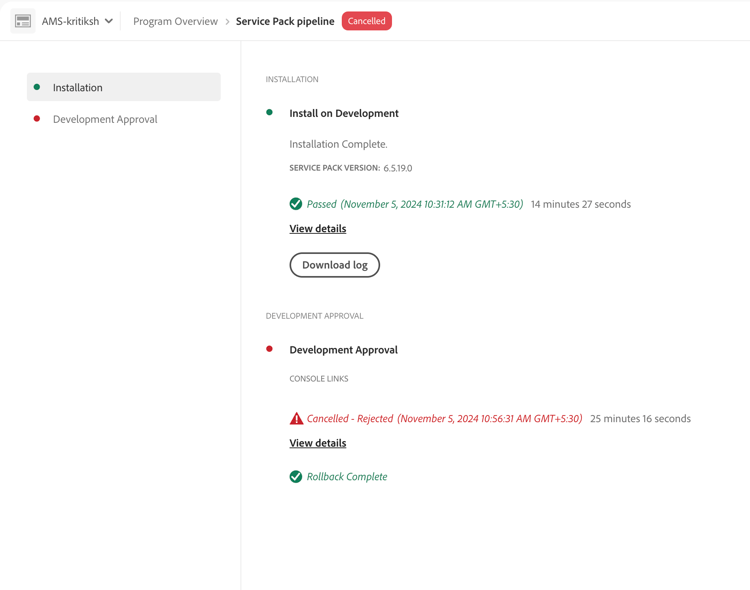
- If the installation fails, Cloud Manager automatically triggers a rollback to the previous state.
- If issues persist, click Download log to collect error logs, then contact Adobe Support for troubleshooting.
Approve or reject the service pack execution
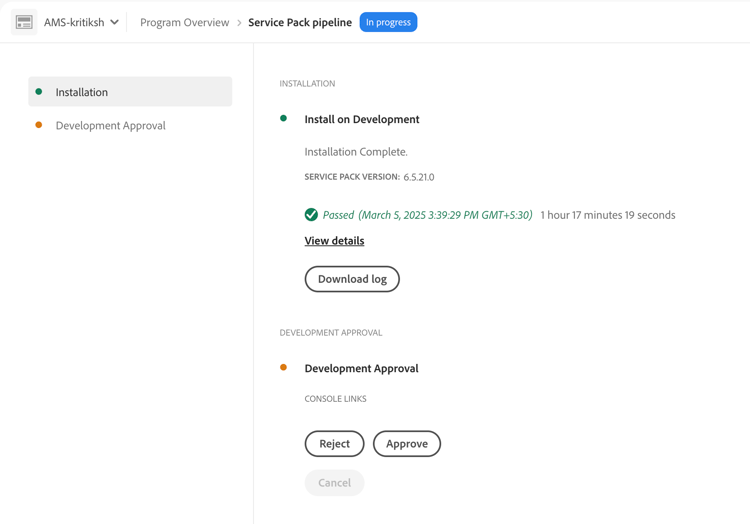
Once the installation completes, your approval—or rejection—is required to finalize the update.
To approve or reject the service pack execution:
-
Open the Activity Page in Cloud Manager.
-
Locate the pending approval request for the service pack update.
-
Do either one of the following:
- To finalize the update, click Approve.
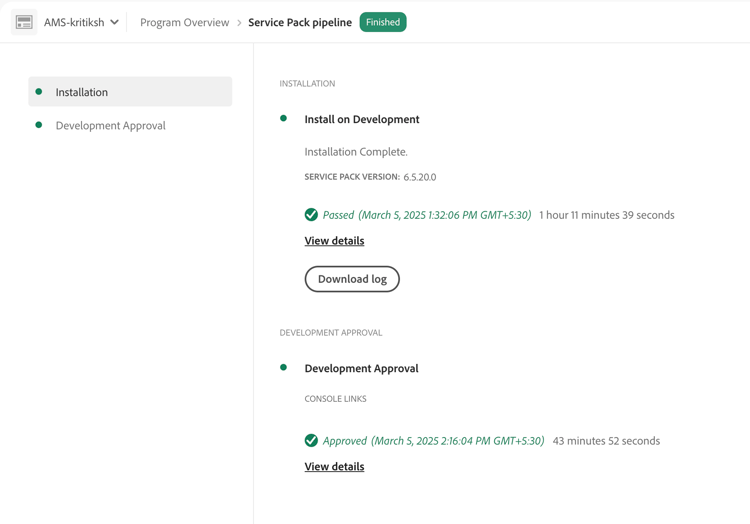
- To cancel the update, click Reject.
The service pack installation is canceled, and no changes are applied.