C2PA metadata in Experience Manager Assets c2pa-metadata
Brands are more concerned than ever about content transparency, AI disclosure, and preventing the tampering of assets. The Content Authenticity Initiative (CAI) at Adobe builds tools compliant with the Coalition for Content Provenance and Authenticity (C2PA) technical standard. C2PA metadata, a new kind of tamper-evident metadata, help viewers understand the lineage of content and ensure the integrity of brand assets. They can include a wide range of provenance data that offer insight into the history of a digital asset.
This information includes:
- Issuer or Signer: Information about the entity or company that issued the digital signature for the asset.
- Issue Date: The date on which the C2PA metadata was applied to the asset.
- Process: Records of any edits or modifications made to the asset.
- Device Details: Information about the app or device used to create or edit the asset.
- AI Tool Used: If generative AI was used to edit or create the asset, the name of the model used is included.
- Other Pertinent Information: Additional data that offers more context about the history of an asset.
For more information about an asset’s history, see Verify.
Adobe Experience Manager Assets detects C2PA metadata when you upload or update an asset, flags those assets in the Assets user interface, and keeps Gen AI disclosure intact on the renditions that Experience Manager generates. Whenever Experience Manager creates or modifies a rendition of a Gen AI asset, such as a thumbnail, a web rendition, a watermarked copy, or a video transcode, Experience Manager signs that rendition with a new C2PA metadata that references the original asset as its parent. Renditions that you download, publish, or share keep their provenance.
Prerequisites Prerequisites
Content Credentials support requires Adobe Experience Manager 6.5 LTS Service Pack. On Service Pack 6.5.3.LTS, install AEM 6.5 LTS SP3 – C2PA GenAI compliance hotfix.
Supported formats and platforms supported-formats
Formats formats
Experience Manager signs renditions in the formats that C2PA specification supports for embedded manifests.
image/jpeg, image/png, image/gif, image/tiff, image/x-adobe-dng, image/webp, image/jxl, image/avif, image/heic, image/heif, image/svg+xmlvideo/mp4, video/quicktime, video/x-msvideoaudio/mpeg, audio/mp4, audio/wav, audio/flacExperience Manager also recognizes common aliases, such as image/jpg, image/pjpeg, image/x-png, and video/mov. Experience Manager checks every uploaded asset for a manifest, regardless of the file format. Renditions in other formats, such as PSD or EPS, are not signed.
Platforms platforms
C2PA metadata support relies on a native C2PA component that ships inside the cq-dam-core bundle, with one build for each supported platform. When the service starts, Experience Manager extracts the build for your platform (adobe_c2patool, or adobe_c2patool.exe on Windows) to the bundle’s private data folder, checks the SHA-256 checksum, and runs it as a separate process. You do not need to install anything or change PATH.
x86_64, aarch64x86_64, aarch64 (Apple silicon)x86_64This works the same on Adobe Managed Services and on premises deployments. Make sure the Experience Manager process can start this executable. If you use noexec mounts, antivirus, or endpoint security software, allow adobe_c2patool to run from the crx-quickstart folder. Otherwise, C2PA metadata support fails to start.
How C2PA metadata works how-c2pa-metadata-works
C2PA metadata support has two parts: detection when an asset is uploaded or updated, and re-signing whenever Experience Manager generates or modifies a rendition.
Workflow configuration workflow
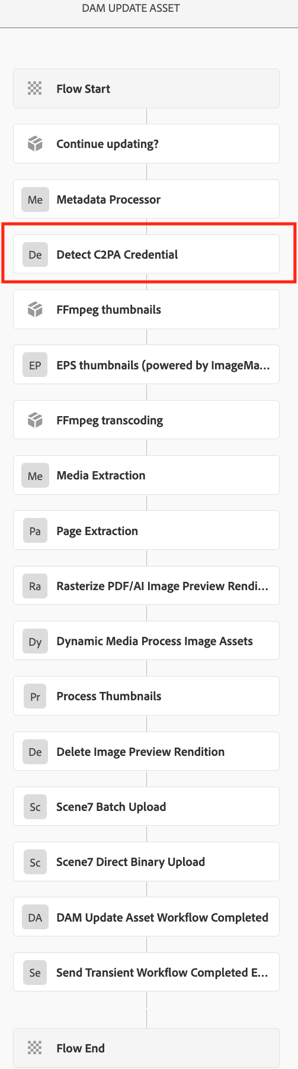
The Detect C2PA Credential step shown in Detect C2PA metadata is part of the default DAM Update Asset workflow model. If you use a custom copy of that model, add the step yourself:
- In the Experience Manager interface, navigate to Tools > Workflow > Models, and open your model in

- Add the Detect C2PA Credential step after Metadata Processor, before any step generates the renditions.
- Select Sync to save the model.
Rendition steps sign their output only if detection has already run on the asset. If detection runs after them, their renditions stay unsigned until the workflow runs again.
Detect C2PA metadata detect
The DAM Update Asset workflow includes a Detect C2PA Credential step which runs after the Metadata Processor step as shown in the figure below. It reads the original binary of the asset and records the result in the asset’s metadata node jcr:content/metadata.
The following table lists the key metadata properties in the C2PA metadata workflow.
dam:hasC2PAManifestbooleantrue, if the original binary has an embedded C2PA manifest. It is always written.dam:isAiGeneratedbooleantrue, if the manifest puts the asset in scope for Gen AI labeling. It is written only when a manifest is present.dam:c2paValidationStatestringTRUSTED, VALID, INVALID, or UNKNOWN. It is written only when a manifest is present.When a manifest is present, Experience Manager also stores it as the c2pa-manifest.json rendition (application/json).
If you replace the original asset with a binary that has no manifest, the next workflow run sets dam:hasC2PAManifest to false and removes dam:isAiGenerated, dam:c2paValidationState, and the c2pa-manifest.json rendition.
View C2PA metadata in the Assets user interface view-c2pa-metadata
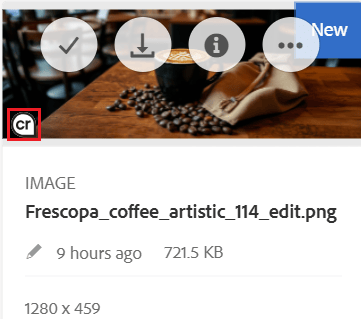
Assets that carry C2PA metadata display the cr (C2PA metadata) badge in the Assets user interface. Navigate to Assets > Files and look for the badge in the lower-left corner of:
- The asset thumbnail in Card View.
- The asset thumbnail in Column View. Select the asset to show its thumbnail.
- The preview area of the asset details page.
The cr badge shown in the following figure indicates whether an asset contains C2PA metadata. It does not show the manifest itself. To view the complete manifest, download the asset, and open it in Verify.
Experience Manager stores the detected manifest as a c2pa-manifest.json rendition on the asset. This rendition is internal. It does not appear in the Renditions panel of the asset details page or in the rendition picker.
Sign renditions sign-renditions
A rendition is a new binary, so the manifest embedded in the original asset does not cover it. To keep Gen AI disclosure intact, Experience Manager signs every eligible rendition as the last step of the process that produces it. The new C2PA metadata:
- References the original asset as its parent ingredient.
- Records how the rendition was derived from the original asset, as one of the C2PA actions
c2pa.resized,c2pa.transcoded, orc2pa.edited. - Names
Adobe Experience Manageras the software agent.
Experience Manager signs a rendition only when all of the following are true:
- The source asset has
dam:isAiGeneratedset totrue. Assets that carry a manifest but are not generated through AI still shows the cr badge, but Experience Manager does not re-sign their renditions. - The source manifest is readable and its validation state is not
INVALID. Experience Manager never chains a new signature onto a manifest that failed validation, for example, after the asset was tampered. - The rendition format supports an embedded C2PA manifest. For more information, see Supported formats. Experience Manager skips the unsupported formats without an error.
The following steps of the DAM Update Asset Workflow Completed workflow shown in Detect C2PA metadata sign their output.
c2pa.resized and c2pa.transcoded when the format changes.c2pa.resized, c2pa.transcoded, or c2pa.editedc2pa.resized and c2pa.transcodedc2pa.transcodedcqdam.preview.png)c2pa.transcodedThe following workflow processes also sign their output when you use them in the DAM Update Asset Workflow Completed workflow, in another workflow, or in a custom workflow model. Select them in the Process Thumbnails list of a workflow step as shown in Detect C2PA metadata.
c2pa.resized and c2pa.transcoded when the format changes.c2pa.resized and c2pa.transcoded when the format changes.c2pa.resized, c2pa.transcoded, or c2pa.editedc2pa.editedc2pa.transcodedc2pa.editedProtect the original binary during XMP writeback xmp-writeback
XMP writeback rewrites the original binary, which breaks its embedded manifest. For assets with dam:hasC2PAManifest set to true, Experience Manager changes the behavior of the XMP Writeback Process step of the DAM Metadata Writeback workflow as follows:
- Gen AI assets (
dam:isAiGeneratedistrue): Experience Manager writes the XMP and then re-signs the original binary, with the pre-writeback binary as the parent. It saves the writeback and the new signature together. If re-signing fails, it discards both and fails the step. - Other assets that carry a manifest: Experience Manager skips XMP writeback and logs the reason. The original binary and its manifest stay unchanged.
Signing mode signing-mode
Experience Manager signs renditions locally, on the instance that produces them, with an ephemeral, self-signed certificate that it generates itself. Signing needs no network access and no certificate or private key configuration.
Configure C2PA metadata configure
C2PA metadata support is enabled by default. You do not need to install or configure anything.
OSGi configuration osgi-configuration
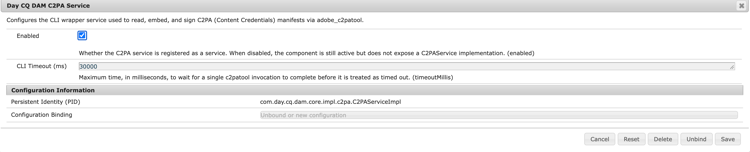
To change the default configuration, configure the Day CQ DAM C2PA Service (PID com.day.cq.dam.core.impl.c2pa.C2PAServiceImpl) in Configuration Manager at https://[aem_server]:[port]/system/console/configMgras shown in the figure below, or add an OSGi configuration to your project. For more information, see Configure OSGi.
The table below lists the properties in the OSGi configuration of your project.
enabledtruetimeoutMillis30000For example, add an OSGi configuration at /apps/<your-project>/config/com.day.cq.dam.core.impl.c2pa.C2PAServiceImpl.config.
enabled=B"true"
timeoutMillis=L"60000"
Turn off C2PA metadata support disable
In the Day CQ DAM C2PA Service configuration shown in OSGi configuration, disable the Enabled option, and then save the changes. The change takes effect immediately without a restart:
- The Detect C2PA Credential step shown in Detect C2PA metadata becomes non-operational.
- Workflow steps create renditions without signing them.
- Assets processed earlier keep their
dam:hasC2PAManifestproperty and still show the cr badge.
Customize the processing pipeline customize
To add, remove, or reorder steps in DAM Update Asset and still keep the Gen AI disclosure intact, follow these rules:
- Run detection first. Keep Detect C2PA Credential ahead of every step that creates or modifies the renditions.
- Sign last. Any change to a binary after signing invalidates its signature. Do not run steps that modify a rendition after the step that signed it.
- Use steps that sign. The built-in steps listed in Sign renditions sign their output. Custom steps and third-party tools that you run through anything other than the Command Line process does not sign their output unless signing is explicitly added. For more information, see Process assets using media handlers and workflows.
- Do not modify the original in place unless the step re-signs it, as XMP Writeback and Image Watermarking Process do.
Sign renditions from a custom workflow step custom-step
Custom workflow steps that produce renditions can sign them through the com.day.cq.dam.api.c2pa.C2PASigner OSGi service. It applies the same eligibility rules as the built-in steps but reports the result as a C2PASigningOutcome instead.
import java.util.Collections;

import org.osgi.service.component.annotations.Reference;
import org.osgi.service.component.annotations.ReferenceCardinality;
import org.osgi.service.component.annotations.ReferencePolicy;

import com.day.cq.dam.api.Asset;
import com.day.cq.dam.api.Rendition;
import com.day.cq.dam.api.c2pa.C2PAAction;
import com.day.cq.dam.api.c2pa.C2PAConstants;
import com.day.cq.dam.api.c2pa.C2PASigner;
import com.day.cq.dam.api.c2pa.C2PASigningOutcome;

// Inside your WorkflowProcess implementation:

@Reference(cardinality = ReferenceCardinality.OPTIONAL, policy = ReferencePolicy.DYNAMIC)
private volatile C2PASigner c2paSigner;

private void signRendition(Asset asset, Rendition rendition) {
    C2PASigner signer = c2paSigner;
    if (signer == null) {
        return;
    }
    C2PASigningOutcome outcome = signer.signIfEligible(asset, rendition,
            Collections.singletonList(
                    new C2PAAction(C2PAConstants.ACTION_RESIZED, C2PAConstants.SOFTWARE_AGENT, null)));
    if (outcome == C2PASigningOutcome.FAILED) {
        // Log, retry, or alert an operator.
    }
}
Call signIfEligible only after your step has finished writing the rendition. The OSGi service provides the methods as listed in the table below.
signIfEligible(Asset, Rendition, List<C2PAAction>)signIfEligible(Asset, Map<Rendition, List<C2PAAction>>)captureResignState(Asset)null if the asset is not eligible.resign(Asset, Rendition, List<C2PAAction>)discardResignState(Rendition)The values of C2PASigningOutcome are mentioned in the table below.
SIGNEDSKIPPED_SOURCE_NOT_AI_GENERATEDSKIPPED_FORMAT_NOT_ELIGIBLESKIPPED_MANIFEST_UNREADABLESKIPPED_MANIFEST_NOT_VALIDSKIPPED_SERVICE_UNAVAILABLEFAILEDTo check eligibility before generating an expensive rendition, call C2PASupportedFormats.isEligible(...).
Troubleshooting troubleshooting
When troubleshooting, set the following loggers to DEBUG in Apache Sling Logging Logger Configuration.
com.day.cq.dam.core.impl.c2pa: extraction of the native C2PA component, manifest reads, and signing.com.day.cq.dam.core.process.DetectC2PACredentialProcess: detection.
adobe_c2patool cannot be extracted or marked as executable.crx-quickstart folder.GLIBC_2.xx not found.INVALID, or detection ran after the rendition step.dam:c2paValidationState and the rendition format. Move Detect C2PA Credential ahead of the rendition steps.Limitations limitations
- The Assets user interface shows only whether a C2PA metadata is present. It has no panel for the manifest details.
- Experience Manager re-signs renditions only for assets generated through AI. Renditions of other assets that carry a manifest are created without a C2PA metadata.
- Experience Manager signs with an ephemeral, self-signed certificate. Custom or organization-specific signing certificates are not supported.