Creating a profile dimension creating-a-custom-profile-dimension
Reports can also be created and managed based on profile data created during the recipient schema extension.
Step 1: Extend your recipient schema extend-schema
To add a new profile field, you need to extend your schema, follow the steps below:
-
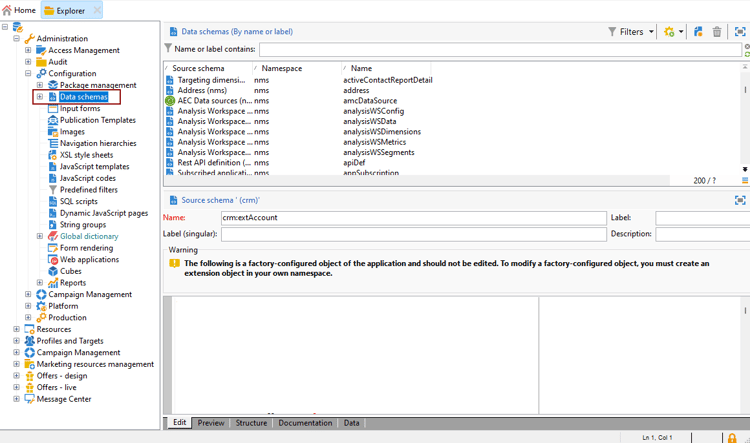
Navigate to the Administration > Configuration > Data schemas folder in the Explorer.
-
Identify your custom recipient schema and select it. If you have not yet extended the built-in nms:recipient schema, refer to this procedure.
-
Add your custom field to the schema editor.
For example, to add a Loyalty custom field in your recipient schema:
code language-none <attribute label="Loyalty" name="loyalty" type="string"/>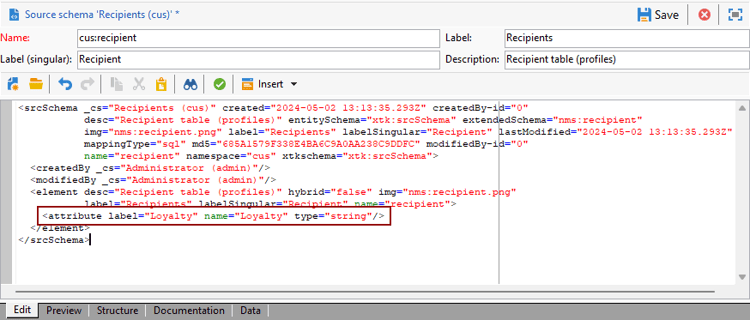
-
Click Save.
-
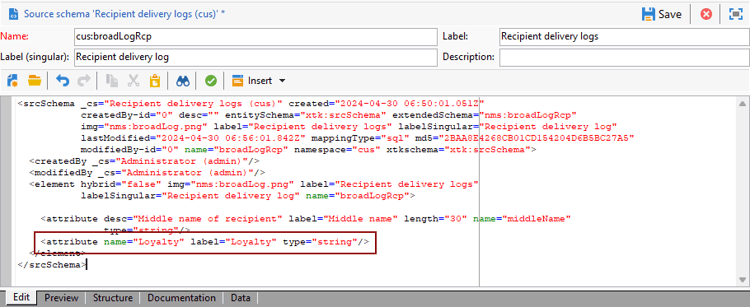
Then, identify your custom broadLogRcp schema and select it. If you have not yet extended the built-in Delivery log schema, refer to this procedure.
-
Add the same custom field as your Recipient schema to the schema editor.
-
Click Save.
-
To apply the modifications made to the schemas, launch the Database update wizard via Tools > Advanced > Update database structure and run the Update the database structure. Learn more
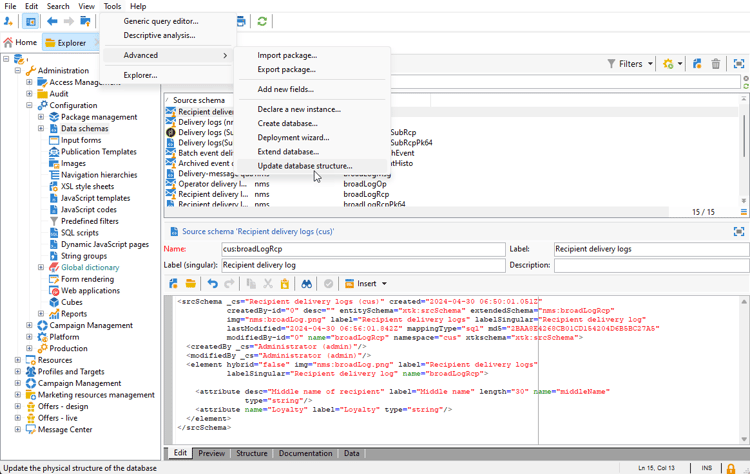
Your new profile field is now ready to be used and selected by your recipients.
Step 2: Link your new custom field link-custom
Now that your profile field is created, we need to link it to the corresponding Dynamic reporting dimension.
Before extending the log with our profile field, make sure that the PII window was accepted to be able to send PII data to dynamic report. For more on this, refer to this page.
-
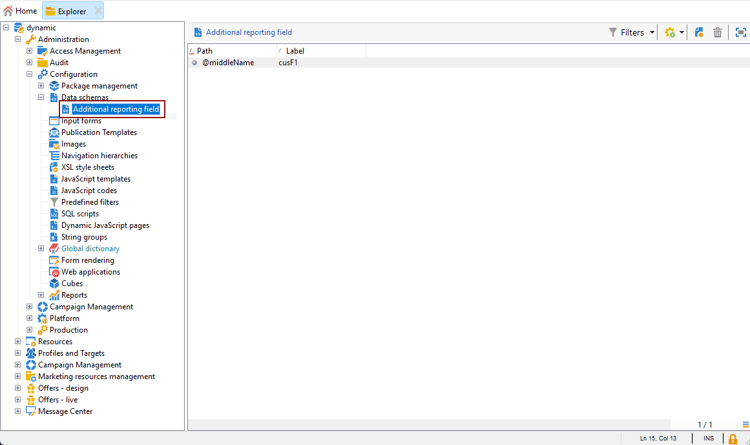
Navigate to the Administration > Configuration > Data schemas > Additional reporting field folder in the Explorer.
-
Click New to create your corresponding Dynamic reporting dimension.
-
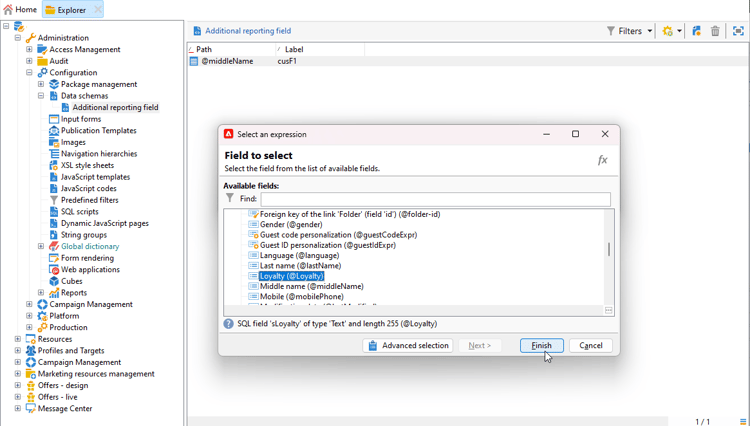
Select Edit expression and browse through the Recipient schema to find your previously created profile field.
-
Click Finish.
-
Type-in your dimension Label, visible in Dynamic reporting, and click Save.
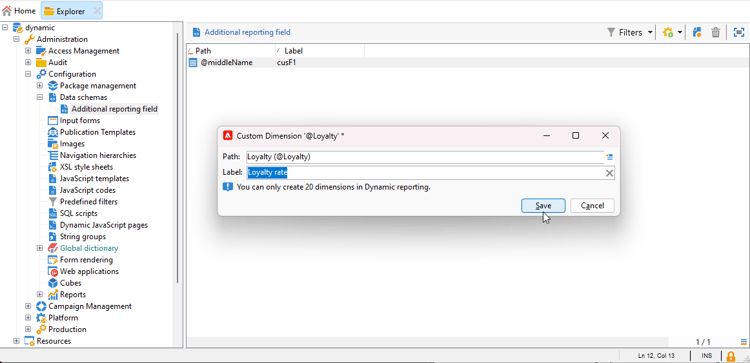
Your profile field is now available as a profile dimension in your reports. To delete your profile dimension, you can select it and click the Delete icon.
Now that recipient schema has been extended with this profile field and your custom dimension created, you can start targeting recipients in deliveries.
Step 3: Create a dynamic report to filter recipients with the profile dimension create-report
After sending your delivery, you can breakdown reports using your profile dimension.
-
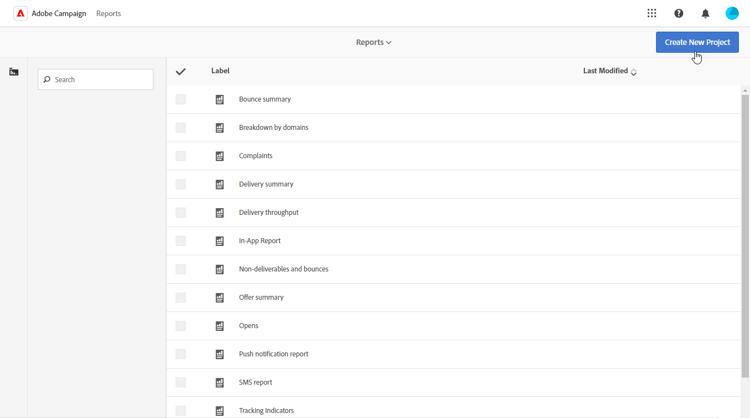
From the Reports tab, select an out-of-the-box report or click the Create button to start one from scratch.
-
In the Dimensions category, click Profile then drag and drop your profile dimension to your freeform table.
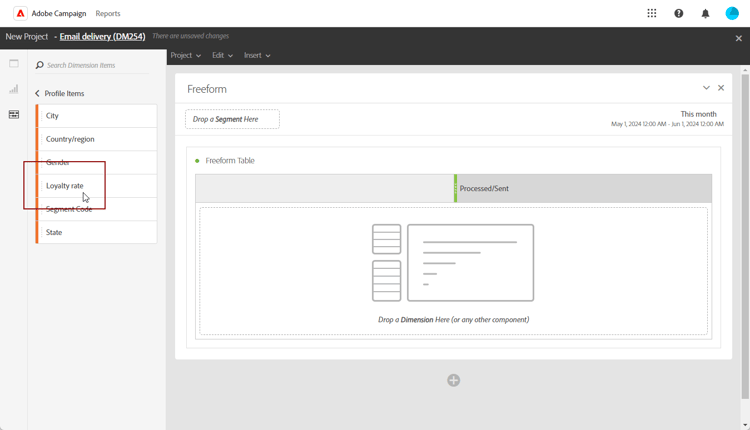
-
Drag and drop any metrics to start filtering your data.
-
Drag and drop a visualization in your workspace if needed.