Ask the Expert - Supercharge Basic Text Mode Reporting using the API Explorer
Learn about the API Explorer, how to use it, and how to enhance your reports leveraging basic text mode. This webinar was recorded on January 22, 2020.
Hello, everyone. Welcome to our Workfront Wednesday Ask the Expert workshop. Today, we will learn about the API Explorer, how to use it, and how to enhance your reports leveraging basic text mode. Before I introduce our speaker, a few housekeeping items to cover. Number one, there is no dial-in. Audio is broadcast via your computer speakers. If you’re having trouble hearing us, please ensure your computer speakers are not needed and that you’ve selected the proper audio output channel in your computer settings and preferences. If you’re having difficulty hearing or seeing the presentation, please ensure Flash is enabled in your browser. And if not, do so now and then refresh your page. Today’s content assumes that you have completed our report creation course via Workfront Ascent. If you haven’t done this, that’s OK. Please stay. I know you can visit this training afterward. Chuck will begin with the presentation. Upon conclusion of the presentation, we will shift to question and answer, where you’re free to post any questions you may have into your chat window, related or unrelated to today’s topic. You may remember that we invited you to send questions ahead of time, which is where we’ll begin, followed by one submitted via today’s chat. We’re joined by two additional experts in our chat area, Adam Millet and Nicole Vargas, both veteran Workfront reporting experts. We’ll answer questions live on air via chat or after the webinar via email, depending on the complexity of the questions. And any that we’re unable to answer live will be addressed after the webinar and posted, along with our recording, to the Download Resources link for this workshop in our newly launched workshop recordings page in the Workfront Experience training site. And Chuck will demonstrate where this is during the presentation if you didn’t catch all that. Finally, any other questions can be posted in the Q&A at any time. And with that, I’d like to introduce Workfront Senior Learning Program Manager Chuck Middleton. Chuck, take it away. Thanks, Cara. Today, we’re going to talk about using basic text mode in reporting. Text mode is the programming language used to create reports in Workfront. It’s created automatically by the report builder whenever you create a filter view or grouping. You can take a peek at text mode in the report by clicking on Switch to Text Mode wherever it appears. We have a class called Advise. It’s a class that’s called the Webinar. We have a class called Advanced Reporting, which spends hours going into detail about how to use text mode. The term basic text mode has recently become popular in our Workfront Wednesday blogs. There are several blogs in here that have to do with text mode. This was done in response to customer requests about how to do something quick and useful using text mode without the need to spend hours learning about it. So now in this webinar, we’re introducing some additional helps that we’re calling Supercharged Basic Text Mode. It’s still basic text mode, but we’re going to give you some more gold nuggets that will help you do even more useful things. We’re going to introduce you to a tool called the API Explorer and explain how to use it in a user view example that I think you’ll find useful or at least educational. And then we’re going to open up the rest of the hour for questions. Please submit any questions you may have at any time during the webinar. Anything we don’t answer in this hour, we’ll finish answering in the next couple of days and post them here in the workshops recording page. This is where you can find answers to all the Q&A questions from our previous webinars. Just click here on the Download Resources link to see them. Now let’s look at the API Explorer. You’ll need to click here to go to the API Explorer.
And once you get here, I suggest you bookmark it. Now we can type in the name of the object we want to look at. So we want to look at a user object here. Click User, and it’s going to show us all the fields that are associated with the user object. So if we go here and take a look at a user profile of this guy, Bill Engineer. Go down to Resource Planning. We can see that he has several job roles. He has a primary job role, and he has some other job roles. So back to the API Explorer, this role ID is associated with the main user object, and it’s the primary job role. This tab lists all the fields in the user object. Most of these fields show up in the Report Builder UI. They’re considered the most common ones. The other less common fields are found here and can be used in text mode. So we found the ID of the primary job role, but what if we want to see the name of the role? That’s contained in the job role object, which is here in the References tab. So just like we have all the fields in the Fields tab, we have references to other objects that are associated with the user object here in the References tab. And if we want to see the primary job role, it’s right down here called Job Role. We can open this up, and then we have a link to the job role object. We link to the job role object. We get here to the fields in the job role, and one of those fields is name. So this is how we’ll get the name of the job role. Go back to the user object again. Now, some of these objects are optional, like the job role, but if the job role has been added to a user, there will be a link to the job role object as well. Well, what about those other job roles? They’re going to be listed in a collection. So here we have a list of collections. On the Collection tabs, we have groups of things that are basically a list. Each of them is a list of as many of those things as there are. So there’s a list down here of user roles. So this is an object. And if we click on this, now we can see that there are three fields in here. There’s the role ID, the time percentage, and the user ID. But if I want to find the names of these job roles, I’ll look in references. References, I’ve got two things here. So one of these references, the role object for a particular job role on the list, and the other references, the user, that that job role is assigned to. So there’s going to be one of these user role objects created for each job role that’s assigned to a user. References and collections don’t contain all the same objects. But if you want to know what they do contain, this is how we find out. We’re exploring right now. One reason I’m doing this is to show you how to explore in the API Explorer. And the other reason is because what we’ve just discovered is going to be very useful in the examples that we’re going to create today. Now let’s go to the examples. So here’s a user view that I created. Some of you might have already seen this. It was featured in a Workfront Wednesday Did You Know blog last September. The title was Use Text Mode to Create a Detailed User View. Here we go.
We’re going to use this view and focus on the Job Roles column that uses a collection. Now I’m going to refer to several articles and help articles and things like that as we go along here. You’ll see them on the screen, but I’m also going to put them in that document resources area that I showed you. So you’ll have a list of all these links. So make it easy to find. As you can see here, there are several columns that use a collection, like all job roles, all teams, all groups, and direct reports. Since one of these job roles is the primary job role, we also have a column here to see what the primary job role is. You’ll notice that it’s not always the same as the job role on the top of the list. So a primary job role column is kind of handy. The same thing applies with teams. You can be on many teams, and one of them can be your home team. In the blog, you can find out the steps to build this whole user view. But we’re going to get into a lot more detail than the blog does today. We’ll start by looking at the primary role. So we’ll go to Customize View.
And even though we’ve got primary role in here, I want to show you how we built that. So we’re going to click on Add Column.
We’re going to go down here to Job Role and Name.
And you notice it gives us Job Role Name as the default name. And we want to change that to primary role, so it makes a little more sense. So we can click on Advanced Options up here, and we can make that change.
Now let’s select it again and click on Switch to Text Mode. Remember how the object is called Job Role in the Report Builder? But when we switch to Text Mode, the text name for this object is just Role.
That’s the same as it shows us in the API Explorer. So it shows Job Role here as a name that we see in the Builder, and then over here, it shows the name that we’ll see in Text Mode. And you’ll notice that the name on the left is not always the same as the name on the right. As you can see, the name on the left is generally a little more readable, while the Text Mode name is normally only seen by programmers and brave people like yourselves who want to learn more about Text Mode. Another thing I’ll mention is the names on the right don’t have any spaces in them. So like you can see up here, they always start with a lowercase letter, and each word after that starts with a capital letter. This is known as CamelCase, and you might run across that term in a help article. So now you know what it means. There’s something else I want to point out in Text Mode. Notice how we reference the Role object. We see the object name, Role, followed by a colon, and then the field name. And the field name is name in this case. If I go to another column, such as the name of the user, you’ll see value field equals name. So name, again, is the field name, or it happens to be the name of this field name. There’s no object name here because we’re in a user view, and all the fields are in the user object unless we specifically note that we’re using another object like Role. And if we’re using another object, it’s got to be one of those objects in the Reference tab in the API Explorer. So let’s review what we’ve learned so far.
The API Explorer shows objects and their fields and other objects that they reference. The object names used in the Report Builder interface are not the same as what you’ll see in Text Mode, but the API Explorer will help you keep these straight. And an object can also have collections associated with it, and these can all be seen in the Collections tab. Now we’ll go back into our view in Text Mode, and we’re going to go take a closer look at this code that was just created by the Builder. So first, we see value field equals Role name. The value field line shows us what will be displayed in the column. You can see we’re getting the name from the Role object. This is what we saw in API Explorer. Query sort is also using the Role name. This is the field that’s going to be used to sort the column if somebody clicks on the column name. Value format equals HTML. This is the most common format for text, but you have other formats for things like numbers and percentages and dates. Now we’re going to jump down to the name key. So this is the default name of the column. It was the one that said job role colon name. It’s taken from a translation file. That’s what the word key means there. And in this case, job role name is showing up in English. But if our browser language is set to Spanish, it would have shown the Spanish translation of job role name. Now back up here to display name, this is a line that was added when we changed the column name there in the Advanced Options. So whenever this is present, it’ll override the name key. These other three lines we’re not going to be concerned with, so we’ll move on. So now that you know how the primary role column works, let’s take a look at the all job roles column.
So remember, we’re showing all job roles from a collection. We still have this display name field. So we’re calling it all job roles. Notice that we don’t even need to have the name field in here or the name key field. Now I’m going to talk about the rest of these lines in a little different order just to make it easier to explain. And by the way, you can include these lines in any order. Workfront will rearrange them as needed. So the next thing I want to talk about is this type line. Type equals iterate. This tells Workfront that we’re going to be doing iteration, meaning we’re going to iterate through a list of several things. When you’re doing an iteration, there’s a few other things that Workfront is expecting to see. One of them is this list method up here. List method identifies the collection that you want to reference. The actual collection name is this right here in parentheses after nested. Go back to look at the API Explorer. We go to collections. That’s this user roles. And of course, we’re always referencing it with this name over here on the right, the camel case name. Back over here, we’ve got the next thing is this list delimiter. This is going to tell Workfront how to separate each of these items in a list. We can put this code in here that says put each one on a new line. Or if we wanted to just put a comma there, it would put a comma in between each one. Then we’ve got value field equals role name. We aren’t interested in seeing the ID. We want to go into this list here in user roles. Remember, when we went into the list, we found that it contained a job role reference. And so it’s that job role reference that we’re getting into when we’re getting the name. So it’s got the name of role and name down here. That’s where we’re getting that. Value format equals HTML. We need to use HTML in order for it to recognize this code up here. You wouldn’t need HTML here. You could put string or something if you were just putting in a comma. And this last thing here, text mode equals true. This is added by Workfront automatically whenever you use text mode. So you don’t need to add it yourself. It’ll always just show up there. You can even delete it if you want, and it’ll put it back. There’s a few help articles that I’d like to just tell you about I think you’ll find useful. And we’ll reference some of these as we’re talking more. And again, I’m going to include all these links in the download resources link on the workshop recordings page. One of them is referencing collections in a report.
Other is understanding common uses of text mode. This is really, really excellent. And if you want to create the entire view, you can go to this use text mode to create a detailed user view blog. And it will give you all of the text mode code that you need. Kind of explains a little bit. And here’s the code you can copy right out of there to do the text mode for the job roles and for the teams and all the other things. So now that you know how to create iterations in text mode, let me introduce you to another text mode gold nugget. You can use this to create value expressions. You may already be familiar with calculated custom fields, where you can use a variety of expressions to create formulas, much like you would in Microsoft Excel. You can use these in text mode as well. So here’s another help article on calculated data expressions. And here’s expressions that you can use. There’s a whole big list of them here. And a concat statement. So let’s take a look at these. So anywhere that you have value field statement, you can replace that value field with something called value expression. And then you can put an expression in there, use these expressions to create something like you would in a calculated custom field.
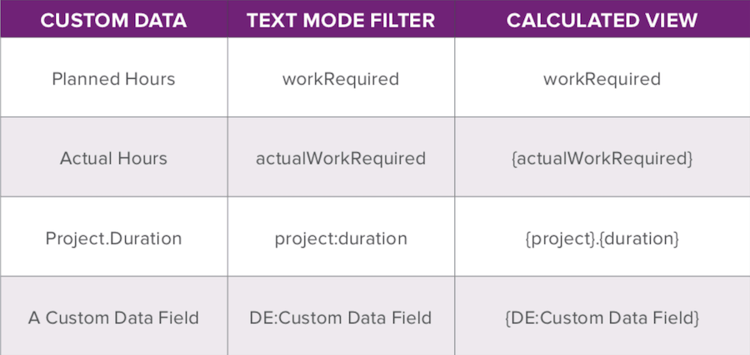
So here’s the expression we’re going to put in here. The way an if statement works is basically you have a condition here, and then you have a comma. Separates that from, OK, if this condition is true, then we have this next parameter, which is, in this case, a concat expression. It says this is what we’re going to do if this first expression is true. Or if this first condition, I mean, is true. And if it’s not true, then we’re going to do this last thing, the one in red. So what we’re doing here is we’re going to look and see if this particular name in our list, so we’re going through looking at all of the job role names, but we also have access to those other fields, like the job role ID. And we have access to the user object, which shows the role ID of the primary job role. So what we want to do is see if something is the primary job role, and see it in our list, we want to do something to it to make it stand out. And then we’ll know what the primary job role is without having to have that extra primary job role column. So it’ll give us a little more real estate in our view. So the way we’re going to do this is first we’re going to see if the user role ID, and let’s go back and, so remember when we were looking at the user roles collection, we saw here that there is two references, one job role and one user. So in the user object, we’ll look at the role ID of the primary job role. And in the job role object, we’ll look at the ID that the job role has. And if the primary role of the user is the same as the ID of this particular job role in the list, then we’re going to do this next thing, concat. And a concatenation just puts several strings together. In this case, we have something in double quotes, primary equals. And then the next part of our string is going to be taken from the name of that role. So we’re going to go to that where we found the role ID, and we’re going to get the role name. Now, if it’s not the primary role, then we’re going to do this third thing. We’re going to just put the role name in. Now, you might notice that this looks a little bit different than a calculated custom field. Well, first of all, we’re using these camel case field names, because this is in text mode. Then there’s another thing. Whenever you have something in a value expression, you’ve got to put these curly braces around the object reference and the field name reference. And then instead of putting a colon between them, you’re going to put a dot. Now, there is something you can use that kind of helps remember this. So this can help you remember it. And I’m going to put this in the Q&A area as well. Now, calculated view is another name for value expression. So as you can see, we’ve got just the name that you’ll see in the builder here in this example. And then if I’m using this in a text mode, like in a filter or something, I’ll refer to project duration as project colon duration. This is the camel case field names and the object name. And then when I’m using it in a calculated view, or value expression, I’ve just got these curly braces with a dot in between instead of a colon. So here’s where our final text mode will look like. Just put value expression in there in place of value field. And I also added a description field up here.
If you put in a description field, you can describe whatever you want. And it’s something that will show up when you hover over the column heading. I’ll show you what that looks like. So I got rid of the primary column. If I hover over this column, you’ll see where it says primary equals indicates user’s primary job role. That covers our presentation for today. Now, we’ll go ahead and take your questions.
Thanks so much, Chuck. As we mentioned at the start of the webinar, we’re going to go ahead and kick off with the pre-submitted questions. So on the screen for the next couple minutes is a quick summary. And it’s just updating a little bit slowly for me. So give me just one second. When using text mode, is it possible to use any collection in a report? Using text mode is the first point. Can you discuss conditional use of different collections in the same column, project updates versus task updates? Can you discuss if the task update collection is only possible in a task report? And can you share or discuss limitations that Workfront may have around formatting, for example, text formatting by a CSS? And can you discuss the standard structure of text mode, code, and different uses, filters, scripts, and views, which was partially addressed in the webcast today, but we’ll expand a little bit further. So Chuck, go ahead and take it away in whatever manner you want to tackle this one. OK, so we’ll start with the first one. I’m seeing these in the slides area, but I’m not seeing them in the audience view. I don’t know if anybody else can see them. Maybe we can let us know if it’s showing up and you’re able to see them or not.
I’m getting an affirmative, so I think we can proceed. OK, good. All right, so the first one. Is it possible to use any collection in a report using text mode? And so yes, anything in that collections area, you’re going to want to explore a little bit in it and see what it has inside there. Not everything has both the user object and the role object like we saw with the job roles, so you can’t necessarily reference all of that same information in every case. But when you go into Explorer and look at the collection and see what’s in there, you’ll know what you can do with it. And you’ll experiment with things and see.
Anyway, I encourage you to do a little experimenting too. That’s an important part of this. OK, and any follow up questions you have, be sure to put them in the Q&A, and Adam and Nicole will jump on them too. Next one, can you discuss conditional use of different collections in the same column? So yeah, that’s basically what I was just referring to. So when you’re in that iteration area there and you see that value field or value expression that we can put in there that we just talked about with that formula in there, that’s accessing one of the rows in that collection or one of the items in the collection. So it’s a list of items. In this case, it was job roles. And so when we’re using that value field, we can get the name of that job role, or we can put in that expression that says, OK, well show me the user ID and compare it to the, or excuse me, the user role ID and compare it to the role ID of the ID there. We’re just dealing with things that are within that particular job role item that we’re at at that time on the list. So then as soon as that displays, it goes to the next one in the list until it’s all through the list.
And the conditions that we want to put in there would just be with an if statement or a case statement or something like that.
Now let’s see, project updates versus task updates. So if you were doing this in a task, a task object can reference the project that it’s in. So you would be able to reference things from the project, native fields or custom data fields that are on the project that are associated with that particular task that you’re looking at in the list at that time. Hopefully that helps. Next, can you discuss if the task updates collection is only possible in a task report? So a task report, when you’re creating a task report, you can see other objects that are related to the task. So like if you were doing an issues report, you could see the issue might have been created on a task. And if it did, then you can reference that task. But you always go up a level to the thing that contains the task. In the collections, you see things kind of down a level that are associated with it. But you don’t have the amount of control to pick things out of that list. You’re just seeing them in an iteration as they go by. So the answer to that question would be it’s not only possible in a task report, but it’s only possible in a report that can reference the task information, like an issues report. In a project report, you wouldn’t be able to access the task information for all the tasks. Only whatever is included in that collection. Next, can you share text format CSS examples? So CSS is, I mean, we’ve got HTML that you can have for value format. And then it’ll recognize that HTML code, not in the value expression, but in that delimiter field. And you could put codes in there that would be recognized for HTML. I tried the same thing with CSS. I’ve never heard of that before. I asked Adam Millett about it earlier, and he hadn’t seen it actually used either. So I tested it, and it didn’t seem to yield anything. So that’s kind of part of the one way to know.
I also put in a request to the product team to see if there was any support for that or if there was anything planned. And so if I get a different answer on that, then I’ll include it in the Q&A area that you’ll see with the recording. Can you discuss the standard structure of text mode in different uses, such as filters and groups and views? So it’s very similar in groups as it is in groupings as it is in the views. And you can do value expressions in there whenever you have a value field. So you can apply a lot of what we’ve talked about there. I wanted to keep it still in the level of basic. I didn’t have enough time to get into all of these today, but I’m glad you asked the question, because you’ve got one of those areas there, understanding common uses of text mode. You can get a lot of information there about how to do filters and groupings and views. And so filters are a little bit different than groupings and views. And so I suggest you go to that article and get more information on that. And we might have other things, like maybe if you want to see a blog on Work for It Wednesday blog on that subject, please send an email to the email that was listed here for advanced questions. And get your request in there. OK. So I think now I’ll share my screen. Yep. And that will take it away into the open question and answer. So let’s start out with the topic of groupings. We’ve had quite a few questions. So I’m hoping we can combine a couple questions into one. So the idea would be, can you show an example for grouping with text mode? And maybe can you demonstrate whether or not it’s possible to group by all job roles? OK. Yeah. So the first part I’d like to answer is you cannot group by all job roles. You can only group by things that have one single answer to them. So any of the grouping, like I can group on home team because there’s only one home team. But on all teams, I can’t group. Because basically what you could do here is you could create a calculated custom field that contains a formula that puts things in an order that you want. So if I’m grouping by Chuck’s team, app team, dev team, agile team. So everybody has those teams in that same order, then I’d be showing those in a group. It’s going to prevent me from doing that in Workfront. But the workaround for that is doing it in a calculated custom field. But even then, it’s limited usefulness. Because if some of these are in a different order, they’re not going to be the exact match. So they would show up in a different grouping. So that’s the downside of grouping even with a calculated custom field for cases like that. Now, what was the first part of that question? Could you read that again, please? Just demonstrate some examples of grouping in text mode. Oh, OK. We did have, let me just see if I can find something in here that is a nice example. I think I have any. Just see what that one shows. And I guess while looking at that also in parallel address, while demonstrating grouping, can you sort groupings and subgroupings with their ability to sort? Yes, now sorting, if I sort any of these columns, and I can either do it in a report itself, or the user can sort manually by clicking on the top of the column, and it will use that query sort field that we looked at earlier. Whenever I sort something that is grouped, each grouping will be sorted within that grouping by that same sort order. And your groupings themselves will be sorted by that same sort order. So that’s the only way you can do sorting. So in a report, of course, because you have the view area as part of it, you can add a sort right in there. It has to be one of the columns that you have. Now getting into here, I’ll just move on to the other part of that question with text mode and a grouping, just so you can see here. So I can have others go ahead and add another grouping. And let’s see. Well, that’s kind of weird. So I’m going to just group by the city that somebody’s in, and then by the under by name, let’s say.
Now if I switch to text mode, so you see things are a little different. You have a group dot 0 dot that’s showing the leftmost grouping. And then you have the next one, second grouping here. And you’ve got, because you have the value field in here, you can change it to a value expression. And you can do some pretty clever things there. So you might want to have an expression that results in one thing, like maybe the second item in a list or something crazy like that. And so it’s going to yield one single result, so you can group by it.
So there’s some examples. I know there’s some good examples in the advanced reporting course, but I believe that you can find some really good examples in the help articles that I mentioned too, that one about understanding text mode. Other things you can do, we talked about this a little bit last time. Somebody said, hey, I don’t want to see the word city there. I want to change it to something else or just have it be blank altogether. If you change the group, if I take out the word key, it’s just kind of similar to doing a display name. It’s going to just take whatever I typed in here. And I’m just going to put the word the city in here for the name. And then if I save the grouping, it’ll say the city in here. And you know, where the city is something I could put on anybody with a city in this example. So those are kind of some of the things that you can see, you can kind of explore from there. And using those help articles, you can do quite a bit of neat things in the groupings area. OK, next question. Sure, before we entirely leave groupings and the concept of sorting and filtering and whatnot, are you able to filter where all groups contain a particular group? So you mean like, I think we’re talking about these groups. So if a certain group is among the list of all groups? I believe so. Kristen, if there’s more context you want to give, feel free to type that in. So that’s a good question. Maybe Adam knows the answer to this right off and can just answer that. And can just answer that one. If not, I’ll just play around with that a little bit and see if that’s possible. But I haven’t tried that before. So good question, though. We’ll defer that. Thanks, Kristen. We’ll come back in. Kristen did answer yes to your first. And she said yes, that’s correct. So Kristen, thanks for the question. We’ll be coming back to you after the webcast. OK. Going back in to the list. All right. Is there a way to conditionally display groupings based on the value? And can this be done by a text mode? So conditionally, so you’re talking about groupings here, not groups, right? So is there a way to conditionally display groupings? Oh, OK. So if what you’re saying is, can I just not display a grouping here, I mean, I could have something that, I can have that expression in here to figure out what this would say. So rather than saying enter by name, that’s really where it is. OK, so we’d have enter by name here. And I could look at this. I could see who the enter by name was. And I could change it. I could put in a value expression to change it. I don’t have the option to say, don’t include this grouping. But if I change it to something that was equal to another grouping, it would show up in that one. If you don’t have any answer, it’s going to put no value in here. So if there’s nobody that entered this, it’s a little strange. But this was, I haven’t had this thing for 10 years or more. So I’ve had a few changes. But no value is really what you’re going to get for any time that just doesn’t have anything to group on. It’ll still be a grouping, though. OK, great. And that was the detail that was added. The example was that there is no value don’t show. Yeah, yeah. That would be nice. Well, so what you do with that, by the way, if you’re in a report, you’ve got the filter here. So just filter it to say, hey, if there’s no value in name, I don’t want to see those things shown on my list. And then it will show up as a grouping. OK, thanks, Chuck. The next question comes from Janelle. And Janelle is asking, how do you know which parts in a value expression need to be changed to something from the API or a GUI? So everything that you see, so actually, if you’re doing a value expression and you want to see things kind of translated for you, if you can create those in some way and let the builder create it for you, that’s kind of a shortcut to going and looking it up in the API Explorer. API Explorer is really more for seeing, is there something in here that I can use that isn’t included in the report builder, or is there an association that I might want to take advantage of going up a level to those reference things or collections or whatever? Can you repeat the whole question, make sure I haven’t missed something here? Sure, I need to go back up to it. I had clicked down to get ready for our next question. Sorry. This is OK. And this chat window is not user friendly, just to be completely transparent there. So give me just a second to find it, because they go crazy once we click into them.
Oh my gosh. Give me a second. I’m going to come back to it. We can finish that. We’ll just defer that one and move on to another one. And we’ll put the answer in. All these will be answered in the next couple days. We’ll post that. So sorry about that. OK. Sure.
OK, let’s see here. Could you explain link properties, and are there any useful documents that explain how to format links? I’ll have to defer that question. We can look into that. Unless Adam can answer that one. Justin, we’ll come back to you after the workshop on that one, OK? All right, going back up. OK.
In relation to the documentation question, for example, there was a nested object name list that looks like a function message. Are there other functions and methods that can be used in text mode? So functions and methods.
So there’s lots of examples in here. And maybe when you’re saying functions and methods, they call these expressions here. Is that what you’re referring to? Because if it is, the expressions that you can use are this list here. And you see the same list if you went into a calculated custom field and you used one of the expressions there. They just make it a little easier for you to get them. OK. Kayden, I hope that helps. Let us know if you need more detail there, OK? All right, moving in.
Is there a parameter that can be used to format links? Is there a parameter to track incomplete assignments? Yes. So if you’re looking at, let’s go into a filter here.
And you want to see, actually, I think I’m in the wrong place. I want to be in a project here.
So the project task, all of these, if you’re creating a filter and you want to see if these are complete or have a status of complete, you’ve got this is complete here, which is a shortcut way of saying, is this totally complete? Because if you look at the other option for completeness, there’s actually more than a couple, but if you look at the status equals complete here, you’re only going to see things that actually have a status of complete. But you might have something like rejected, or in some cases you’ll have canceled, other kinds of custom statuses that equate to complete. And so here are the ways to do this. So status equates with complete would be one way to handle all those things that are either complete or equate with complete. And then is complete true? Now, I’ll have to check on this to verify it. I believe that it’s the same as this, but I’d have to test that out to be sure. And so we’ll do that later. Yeah. Yeah. Sylvia is sending in some additional details. So thank you for that, Sylvia. We’ll collect that and come back to you after the webcast. She’s sending some additional detail to you. OK, great. OK. We’re going to go back and clarify a statement that was made. So asking for clarification of when you say there is no way to change the grouping display name from no value to anything else we choose to call it for reporting purposes. In other words, it will always be no value. Is that true? Well, no. Actually, you can change that just the way I did it before. So if we were to go into a grouping, for instance, and let’s say, OK, so owner. If I wanted this to say, if there was no owner name in here, I’d want to change this, then I would go into this value field here, and I would change it to value expression. Actually, I would. Yeah, so. And then I would say, if and do these open brand, and then an open curly brace, and then go over here and do a close curly brace, and then the die expression, and then do a dot instead of a colon, and then do an open curly brace for here. And so if this was blank, then I could say something else. In fact, actually, I put in is blank here. If blank is owner name is blank, then I could say no owner, something like that. And if it wasn’t blank, then I’d want to say owner name.
So I don’t think I have any cases where I am not blank here, but I could.
But that’s what you would do anyway. And if I test this out and it doesn’t work, it’s because I goofed up on some little teeny weeny thing like parentheses being balanced. And if you played with text mode, you’d see that. So it’s giving me some of those screwy there. But anyway, that’s the way you would attack that. Thanks, Chuck. So we’re going to go back just a little bit and bring forward the best practice shared from Doug in the chat, as well as a question that results off of that. So Doug, thanks for sharing this. He says, Chuck, for conditional groupings, he’s found that a custom form, think quote, Western states, Central states, Eastern states, to decode the individual groups is a common technique that works well. But on that note, when do you recommend using calculated groupings versus calculated parameters? Yeah, excellent question. So yes, what you can do is you can put an if statement in a calculated custom field that would give you the region. And you would have in that if statement things like if the state that’s in your user object, for instance, is equal to California and Nevada. You just list a whole bunch of things in the Western region that you want to include in that. Then you would have this little string that would say Western region in that case. And then if not, you’d have a nested if statement. You could say, well, if it’s Missouri or a bunch of other things, then it’s Central region and those kinds of things. So then you would end up with, in the case of a calculated custom field, you would have one of those four or five whatever different regions as an answer. And you could group by that. Now, you could do the same thing in a calculated custom grouping in the value expression there. Now, the main reason that you would want to use a calculated custom field in your grouping is because a lot of times you’re using a grouping in a report so that you can create a chart with that. And text mode in the grouping area in a report is not recognized in the chart area of a report. But if you use the calculated custom field, that calculated custom field would be recognizable in the chart area of the report. So that would normally be a better place to do it, unless you had no such need. Thanks, Chuck. This next question comes from Brandon. Brandon’s asking, in the API, there is a user availability object. How do I run a report using those attributes? So in the API. So user availability attribute? In the API, there is a user availability object. Oh, object. And you can see how he runs a report. Oh, user availability. Oh, I see. Yeah. There are a lot of other things here. User availability.
Ah, here we go. So that’s a good question. So and these are actually questions, because as you can see, you’ve got to do some exploring here. So if this is an object that I could report on, then it would be in this report area here. So if I go to Reporting, and I click on New Report, I see Most Common Reports. And then the less common objects to report on are down here in this big, big, long list. So if I go down here to, OK, sorry. My alphabet’s straight here.
Doesn’t look like there’s anything for, there’s this user report here. There’s no other kinds like user availability report that is utilized there. So you wouldn’t have a user availability report. But if you found that user availability was something that you could reference from a user, then let’s see if it is.
I don’t see it there either. Well, that’s the one I already had open. OK. So it doesn’t look like it’s referenceable there. So some of these things, they’re available if you are using the API to get at things, but not in the reporting area. They’re used for maybe some of the reports that Workfront has that are static reports or that are built-in reports, I should say. Actually, built-in is not really a report. But if you go into things like resource management, they’ve got a bunch of reports in there. And they might utilize some of these objects in a way that are not open up to us in the report builder. And I kind of suspect that’s the case here. But again, Adam can put another answer in there. Or we’ll revisit this and see if I can give you a little more information afterwards. Thanks, Jack. Next question comes from Gideon. And they’re asking, I need a value expression of a secondary task and the sum of the results in a respective primary task. Can I do it? So if you’re looking at a secondary task, meaning this is a subtask of a parent task, which is the primary task, that’s what I assume you mean. So in a C, anything in that parent task object, but you cannot look down at the subtasks other than there’s a collection of them probably that would show you what they are all named. And you can utilize that for some things. But you’re not going to get a bunch more information in there. So let’s see. I’m looking at tasks. Well, yeah. So there are subtasks in here.
But going up a level to the parent task, that’s what you’re seeing here. It’s a task object. You can get everything in there. And you can go up a level to it. And you can go up a level to it.
So as long as you start at the lowest level subtask that you want, you can go up higher things. And the parent task, because it’s a task object, has a parent of its own. So you can go up several levels of parent. You can see the parent is a parent is a parent. And there’s a limit on how many levels you can go in a view. I think it might be four, maybe three. There’s also a limit where you can do reference in a filter. And I bet Adam knows this by heart. But I think like filters three and view is four. But I’ll give you a straight answer on that in the Q&A section. Thanks, Chuck. Next question comes from Thomas. Thomas is asking, is there a way to create a report that determines the actual duration of a combination of tasks? Similarly, is there a way to subtract out tasks that fall under a parent to determine the duration for the rest of the tasks under a parent? So don’t go away from that in case I need you to read it again. I won’t. I promise. Thanks. So for any kind of adding up durations and things like that, that’s what the grouping is all about. You’ll see those in the grouping bar if you have, like if you’ve made duration something that you can, that in your view, your, let’s see here. Let me just go to it real quickly to a report.
So in the review here on duration, if I say summarize this by sum, then it’s going to give you the total of those. And it’s going to show up in the grouping bar over the duration area. So if you’re grouping on anything at all, this is what’s going to be showing up for each of the rows there. And you’ll get that total of the duration. Now, that’s not probably what you’re wanting for what you’re talking about. You just want a number you can use in another, for some other purpose, maybe put it in a column or something like that. So these are automatically added up, all the durations.
Well, you have a duration of a parent task, for instance, that is not the sum of all the durations of the task. It’s basically just calculated as from the start of the earliest task, subtask, to the end date of the furthest out subtask. It subtracts those dates, takes into account weekends, and it’ll put that duration as the duration of the parent task and similarly to the duration of the project itself, the total duration of the project. So that’s kind of the best answer I think I could give you for now. But I’ll look at your question afterwards. And see if there’s a more complete answer I could give. Or if you have some other follow-up kind of questions about that, please include them. So make sure I get all those.
Thanks so much, Scott. Yeah, are we out of time? Yep, we’re almost out of time. We’re in our last minute. And I’m going to take the last minute to let everyone still on the line know that we will be coming back next Wednesday for another Ask the Expert workshop. We’re coming in hot in January. I apologize for putting them back to back. We’ll be stretching them out more in February. But we wanted to make sure we had two experiences this month for you. So next Wednesday, January 29, same time, we will be launching Ask the Expert workshop, Take Control with Proactive Planning and Resource Management Essentials. So you will be receiving information about how to register for that site shortly. For those of you that have asked if you can access the recording of this workshop or other previous workshops, yes, there’s a page that will be linked in the follow-up email that you’re going to receive when this workshop concludes. But to speak quickly about it, it’s at our experience.workfront.com training site. You select the dropdown under Training and then Workshop Recordings. And you’ll find all information about past and upcoming events. And we’ll have the registration links up shortly. So thanks so much for your time. Have a great day, everyone. Thank you.
Thank you.
Additional Resources
Final “All Job Roles” column
description="Primary =" indicates the user's primary job role
displayname=All Job Roles
listdelimiter=<p>
listmethod=nested(userRoles).lists
textmode=true
type=iterate
valueexpression=IF({user}.{roleID}={role}.{ID},CONCAT("Primary = ",{role}.{name}),{role}.{name})
valueformat=HTML
Text Mode for “All Teams” column
displayname=All Teams
listdelimiter=<p>
listmethod=nested(teams).lists
textmode=true
type=iterate
valueexpression={name}
valueformat=HTML
Text Mode for “All Groups” column
displayname=All Groups
listdelimiter=<p>
listmethod=nested(userGroups).lists
textmode=true
type=iterate
valuefield=group:name
valueformat=HTML
Text Mode for “Direct Reports” column
displayname=Direct Reports
listdelimiter=<p>
listmethod=nested(directReports).lists
textmode=true
type=iterate
valueexpression={name}
valueformat=HTML
Q&A
Question
Is it possible to use any collection in a report, using text mode?
Answer
Yes, you can use any object in the collections area. You’ll want to explore and see what you have access to. Not everything will have access to both the user object and the job role object like we saw with the User Roles object in the API explorer.
Question
Can you discuss “conditional use of different collections in same column (project updates vs task updates)”
Answer
When you’re in the iteration area and you see the valuefield or valueexpression there, that’s acessing one of the items in your collection list. Using the valuefield we can get the name of that job role, for instance, or anything that is in that item in the list. If you are in a task, a task object can reference the project that it’s in.
Question
Can you discuss if the “task updates collection is only possible in a task report?”
Answer
When you’re creating an issue report you can see task information if the issue was reported against the task, and you would also be able to see that information from within the collection. Except for those situations you would need to be in a task report to see task collection data.
Question
Can you share Text format (CSS) examples?
Answer
Workfront does not support CSS in text mode.
Question
What is the best and or quickest way to locate a custom field name - for text mode reporting? I have used the HTML edit option in the browser OR by adding a field in a report and switching to text mode to grab it BUT… curious how others perform this
Answer
I find it quickest to select the field in the UI then switch to Text Mode and copy the field name. This ensures that I get the correct spelling for the field.
Question
How can I use text mode to identify members of a team in a report? We currently use teams assignments in task approval workflows and would like to list the team members in the current approval stage in a column similar to how the Approvers and Status field works.
Answer
In order to reference the Team Members associated with the current approval stage, you would need to reference a collection of a referenced collection, which is not currently possible through Workfront’s text mode capabilities. The column that your organization is currently using that shows the Team associated with the approval is your best option.
Question
Does the field and object name have to be Proper Case (ex. role vs Role)?
Answer
When you reference objects in text mode, you will want to write it exactly as the right hand column of the API Explorer shows. For example, if you want to reference a Project name from a Task report, your valuefield would look like the following:
valuefield=project:name
However, in the case of Issues, those are called opTasks in the API Explorer. So if you were to run an Hour report and want to add a column for Issue name, the valuefield would
look like the following:
valuefield=opTask:name
Question
I’m looking to build a report that shows for each project, the current active task(s) being worked on. How would I best do that? I imagine it would be a task report that also has Project info columns added?
Answer
That is correct. A task report would be best for this. You would need to define “Active Tasks”. If you are using predecessors then this would be tasks that are Ready. So you can filter by Ready = True. This would bring in any tasks that are Ready to start. Then I would recommend that you group by Project Name, this way your tasks are all grouped together and you can see at a glance which tasks belong to which Project.
Question
Is there a way to create reports that calculate data - for example, % of projects that meet certain criteria?
Answer
The best way to create a report to present or calculate data (% for example) would be to apply groupings to your report and then apply a chart. If you were to add a pie chart to your report, you have the option for the pie slices to be in values or percentages.
Question
Can you use text mode to identify the members of a team that are assigned to current task approval stage similar to Approvers and Status column?
Answer
You would need to add a collection column in text mode to your Task report with the following:
displayname=Current Approval Stage Approvers
listdelimiter=<p>
listmethod=nested(currentApprovalStep.stepApprovers).lists
textmode=true
type=iterate
valuefield=user:name
valueformat=HTML
Question
Are you able to filter where All Groups contain a particular Group?
Answer
If you want to filter the items in your report you would do it under the filter tab of your report. So if you wanted see only users where one of their groups was Accounting, you would add a filter rule that said:
Other Groups>ID>Equal>Accounting
Question
Is there a way to create a report that determines the actual duration of a combination of tasks?
Answer
You would need to filter your report to only include the combination of tasks you want. Then you would need to put an Actual Duration column in your view and summarize it by Sum in the Column Settings, and lastly you would need to group your report in some way. When you run the report the grouping bar will show the total of the actual durations contained in the rows being grouped.
Question
Is there a way to subtract out tasks that fall under a parent to determine the duration for the rest of the tasks under a parent?
Answer
The duration of a parent task is calculated by subtracting the start date of the earliest starting task from the end date of the latest ending task under that parent. In a report you only know about each indiviual task that comes under consideration whether or not to display. The report engine has no way to hang on to information from one task and use it when looking at another task. So the only way to accomplish what you’re asking is to remove a task from being under a certain parent while in the project task list and observe how the duration of the parent task recalculates.
Question
For conditional groupings, a custom form (think “Western States”, “Central States”, “Eastern States”) to decode the individual groups is a common technique that works well on that note, when do you recommend using calculated groupings vs calculated parameters?
Answer
Calculated groupings (aka a valueexpression in a grouping) is a convenient way to get a result to show in your grouping bar. This can also be done using a calculated custom field. There are pros and cons for each approach, which are:
- Valueexpressions are calculated each time your browser page is refreshed. This can be better than calculated custom fields which are recalculated whenever the object they’re attached to is edited, or when the calculated fields are recalculated in a bulk edit, or when the custom form is edited and the ‘Update previous calculations’ option is selected.
- However, valueexpressions cannot be used in charts, conditional formatting or filter. You will need to use calculated custom fields for these.
Question
Is there no way to change the grouping display name from “No Value” to anything else we choose to call it for reporting purposes? in other words, it will ALWAYS be “No Value”?
Answer
There is a way to replace “No Value” with something different. Suppose you have a project report grouped by Portfolio Name. All the projects that are not assigned to a portfolio will end up in a grouping with the title:
Portfolio: Name: No Value
To change this, edit the grouping in text mode and replace this line:
group.0.valuefield=portfolio:name
with this line:
group.0.valueexpression=IF(ISBLANK({portfolio}.{name}),"Not in any Portfolio",{portfolio}.{name})
The grouping will now have this title:
Portfolio: Name: Not in any Portfolio
Question
Is there a parameter to track incomplete assignments i.e:
- Tasks with a single assignment that didn’t get an individual assigned to it or
- Tasks with multiple assignments that have at least one unassigned individual for the requested roles
Answer
This could be accomplished by using an Assignment Report and filtering for
Assigned To ID > Is Blank and Role ID > Is Not Blank
This will pull in all tasks or issues that have been assigned to a role, but not necessarily a specific user. You will need to add the columns for Task and Issue name to see which object the assignment belongs to, and if grouped by Project name it should help to keep it organized.
Question
Chuck, I’m forgetting, but do you recall the property in textmode that will then render as a tooltip, on hover?
Answer
description= allows you to display a tooltip when hovering over the column header.
Question
Can I report on a checkbox field that allows multiple selections, but only pull the first selection into the report?
Answer
Yes. The selected choices in the checkbox field are all in one string with each selection separated by a comma. You will use the SEARCH expression to find the position of the first comma in the Checkbox Field, then use that index with the LEFT expression to display that many characters from the beginning of the list. Here’s the code:
valueexpression=IF(SEARCH(",",{DE:Checkbox Field},0)>0,LEFT({DE:Checkbox Field},SEARCH(",",{DE:Checkbox Field},0)),{DE:Checkbox Field})
If you use a comma in a selection name in your checkbox field it will only display the part of that selection up to the first comma.