Manage data lake retention
Use CX Coworker to understand the value of Experience Event data in your sandbox and identify data that may benefit from optimization. You can begin with a broad request, such as asking Coworker to optimize your sandbox data or clean up datasets. Coworker uses the Data Management Agent to surface datasets worth investigating, analyze how actively a dataset is used, model the impact of a retention period, and, when appropriate, help you manage its data lake retention policy.
Before you begin before-you-begin
Make sure you’re working in the sandbox that contains the datasets you want to review. You also need access to the Data Management Agent and the required Adobe Experience Platform permissions. See Data Management Agent prerequisites.
Optimize data in your sandbox optimize-data-in-your-sandbox
Use these skills together as a workflow. Start with a broad data management goal, such as understanding the value of your data or optimizing data in your sandbox. Coworker helps you find datasets worth investigating, check how actively a dataset is used, model the impact of a potential retention period, and then set, change, or remove a retention policy once you’re ready to act.
Find data worth optimizing find-data-worth-optimizing
To decide where to start, ask Coworker to identify Experience Event datasets worth investigating. You can begin broadly by asking about the value of your data, data optimization, or dataset cleanup. Use the List datasets skill to review storage size, row count, existing retention status, and Profile enablement. You can filter the results by criteria such as dataset size, row count, or recent access to narrow the list. The skill is read-only. Coworker returns a table you can scan and compare, along with visualizations that highlight datasets by size, row count, and data age.
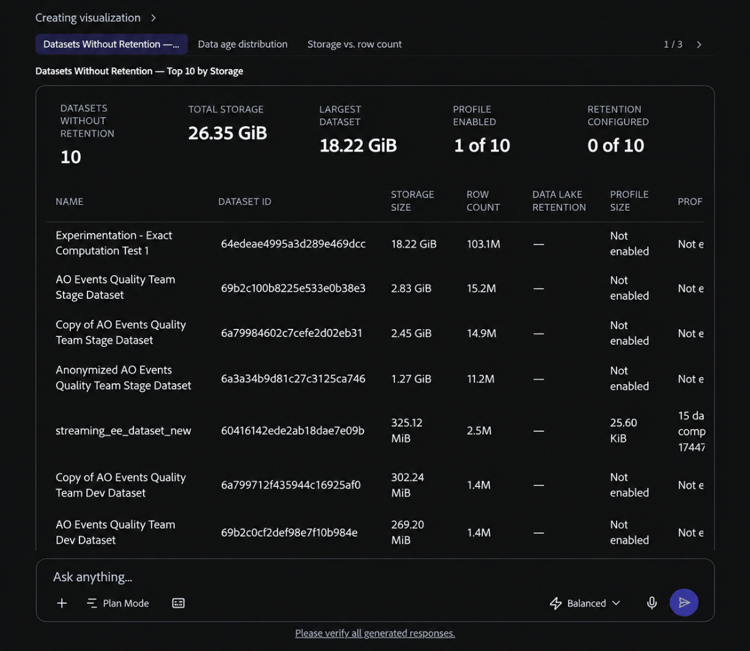
Once you’ve narrowed the list, use the Analyze dataset usage skill to find out how actively a specific dataset is used.
Not every unused or abandoned dataset surfaced by this skill is a good candidate for a data lake retention policy. If you need to remove an entire dataset or manage data in another Experience Platform store, see Choose the right data lifecycle management capability. Before setting a data lake retention policy, confirm that the dataset is an Experience Event dataset.
Example prompts:
- “I have a feeling my data can be optimized.”
- “Help me understand the value of my data.”
- “Optimize my sandbox data.”
- “Clean up my sandbox datasets.”
- “Show me my largest event datasets.”
- “Show me datasets larger than 100 GB that don’t have data lake retention set.”
- “I need to remove about 2 TB of data. Where should I start?”
- “Can you help me find data that’s orphaned, abandoned, or unused?”
- “Prioritize datasets that haven’t been accessed in the last 90 days.”
Check how actively a dataset is used check-how-actively-a-dataset-is-used
Before you decide whether a dataset is a good candidate for a data lake retention policy, find out how actively the dataset is used. Use the Analyze dataset usage skill to evaluate a specific dataset across multiple usage signals. These signals include recent ingestion activity, query activity, schema stability, and whether the dataset feeds other Adobe Experience Platform applications. The skill is read-only. Coworker returns an overall usage tier, a breakdown of the signals, and a plain-language summary of what they indicate about the dataset.
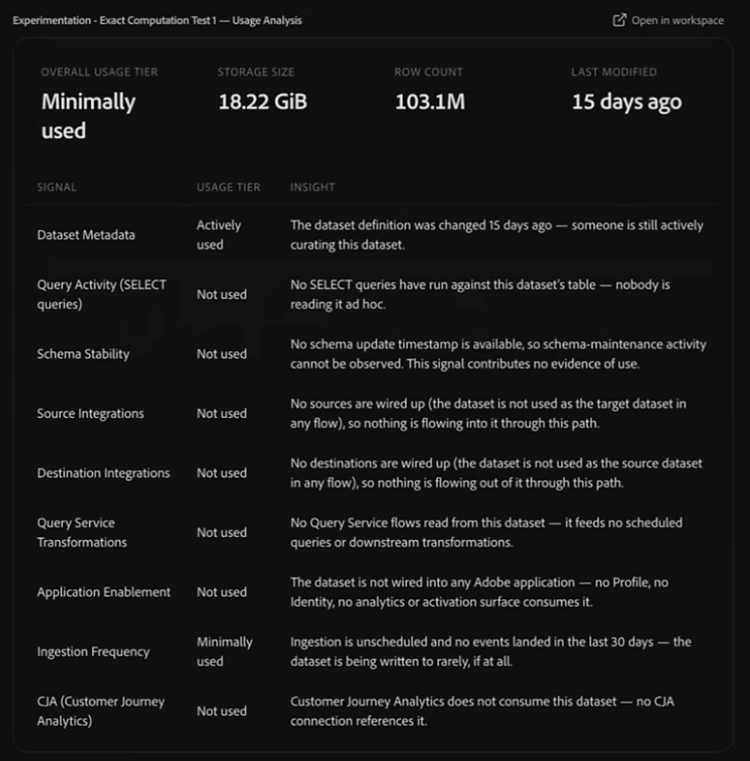
Example prompts:
- “How actively is my Web Events dataset being used?”
Model the impact of a retention period model-the-impact-of-a-retention-period
Before you commit to a specific retention period, find out how much data would be kept or removed. Use the Analyze dataset retention skill to review a dataset’s storage metrics and the age distribution of its data. It then uses that distribution to model how much data a proposed retention period would keep or remove. Coworker shows the estimated impact by row count and storage size.
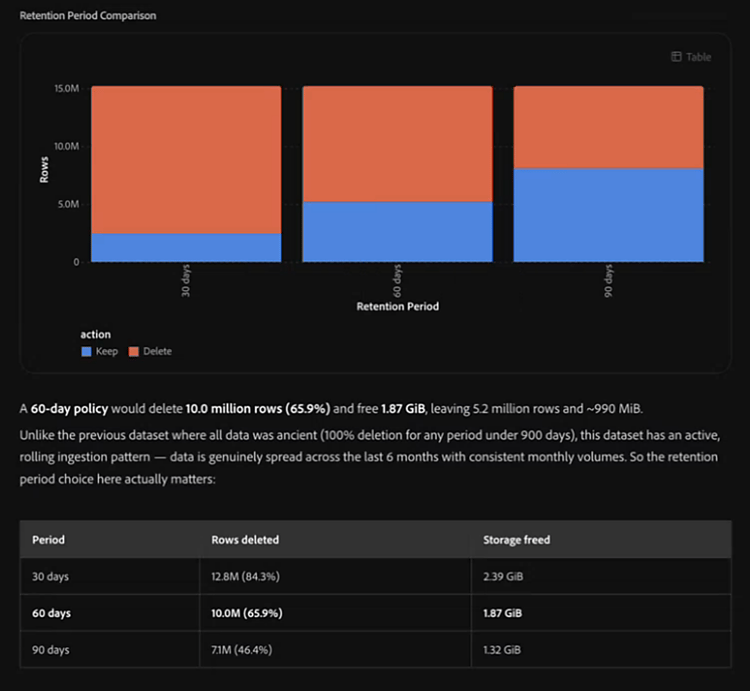
The skill is read-only. Coworker returns the data age and impact analysis directly in the conversation, so you can compare the results with the dataset’s current retention settings before deciding whether to change them.
Example prompts:
- “What would be the impact if I set a 60-day retention period on this dataset?”
Set, change, or remove a retention policy set-change-or-remove-a-retention-policy
Once you’ve decided on a retention period, use the Manage dataset retention skill to set, change, or remove a data lake retention policy on a dataset. The skill shows you the proposed impact before any change is applied. The policy is applied only after you explicitly approve the request. Describing the change you want does not apply it.
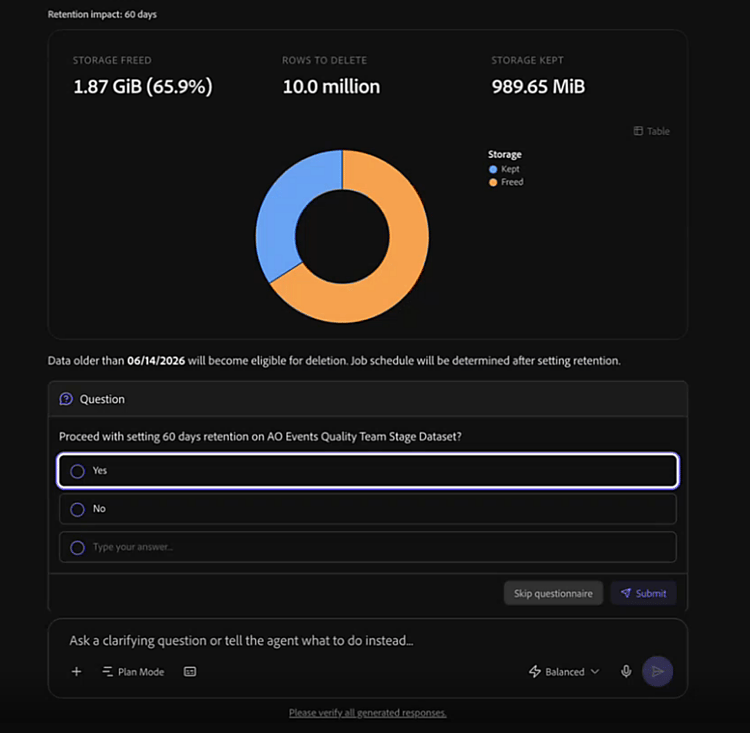
After you confirm a retention policy, it may take a short time for the change to appear in the Adobe Experience Platform UI. The retention policy does not delete expired data immediately. The initial retention job starts within 24 hours after the policy is applied. After the initial run, a scheduled job evaluates and deletes expired records every 30 days. See the Experience Event dataset retention (TTL) guide for more information about retention and purging.
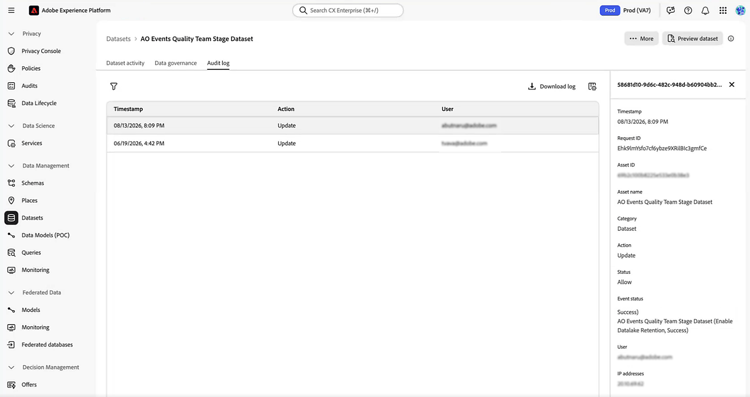
Every retention policy change is recorded in an audit trail, including when a policy is set, changed, or removed. The audit trail records who made each change, when it occurred, and what was modified. You can follow the link provided by Coworker to review these events in the dataset’s Audit log tab in Adobe Experience Platform. For more information, see the Audit logs overview.
Example prompts:
- “Set the retention on this dataset to 60 days.”
- “Remove the retention policy on this dataset.”
Best practices best-practices
Keep the following practices in mind when using the Data Management Agent:
- Start with a broad goal. If you don’t know which dataset needs attention, ask Coworker to help you understand the value of your data or optimize data in your sandbox. Use the List datasets skill to identify datasets with signals that suggest low or no recent usage before you analyze an individual dataset.
- Review the impact preview before you confirm. Review what would be kept and removed before you approve a retention change.
- Allow time for changes to appear. After you confirm a retention change in CX Coworker, allow a short time for the Adobe Experience Platform UI to reflect the change.
Next steps next-steps
To learn more about the Data Management Agent’s skills, scope, behavior, and limitations, see the Data Management Agent overview. For more information about how data lake retention policies work in Adobe Experience Platform, see the Experience Event dataset retention (TTL) guide.