Connect to Salesforce salesforce
Coworker for teams allows you to connect your Salesforce account to access your leads and contacts.
- An active Salesforce account
- The following permissions in Salesforce:
api,sobjects.Contact.read,sobjects.Campaign.read,sobjects.CampaignMember.read - Your Salesforce Instance URL, Client ID, and Client secret handy
How to connect
-
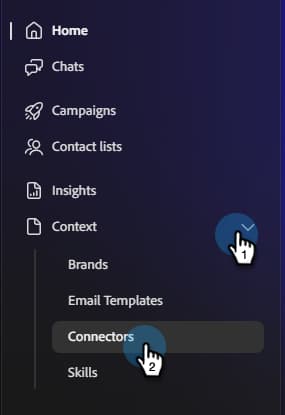
On the Coworker for teams homepage, click Context and select Connectors.
-
Click Add integration.

note NOTE If this is not your first integration, the button will read “Add connector.” -
In the Salesforce row, click Connect.

-
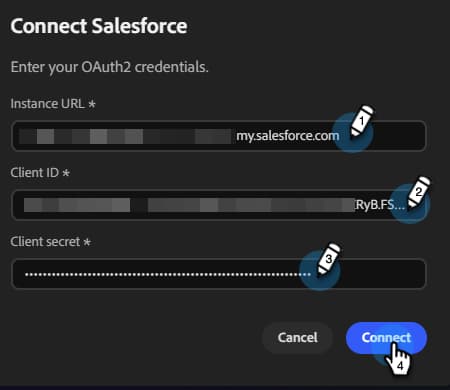
Enter your Salesforce instance URL, Client ID, and Client secret. Click Connect.
note NOTE -
In Salesforce, Client ID = Consumer Key and Client secret = Consumer Secret.
-
While in your Salesforce account, you can find your Instance URL in your browser’s address bar, or by navigating to Setup > Company Settings > My Domain.
-
After connection, Salesforce appears in the Connectors list and can be selected when linking a lead or contact list to sync from Salesforce.
To disconnect:
-
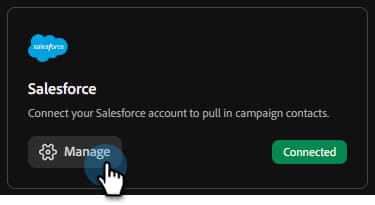
In the Connectors screen, find the Salesforce tile and click Manage.
-
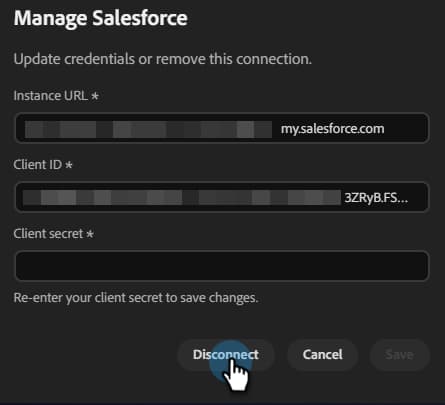
Click Disconnect (no need to re-enter your Client secret at this time).
-
Click Disconnect again to confirm.
