Use Adobe LLM Optimizer with Adobe Commerce
After connecting Commerce to LLM Optimizer, you work primarily in the Adobe LLM Optimizer UI to review opportunities and push approved changes into the catalog when you are ready. This article describes the two Commerce-focused optimization types, how to use Opportunities, how deploy actions behave in Adobe Commerce, and how external updates interact with LLM Optimizer suggestions. For a broader picture of the integration, see the integration overview.
Understand Commerce optimizations in LLM Optimizer understand-optimizations
For Commerce-backed catalogs, LLM Optimizer offers Product Detail Page Enrichment and Product Catalog Enrichment.
Use Opportunities to open the list of products or URLs and work through suggestions for the type you selected.
Navigate Commerce opportunities navigate-commerce-opportunities
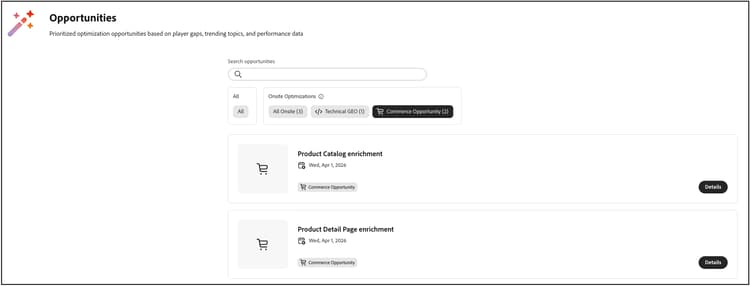
To open Commerce-related opportunities:
- In the left rail, click Opportunities.
- Click Commerce Opportunity to show optimization types that target your Adobe Commerce catalog.
- Select Product Catalog Enrichment or Product Detail Page Enrichment, depending on what you want to work on.
Understand opportunity metrics opportunity-metrics
Each opportunity view summarizes impact so you can prioritize work:
- Product Pages or URLs: The pages or products evaluated for that optimization type.
- Agentic Traffic: Visits and interactions initiated by AI agents that can help you prioritize high-impact opportunities first.
Understand suggestion states suggestion-states
Both enrichment types use the same workflow views:
- Current Suggestions: New or active items to review.
- Fixed Suggestions: Items you already deployed or resolved.
- Ignored Suggestions: Items you intentionally excluded from action.
Review and deploy PDP enrichment review-deploy-pdp
PDP enrichment is for teams that want clearer product page messaging in AI-driven discovery while keeping the storefront experience your merchandisers designed.
To review and deploy PDP enrichment:
- Open Product Detail Page Enrichment from Opportunities.
- In the URLs with Suggestions table, select Current Suggestions.
- For a URL or SKU, click Preview to review the AI analysis and proposed enrichment.
- Optional: Click Copy to paste the content into an external editor, or click Edit suggestion to edit in place.
- Optional: If a suggestion does not match your strategy, move it to Ignored Suggestions.
- Once reviewed and approved, select the row for the URL or SKU to update, then click Deploy optimizations, and confirm.
After deployment, suggestions move to Fixed Suggestions with an optimization status in LLM Optimizer.
Review and deploy product catalog enrichment review-deploy-catalog
Catalog enrichment is for teams that want to tighten product names and long descriptions directly in Commerce, with suggestions you can review before anything is saved.
To review and deploy product catalog enrichment:
- Open Product Catalog Enrichment from Opportunities.
- In the URLs with Suggestions table, select Current Suggestions.
- Click the expand control for the URL or SKU row to show the proposed Product Name and Product Description updates.
- Optional: Click the edit icon to adjust the proposed name or description before you deploy.
- Optional: If a suggestion does not match your strategy, move it to Ignored Suggestions.
- Once reviewed and approved, select the row for the URL or SKU to update, then click Deploy optimizations, and confirm.
Approved name and description changes are saved to your Adobe Commerce catalog like other product updates.
After deployment, suggestions move to Fixed Suggestions with an Applied status.
Verify updates in the Commerce Admin verify-in-admin
To verify deployed catalog enrichment:
-
Log in to the Adobe Commerce Admin.
-
Go to Catalog > Products.
-
Use filters and the store view selector as needed (for example, Default Store View), then search for the SKU.
-
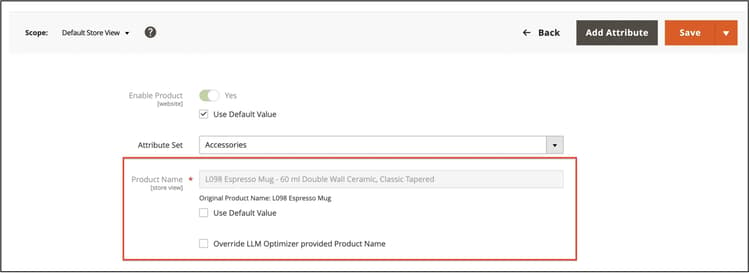
Open the product in edit mode.
The product form shows the enriched product name.
-
Optional: Select Override LLM Optimizer provided Product Name if you want to keep a manually entered name instead.
Manual overrides affect how opportunities stay in sync with the catalog; see Manual override in the Admin.
-
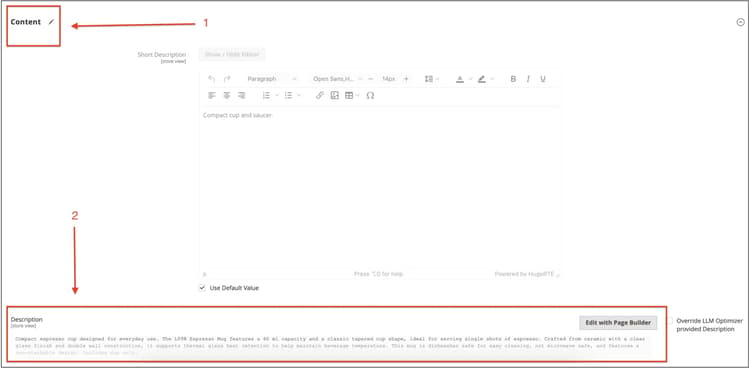
Expand the Content section and locate the description field.
The enriched description appears when you deployed description changes.
-
Optional: Select Override LLM Optimizer provided Description if you want to keep a manually entered description instead.
Verify updates on the storefront verify-storefront
Search for the SKU on your storefront and open the PDP. Confirm that the name and any regions that surface the long description reflect what you approved. Also confirm any downstream channels that consume the same catalog attributes, where relevant to your rollout.
Overrides, ingestion, and stale opportunities overrides-ingestion
After LLM Optimizer updates a product’s name or description, other ingestion systems, such as REST API calls, CSV imports, PIM feeds, or similar processes may change the same fields. The following sections describe what happens in this case.
Ingestion sends the original catalog value again
If an external process writes the original name or description (the value that existed before LLM Optimizer’s deploy), Commerce continues to honor the LLM Optimizer-deployed value for that field according to the integration rules. The opportunity may not revert automatically based on that ingestion alone.
Ingestion sends a new value
If the external process sends a new value that is not merely a repeat of the pre-LLM Optimizer text—for example, renaming “Red Shoes” to “Iconic Red Shoes”—that new catalog value is honored, and the related LLM Optimizer opportunity is typically marked as Stale in LLM Optimizer because the live catalog no longer matches the suggestion context.
Manual override in the Admin manual-override-in-the-admin
If you manually edit the product name or description in the Adobe Commerce Admin:
- The Admin value wins as the system of record for that manual change.
- The LLM Optimizer opportunity is marked Stale.
- In LLM Optimizer, the UI moves back toward the original state for that opportunity so you can re-baseline or accept a new suggestion if analysis runs again.
These rules help you know whether LLM Optimizer, ingestion feeds, or Admin edits are authoritative when multiple channels touch the same SKU.
Best practices
- Document system ownership for product name and description so that PIM or feed jobs do not unintentionally conflict with LLM Optimizer expectations.
- Coordinate with SEO and brand teams before bulk deploying titles or descriptions.
- Re-sync or re-analyze after major catalog imports so that opportunities reflect the current catalog state.
Try it in the demo
Use the Frescopa demo environment to see both Commerce opportunity types in action: