Connect Adobe Commerce to Adobe LLM Optimizer
This article explains how to connect your Adobe Commerce catalog available to LLM Optimizer.
Enable required Commerce services enable-commerce-services
Work with your Commerce administrator or implementation partner to ensure the following:
- Catalog data that LLM Optimizer must read is exported or synchronized according to your architecture (including any SaaS data exporter or connector in your deployment).
- API access, credentials, and environment URLs (sandbox vs production) match the tenant you intend to use in LLM Optimizer.
Configure the Commerce connection in LLM Optimizer configure-commerce-connection
To configure the Commerce connection:
-
In the Adobe LLM Optimizer UI, open Customer Configuration, then select the Commerce tab.
-
Click Add Store View to create a new row, or expand an existing store view entry to edit it.
-
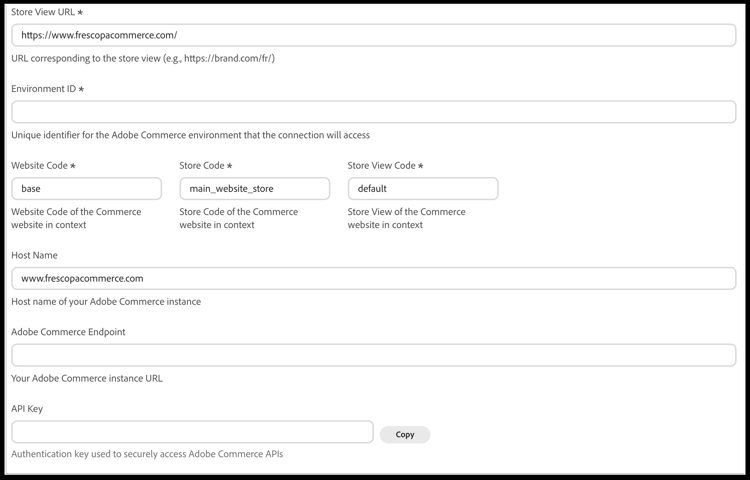
Enter the Store View URL (required).
Use the storefront URL for that store view, including any locale or path prefix (for example,
https://brand.example.com/orhttps://brand.example.com/fr/). -
Enter the Environment ID (required)—the identifier for the Adobe Commerce environment that LLM Optimizer should connect to.
-
Enter Website Code, Store Code, and Store View Code (required).
These values must match the codes in your Commerce Admin for the website, store, and store view you connect.
-
Optional: Enter Host Name with the hostname of your Commerce instance (for example,
www.example.com) if that value is different from the URL. -
Enter the Adobe Commerce Endpoint—the base URL of your Adobe Commerce instance used for API access.
-
Enter or paste the API Key used to authenticate requests to Commerce APIs.
Click Copy next to the field if you need to copy the key elsewhere securely.
-
Click Save to store the configuration.
After you save, wait for any initial sync or validation job to complete before relying on catalog or audit results for that store view.
To remove a store view configuration, open that entry and click Delete.
Field descriptions commerce-connection-fields
default).Confirm tenant and environment readiness confirm-tenant-readiness
- Verify that connected sandbox projects are not mixed with production Commerce data, unless this is intentional.
- Align user roles in Experience Cloud and Commerce so the people who approve deploy actions have the right permissions on both sides.
Next steps next-steps
Use LLM Optimizer with Adobe Commerce to review opportunities, deploy catalog updates, and understand override behavior.