Manage your app
An App Manager associates an App Builder application with their Commerce instance. Configuration forms are rendered dynamically based on the app’s schema, so no custom Admin UI development is required. App manager configures settings through forms that Commerce generates automatically.
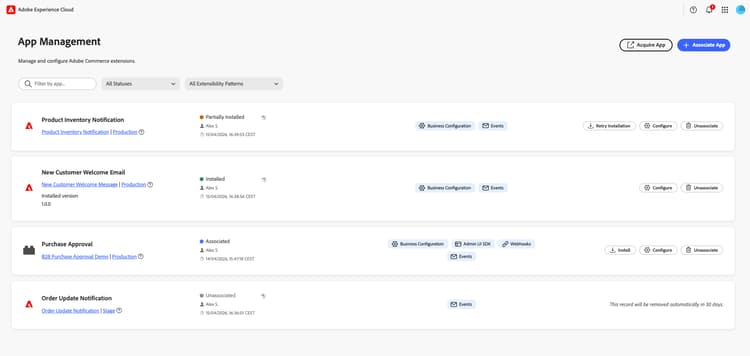
Find an application in the Admin
Under Apps > App Management, each application appears as a card. The list can include every app associated with the Adobe Commerce instance for the selected Adobe IMS organization. Use the controls above the cards to narrow results:
Search text and both dropdowns apply together (logical AND). To display the full list again, set Status and Extensibility patterns back to their All … options, and clear the search field.
Acquire App
Acquire App opens a new browser tab (or a separate browser view) to Adobe Exchange, where you can discover Commerce-related marketplace listings and add applications to your Adobe IMS organization. Once the app is acquired, approved, and deployed, the app appears in App Management for association and installation.
Prerequisites
Before associating an app, ensure you have the following:
Tutorial
Watch this video to learn how to associate an app with a Commerce instance and configure settings.
Associate an app
The association process imports websites, stores, and store views from Commerce and creates the link between the app and your Commerce instance.
To link your App Builder application to a Commerce instance:
-
Navigate to Apps > App Management.
-
Click Associate App.
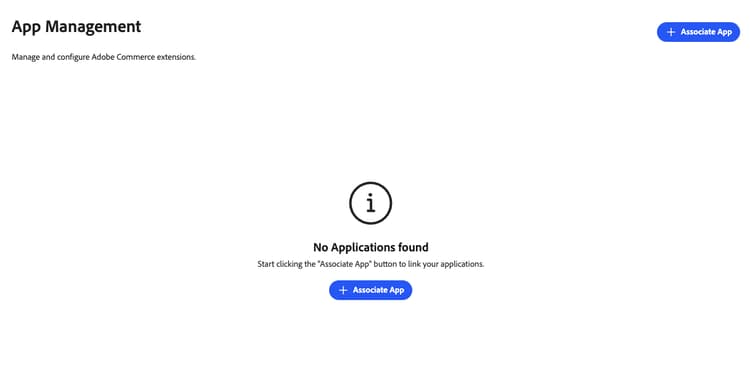
-
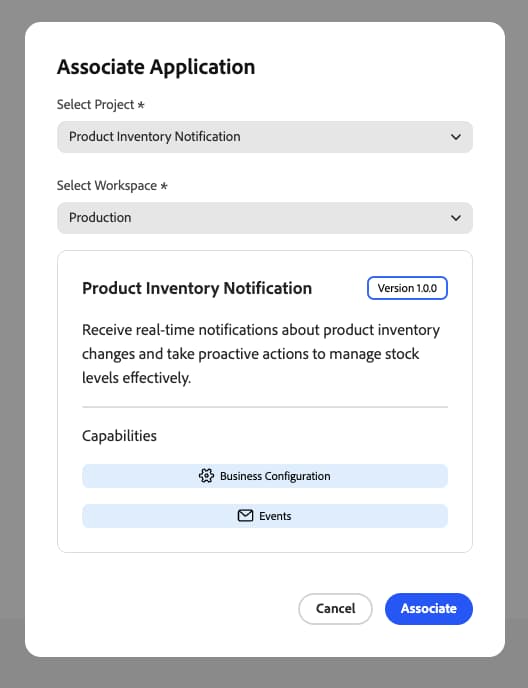
Select a Project from the list.
-
Select the Workspace.
-
Click Associate.
Configure settings
After associating an app in the App Management view, configure its settings through the form:
-
Click Configure on the associated app.
-
The form displays the app’s configurable settings.
-
Modify values as needed.
-
Click Save.
Scope-specific configuration
Use scope-specific configuration when different websites, stores, or store views need unique settings. For example, enable a feature only for a specific region or store view, or use different settings per brand. Settings at a lower scope override those from higher scopes.
To override global values at a specific scope level:
-
Click Change Scope.
-
Select a scope from the list.
-
Modify values for this scope.
-
Click Save.
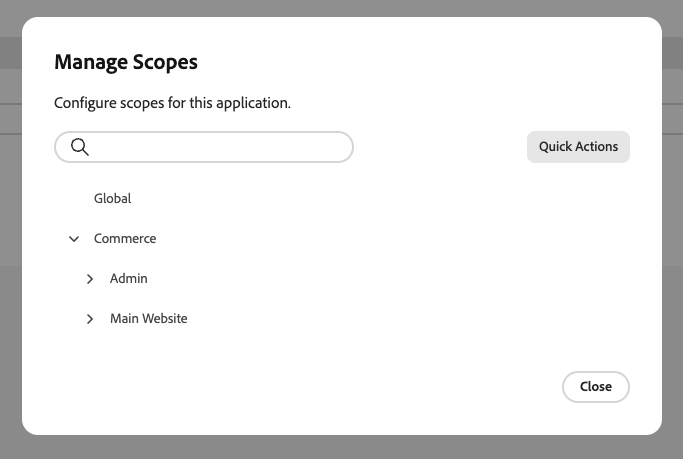
Manage scopes
Access Manage Scopes from the app details screen to manage scope hierarchy for your app.
Unassociate an app
Unassociate an app when you no longer need it connected to your Commerce instance. For example, you might need to retire an integration, switch to a different workspace, or clean up test configurations.
To remove an app from a Commerce instance:
-
Navigate to Apps > App Management.
-
Click Unassociate on the app.
-
Confirm the action.
Related documentation
- Troubleshooting App Management—Resolve common issues with app association and configuration.