Connect and run queries against the Adobe Commerce database
Learn how to connect to an Adobe Commerce on cloud project, create a database dump for offsite use, and mask or remove personally identifiable information (PII). Access data with a local dump, a GUI such as MySQL Workbench or TablePlus, or the magento-cloud CLI.
Video contents
- Connect to a remote Adobe Commerce Cloud project with a database management tool such as MySQL Workbench or TablePlus.
- Connect to the project and run SQL from the command line.
You can access Adobe Commerce data from your cloud project using any of the following methods:
- Use a local DB dump.
- Open a DB connection to your remote cloud environment with an application such as MySQL Workbench or TablePlus.
- Connect directly to the cloud environment with the
magento-cloudCLI and run commands on the remote server.
Prefer a database dump that you scrub to remove customer information. Remove customer data entirely when you do not need it.
Using the Adobe Commerce Cloud CLI tool
You need the Adobe Commerce Cloud CLI installed to create a database dump. On your local computer, open a directory and run the following command. Replace your-project-id with your project ID (similar to asasdasd45q). Replace your-environment-name with your environment name, such as master or staging.
magento-cloud db:dump -p your-project-id -e your-environment-name
If you are not sure of the project ID or the environment, you can omit these in the command:
magento-cloud db:dump
The CLI asks you to specify the correct project and environment. The following example displays that dialog. This example shows several projects assigned to your account, but you will likely have only one project available.
Change into a directory
cd ~/Downloads/db-tutorial
Now execute the command to create the database dump
magento-cloud db:dump
Because you did not specify a project or environment, the Adobe Commerce Cloud CLI asks a few questions. The following example shows sample dialog.
Enter a number to choose a project:
  [0] demo-ralbin (ral32nryq4123)
  [1] adobe-commerce-demo (abc123zzkipexnqo)
  [2] DX Tutorials - Commerce (abasrpikfw4123)
 > 2

Enter a number to choose an environment:
Default: master
  [0] master (type: production)
  [1] remote-db (type: development)
 > 1

Creating SQL dump file: /Users/<username>/Downloads/db-tutorial/abasrpikfw4123--remote-db-ecpefky--mysql--main--dump.sql
Using the Adobe Commerce ECE-tools
If you do not have the Adobe Commerce CLI tool, you can ssh into your project and run the ece command vendor/bin/ece-tools db-dump:
Sample response:
ssh abasrpikfw4123-remote-db-ecpefky--mymagento@ssh.us-4.magento.cloud

 __  __                   _          ___ _             _
|  \/  |__ _ __ _ ___ _ _| |_ ___   / __| |___ _  _ __| |
| |\/| / _` / _` / -_) ' \  _/ _ \ | (__| / _ \ || / _` |
|_|  |_\__,_\__, \___|_||_\__\___/  \___|_\___/\_,_\__,_|
            |___/

 Welcome to Magento Cloud.

 This is environment remote-db-ecpefky
 of project abasrpikfw4123.

web@mymagento.0:~$ vendor/bin/ece-tools db-dump
The db-dump operation switches the site to maintenance mode, stops all active cron jobs and consumer queue processes, and disables cron jobs before starting the dump process.
Your site will not receive any traffic until the operation completes.
Do you wish to proceed with this process? (y/N)?y
[2024-02-13T19:01:45.130999+00:00] INFO: Starting backup.
[2024-02-13T19:01:45.155039+00:00] NOTICE: Enabling Maintenance mode
[2024-02-13T19:01:46.404427+00:00] INFO: Trying to kill running cron jobs and consumers processes
[2024-02-13T19:01:46.420149+00:00] INFO: Running Magento cron and consumers processes were not found.
[2024-02-13T19:01:46.420434+00:00] INFO: Waiting for lock on db dump.
[2024-02-13T19:01:46.420499+00:00] INFO: Start creation DB dump for main database...
[2024-02-13T19:01:50.697886+00:00] INFO: Finished DB dump for main database, it can be found here: /app/var/dump-main-1707850906.sql.gz
[2024-02-13T19:01:51.628328+00:00] NOTICE: Maintenance mode is disabled.
[2024-02-13T19:01:51.628419+00:00] INFO: Backup completed.
web@mymagento.0:~$ exit
logout
Connection to ssh.us-4.magento.cloud closed.
Use SFTP or rsync to pull the database dump to your local environment.
The following example uses rsync to pull the file to the ~/Downloads/db-tutorial folder.
rsync -avrp -e ssh abasrpikfw4123-remote-db-ecpefky--mymagento@ssh.us-4.magento.cloud:/app/var/dump-main-1707850906.sql.gz ~/Downloads/db-tutorial
The terminal window will output some information, here is some example output
rsync -avrp -e ssh abasrpikfw4123-remote-db-ecpefky--mymagento@ssh.us-4.magento.cloud:/app/var/dump-main-1707850906.sql.gz ~/Downloads/db-tutorial
receiving file list ... done
dump-main-1707850906.sql.gz

sent 38 bytes  received 2691041 bytes  358810.53 bytes/sec
total size is 2690241  speedup is 1.00
View the contents of the file to verify it was successfully downloaded.
ls -lah
total 29840
drwxr-xr-x    4 <username>  staff   128B Feb 13 13:02 .
drwx------@ 103 <username>   staff   3.2K Feb 13 12:52 ..
-rw-r--r--    1 <username>   staff    11M Feb 13 12:53 abasrpikfw4123--remote-db-ecpefky--mysql--main--dump.sql
-rw-r--r--    1 <username>   staff   2.6M Feb 13 13:01 dump-main-1707850906.sql.gz
Once you have the data, make sure you clean it up by removing or masking the customer data. The following sample script will help you get started.
This example turns customer data into random strings, but keeps all the items. This example contains a few extra tables to demonstrate that customer PII can be found in third-party tables as well as core tables. Carefully examine data in every table and mask or remove any customer data.
Typically the architect or lead developer is the only person responsible for masking and sanitizing database dumps. Having a dedicated sanitizer lowers the exposure of the raw data, which reduces the opportunity for violating compliance rules and regulations.
SET FOREIGN_KEY_CHECKS=0;
UPDATE customer_entity SET email = REPLACE(email, SUBSTRING(email, LOCATE('@', email) +1), CONCAT(UUID(), '.com'));
UPDATE email_contact SET email = REPLACE(email, SUBSTRING(email, LOCATE('@', email) +1), CONCAT(UUID(), '.com'));
UPDATE sales_invoice_grid SET customer_email = 'customer@example.com', customer_name  = 'Jack Smith';
UPDATE sales_order SET customer_email = 'customer@example.com', customer_firstname = 'Sally', customer_lastname = 'Smith', remote_ip = '127.0.0.1';
UPDATE sales_order_address SET region = 'Ohio', postcode = '12345-1234', lastname = 'Smith', street = '123 Main street', region_id = 44, city = 'Phoenix', telephone = NULL, firstname = 'Jane', company = NULL;
UPDATE sales_order_grid SET customer_email = 'customer@example.com', shipping_name = 'Jack', billing_name = 'Jack Smith', billing_address = '123 Main Street', shipping_address = '321 Pine Street', customer_name = 'Jane Smith';
UPDATE sales_shipment_grid SET customer_email = 'customer@example.com', customer_name = 'Jane Smith', billing_address = '123 Main street', billing_name = 'Jack Doe', shipping_name = 'Susie Smith';
UPDATE quote SET customer_email = 'customer@example.com', customer_firstname = 'Sally', customer_lastname = 'Jones', customer_dob = NULL, remote_ip = '127.0.0.1';
UPDATE quote_address SET email = 'customer@example.com', firstname = 'Jack', lastname = 'Smith', company = NULL, street = '123 Main st', city = 'AnyCity', region = 'Some State', region_id = 44, postcode = '12345-1234', telephone = NULL;
UPDATE magento_rma SET customer_custom_email = 'customer@example.com' WHERE customer_custom_email IS NOT NULL;
UPDATE customer_address_entity SET firstname = 'Jack', lastname = 'Smith', telephone = '909-555-1212', postcode = NULL,  region = NULL, street = '123 Main street', city = 'Anycity', company = NULL;
UPDATE customer_grid_flat SET name = 'Jane Doe', email = 'customer@example.com', dob = NULL, gender = NULL, taxvat = NULL, shipping_full = '', billing_full = '', billing_firstname = 'Jack', billing_lastname = 'Smith', billing_telephone = NULL, billing_postcode = NULL, billing_country_id = NULL, billing_region = NULL, billing_street = '123 Main street', billing_city = 'Anycity', billing_fax = NULL, billing_vat_id = NULL, billing_company = NULL;
UPDATE sales_creditmemo_grid SET billing_name = 'Sally', billing_address = '123 Main Street', customer_name = 'Jack Smith', customer_email = 'customer@example.com';
UPDATE magento_rma_grid SET customer_name = 'Jack Smith';
UPDATE newsletter_subscriber SET subscriber_email = 'customer@example.com';
UPDATE core_config_data SET value = '' WHERE path = 'orderexport/general/serial';
UPDATE core_config_data SET value = '' WHERE path = 'productexport/general/serial';
UPDATE core_config_data SET value = '' WHERE path = 'trackingimport/general/serial';
UPDATE core_config_data SET value = '' WHERE path = 'stockimport/general/serial';
UPDATE core_config_data SET value = '' WHERE path = 'remarketing/onescript/merchant_id';
UPDATE core_config_data SET value = '' WHERE path = 'remarketing/onescript/merchant_id';
UPDATE core_config_data SET value = '' WHERE path = 'algoliasearch_credentials/credentials/application_id';
UPDATE core_config_data SET value = '' WHERE path = 'algoliasearch_credentials/credentials/search_only_api_key';
UPDATE core_config_data SET value = '' WHERE path = 'tax/avatax/production_account_number';
UPDATE core_config_data SET value = '' WHERE path = 'tax/avatax/production_license_key';
UPDATE core_config_data SET value = '' WHERE path = 'design/head/includes';
UPDATE core_config_data SET value = '' WHERE path = 'payment/braintree/merchant_id';
UPDATE core_config_data SET value = '' WHERE path = 'payment/braintree/public_key';
UPDATE core_config_data SET value = '' WHERE path = 'payment/braintree/private_key';
UPDATE core_config_data SET value = '' WHERE path = 'system/full_page_cache/fastly/fastly_service_id';
UPDATE core_config_data SET value = '' WHERE path = 'system/full_page_cache/fastly/fastly_api_key';
UPDATE core_config_data SET value = '' WHERE path = 'google/analytics/container_id';
UPDATE core_config_data SET value = '' WHERE path = 'analytics/general/token';
UPDATE vault_payment_token SET public_hash = UUID(), details = '{"type":"VI","maskedCC":"1111","expirationDate":"01\/2019"}';
TRUNCATE customer_log;
TRUNCATE customer_visitor;
TRUNCATE magento_logging_event;
TRUNCATE oauth_consumer;
TRUNCATE oauth_nonce;
TRUNCATE oauth_token;
TRUNCATE password_reset_request_event;
TRUNCATE acknowledgement;
TRUNCATE acknowledgement_report;
TRUNCATE avatax_log;
TRUNCATE avatax_queue;
TRUNCATE cron_schedule;
SET FOREIGN_KEY_CHECKS=1;
Alternatively, you can delete the records instead of masking the information, which also make the new DB smaller. Once PII is masked or removed, the data can be safely provided to a teammate for use on their local environment.
Remote DB connection to an Adobe Commerce Cloud project
This method allows accidental editing and deletion of live data. Use it with caution. Prefer a database backup and offline review when you can. Sometimes you must access data directly on Adobe Commerce Cloud; that workflow still carries risk. GUIs do not add confirmation prompts, so you can alter or remove data by mistake.
A remote database connection is convenient but risky. You can easily forget that you are connected to production and delete or change data. You can connect to a read-only replica, but heavy SQL still affects the site. Adobe does not recommend routine remote connections to writable databases; use the steps below only when you understand the risks.
Establish an SSH tunnel:
magento-cloud tunnel:open
After the project is chosen and the environment is picked, there is output from the command that is used in the settings for the mysql graphical interface.
magento-cloud tunnel:open

Enter a number to choose a project:
  [0] demo-ralbin (ral32nryq4123)
  [1] adobe-commerce-demo (abc123zzkipexnqo)
  [2] DX Tutorials - Commerce (abasrpikfw4123)
 > 2

Enter a number to choose an environment:
Default: master
  [0] master (type: production)
  [1] remote-db (type: development)
 > 1

SSH tunnel opened to database at: mysql://user:@127.0.0.1:30000/main
SSH tunnel opened to redis at: redis://127.0.0.1:30001
SSH tunnel opened to opensearch at: http://127.0.0.1:30002
SSH tunnel opened to rabbitmq at: amqp://guest:guest@127.0.0.1:30003

Logs are written to: /Users/<user>/.magento-cloud/tunnels.log

List tunnels with: magento-cloud tunnels
View tunnel details with: magento-cloud tunnel:info
Close tunnels with: magento-cloud tunnel:close

Save encoded tunnel details to the MAGENTO_CLOUD_RELATIONSHIPS variable using:
  export MAGENTO_CLOUD_RELATIONSHIPS="$(magento-cloud tunnel:info --encode)"
Establish a connection using a MySQL graphical interface by using the SSH tunnel opened to database at command option.
SSH tunnel opened to database at: mysql://user:@127.0.0.1:30000/main
Now that you have the right information, enter these values in the Cloud Console.
You can find the SSH hostname and username from the cloud credentials in the Cloud Console.
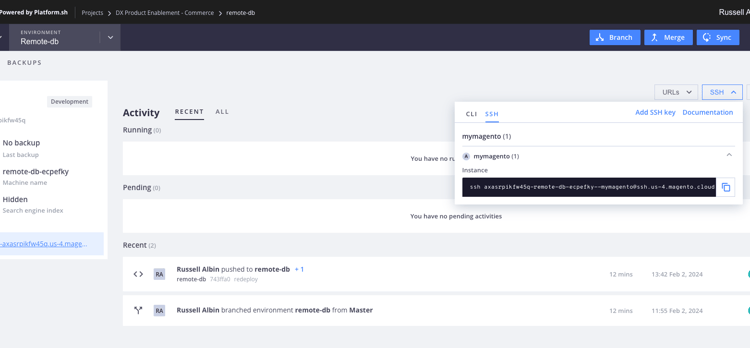
Here is one example: ssh abasrpikfw4123-remote-db-ecpefky--mymagento@ssh.us-4.magento.cloud
The SSH hostname is everything after the @ sign: ssh.us-4.magento.cloud in this example.
The SSH username is everything before the @ sign: abasrpikfw4123-remote-db-ecpefky--mymagento
Finding values to connect to the database
To access the MariaDB database directly, use SSH to log in to the remote Cloud environment and connect to the database.
-
Use SSH to log in to the remote environment.
code language-bash magento-cloud ssh -
Retrieve the MySQL login credentials from the
databaseandtypeproperties in the $MAGENTO_CLOUD_RELATIONSHIPS variable.code language-bash echo $MAGENTO_CLOUD_RELATIONSHIPS | base64 -d | json_ppor
code language-bash php -r 'print_r(json_decode(base64_decode($_ENV["MAGENTO_CLOUD_RELATIONSHIPS"])));'In the response, find the MySQL information. For example:
code language-json "database" : [ { "password" : "", "rel" : "mysql", "hostname" : "nnnnnnnn.mysql.service._.magentosite.cloud", "service" : "mysql", "host" : "database.internal", "ip" : "###.###.###.###", "port" : 3306, "path" : "main", "cluster" : "projectid-integration-id", "query" : { "is_master" : true }, "type" : "mysql:10.3", "username" : "user", "scheme" : "mysql" } ],
Then use the configuration values in your MySQL GUI. The following example uses MySQL Workbench, but any app that supports MySQL connections will have similar fields.
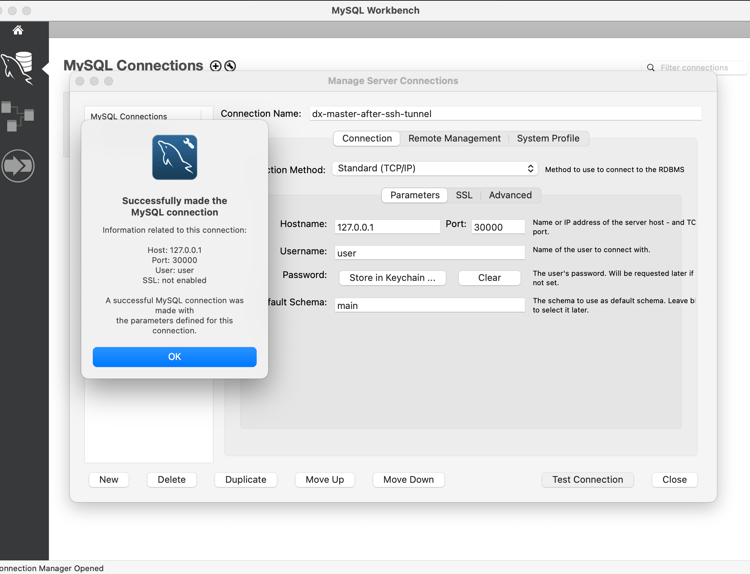
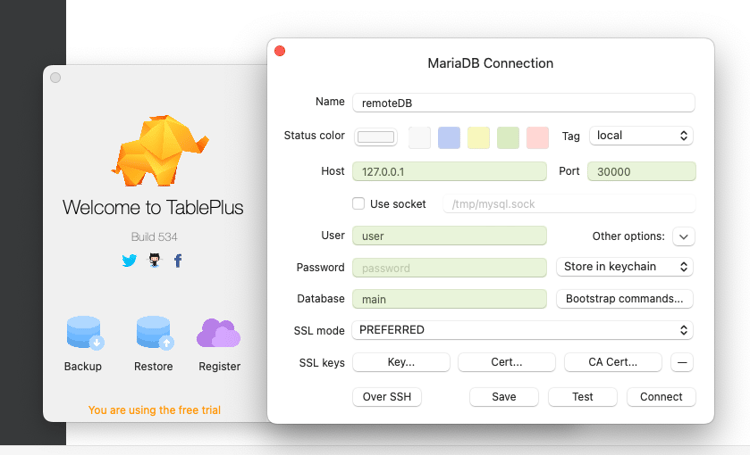
After you configure the connection, you can use a MySQL GUI to run queries on a remote Adobe Commerce Cloud project.
Connecting directly to the cloud project database to run SQL
The following method uses the magento-cloud CLI to connect directly to the MySQL database and run SQL for faster querying. If you need a copy of this database, use one of the alternative methods to create a database dump.
magento-cloud db:sql

Enter a number to choose a project:
  [0] demo-ralbin (ral32nryq4123)
  [1] adobe-commerce-demo (abc123zzkipexnqo)
  [2] DX Tutorials - Commerce (abasrpikfw4123)
 > 2

Enter a number to choose an environment:
Default: master
  [0] master (type: production)
  [1] remote-db (type: development)
 > 1

Welcome to the MariaDB monitor.  Commands end with ; or \g.
Your MariaDB connection id is 273454
Server version: 10.6.15-MariaDB-1:10.6.15+maria~deb10-log mariadb.org binary distribution

Copyright (c) 2000, 2018, Oracle, MariaDB Corporation Ab and others.

Type 'help;' or '\h' for help. Type '\c' to clear the current input statement.
For example, you can find all the records from the core_config_data table that contain the word secure as part of the column path:
MariaDB [main]> SELECT * FROM core_config_data WHERE path LIKE '%secure%' \G;
*************************** 1. row ***************************
 config_id: 5
     scope: default
  scope_id: 0
      path: web/unsecure/base_url
     value: http://remote-db-ecpefky-abasrpikfw4123.us-4.magentosite.cloud/
updated_at: 2024-02-02 18:03:17
*************************** 2. row ***************************
 config_id: 6
     scope: default
  scope_id: 0
      path: web/secure/base_url
     value: https://remote-db-ecpefky-abasrpikfw4123.us-4.magentosite.cloud/
updated_at: 2024-02-02 18:03:17
*************************** 3. row ***************************
 config_id: 8
     scope: default
  scope_id: 0
      path: web/secure/use_in_adminhtml
     value: 1
updated_at: 2023-04-26 19:43:58
3 rows in set (0.001 sec)

ERROR: No query specified

MariaDB [main]>