Google reCAPTCHA Enterprise
Google reCAPTCHA Enterprise provides advanced bot protection for your Adobe Commerce as a Cloud Service storefront by using adaptive risk analysis and machine learning to differentiate between human users and bots. This helps to prevent fraudulent activities, spam, and abuse on your site.
reCAPTCHA integration describes how to add support for reCAPTCHA Enterprise into your storefront.
See Google reCAPTCHA V3 and V2 for information about configuring other versions of Google reCAPTCHA.
Features
Google reCAPTCHA Enterprise includes the following features:
- Advanced bot detection: Uses Google Cloud’s machine learning models for superior bot detection
- Risk score analysis: Provides detailed risk scores (0.0-1.0) for each interaction
- Configurable thresholds: Set minimum acceptable risk scores per tenant
- Multi-tenant Support: Per-tenant configuration with isolated Google Cloud projects
- Encrypted credentials: Service account credentials stored encrypted in a database
- Form protection: Protects all standard Commerce forms, including login, checkout, product reviews, and more.
Prerequisites
You need the following resources before you can configure Google reCAPTCHA Enterprise for your Adobe Commerce as a Cloud Service storefront:
- An active Google Cloud account with reCAPTCHA Enterprise enabled.
- Access to the Google Cloud Console to create and manage reCAPTCHA Enterprise keys.
On multi-tenant Adobe Commerce as a Cloud Service installations, each tenant must have its own Google Cloud project and reCAPTCHA Enterprise keys.
Step 1: Set up Google reCAPTCHA Enterprise
Follow these general steps to set up Google reCAPTCHA Enterprise for your storefront. For detailed instructions, see the Google reCAPTCHA Enterprise documentation.
-
Create a Google Cloud project for your reCAPTCHA Enterprise implementation.
-
Enable the reCAPTCHA Enterprise API.
-
Create a score-based reCAPTCHA Enterprise site key.
-
Create a Service Account with the
roles/recaptchaenterprise.adminIAM role. -
Download the Service Account JSON key file, which contains the credentials needed to authenticate your Adobe Commerce as a Cloud Service storefront with Google reCAPTCHA Enterprise.
Step 2: Configure Google reCAPTCHA for the storefront
-
On the Adobe Commerce Admin sidebar, go to Stores > Settings > Configuration.
-
Expand Security and choose Google reCAPTCHA Storefront.
-
Scroll down to the reCAPTCHA Enterprise section, and complete the configuration as follows.
-
For Site Key, copy and paste your reCAPTCHA Enterprise site key from your Google Cloud Console.
-
For Google Cloud Project ID, copy and paste the project ID from your Google Cloud project.
-
For Service Account JSON, copy the contents of the Service Account JSON key file that you downloaded in Step 1: Set up Google reCAPTCHA Enterprise.
-
For Minimum Score Threshold, enter the minimum score (0.0-1.0) to identify when a user interaction is flagged as a potential risk. A score of 1.0 is a typical user interaction, and 0.0 is likely a bot.
-
For Badge Position, choose the position of the invisible reCAPTCHA badge on each page. Options:
Inline/Bottom Right/Bottom Left. -
For Theme, choose either
Light Theme(default) orDark Themeto determine the style of the Google reCAPTCHA box. -
For Language Code, enter a two-character code that specifies the language used for Google reCAPTCHA text and messaging.
-
For Validation Failure Message, optionally change the message displayed on the storefront when validation is not successful.
-
-
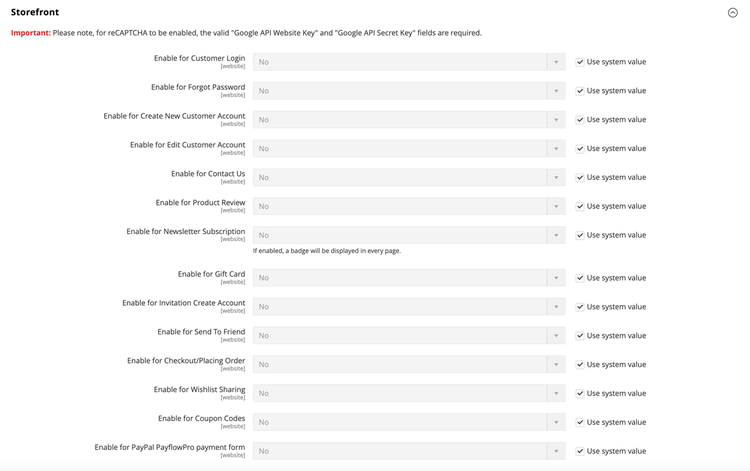
Expand the Storefront section and set each storefront form that you want to protect to reCAPTCHA Enterprise.
- Enable for Customer Login
-
Enable for Forgot Password
-
Enable for Create New Customer Account
-
Enable for Edit Customer Account
-
Enable for Create New Company Account (Available with Adobe Commerce B2B only)
-
Enable for Contact Us
-
Enable for Product Review
-
Enable for Newsletter Subscription
-
Enable for Gift Card (Adobe Commerce only)
-
Enable for Invitation Create Account
-
Enable for Send To Friend - [PaaS only]{class="badge informative" title="Applies to Adobe Commerce on Cloud projects (Adobe-managed PaaS infrastructure) and on-premises projects only."}
-
Enable for Checkout/Placing Order
-
Enable for Wishlist Sharing
-
Enable for Coupon Codes
-
Enable for PayPal PayflowPro payment form - [PaaS only]{class="badge informative" title="Applies to Adobe Commerce on Cloud projects (Adobe-managed PaaS infrastructure) and on-premises projects only."}
-
Enable for Presigned Upload - [SaaS only]{class="badge positive" title="Applies to Adobe Commerce as a Cloud Service projects only (Adobe-managed SaaS infrastructure)."}
Step 3: Save the configuration
-
When configuration settings are complete, click Save Config.
-
In the message at the top of the workspace, click Cache Management and refresh each invalid cache.