Shipping settings
The shipping configuration establishes the point of origin for all shipments, your shipping policy, and the handling of shipments to multiple addresses.
Point of origin
The point of origin is used to calculate the charge for shipments made from your store or warehouse, and also determines the tax rate for products sold. When calculating EU taxes, make sure that the Default Tax Destination Calculation for each store view corresponds to the Shipping Settings point of origin.
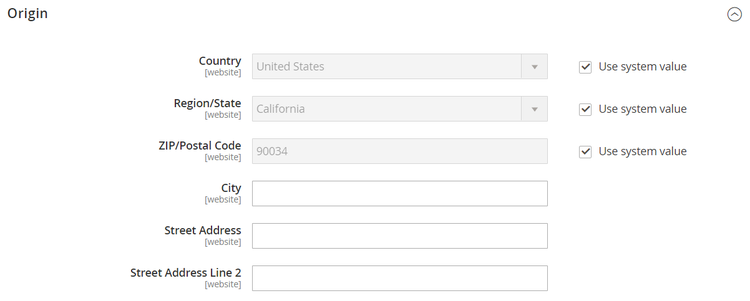
-
On the Admin sidebar, go to Stores > Settings > Configuration.
-
In the left panel, expand Sales and choose Shipping Settings.
-
Expand

- Country
- Region / State
- ZIP / Postal Code
- City
- Street Address (and line 2, if needed)
-
Click Save Config.
Shipping policy
A shipping policy should explain your company’s business rules and guidelines for shipments. For example, if you have price rules that trigger free shipping, you can explain the terms in your shipping policy.

To display your shipping policy during checkout, complete the Shipping Policy Parameters in the configuration. The text appears when customers click See our shipping policy during checkout.
-
On the Admin sidebar, go to Stores > Settings > Configuration.
-
In the left panel, expand Sales and choose Shipping Settings.
-
Expand
-
Set Apply Custom Shipping Policy to
Yes. -
Either paste or enter your Shipping Policy into the text box.
note note NOTE If you use a word processor to compose the text, make sure to save the document as a .txt file to remove any control characters from the text. Then, copy and paste the text into the Shipping Policy text box. 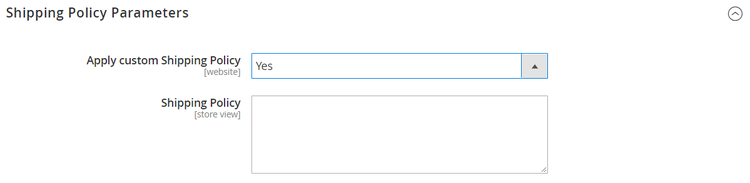
-
Click Save Config.
Multiple addresses
The multiple address shipping options enable customers to ship an order to multiple addresses during checkout, and determine the maximum number of addresses to which an order can be shipped.
-
On the Admin sidebar, go to Stores > Settings > Configuration.
-
In the left panel, expand Sales and choose Multishipping Settings.
-
Expand

-
Set Allow Shipping to Multiple Addresses to
Yes. -
Enter the Maximum Qty Allowed for Shipping to Multiple Addresses.
-
Click Save Config.

Email shipment tracking URLs
By default, shipment tracking numbers sent in shopper emails are plain text. You can convert these tracking numbers into clickable links by enabling the custom tracking URL feature. This feature allows you to define a template for tracking URLs for various shipping carriers. Each template includes the full URL to the tracking website and a placeholder for the tracking number. Commerce replaces the placeholder with the actual tracking number in the email.
The following shipping carriers are supported:
- United States Postal Service (USPS)
- United Parcel Service (UPS)
- Federal Express (FedEx)
- DHL Express (DHL)
To enable or edit custom tracking URLs:
-
On the Admin sidebar, go to Stores > Settings > Configuration.
-
In the left panel, expand Sales and choose Shipping Settings.
-
Expand
-
Set Enable Custom Tracking URLs to
Yes. -
Default URL templates are provided for each supported carrier. If you need to change any of these values, enter a new URL template in the corresponding field. Use
{{tracking_number}}as a placeholder for the actual tracking number. If, for example, UPS changes their URL tohttps://www.ups.com/newtracker?tracknumber, the new tracking URL template might look like this:code language-text https://www.ups.com/newtracker?tracknumber={{tracking_number}} -
Click Save Config.