Access your Commerce account
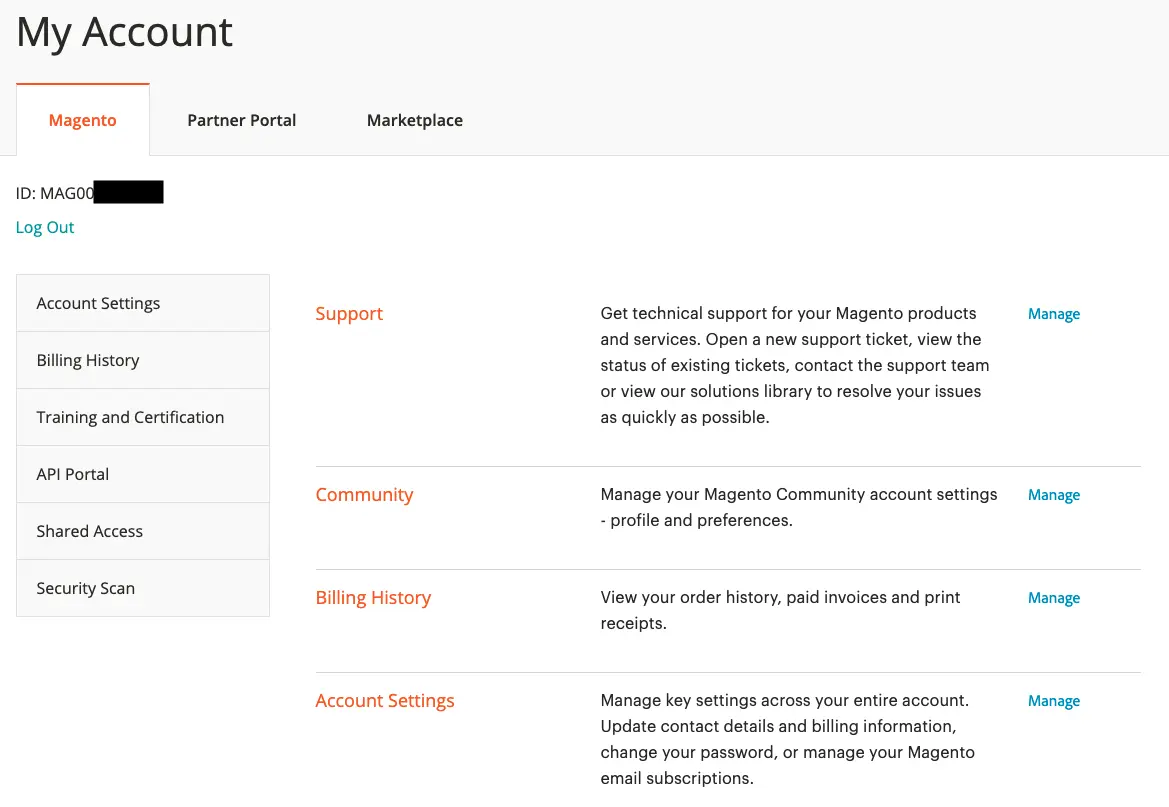
A Commerce account is your central access point for managing Adobe Commerce services for Adobe Commerce projects deployed on cloud infrastructure or on-premises. From the account dashboard, you can view subscriptions, manage Commerce Services API keys, review historical billing information, and collaborate with other users in your organization.
If you need to submit your first ticket or manage your Adobe Commerce relationship — rather than working within a specific storefront — start by creating or accessing your Commerce account.
You can access your Commerce account from the Commerce website. From the account dashboard, you can view information related to the products and services you have purchased and provide Shared Access to other users. Some information, such as Commerce Services API keys, is visible only to license owners.
Your Commerce account login is separate from your store Admin login. You will normally use different credentials for each, and access to each system is managed independently.
However, a user who wants to streamline their login to Adobe Commerce and Adobe Business products can configure their Adobe ID to log in to the store Admin: Configure the Commerce Admin Integration with Adobe ID in the IMS Integration Guide for Commerce.
Log in to your Commerce account
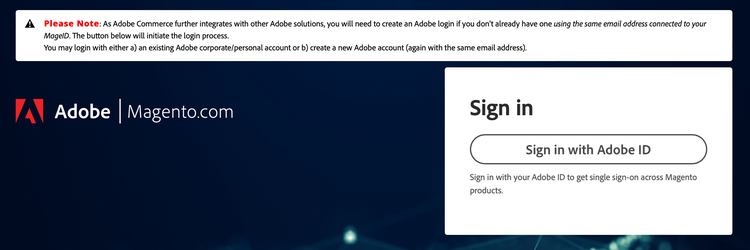
An Adobe ID is required to access your Commerce account. If you have an existing Commerce account but have not signed in since August 2022, you must create an Adobe ID during the sign-in process. You must complete this step before you can log in to your account.
-
Go to the Commerce site.
-
Click Sign in with Adobe ID.
-
Enter your email address and click Continue.
note tip TIP If you used an email address that is associated with an existing Commerce account MAGEID, the sign-in process automatically links it to your Adobe ID.
Create a Commerce account
Anyone can create a free Commerce account. The email address that you use can only be associated with one Commerce account.
- If you don’t have a Commerce account, you can create one during the sign-up process.
- If you already have a Commerce account but you do not have an Adobe ID, see log in to a Commerce account.
-
Go to the Commerce site.
-
Click Sign in with Adobe ID.
-
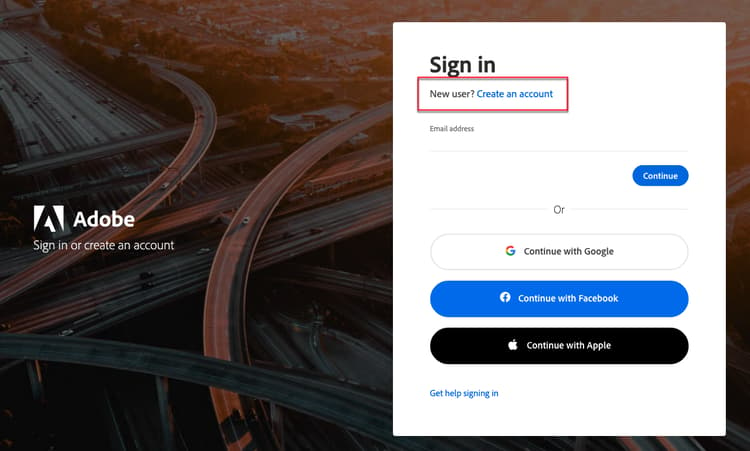
If you don’t have an Adobe ID, click Create an account. Otherwise, skip to step 7.
-
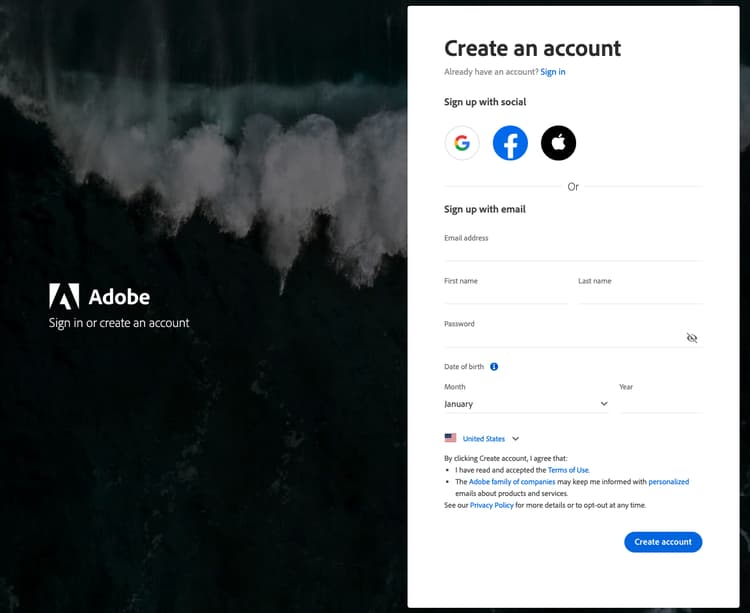
Complete the sign-up form.
-
Click Create account.
-
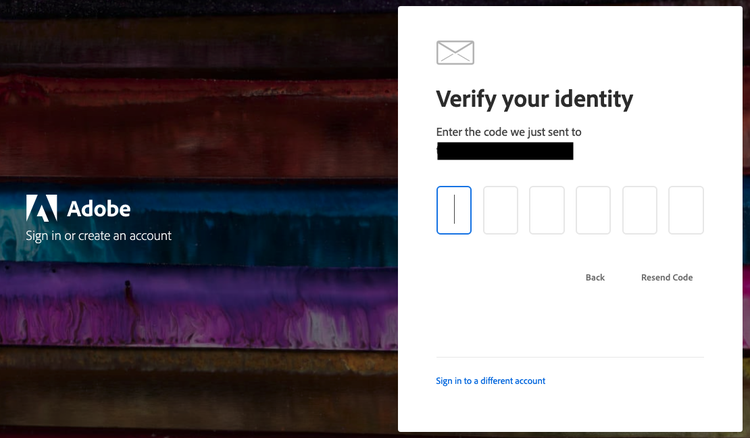
Enter the verification code sent to your email address.
-
After your Adobe ID is created and verified, return to https://account.magento.com/. A MAGE ID will be generated and automatically linked to your Adobe ID.
Reset your password
-
Go to the Commerce site.
-
Click Sign in with Adobe ID.
-
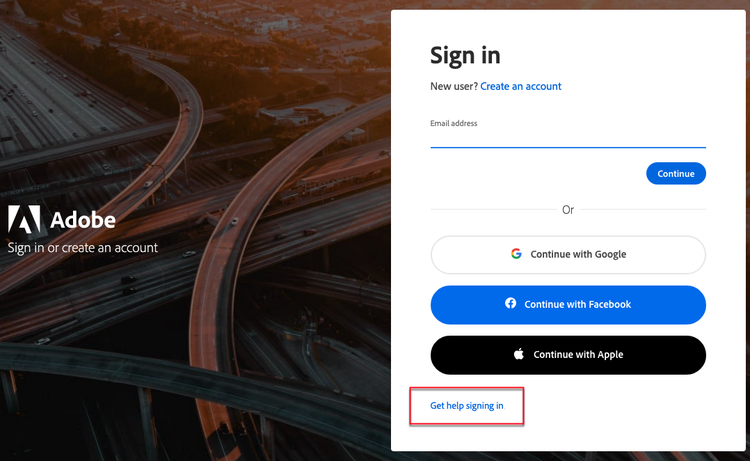
Click Get help signing in.
-
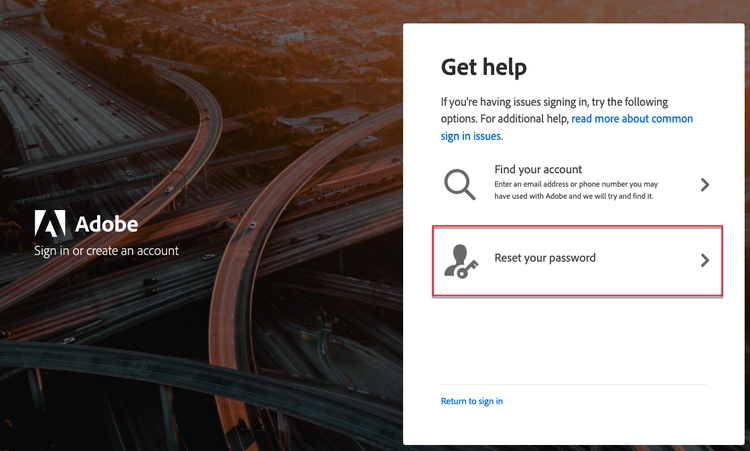
Click Reset your password.
-
Enter your email address.
-
Click Continue.
Providing Shared Access to your Commerce account
Shared Access allows you to grant trusted users—such as colleagues, partners, or administrators—permission to manage your Adobe Commerce relationship on your behalf without using your personal login. This includes allowing others to open and track support cases.
See the Share a Commerce account section of Adobe Commerce Getting Started Guide for detailed steps on setting up a shared account.
For detailed instructions on submitting a Commerce support case, see the Adobe Commerce Help Center user guide.
Summary
If a user believes they should have Commerce entitlements but does not see a MAGE ID, the default next step is to sign in at https://account.magento.com using their Adobe ID so that a Commerce account and MAGE ID can be created or correctly linked.