Catalog sync
The Data Sync page displays an overview of the synchronization status for product data transferred from your data source (your existing Commerce catalog, Product Information Management (PIM) system, Enterprise Resource Planning (ERP) system, and so on) into the Merchandising Services data layer.
The Data Sync page provides valuable insights into the availability of product data for your storefront, ensuring that it can be promptly displayed to your shoppers.
Access the Data Sync workspace
How you open the Data Sync workspace depends on the product you use:
- Adobe Commerce Admin (Adobe Commerce as a Cloud Service)—Select Stores > Catalog Sync.
- Adobe Commerce Optimizer Studio—Select Store setup > Data Sync.
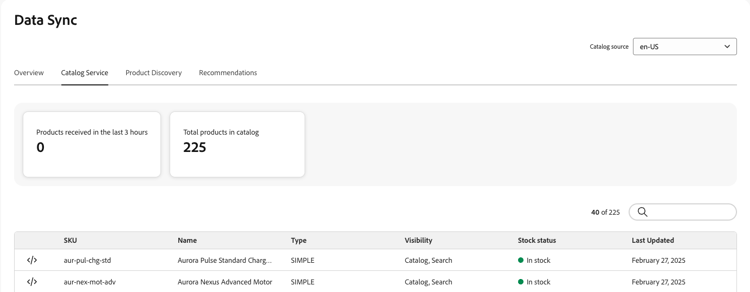
The Data Sync page contains the following fields:
List of synced products
To see the details of a synced product in JSON format, click on the code icon

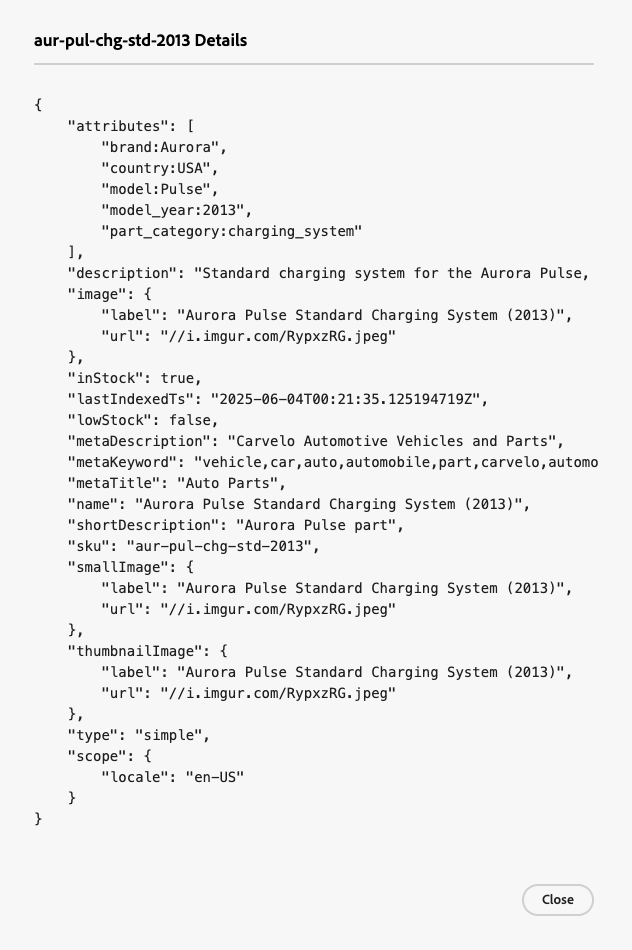
Resync catalog data
If you do not see specific products on the Data Sync page, you need to initiate a resync from your upstream system. However, keep in mind that a resync can increase the load on hardware resources. Nevertheless, resyncing your catalog might be necessary in the following scenarios:
-
When significant changes are made to your product catalog, such as adding new products, updating product details, or modifying categories
-
If you notice any discrepancies or performance issues in displaying product data on your storefronts
Verify that data synchronization is working
For projects that use Adobe Commerce as the upstream data source, you can monitor the data export process and initiate resync operations from the Data Feed Sync Status page. For details, see Data Feed Sync Status monitoring.