Data loading (RDBMS) data-loading-rdbms
The Data loading (RDBMS) activity is a Data management activity. Use this activity to load data directly from an external relational database into your workflow. The extracted data is available throughout the workflow and can be used for targeting, enrichment, or further data processing.
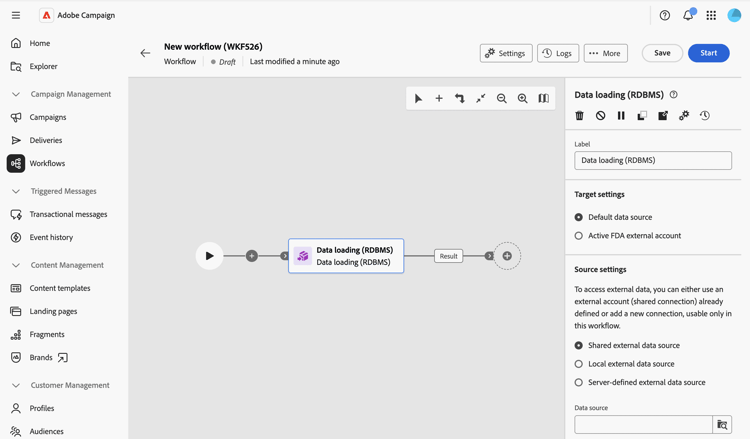
First of all, add a Data loading (RDBMS) activity as the first activity of a workflow branch.
The activity is divided into four sections:
- Target settings: choose where the loaded data is stored. Learn more
- Source settings: choose how to access the external database that contains the data to load. Learn more
- Information collected: define which columns are collected from the external table. Learn more
- Source filtering: define a filter to collect only part of the data from the external table. Learn more
Note that the last two sections only appear when the Source settings are defined.
Target settings target-settings
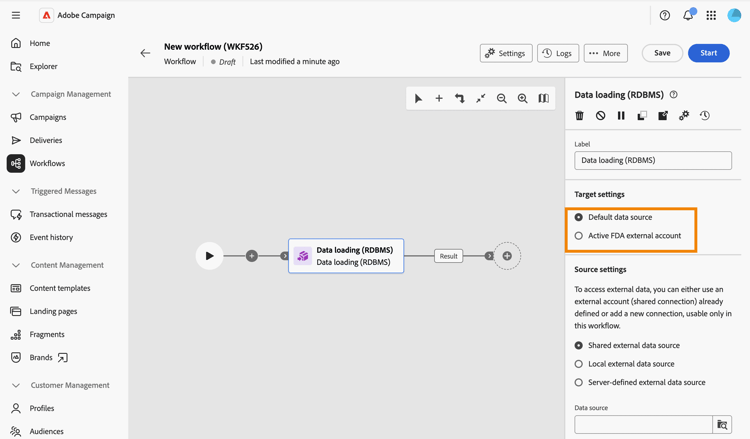
In the Target settings section, choose where the loaded data is stored. Two options are available: Default data source and Active FDA external account.
Default data source default-data-source
This option is selected by default. It lets you store the loaded data in the default Campaign database. You just need to select the option.
Active FDA external account active-fda-external-account
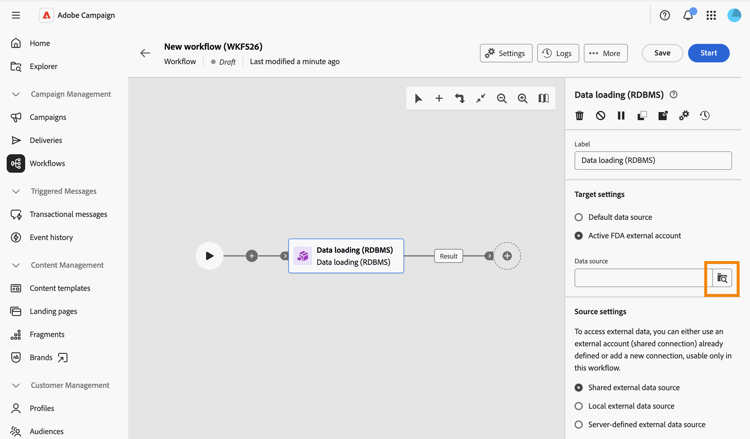
This option lets you store the loaded data in an external account.
-
Click the button located on the right side of the Data source field.
-
Select the account to use.
Source settings source-settings
In the Source settings section, choose how to access the external database that contains the data to load. Three options are available: Shared external data source, Local external data source, and Server-defined external data source.

Shared external data source shared-data-source
This option is selected by default. It allows you to use an external account already configured by a Campaign administrator. Learn how to configure an external account.
-
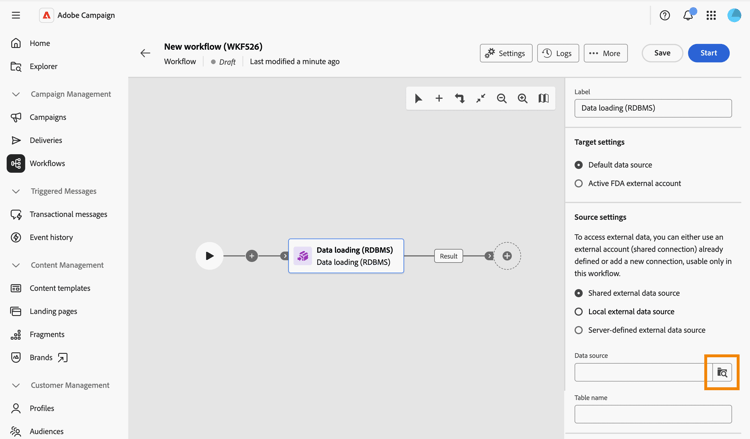
Click the button located on the right side of the Data source field and select the account to use.
-
Click the Browse button next to the Table name field and select the table that contains the data you want to load.

Local external data source local-external-data-source
This option lets you define a connection to an external database directly in the activity, for temporary usage within this workflow only. This connection is not saved as an external account.
-
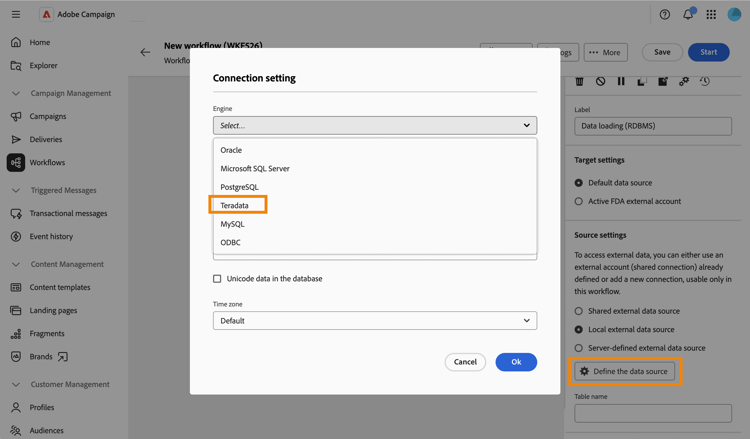
Click the Define the data source button and select the database engine to connect to.
-
Fill in the connection fields displayed for the selected engine.
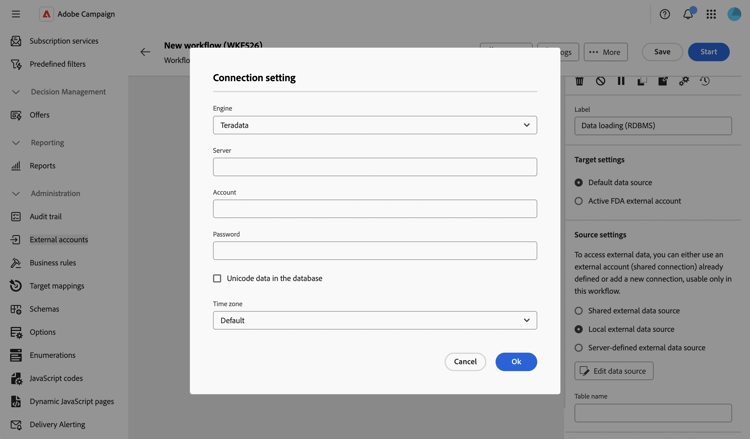
- Enter the name of the table to load in the Table name field.
Server-defined external data source server-defined-external-data-source
This option allows you to use a database connection already defined at server level.
-
Enter the name of the connection to use in the Connection name field.
-
Enter the name of the table to load in the Table name field.

Information collected information-collected
Once the table is set, the Information collected section lets you define which columns are collected from the external table:
-
Check the Keep all source data option (default) if you need to collect every column of the selected table.
-
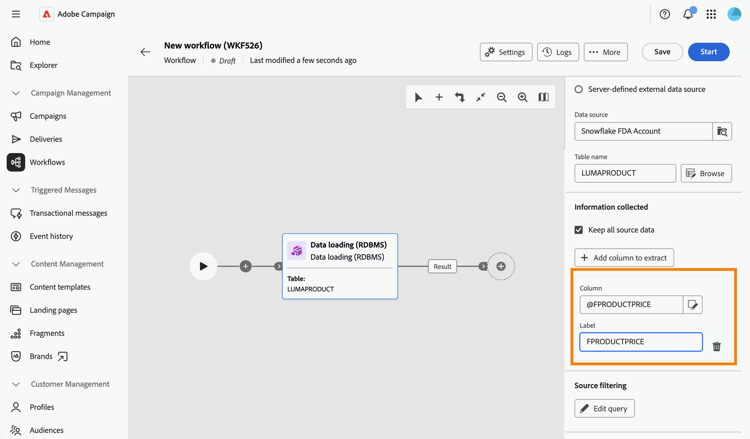
Click Add column to extract to collect specific columns instead, or in addition.

-
Select an attribute and confirm. The attribute is added as a row with a Column field and an editable Label field. Use the delete icon to remove it.
Source filtering (optional) filter
To collect only part of the data from the external table, you can define a filter:
-
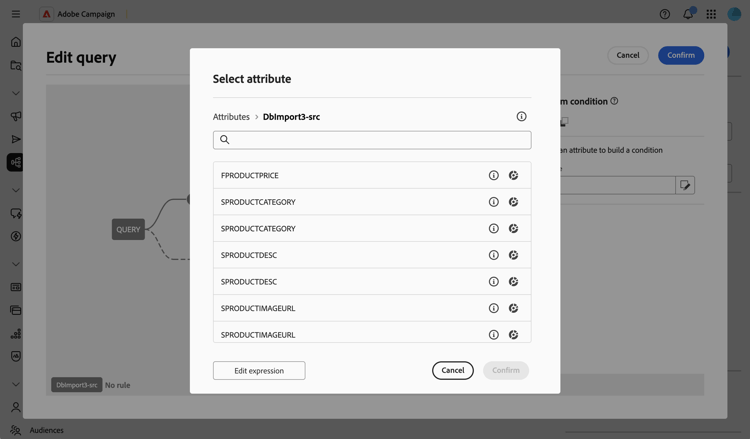
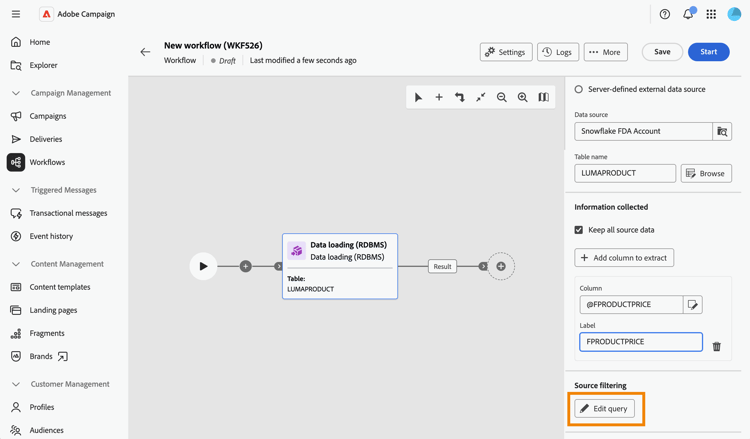
In the Source filtering section, click Edit query.
-
The query modeler opens on a dedicated screen, scoped to the schema of the selected table. Use it to build a condition on the table’s attributes. Learn how to work with the query modeler