Automated delivery automated-delivery
The Automated delivery activity lets you create, configure, and execute delivery actions directly within your workflow. Use it when you want to run a predefined delivery on a schedule or as part of an automated flow, or when you want to generate a new delivery from a template each time the activity runs.
To configure this activity, follow these steps:
Define the delivery settings delivery-settings
When you configure the activity, you choose where the delivery comes from. Two options are available in this section:
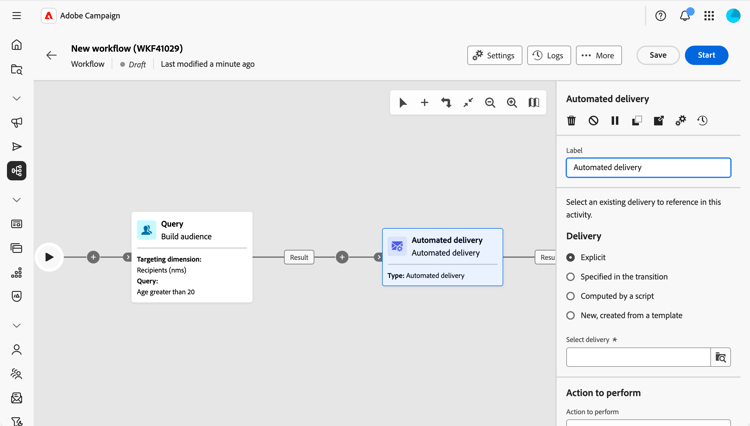
- Select Explicit delivery when you want to act on an existing delivery, for example a stand-alone delivery or a delivery created from a campaign. Pick the delivery using the Select delivery button. Each time the workflow runs and reaches this activity, it acts on the same delivery. No new delivery is created per execution. The activity reuses the same delivery. This is useful when you have a single delivery that you want to prepare or send repeatedly, for example on a schedule or after an approval step.
- Select New, created from a template when you want a new delivery to be created every time the activity runs. Pick the delivery template using the Select template button. Each execution generates a new delivery based on that template. Use this when each workflow execution should result in its own distinct delivery (for example one email per run).
Select the action to perform action-to-execute
In this section, choose what the activity does with the delivery. The following options are available:
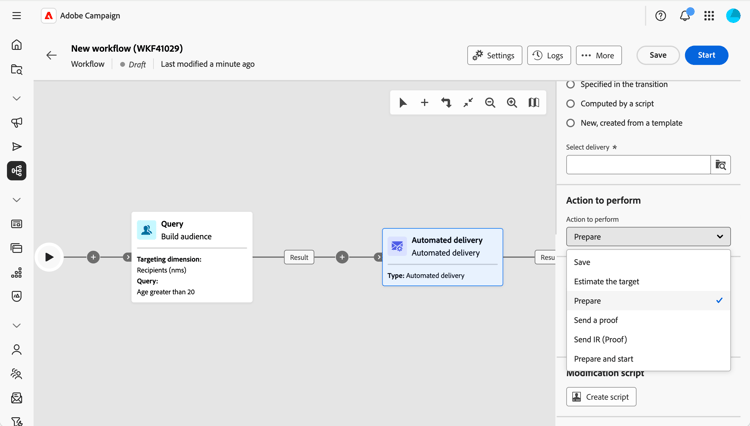
- Save: Creates and saves the delivery without analyzing or sending it.
- Estimate the target: Calculates the delivery target to assess its potential (first analysis phase).
- Prepare: Runs the full analysis (target calculation and content preparation). The delivery is not sent.
- Send a proof: Sends a proof of the delivery.
- Prepare and start: Runs the full analysis (target calculation and content preparation) and sends the delivery.
Set up the transition transition-to-execute
This section allows you to choose if you want to generate transitions after the activity. The following options are available:
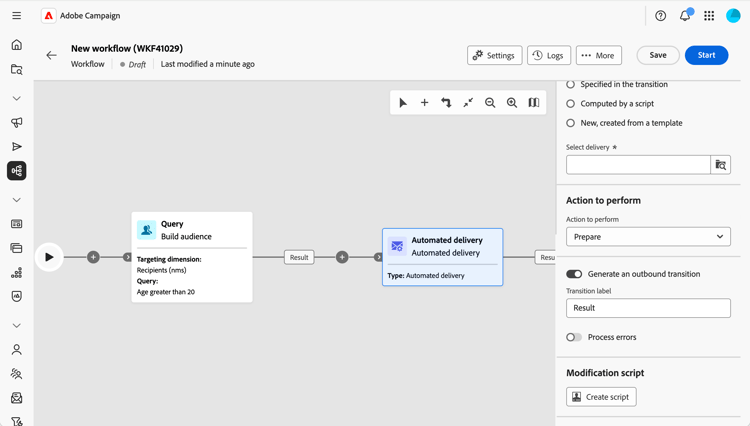
- Generate an outbound transition: Generates an outbound transition when the activity finishes.
- Transition label: Allows you to customize the label displayed on the transition in the canvas.
- Process errors: Adds an additional transition for handling errors.
Define a modification script script
You can use a script to change the activity’s behavior, for example, delivery parameters such as the activity label. Use this when you need custom logic for this activity.
Click Create script and write your modification logic in the editor.