Configure brands branding-configure
Technical administrators can create and manage multiple brands directly from the Web UI. This allows you to define all the elements that make up your brand identity, including logos and even email tracking settings.
Create or edit a brand create-edit-brand
To create a new brand, follow these steps:
-
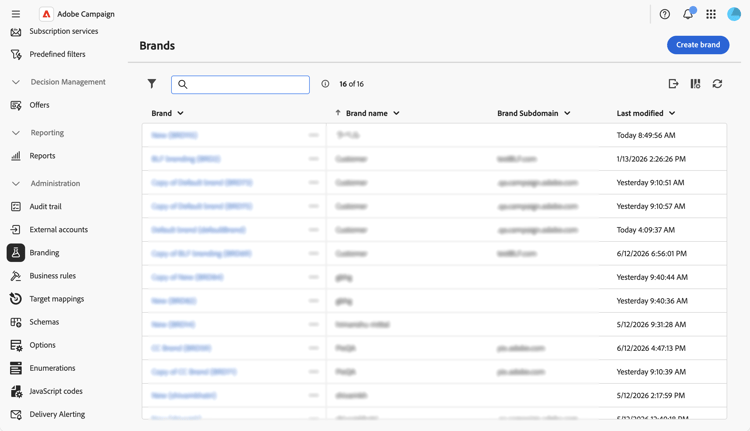
Browse to Administration > Branding from the left menu, or to Administration > Platform > Branding from the Explorer.
-
Click the Create brand button above the list.
-
Fill in the brand details across the different sections. Each field is described in the Brand attributes section below.

-
Click Create brand to save. The brand is now available to be linked to delivery templates and standalone deliveries. Learn how to assign a brand.
To edit an existing brand, select it from the list, update the fields, and save your changes.
Brand attributes brand-attributes
A Brand is configured across four sections: Identity, Brand configs, Email header parameters, and URL tracking parameters.
Identity identity
The Identity section allows you to define and personalize your brand.

This section contains the following fields:
- Brand name: The name of your brand. This field is required.
- Label: The label visible in the interface.
- ID: The internal identifier automatically generated. You can change it. Only letters, digits, and underscores are allowed. Special characters are replaced with underscores.
- Logo URL: The URL of the brand logo image.
- Website URL and Website label: The website URL and label associated with the brand.
Brand configs brand-configs
In the Brand configs section, you define the subdomain and URL protocols used for tracking and landing page access.
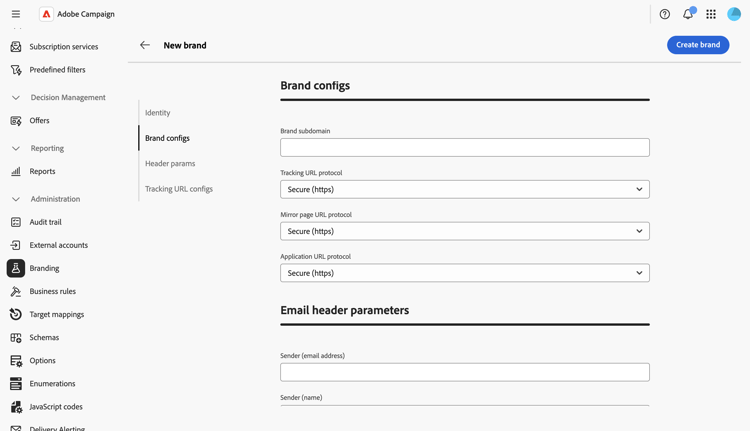
This section contains the following fields:
- Brand subdomain: The subdomain URL specific to this brand, requested for delegation from Adobe.
- Tracking URL protocol, Mirror page URL protocol, and Application URL protocol: The protocol used for each URL type (for example, Secure (https)).
Email header parameters header-param
The Email header parameters allow you to personalize what the recipients will see in the header section of your campaigns.
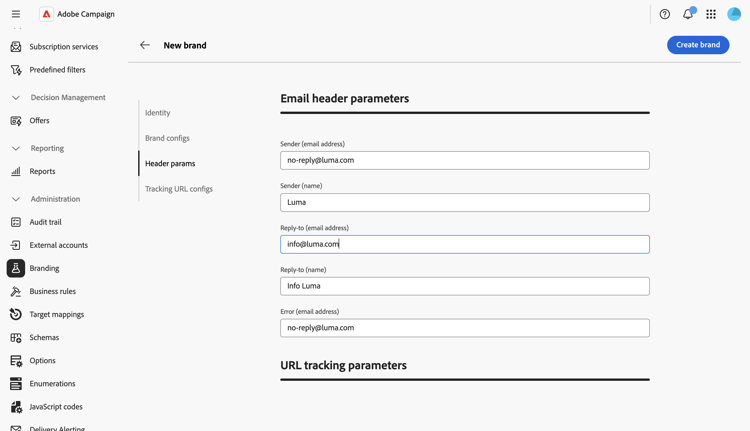
This section contains the following fields:
- Sender (email address): The brand’s email address.
- Sender (name): The brand’s name.
- Reply-to (email address): The email address the customer can reply to.
- Reply-to (name): The display name for replies.
- Error (email address): The email address to use in case of an error.
URL tracking parameters tracking-param
In the URL tracking parameters section, you can enhance URL tracking by defining additional parameters for integration with Web analytics tools such as Adobe Analytics and Google Analytics.
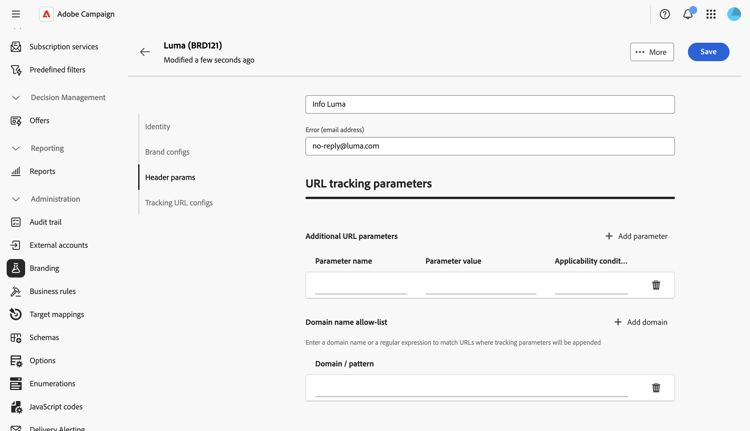
This section contains the following fields:
-
Additional URL parameters: Add parameters as key-value pairs along with their applicability conditions. Each parameter name must be unique and non-empty, and each parameter value must be non-empty. The applicability condition can be empty, but none of these values can include JST tags.
-
Domain name allow-list: Add domain names or regular expressions to match URLs where tracking parameters will be appended.
Example: A tracked URL like https://www.luma.com will become https://www.luma.com/?age=21&deliveryName=DM101 when the additional parameters age=21 and deliveryName=DM101 are configured for that domain.
Configure branding for transactional messaging branding-transactional-config
If you are using Transactional messaging (Message Center) with branding, additional configuration is required.
Tracking formulas for Real-Time instances
When branding is activated on a Real-Time (RT) control instance, specific tracking options are used to manage tracking formulas. These formulas are configured centrally on the RT Control instance rather than individually on each RT Execution instance.
The following options define the tracking formulas used by RT deliveries:
-
NmsTracking_RT_ClickFormula: specifies the formula used for click tracking on RT instances -
NmsTracking_RT_OpenFormula: specifies the formula used for open tracking on RT instances
If your implementation requires custom tracking formulas for transactional messaging, use the option below:
Branding_RT_ListXtkOptions_toPublish: list the XTK option names for your custom formulas here (separated by commas). This ensures that RT deliveries can apply the custom tracking formulas.