Delivery failures and quarantine management delivery-failures-quarantine
- Understanding delivery failures - Covers failure types, error reasons, synchronous/asynchronous errors, retry management, and troubleshooting
- Quarantine management - Covers quarantine vs denylist, soft error thresholds, quarantine reports, and address removal
Understanding delivery failures
For common delivery failure concepts, error types, and troubleshooting guidance, refer to the Campaign v8 Understanding delivery failures documentation.
Bounce mail configuration bounce-mail-config
The following configuration options are available for Campaign Classic v7 hybrid/on-premise deployments to manage bounce mail processing.
Bounce mailbox configuration bounce-mailbox-configuration
For on-premise installations, configuration of the bounce mailbox is detailed in this section.
Asynchronous error messages are collected by the Adobe Campaign platform through the bounce mailbox and qualified by the inMail process to enrich the list of email management rules.
Bounce mail qualification management bounce-mail-qualification-management
For on-premise installations and hosted/hybrid installations using the legacy Campaign MTA, when the delivery of an email fails, the Adobe Campaign delivery server receives an error message from the messaging server or the remote DNS server. The list of errors is made up of strings contained in the message returned by the remote server. Failure types and reasons are assigned to each error message.
This list is available via the Administration > Campaign Management > Non deliverables Management > Delivery log qualification node. It contains all the rules used by Adobe Campaign to qualify delivery failures. It is non-exhaustive, and is regularly updated by Adobe Campaign and can also be managed by the user.
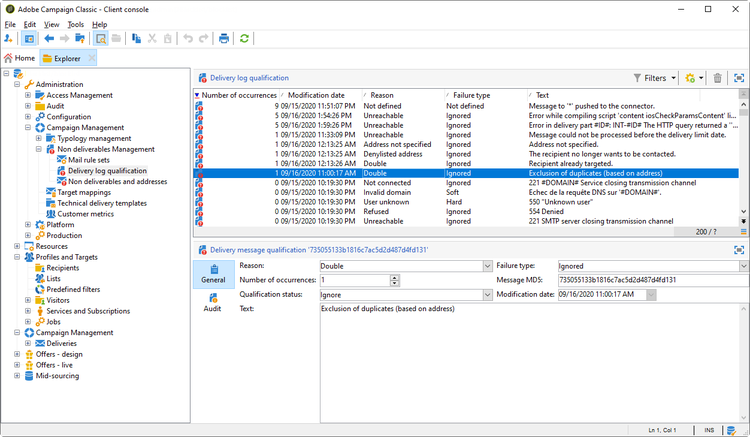
The message returned by the remote server on the first occurrence of this error type is displayed in the First text column of the Delivery log qualification table. If this column is not displayed, click the Configure list button at the right bottom of the list to select it.
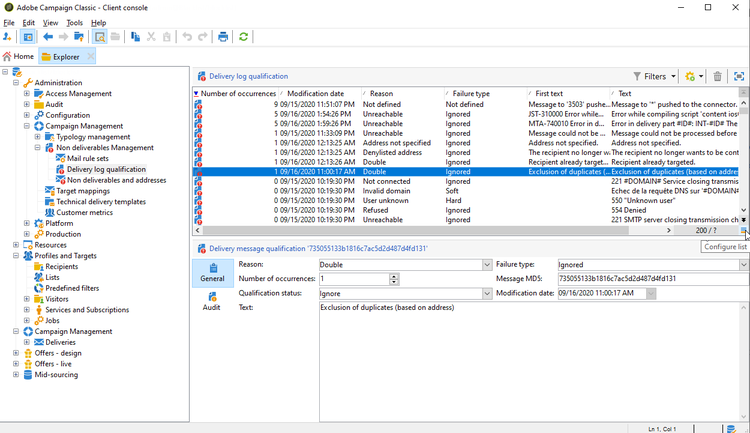
Adobe Campaign filters this message to delete the variable content (such as IDs, dates, email addresses, phone numbers, etc.) and displays the filtered result in the Text column. The variables are replaced with #xxx#, except addresses that are replaced with *.
This process allows to bring together all failures of the same type and avoid multiple entries for similar errors in the Delivery log qualification table.
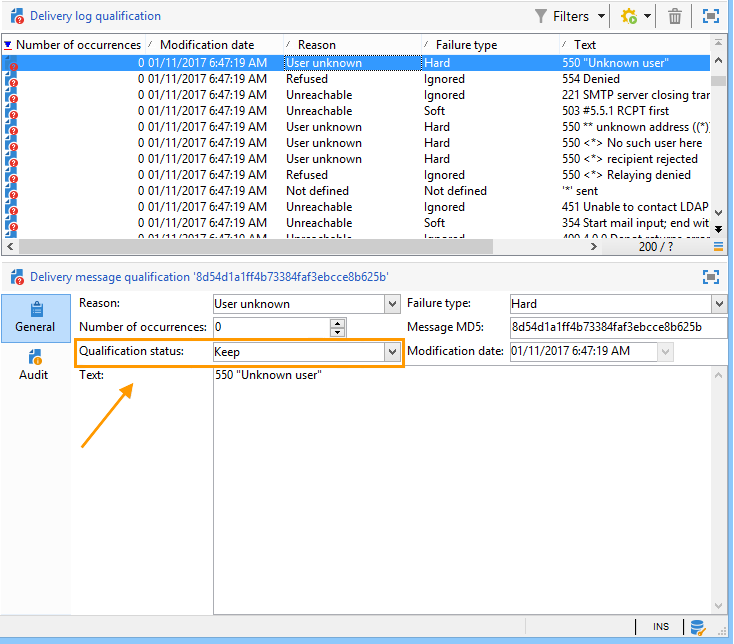
Bounce mails can have the following qualification status:
- To qualify: the bounce mail could not be qualified. Qualification must be assigned to the Deliverability team to guarantee efficient platform deliverability. As long as it isn’t qualified, the bounce mail isn’t used to enrich the list of email management rules.
- Keep: the bounce mail was qualified and will be used by the Refresh for deliverability workflow to be compared to existing email management rules and enrich the list.
- Ignore: the bounce mail is ignored by the Campaign MTA, meaning that this bounce will never cause the recipient’s address to be quarantined. It will not be used by the Refresh for deliverability workflow and it will not be sent to client instances.
Email management rules configuration email-management-rules
Mail rules are accessed via the Administration > Campaign Management > Non deliverables Management > Mail rule sets node. Email management rules are shown in the lower part of the window.
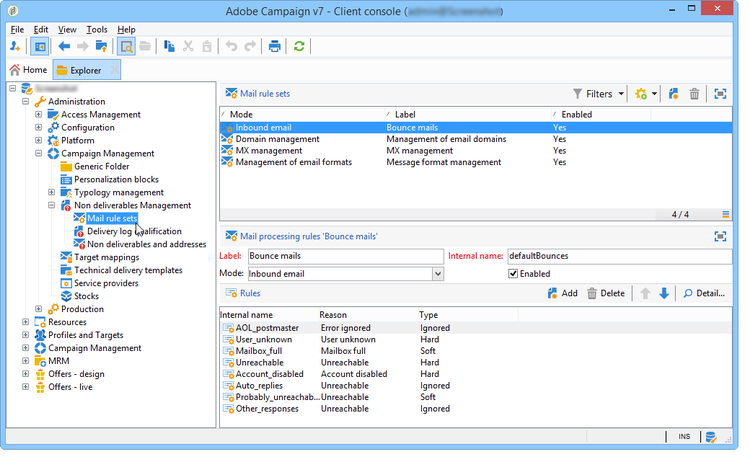
The default rules are as follows:
- The delivery server (MTA) has to be restarted if the parameters have been changed.
- The modification or creation of management rules is for expert users only.
Inbound email inbound-email
These rules contain the strings which can be returned by remote servers and which enable you to qualify the error (Hard, Soft or Ignored).
When an email fails, the remote server returns a bounce message to the address specified in the platform parameters. Adobe Campaign compares the content of each bounce message to the strings in the rule list, and then assigns it one of the three error types.
For more on bounce mail qualification, refer to this section.
Domain management domain-management
For on-premise installations, the MTA applies a single Domain management rule to all domains.
- You can choose whether or not to activate certain identification standards and encryption keys to check the domain name, such as Sender ID, DomainKeys, DKIM, and S/MIME.
- The SMTP relay parameters let you configure the IP address and port of a relay server for a particular domain. For more on this, refer to this section.
If your messages display on behalf of in the sender address, make sure not to sign emails with Sender ID, which is the obsoleted proprietary email authentication standard from Microsoft. If the Sender ID option is enabled, uncheck the corresponding box and contact Adobe Customer Care. Your deliverability will not be impacted.
MX management mx-management
For on-premise installations, MX management rules are used to regulate the flow of outgoing emails for a specific domain.
These rules are available in the deployment wizard and can be customized:
-
MX Management: this rule is used to control the flow of outgoing emails for a domain. It samples bounce messages and blocks sending where appropriate.
-
Period: the time frame during which messages are throttled or blocked.
-
Limit: the maximum number of messages allowed per time period.
-
Type: the error type (hard, soft, or ignored) used to determine sending behavior. Refer to the Campaign v8 documentation for error type definitions.
For more on MX management, refer to this section.
Quarantine management quarantine-management
For comprehensive quarantine management guidance, refer to the Campaign v8 Quarantine management documentation.
Quarantine configuration quarantine-config
The following configuration options are available for Campaign Classic v7 hybrid/on-premise deployments to customize quarantine behavior.
Soft error threshold configuration soft-error-threshold
For on-premise installations using the legacy Campaign MTA, you can modify the number of errors and the period between two errors before an address is quarantined.
To configure these settings:
-
Access the deployment wizard from Tools > Advanced > Deployment wizard
-
Navigate to Email channel > Advanced parameters
-
Configure:
- Number of errors: The maximum number of soft errors before an address is quarantined (default: 5)
- Period between two significant errors: The time window (in seconds) for error counting (default: 86,400 seconds = 1 day)
When the error counter reaches the threshold, the address is quarantined. If the last significant error occurred more than 10 days ago, the error counter is reinitialized.
For more details, refer to this page under Delivery sending > Configure retries.
Database cleanup workflow database-cleanup-workflow
For on-premise installations, the Database cleanup technical workflow automatically removes quarantined addresses that match specific conditions.
Access this workflow from Administration > Production > Technical workflows > Database cleanup.
The workflow removes addresses from quarantine in the following cases:
- Addresses in With errors status after a successful delivery
- Addresses in With errors status if the last soft bounce occurred more than 10 days ago
- Addresses in With errors status with Mailbox full error after 30 days
Ensure this workflow runs regularly (recommended: daily) to maintain quarantine list hygiene.
For more on database cleanup, refer to this section.
Push notification quarantine specifics push-quarantine-specifics
For Campaign Classic v7, push notification quarantines follow the general quarantine mechanism with some channel-specific behaviors.
For iOS and Android push notifications, the quarantine mechanism uses device tokens rather than email addresses. When a mobile application is uninstalled or reinstalled, the associated token is quarantined.
For detailed information about push notification quarantine scenarios (iOS and Android error types, retry behavior, etc.), refer to the Understanding delivery failures documentation which includes comprehensive push notification error type tables.
SMS quarantine specifics sms-quarantine-specifics
For Campaign Classic v7, SMS quarantines follow the general quarantine mechanism with some channel-specific behaviors related to phone numbers rather than email addresses.
The SMS quarantine mechanism varies depending on the connector used:
-
Standard SMPP connectors: Error qualification rules defined in Administration > Campaign Management > Non deliverables Management > Delivery log qualification apply to SMS deliveries.
-
Extended generic SMPP connector: Error management is handled differently using regular expressions (regexes) to parse Status Report (SR) messages returned by the SMSC provider.
For detailed information about SMS quarantine scenarios and error types, refer to the Understanding delivery failures documentation which includes comprehensive SMS error type tables.
Related topics
- Understanding delivery failures (Campaign v8 documentation)
- Quarantine management (Campaign v8 documentation)
- Delivery best practices (Campaign v8 documentation)
- Delivery statuses (Campaign v8 documentation)
- Database cleanup workflow (v7 hybrid/on-premise)
- Configure delivery retries (v7 hybrid/on-premise)
- Update bounce qualification (v7 hybrid/on-premise)
- Email deliverability configuration (v7 hybrid/on-premise)
- Deploying an instance (v7 hybrid/on-premise)