Enable voice conversations
Voice conversations in Adobe Brand Concierge let your visitors speak with a concierge instead of typing. Voice supports hands-free interactions and keeps the experience multimodal, so the concierge can still provide text, images, and links.
How to enable voice
-
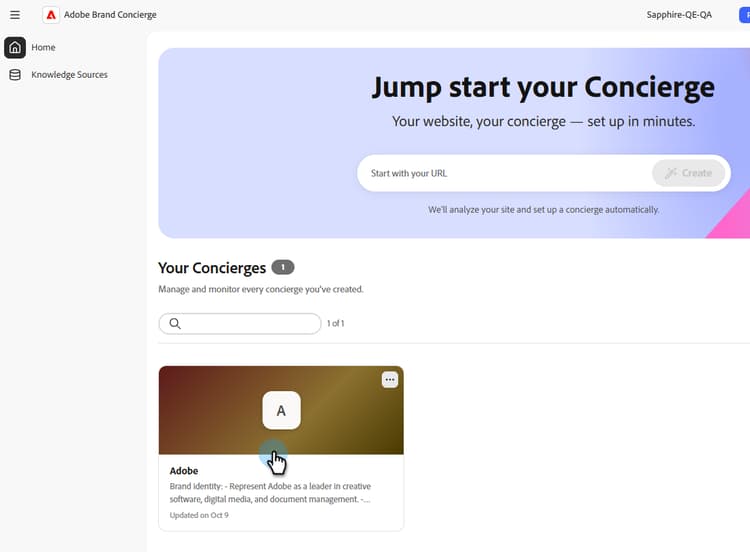
On the Home screen, under Your Concierges, select the concierge where you want to enable voice.
-
In the Design tab, select Voice.
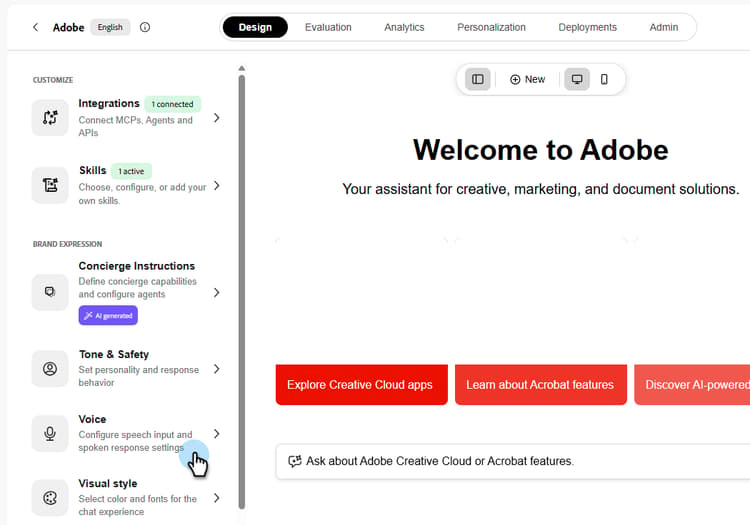
note NOTE The first time you enable voice, you must review the privacy notice before continuing. -
In the Voice panel, enable the options you want, and then select Save.
- Dictation: Transcribes what your visitors say into text.
- Voice Mode: Reads the concierge’s responses aloud.
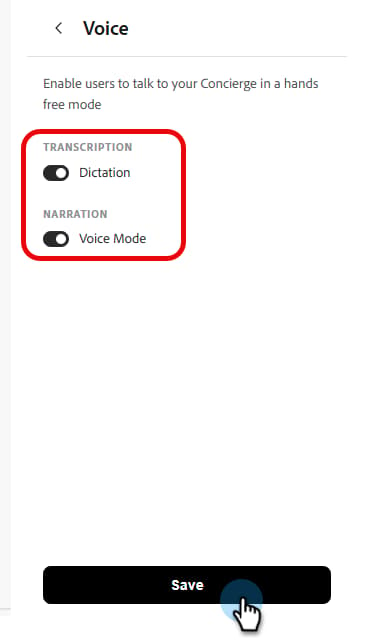
note NOTE The available controls might vary depending on your concierge’s configuration.
The visitor experience
Visitors can speak naturally
After you enable voice, visitors can speak naturally to the concierge. Automatic speech detection starts and stops listening, so visitors do not have to select a button for each turn.
Visitors can also interrupt the concierge while it is speaking, so they do not have to wait for the response to finish.
Text and visual responses
Voice does not limit the concierge to audio. During a voice conversation, the concierge can still return text, images, and links as part of its response.
How to disable voice
-
On the Home screen, under Your Concierges, select the concierge where you want to disable voice.
-
In the Design tab, select Voice.
-
In the Voice panel, disable the options you want to turn off, and then select Save.
Video demo
To see voice conversations in action, check out the video demo.