Activate live chat and meeting booking configure-in-composer
Two things have to be in place in Composer. The Meeting Booking and Live Chat integrations give the concierge the ability to check availability, start a chat, and book a slot. The Handoff to sales skill tells it when to use that ability.
Connect the meeting booking integration connect-meeting-booking
-
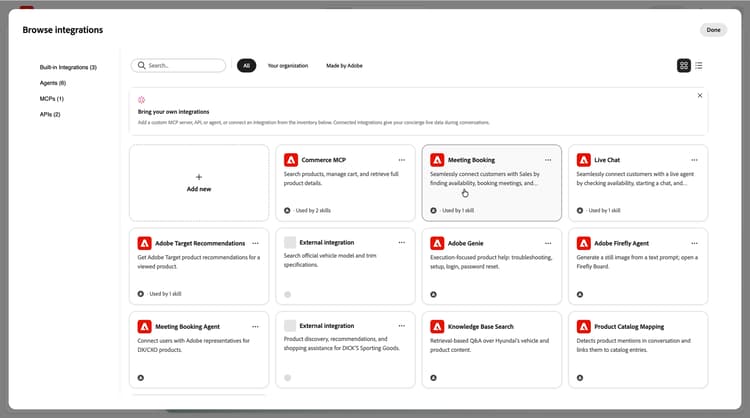
In Composer, open your concierge and select Integrations > Browse integrations.
Meeting Booking and Live Chat appear under Built-in Integrations.
-
Select Meeting Booking, and then select Configure.
-
Enter a name and description.
Name the integration for what it does in this concierge, such as
Meeting booking - US regionorMeeting booking - round robin. You can connect more than one, so the name is how you tell them apart later. -
Check the calendar connection status.
The integration verifies that at least one representative in your organization has connected a calendar.
- If none has, an error tells you to connect at least one calendar before activating meeting booking. Go back to Adobe Marketo Qualifier and complete Connect your calendar.
- If at least one has, a confirmation shows that representatives are available.
-
Select a routing type: Round robin, Direct agent, or Custom routing.
If you select Direct agent, choose the representative who receives every meeting booked through this concierge. If you select Custom routing, the routing rules you built in Adobe Marketo Qualifier are applied. For how each behaves, see Route conversations to representatives.
-
Select Connect.
Connect the live chat integration connect-live-chat
-
In Browse integrations, select Live Chat, and then select Configure.
-
Enter a name and description, for example
Live chat - round robin. -
Check the live chat availability status.
The integration verifies that at least one representative has set live chat availability.
- If none has, a message tells you to add representatives who have set up their live chat availability. Go back to Adobe Marketo Qualifier and complete Set live chat availability.
- If at least one has, a confirmation shows that representatives are available.
-
Select a routing type.
Live chat supports the same three routing types as meeting booking. With Round robin, every eligible representative is notified at once and the first to accept takes the chat.
-
Select Connect.
Activate the Handoff to sales skill activate-skill
The integrations are now connected, but the concierge still needs to know when to offer them. That is the skill’s job.
-
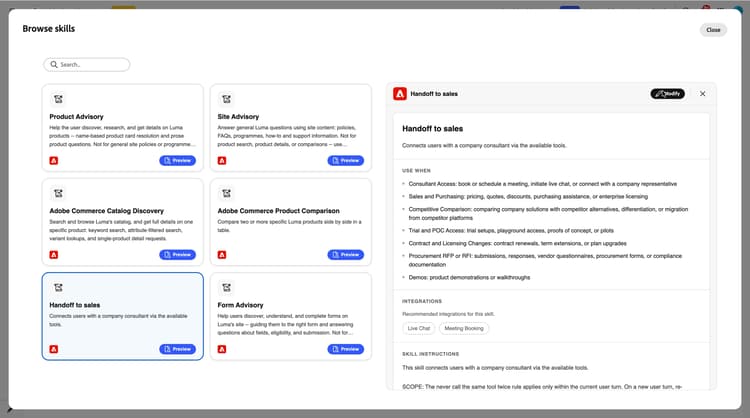
In Composer, select Skills > Browse skills, and then select Handoff to sales.
The detail panel shows the skill description, its Use when conditions, the recommended Integrations, and the Skill instructions.
-
Select Modify.

-
Review the skill name and description, and edit them if you want.
-
Review the Use when conditions.
These are the intents that trigger a handoff. The skill ships with a default set:
table 0-row-2 1-row-2 2-row-2 3-row-2 4-row-2 5-row-2 6-row-2 7-row-2 Condition Triggers on Consultant Access Booking or scheduling a meeting, starting a live chat, or asking to connect with a company representative Sales and Purchasing Pricing, quotes, discounts, purchasing assistance, or enterprise licensing Competitive Comparison Comparing your solutions with competitor alternatives, differentiation, or migration from a competitor platform Trial and POC Access Trial setups, playground access, proofs of concept, or pilots Contract and Licensing Changes Contract renewals, term extensions, or plan upgrades Procurement RFP or RFI RFP or RFI submissions and responses, vendor questionnaires, procurement forms, or compliance documentation Demos Product demonstrations or walkthroughs Select Add condition to add an intent of your own, or delete any condition that does not apply to your business.
-
Add the integrations you connected.
Add Live Chat, Meeting Booking, or both, depending on what you want this concierge to offer.
-
Review the Skill instructions.
The instructions are generated for you from the conditions and integrations you selected, so in most cases no editing is needed.
Edit them in plain language when you want finer control over which intent leads to which option. For example, you can instruct the concierge to offer live chat for pricing questions, offer a meeting for demo requests, and offer both for procurement questions.
-
Select Save.
Test and publish test-and-publish
Open the preview and ask the concierge something that matches one of the Use when conditions, such as requesting a demo. The concierge should offer to connect you with a specialist, show the chat option, the meeting option, or both, and present real availability.
When the behavior is right, publish your concierge to make the handoff live on your site.
Next steps next-steps
Your representatives can now receive chats and meeting bookings. To learn how representatives handle a chat, see Chat inbox.