Set up representatives in Adobe Marketo Qualifier representative-setup
Before a concierge can offer a meeting or a live chat, at least one representative has to be set up in Adobe Marketo Qualifier. Each representative does this once, in their own profile.
The sequence is: an administrator adds the users, then each representative connects a calendar, writes their confirmation email, and declares when they are available for meetings and for chat.
Add users to the organization add-users
An administrator adds each sales representative as a user in the Adobe Admin Console and grants them access to Adobe Marketo Qualifier. For the general procedure, see Add a user to the org and Add a user to the role.
Representatives complete the remaining steps themselves.
Connect your calendar connect
The calendar connection is what makes real availability visible to a concierge. Without it, the representative is not eligible for meeting booking.
-
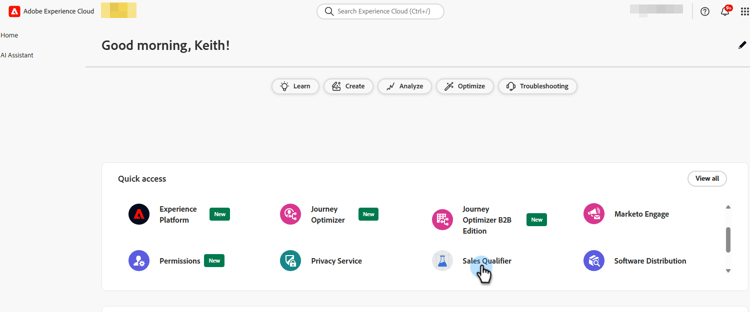
Sign in to Adobe Experience Cloud and select Adobe Marketo Qualifier.
-
In the left panel, under Configuration, select Profile settings, and then open the Calendar configuration tab.
-
Choose the calendar you want to connect, either Microsoft Outlook or Google Calendar.

-
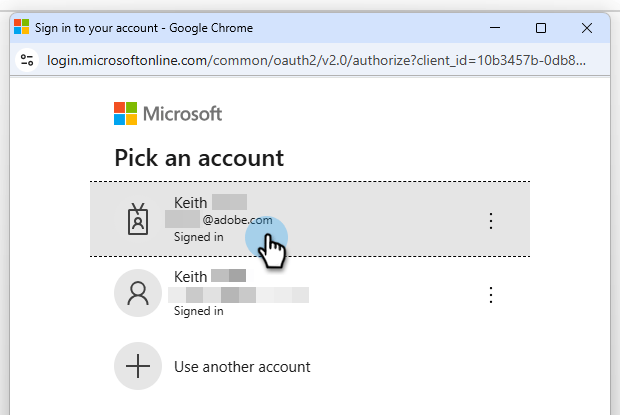
Sign in with an existing account or add a new one, and grant the requested permissions.
-
Review the confirmation email that a visitor receives when they book a meeting with you.
A default subject line and body are set for you. Edit either one, and choose whether to include a Microsoft Teams meeting link in the invitation.

-
Select Save.
Set calendar availability calendar-availability
Connecting a calendar tells Adobe Marketo Qualifier when you are busy. Calendar availability tells it when you are willing to take a meeting. Both are applied.
-
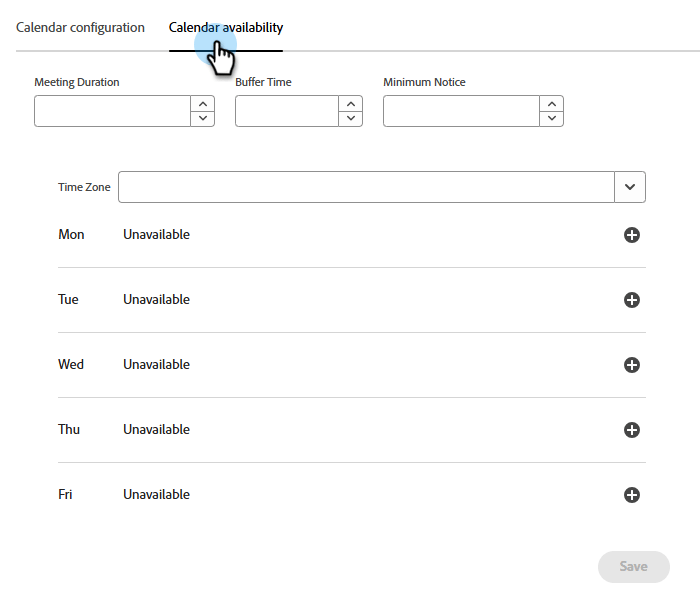
In Profile settings, open the Calendar availability tab.
-
Set your meeting rules.
table 0-row-2 1-row-2 2-row-2 3-row-2 4-row-2 Setting What it controls Meeting duration How long a booked meeting runs, and therefore the length of each offered slot Buffer time The gap enforced between the end of one meeting and the start of the next Minimum notice How far ahead a visitor must book. For example, set 4 hours to keep visitors from booking a slot that starts in 10 minutes Time zone The time zone your availability hours are expressed in. Visitors always see slots converted to their own time zone -
Set your available hours for each day of the week.
A day can be one continuous block, such as 8:00 AM to 5:00 PM, or several blocks, such as 8:00 AM to 12:00 PM and 2:00 PM to 5:00 PM. Leave a day empty to take no meetings on that day.
note NOTE To add another block of time to a day, select the plus sign ( 

-
Select Save.
How a slot becomes bookable slot-logic
A time slot is offered to a visitor only when it survives all three checks:
- It falls inside the available hours you set here.
- It is not already occupied by an event on your connected calendar. An existing 9:00 AM meeting removes the 9:00 AM slot.
- It satisfies your minimum notice and buffer time.
Set live chat availability chat-availability
Live chat availability is separate from calendar availability. A representative can be available for chat but take no meetings, or the reverse.
-
In Profile settings, open the Live chat availability tab.
-
Set your time zone, then set the days and hours when you are willing to receive a live chat. Weekends can be included.

-
Select Save.
Review who is set up manage-members
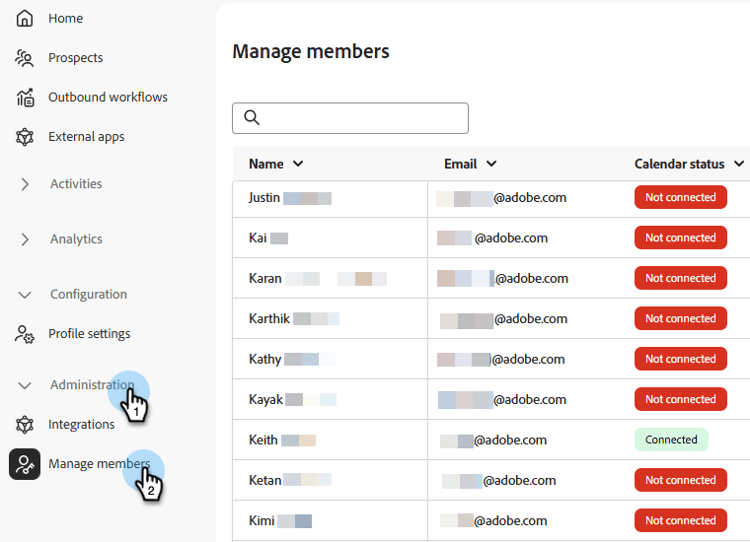
This section is for administrators only. Under Administration, select Manage members to see the state of every representative in one place: who has connected a calendar, who has set live chat availability, and who has disconnected a calendar.
Use this before activating the integrations in Composer. A representative who appears here without a connected calendar is not eligible for meeting booking, and one without live chat availability is not eligible for live chat.
Next step next
With at least one representative set up, decide how visitors are matched to representatives. See Route conversations to representatives.