Configure SMS channel
Objective
In the next set of steps, you configure the SMS channel. This step is required so that you can send messages to individual line holders later on when you are building your campaign.
Navigate to channels
- In Adobe Journey Optimizer, go to the Administration -> Channels menu.
- Select SMS Settings → API credentials.
- Click Create API credential.

Define the SMS API credentials
You start by creating the API connector that AJO uses to send outbound SMS requests.
-
Under SMS Vendor choose Twilio.
-
Enter the following API credential details, using your own Twilio trial account:
- Name:
DEP SMS - Account SID: Found on your Twilio Console dashboard
- Auth Token: Found on your Twilio Console dashboard (click View to reveal it)
- Name:
-
Click Submit to register the API credential

Create SMS channel configuration
Now you map this API credential to a channel configuration that journeys and campaigns can use.
-
Navigate to Channels → General Settings → Channel configurations.

-
Click Create channel configuration.

-
Fill in SMS Channel Configuration Settings with the following values:
- Name:
Relational-SMS-Multi-Entity - Channel:
Mobile Message - Marketing Action:
SMS Targeting
- Name:
SMS settings
On selecting Channel as Mobile Message, a new section called SMS settings shows up. Fill it in with the following details:
- Mobile message type:
Marketing - Mobile message configuration:
DEP SMS - Sender number:
01234567890 - Subdomain:
leave blank - Opt-out number:
leave blank

Execution details
-
Under Execution details, click the tab Orchestrated campaign

-
Ensure the Enabled checkbox is checked

-
Next under the sub-section Execution dimension ensure the following are set up as follows:
- Deliver on message per:
Target + Secondary Dimension - Profile Target Dimension:
dep-rel: Customer Account - customer_id - Secondary Dimension:
Customer Line


note NOTE This setting is telling Orchestrated Campaigns that when it sends messages, it should deliver one message per record that matches to the Profile Target Dimension. - Deliver on message per:
-
Under Execution Address heading ensure you select the radio button for Secondary Dimension and then click the edit button on the SMS Execution Field

-
On the pop-up, click into the schema dep-rel: Customer Line and select Mobile Phone.


-
Confirm the final Execution details section matches below

Submit and review
-
Click the Submit button to complete the configuration and see a success message appear

-
On the channel configurations inventory page ensure the status shows as Active before moving on
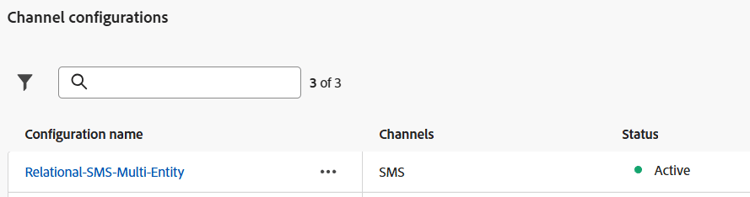
note caution CAUTION Wait until the status turns Active otherwise future lab steps will fail for you -
When the status turns Active you are complete!
Recap
You have now seen how to configure an SMS channel successfully. Note this configuration is an API-based SMS so depending on your provider they may use alternative methods for authentication.
You can read more hereif you are interested.