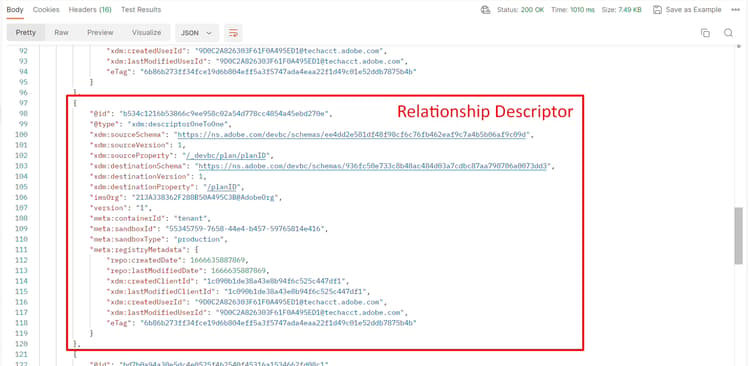
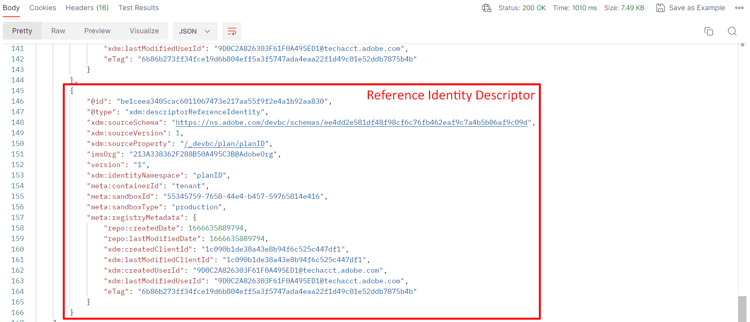
View Schema
View via the UI
- Open your browser and navigate back to the
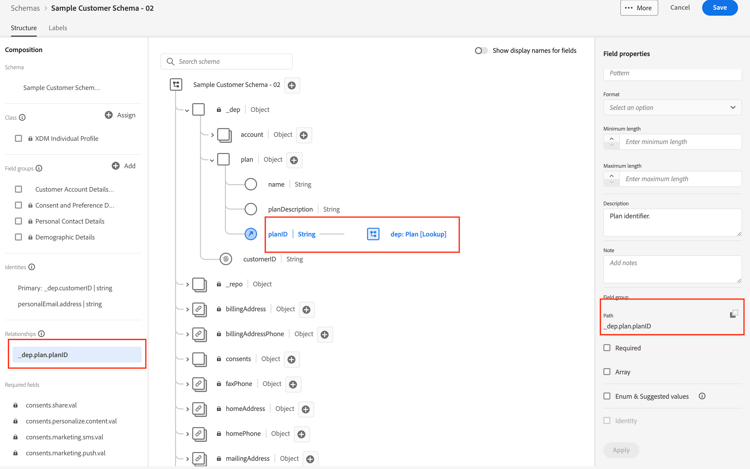
Schema -> Browsesection. - Search for the schema
Sample Customer Schema - <your sandbox number> - Notice that the relationship to the
dep: Plan [Lookup]is defined
View via the API
-
Select the
Step 4 - Get Customer Account Schema and its descriptorsAPI by clicking on it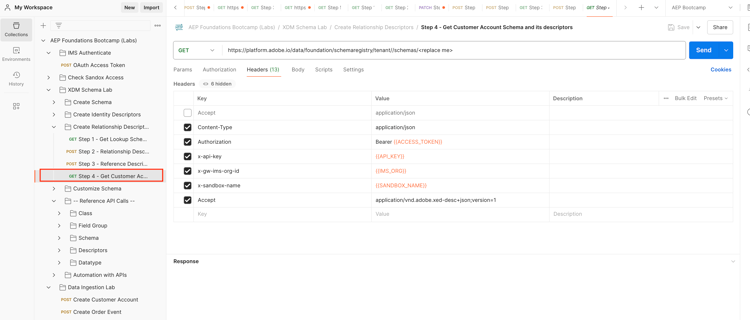
-
In the URL of the request replace the
<replace me>with the$meta:altIdyou saved from the previous section Create Schema as shown below
-
Save the request using the
Savebutton -
Execute the request by clicking the
Sendbutton
You should now see a 200 OK response and you should be able to browse to the end of the schema you created to see the Identity through the lens of the XDM JSON structure