Build Audience #3
Lab objective
Build an audience that visited an iPhone 14 product page
Analysis tasks
This Audience should be straight forward. We might have multiple product pages, but nothing tricky here.
Create an Audience (visited any page)
-
Find Page View event on the Event tab under Event Types in the left rail and add to the Audience
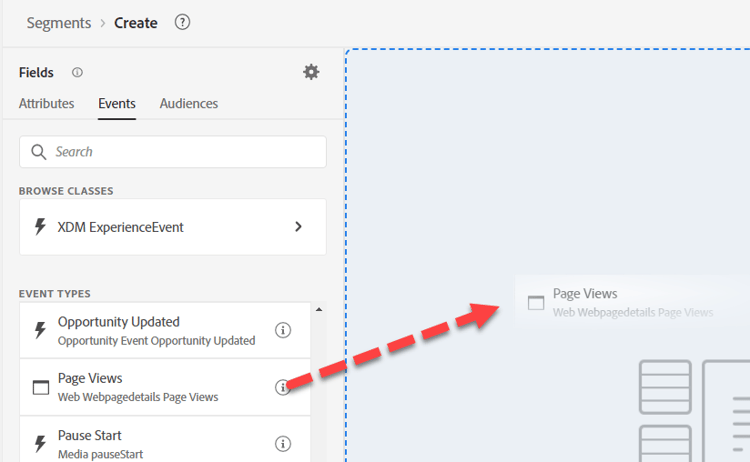
note NOTE Using Event Types By using the Page View Event we ensure the Audience is only evaluating Page Name in the context of a Page View. It should be redundant since a Page Name only exists on a Page View, but provides two benefits: - Provides high level visual documentation to the user when looking in the UI
- Provides filtering to ensure as new events are added that they are not included when that was not the intent
For this reason, we recommend each Event Schema you build should have a lot of thought put into the Event Types you use. They are fundamental to filtering and visual guides. -
Provide a description and make it Streaming.
-
Above the Placed Event, change “Any time” to “Today”

-
Save this Audience as “Visited Any Page”
-
Click the blue button Activate Audience to Destination
-
Select the Streaming DEP Webhook Destination and click Next
-
Click Next and Finish
Create an Audience (visited iPhone 14 page but not owns/ordered it)
-
Create a new Audience and add the Page Views Event
-
Navigate to where Page Name is and add the Page Name field to the Event so we can filter on it.
- XDM ExperienceEvent --> Web --> Web page details --> Name

-
Add contains “iPhone 14”

note tip TIP Searching for “Page” Rather than navigating to the field, try searching for “Page” You see Page Name does not come up. This is because of how it is named: - XDM ExperienceEvent > Web > Web page details > Name
So your folder will come up, but not the field itself. When you are putting your naming conventions together, consider this and other common terms people might search on and incorporate those into your naming. Search does not search descriptions 
-
Above the Placed Event, change “Any time” to “Today”
note NOTE Since we are activating based on events that happened today, we only focus on page views for today. -
Validate this is Streaming and provide a description.
-
Save Audience as “Visited iPhone 14 Page”

-
Click the blue button Activate Audience to Destination
-
Select the Streaming DEP Webhook Destination and click Next
-
Click Next and Finish
Create an Audience of Audiences
-
Navigate to the Audiences tab in the top left nav
-
Drill down to Experience Platform
-
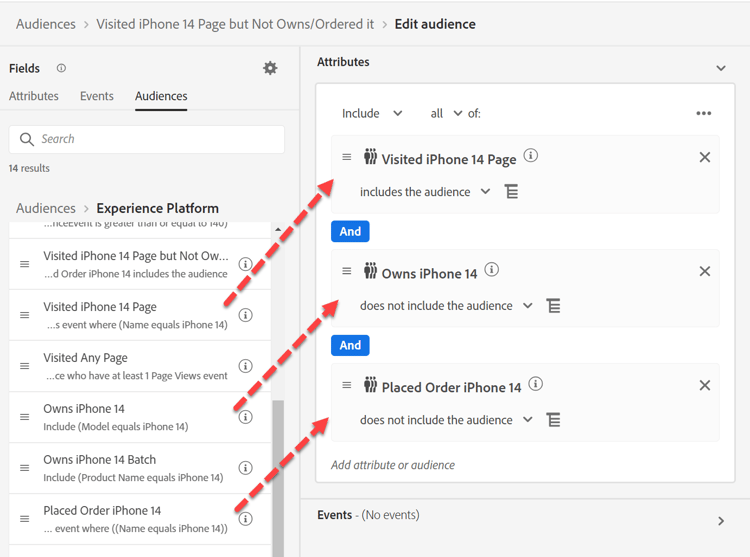
Pull in the three other Audiences we previously created
-
Change the Include to Does not include for Owns iPhone 14 and Placed Order iPhone 14.
-
Provide a description.
-
Change to Streaming
-
Save as “Visited iPhone 14 Page but Not Owns/Ordered it”
-
Click the blue button Activate Audience to Destination
-
Select the Streaming DEP Webhook Destination and click Next
-
Click Next and Finish
Why Create Multiple Audiences?
If we were to have built all these Audiences in one Audience instead of four, we would get a batch evaluation method even though each Audience individually is Streaming.

By breaking up these Audiences and using a Audience of Audiences, we get this behavior. Real-time qualification of these Audiences as data streams in
- Ordered iPhone 14
- Owns iPhone 14
- Visited iPhone 14 Page
Bottom line: we traded off faster entry into the Audience by breaking it into pieces with a 24 hour latency of them falling out of the Audience.