OAuth2 Clients oauth-clients
Use the OAuth2 Clients page to view a list of OAuth2 clients in your Audience Manager configuration. You can edit or delete existing clients or create new clients, providing that you have the appropriate user roles assigned.
Overview overview
OAuth2 is an open standard for authorization to provide secured delegated access to Audience Manager resources on behalf of a resource owner.
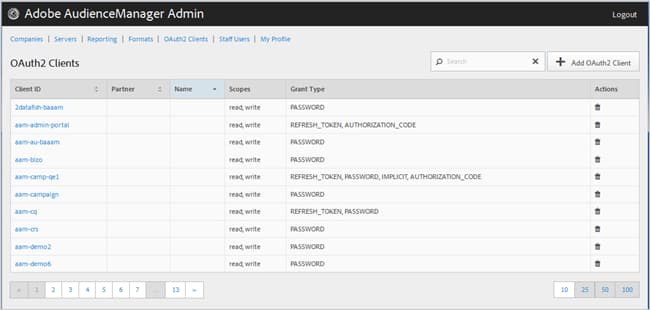
You can sort each column in ascending or descending order by clicking the desired column’s header.
Use the Search box or the pagination controls at the bottom of the list to find the desired client.
Create or Edit an OAuth2 Client create-edit-client
Use the OAuth2 Clients page in the Audience Manager Admin tool to create a new Oauth2 client or to edit an existing client.
-
To create a new OAuth2 client, click OAuth2 Clients > Add OAuth2 Client. To edit an existing OAuth2 client, click the desired client in the Client ID column.
-
Specify the desired name for this OAuth2 client. Note that this is a name for the record only.
-
Specify the OAuth2 client’s email address. There is a limit of one email address.
-
From the Partner drop-down list, select the desired partner.
-
In the Client ID box, specify the desired ID. This is the value used when submitting API requests. The prefix auto-populates when you start typing after you have chosen a Partner from the drop-down list in the preceding step. The correct format is <
partner subdomain> - <Audience Manager username>. -
Select or deselect the Restrict to Partner Users check box, as desired. If this check box is selected, the user must be an Audience Manager user listed for the selected partner. As best practice, we recommend that you select this option.
-
In the Scope section, select or deselect the Read and Write check boxes, as desired.
-
In the Grant Type section, select the desired means for authorization. We recommend that you use the default settings of Password and Refresh-token options.
- Implicit: If you select this option, the Redirect URI box is enabled. The user is given an automatic access token after being authenticated and is immediately sent to the redirect URI.
- Authorization Code: If you select this option, the Redirect URI box is enabled. The user is returned to the client after being authenticated and is then sent to the redirect URI.
- Password: The user is authenticated with a user-entered password rather than an automatic validation attempt via an authorization server.
- Refresh_token: Used to refresh an expired access token for an extended period of time.
-
In the Redirect URI box, specify the desired URI. This option is enabled only if you select the Implicit and Authorization_code grant types. The Redirect URI box lets you specify a comma-separated value of acceptable URI values. This is the URI a user of a client is redirected to after approving the client for API access.
-
Specify the desired expiration time (in seconds) for access and refresh token expiration.
- Access Token Expiration Time: The number of seconds that an access token is valid after being issued. May be null to use the platform default (12 hours). Also may be -1 to indicate that the access token does not expire.
- Refresh Token Expiration Time: The number of seconds that a refresh token is valid after being issued. May be null to use the platform default (30 days).
-
Click Save.
To delete an OAuth2 client, click OAuth2 Clients, then click
