Security requirements for FTP and SFTP servers
This page covers security requirements for existing FTP and SFTP servers that receive data delivered by Adobe Analytics Data Feeds or Data Warehouse.
-
Existing FTP servers: Must be upgraded to use SFTP, as described in the section below, Upgrade FTP servers to use SFTP.
Upgrading from FTP to SFTP is a requirement because SFTP allows for increased security.
Alternatively, for a higher level of security, you can transition to a modern cloud destination. (For more information, see Configure cloud import and export accounts.)
-
Existing SFTP servers (and newly upgraded SFTP servers): Must have old passwords rotated, as described in the section below, Rotate your SFTP password.
Regular rotation of the SFTP password is a security best practice that helps protect your data.
-
Adobe recommends transitioning to a modern cloud destination rather than upgrading to SFTP, if possible.
FTP and SFTP are legacy destination types. Rather than upgrading FTP accounts to SFTP and rotating SFTP passwords as described in this article, Adobe recommends moving to a modern cloud destination type (such as Amazon S3, Google Cloud Platform, or Azure). These cloud destinations provide a higher level of security. For more information, see Configure cloud import and export accounts. -
If FTP and SFTP accounts are used exclusively for Classifications, migrate to Classification sets.
If your FTP or SFTP account is used exclusively for Classifications, you should migrate from the Classifications importer to Classification sets, rather than upgrading FTP accounts to SFTP and rotating SFTP passwords as described in this article. The Classification importer will be deprecated and no longer accessible after August 31, 2026. For more information, see Classification sets overview.
Prerequisites
Inventory your FTP accounts
You must complete the SFTP upgrade steps on this page for every FTP site used with Data Feeds or Data Warehouse.
As such, you must identify all FTP accounts that are receiving data for Data Feeds or Data Warehouse. This information is shown in your FTP configuration settings, as described in the Legacy account types section of the article Configure cloud import and export accounts.
For each account, gather the following information:
-
Host: The hostname of the FTP server your account connects to (for example,
ftp.omniture.com,ftp2.omniture.com, and so forth). -
Port: When using an Adobe-hosted SFTP server, SFTP clients connect on port 22. FTP connections that are non-secure use port 21.
-
Username: The username used to log in to the FTP server.
-
Location account secret: The current account secret for the account. This is the account secret (password) that you use currently when downloading data delivered to your FTP location. This information is not available from the Adobe Analytics interface.
Confirm that you can update credentials in your tools
Make sure you can update the SFTP passwords in whatever tool or script you use to connect to the SFTP site (for example, an SFTP client, automated script, or third-party platform).
All clients should connect via SFTP with password as a fallback.
Upgrade FTP servers to use SFTP
Step 1: Generate your organization’s SSH keys for downloading data
This section describes how to generate your organization’s SSH keys (a public/private key pair) that are used to download data from the SFTP server.
To set up secure transfer for downloading data from your FTP server:
-
Log in to the workstation where you download data from the FTP server.
-
Generate a public/private key pair to use for secure transfer.
When using an Adobe-hosted SFTP server, Adobe supports RSA and ed25519 keys.
-
In a Linux environment: Run the following command to generate the ed25519 key pair:
code language-none ssh-keygen -t ed25519 -C "your-comment-or-email"If your policy does not allow you to use ed25519 keys, run the following command to generate the RSA key pair:
code language-none ssh-keygen -t rsa -b 4096 -C "your-comment-or-email" -
In a Windows environment: Use PuTTYgen.
-
-
Create a file named
authorized_keys(no extension). -
Copy the contents of the public key into the
authorized_keysfile. -
In a future step, you will come back to this
authorized_keysfile to add Adobe’s public key, which is used by Adobe to upload data to the SFTP server. Then you will add theauthorized_keysfile to the SFTP server.
Step 2: Create a new SFTP location account in Adobe Analytics
Create a new SFTP location account to replace each existing FTP account.
When creating a new SFTP location account, you must use the same hostname and username that are used in the existing FTP account it is replacing.
Create the SFTP account
-
In Adobe Analytics, go to Components > Locations.
-
Select the Location accounts tab.
-
Select Add account.
-
In the Account type drop-down menu, select SFTP (legacy).
-
Complete the following fields:
table 0-row-2 1-row-2 2-row-2 3-row-2 Field name Function Hostname Your SFTP hostname (for example, ftp.omniture.com).Port The firewall port through which data will be sent. This is port 22 for Adobe-hosted SFTP connections. Username Your SFTP username. Use the same username that you used for your FTP account. -
Select Save.
-
In the Account created dialog, download the RSA or ed25519 public key, then select OK. This is the SSH public key that is used by Adobe to upload data to the SFTP server. (You will use this key in the following section, Add Adobe’s SSH public key to the SFTP server.)
-
Repeat this process for each SFTP account you want to create.
-
Continue with the following section, Upload the public key to the SFTP server.
Add Adobe’s SSH public key to the authorized_keys file and upload it to your FTP server
The public key you just downloaded in Step 7 of the previous section is part of a public/private key pair that is used by Adobe to upload data to the SFTP server.
You need to add this public key to the same authorized_keys file where you previously added your organization’s download key (the one you generated in Step 1: Generate your organization’s SSH keys for downloading data).
To add Adobe’s SSH public key to the authorized_keys file and upload it to your FTP server:
-
Log in to the workstation where you download data from the FTP server.
-
Open the
authorized_keysfile and add Adobe’s upload key to it. This file should already contain your organization’s download key from Step 1: Generate your organization’s SSH keys for downloading data. -
Upload the
authorized_keysfile to your FTP server:- Connect to the FTP server and log in with your username and password.
This can be an Adobe-hosted FTP server or your own FTP server. - Create a .ssh directory (if it does not already exist).
- Upload the
authorized_keysfile to the .ssh directory.
- Connect to the FTP server and log in with your username and password.
-
Update your firewall settings to allow inbound connections from the SFTP server. When using an Adobe-hosted SFTP server, allow inbound connections from Adobe’s IP ranges on port 22.
-
Test the connection by logging in to the server using your SFTP client.
-
Repeat this process for each SFTP account that you created in the previous section, Create the SFTP account.
-
Continue with the following section, Add a location within the account.
Add a location within the account
-
On the Locations tab, select Add location.
-
Specify a name, description, and whether this location will be used with Data Feeds or Data Warehouse.
-
In the Location account field, select the account you just created.
-
In the Directory path field, specify the path to the directory on the SFTP server. Folders in the path must already exist; otherwise, an error occurs. For example,
/folder_name/folder_name. -
Select Save.
-
Repeat this process for each SFTP account you created.
For detailed instructions, see Configure cloud import and export locations.
Step 3: Edit Data Feeds and Data Warehouse requests to use the new SFTP destination
Update any existing scheduled Data Feeds and Data Warehouse requests that currently send data to FTP destinations to use the new SFTP destinations you created.
Edit Data Feeds
Edit each scheduled data feed that is configured with the old FTP destination to use the new SFTP destination:
-
In Adobe Analytics, select Admin > Data feeds.
-
Locate the data feed that you want to edit. To locate a data feed, you can filter and search the list of data feeds.
-
Select the data feed in the Feed name column.
The Edit feed_name page is displayed.
-
In the Destination section, in the Account field, use the drop-down menu to select the new SFTP destination that you created.
-
In the Location field, use the drop-down menu to select the location in the SFTP account.
-
Select Save.
For more detailed information, see Edit a data feed in Manage data feeds.
Edit Data Warehouse requests
Edit each scheduled Data Warehouse request that is configured with the old FTP destination to use the new SFTP destination:
-
In Adobe Analytics, select Tools > Data Warehouse.
-
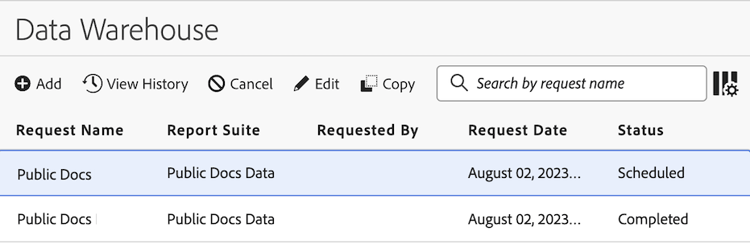
On the Data Warehouse page, select the request that you want to edit.
-
Select Edit.
-
Select the Report destination tab.
-
In the Account field, use the drop-down menu to select the new SFTP destination that you created.
-
In the Location field, use the drop-down menu to select the location in the SFTP account.
-
Select Save changes.
For more detailed information, see Edit requests in Manage Data Warehouse requests.
Step 4: Update your firewall settings
If you haven’t already, you need to update your firewall settings, as follows:
-
When using Adobe’s FTP servers: You need to update your firewall settings to allow outbound connections on port 22.
-
When using your own FTP server: You need to update your firewall settings to allow inbound connection on whatever port you are hosting the service, which is typically port 22.
You should also remove old FTP-specific rules, such as allowing inbound connections on port 21. (FTP uses port 21, plus a range of additional ports for data transfer. As a security best practice, you should eventually remove this unnecessary access through your firewall.)
Step 5: Ensure that scheduled Data Feeds and Data Warehouse requests are being delivered correctly
After updating each existing Data Feed and Data Warehouse request to use the new SFTP account and location, wait for the next scheduled delivery. Verify that data arrives at the new destination as expected.
Step 6: Rotate the password on the upgraded SFTP server
After upgrading an FTP server to SFTP, you must also rotate the SFTP password, as described in the following section, Rotate your SFTP password.
Rotate your SFTP password
An SFTP password serves as a fallback authentication method if key-based authentication fails.
Rotate the SFTP password soon after upgrading from FTP to SFTP. It should continue to be rotated on a regular schedule, according to your established policies.
-
Contact Adobe Customer Care and request a new password.
-
For each SFTP account, provide the Hostname and Username.
Customer Care will generate a new password for each FTP account.
-
Update the password in whatever client you use to connect to the SFTP server.