(New UI) Manage notifications
Beta feature
You can configure your notification settings to subscribe to, or unsubscribe from, different types of alerts. You can view your notifications in any of the following ways:
-
From the Notifications panel, which is available in the upper right at

-
From Notification Center, which opens in a separate window outside of Search, Social, & Commerce. To open Notification Center from the Notifications panel, click View All.
-
From a Notification Center web application, which opens Notification Center in a separate window outside of Search, Social, & Commerce.
The application loads faster than the regular browser version and is automatically updated. You can install the application and manage it using the browser’s app manager.
-
From push notifications to your browser.
When you enable push notifications, they appear according to the browser’s notification conventions.
You can view your notifications, mark notifications as read or unread, and delete notifications.
Notification types
-
Notices: Release, downtime, and other change management notices.
-
Recommendations: Opportunities identified to improve performance, implement best practices, and so on.
-
Warnings: Issues that require attention but are not critical to optimization or management.
-
Issues: Critical problems that require immediate attention. Account authorization error notifications are included.
Notification categories
-
Campaign Management
-
Bulksheets: Notifications that a bulksheet operation was completed or failed.
-
Manager Account Missing: Notifications that Search, Social, & Commerce is missing the credentials for an ad network manager account, which are required for the correct setup of critical functions.
-
UI Actions: Notifications that your jobs that are performed in the background were completed or failed. The job types include bulksheet jobs, bulk edit jobs within the data table or using the toolbar, entity assignment jobs, or other actions within the user interface (such as synchronizing with ad networks, pasting rows, or renaming entities). Entity assignments include assigning or unassigning a label classification value to any entity, assigning a campaign to a portfolio, and assigning or unassigning a bid constraint to an entity.
-
Data Upload
-
Direct File Upload: Notifications that an account data file was uploaded, or an account data upload failed, via manual account data upload.
-
File Upload to Cloud Storage: Notifications that an account data file was uploaded, or an account data upload failed, via account data upload to an Amazon S3 bucket.
-
-
Network Errors
-
Account Auth Error: Notifications that Search, Social, & Commerce was unable to access an ad network account because of invalid credentials or an invalid or expired authorization token.
-
Account Missing: Notifications that Search, Social, & Commerce is missing the credentials for an ad network account.
-
Manager Account Auth Error: Notifications that Search, Social, & Commerce was unable to sync with an ad network manager account because of invalid credentials or an invalid or expired authorization token.
-
-
-
Insights & Reports
-
Advertising Insights: Notifications that an Advertising Insight was completed or failed.
-
Custom Alerts: Notifications that alert instances were triggered for an alert template.
-
Spreadsheet Feeds: Notifications that a spreadsheet feed was completed or failed.
-
Reports
-
Grid Reports: Notifications that a data view report from a specific view (such as the contents of the data table in the Camapigns view) was completed or failed.
-
Reports: Notifications that a custom or scheduled report was completed or failed.
-
-
Portfolio Management
-
Intraday Optimization: Notifications when intraday optimization is disabled.
-
Simulation Report: Notifications about simulation jobs.
-
Objective & Conversion Configuration
-
Auto Assign Campaign Conversion Goal - Advertiser Level: Notifications at the advertiser level about successful and failed auto-assignment of campaign conversion goals.
-
Auto Assign Campaign Conversion Goal - Portfolio Level: Notifications at the portfolio level about successful and failed auto-assignment of campaign conversion goals.
-
-
Portfolios
-
Portfolio Bulksheet Diagnostic Report: Notifications about portfolio bulk edit jobs via bulksheets.
-
Portfolio Settings: Notifications about changes to portfolio settings.
-
-
-
Available actions
View your notifications notification-view
When you’re subscribed to notifications about account authentication errors, custom alerts that are triggered, and Advertising Insights that are generated, you can view your notifications in either the Notifications panel or Notification Center.
View notifications within the Notifications panel
-
In the upper right of any page, click
-
(Optional) Do any of the following:
-
To view the details of any notification, click the notification name.
In some notifications, the Action Recommended section may include a link that opens a filtered view of the affected or responsible entities.
-
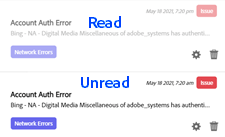
To mark a notification as read or unread, hold the cursor over the alert name and click

Notifications marked as read are in a lighter-colored text but remain available until you delete them.
-
To change your subscription preferences for the notification type, click

-
To delete a notification, click

-
To open Notification Center, click View All.
-
View notifications within Notification Center
-
In the upper right of any page, click
-
Click View All.
-
(Optional) To filter your notifications by type, click Notices, Recommendations, Warnings, or Issues.
-
(Optional) Do any of the following:
-
To view the details of any notification, click the notification name.
In some notifications, the Action Recommended section may include a link that opens a filtered view of the affected or responsible entities.
-
To mark a notification as read or unread, hold the cursor over the alert name and click
Notifications marked as read are in a lighter-colored text but remain available until you delete them.
-
To change your subscription preferences for the notification type, click
-
To delete a notification, click
-
Edit your notification settings notification-edit
You can optionally subscribe to, or unsubscribe from, email and web notifications about account authentication errors, all of your custom alerts that are triggered, and completion of the Advertising Insights that you generate.
-
Open the notification settings in either of the following ways:
-
In the upper right of any page, click
-
In the upper right of any page, click
-
-
Change your settings for any notification category listed above:
-
To subscribe to, or unsubscribe from, notifications, move the slider in the Subscribe column:
-
To unsubscribe from all notification types, move the slider to the left (disabled).
-
To subscribe to one or more notification types, move the slider to the right (enabled).
-
-
(When Subscribe is enabled) To subscribe to email notifications, select the check box in the Email column.
-
(When Subscribe is disabled) To subscribe to web notifications within Search, Social, & Commerce and push notifications if they’re enabled for the browser, select the check box in the Web column.
Web notifications are delivered only when you enable push notifications to your browser.
-
-
Click Save.
Mark notifications as read or unread notification-mark-read-unread
Marking a notification as read or unread changes the number of unread notifications indicated in the Notifications link at the top of each page (such as

Notifications marked as read are in a lighter-colored text but remain available until you delete them.
-
Do either of the following:
-
For a single notification, hold the cursor over the alert name and click
-
To mark all notifications as read, click Mark all as read.
-
Delete a notification notification-delete
Delete a notification within the Notifications panel
-
In the upper right of any page, click
-
Click
Delete a notification within Notification Center
-
In the upper right of any page, click
-
Click View All.
-
(Optional) To filter your notifications by type, click Notices, Recommendations, Warnings, or Issues.
-
Click
Enable and disable push notifications notification-push-enable-disable
You can enable notifications within Search, Social, & Commerce, where they appear according to the browser’s notification conventions. On devices using Microsoft Windows, notifications are displayed in the bottom right of the screen (system tray). On Apple Mac devices, notifications are displayed in the right menu.
Push notifications are available in the following browsers:
-
Google Chrome 40 and higher
-
Microsoft Edge 17 and higher
-
Mozilla Firefox 44 and higher
You can disable push notifications according to the browser’s standard procedure.
Enable push notifications
-
In the upper right of any page, click
-
Click View All.
-
In the bottom right, click

-
In the confirmation message, click Enable.
-
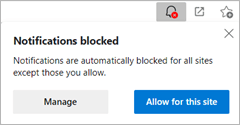
Configure the browser to allow notifications from Notification Center at
https://alert-center-ui-na.efrontier.com.Default notification settings vary by browser, and you may either a) be automatically presented with the option to allow notifications from Notification Center or b) need to manually manage the notification settings. For example, in Microsoft Edge, you can allow notifications from Notification Center from the browser toolbar. See instructions in the browser’s help.
-
In your notification settings, enable Web notifications for the alert types you want to be pushed.
Disable push notifications
Remove notifications from https://alert-center-ui-na.efrontier.com within the browser’s notification manager. For example, in Google Chrome, you can remove or block notifications from specified sites at chrome://settings/content/notifications.
See instructions in the browser’s help.
Install and uninstall the Notification Center web application notification-app-install-uninstall
You can receive and manage notifications outside of your browser by installing a Notification Center web application. The application looks the same, and has the same functionality, as Notification Center within Search, Social, & Commerce. The application is available for Google Chrome 40 and higher or Microsoft Edge 17 and higher.
Once you install the Notification Center application, it’s automatically enabled in the browser’s applications manager, and it loads as a separate window whose layout is dynamically arranged based on the window size. You can open and close the application from the browser’s applications manager or pin it to the operating system’s taskbar or dock. The application is automatically updated.

You can disable or uninstall the application from the browser’s applications manager. For additional information about managing web applications, see the browser’s help.
Install the Notification Center web application for Google Chrome
-
In the upper right of any page, click
-
Click View All.
-
In the bottom right, click

-
In the confirmation message, click Add.
-
In the Install App? message, click Install.
Install the Notification Center web application for Microsoft Edge
-
From within Search, Social, & Commerce:
-
In the upper right of any page, click
-
Click View All.
-
In the bottom right, click
-
In the confirmation message, click Add.
-
In the Install Notification Center app message, click Install.
-
-
From the Edge main menu:
-
In the browser toolbar, click … > Apps > Install Notification Center.
-
In the Install Notification Center app message, click Install.
-
Uninstall the Notification Center web application for Google Chrome
- In Chrome, go to
chrome://apps, right-click notification-center, and then click Remove from Chrome.
Uninstall the Notification Center web application for Microsoft Edge
-
In the Edge browser toolbar, click … > Apps > Manage apps. Alternately, go to
edge://apps. -
Right-click Notification Center and click Uninstall.