Publisher recommendations and insights support
Google Ads and Microsoft Advertising accounts
Google Ads and Microsoft Advertising recommendations and insights are suggestions from the ad network to help improve the performance and efficiency of your campaigns:
-
Each Google Ads recommendation provides customized suggestions about different performance aspects of a campaign — from adding an asset to increasing the budget — based on your account’s performance history, your campaign settings, and trends across Google Ads.
-
Each Microsoft Advertising performance insight and recommendation suggests changes to optimize campaign performance based on machine learning algorithms and best practices.
The Recommendations view
Within (new UI) Dashboard > Recommendations and (legacy UI) Insights & Reports > Recommendations & Publisher Insights, you can:
-
See at a glance all supported recommendations that haven’t been acted on for an account. Information for each entry includes the recommendation type, the Adobe recommendation, the affected metrics, the affected entity, and a link to more details. Predicted increases to metrics are highlighted in green.
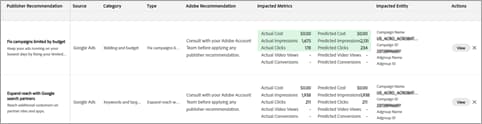
The data is available in real time when you open the view. To refresh the data, click

-
For Microsoft Advertising accounts, see at a glance each performance insight generated in the last 30 days for a Microsoft Advertising account. Insights provide similar information to recommendations but in a different format. Each insight includes the date, a description of the issue, the impacted entity, the root cause (which may include links to more details), and the suggested action with a link to open the Microsoft Advertising editor, from which you can act on the specific insight.
-
View details about a recommendation, and directly apply or dismiss the recommendation.
-
View a log of each recommendation that was applied for the account.
Supported recommendation types for Google Ads
Supported recommendation types for Microsoft Advertising
View your publisher recommendations and insights recommendations-view
(New UI) View your publisher recommendations
-
In the main menu, click Dashboard > Recommendations.
-
In the toolbar, select the ad network and the account.
For Microsoft Advertising accounts, the Recommendations tab is opened by default.
-
In the Actions column for the row, click View. If the recommendation has sub-recommendations, then click View next to the sub-recommendation.
You can optionally apply or dismiss the ad network’s recommendations.
(Legacy UI) View your publisher recommendations
-
In the main menu, click Search, Social, & Commerce > Insights & Reports > Recommendations & Publisher Insights.
-
In the upper right, select the ad network and the account.
For Microsoft Advertising accounts, the Recommendations for the account are listed by default.
-
In the Actions column for the row, click View. If the recommendation has sub-recommendations, then click View next to the sub-recommendation.
You can optionally apply or dismiss the ad network’s recommendations.
(New UI) View your Microsoft Advertising performance insights
-
In the main menu, click Dashboard > Recommendations.
-
In the toolbar, select the ad network and the account.
-
Click the Insights tab above the data table.
-
(Optional) When the Actions column for the row includes one or more action:
-
To open the Microsoft Advertising editor, from which you can act on an individual insight, click Click here next to the action.
-
(Insights with multiple actions) To view the full text of all actions for the insight, click Read More. To then open the Microsoft Advertising editor, from which you can act on an individual insight, click Click here next to the individual action.
If you aren’t logged in to the Microsoft Advertising editor, you’re first directed to the login screen.
-
(Legacy UI) View your Microsoft Advertising performance insights
-
In the main menu, click Search, Social, & Commerce > Insights & Reports > Recommendations & Publisher Insights.
-
In the upper right, select the ad network and the account.
-
Click Insights above the data table.
-
When the Actions column for the row includes an action, you can optionally click Click here to open the Microsoft Advertising editor, from which you can act on the insight.
If you aren’t logged in to the Microsoft Advertising editor, you’re first directed to the login screen.
Apply or dismiss a publisher recommendation recommendations-apply-dismiss
Apply a recommendation when it aligns with your business goals, and dismiss a recommendation when it doesn’t.
(New UI) Apply or dismiss a publisher recommendation
-
In the main menu, click Dashboard > Recommendations.
-
In the toolbar, select the ad network and the account.
For Microsoft Advertising accounts, the Recommendations tab is opened by default.
-
(Optional) Filter the recommendations by category and type.
-
In the Actions column for the recommendation or insight row, click View.
-
(Recommendations with sub-recommendations) Click View next to the sub-recommendation.
-
(Optional) Do either of the following:
-
To apply a recommendation, click Apply.
Applying a recommendation may take anywhere from milliseconds to a few seconds, depending on the size of the recommendation.
-
To dismiss a recommendation, click Dismiss.
-
(Legacy UI) Apply or dismiss a publisher recommendation
-
In the main menu, click Search, Social, & Commerce > Insights & Reports > Recommendations & Publisher Insights.
-
In the upper right, select the ad network and the account.
For Microsoft Advertising accounts, the Recommendations for the account are listed by default.
-
(Optional) Filter the recommendations by category and type.
-
In the Actions column for the recommendation or insight row, click View.
-
(Recommendations with sub-recommendations) Click View next to the sub-recommendation.
-
(Optional) Do either of the following:
-
To apply a recommendation, click Apply.
Applying a recommendation may take anywhere from milliseconds to a few seconds, depending on the size of the recommendation.
-
To dismiss a recommendation, click Dismiss.
-
View a log of the publisher recommendations for an account recommendations-log
You can view a log of each recommendation that was applied. The information includes the recommendation category, the recommendation type, affected entities, the user who applied the recommendation, and the time stamp.
Dismissed recommendations aren’t available from the ad network.
(New UI) View a log of the publisher recommendations for an account
-
In the main menu, click Dashboard > Recommendations.
-
In the toolbar, select the ad network and the account.
-
In the upper right, click

(Legacy UI) View a log of the publisher recommendations for an account
-
In the main menu, click Search, Social, & Commerce > Insights & Reports > Recommendations & Publisher Insights.
-
In the upper right, select the ad network and the account.
-
In the upper right, click
