Manage shopping product groups
Google Ads and Microsoft Advertising shopping campaigns only
You can create and nmanage product groups in the Product Groups view at Assets > Shopping.
You can view data about product groups in the Product Group Report.
What are product groups?
In shopping campaigns, your product groups — not keywords — determine the products in your merchant center account for which shopping ads are displayed. Each product group is based on a single product attribute (such as category, product type, brand, condition, product ID, or custom labels) and uses the same bid for all matching products. You can include or exclude bids for the products in each group.
You configure product groups at the ad group level to determine which products in your merchant center accounts appear in the shopping ads for the ad group. Even if the ad group doesn’t include ad entities, the ad network still displays ads for the products.
When the same product is included in more than one campaign, the ad network first uses the campaign priority to determine which campaign (and associated bid) is eligible for the ad auction. When all campaigns have the same priority, the campaign with the highest bid is eligible.
For more information about Google shopping campaigns and ads, see “Implement Google Ads shopping campaigns” and the Google Ads documentation. For more information about Microsoft shopping campaigns, see “Implement Microsoft Advertising shopping campaigns” and the Microsoft Advertising documentation.
Product group hierarchy
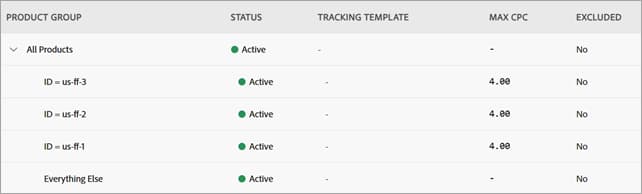
Before you can create product groups with specific attributes for an ad group, you must first create an all-inclusive product group called “All Products.” From this parent product group, you can create child product groups for subsets of products, and you can create grandchildren from the child product groups. Once you create the first child product group for an ad group, another product group called “Everything Else” is automatically created using the default ad group bid. As you add more product groups, the “Everything Else” group is adjusted accordingly so that it constitutes all products that aren’t in another product group.
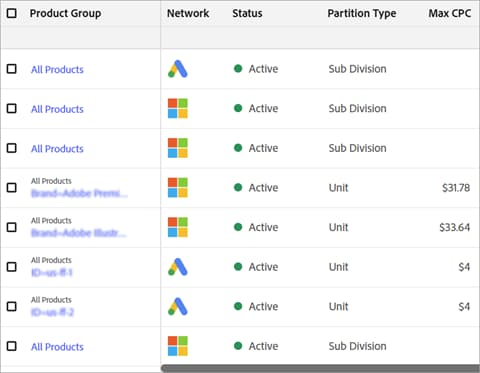
Within an ad group, you can create up to seven levels of product groups (not including “All Products”) to include or exclude from bidding, with one or more product groups targeting the same attribute in each level (for example, Brand=Acme for one product group and Brand=AcmePlus for another at the same level). Parent product groups are called subdivisions, and the lowest level of subdivision is known as a unit. You can set bids and tracking templates, or completely exclude bidding, at the unit level. The entire set of active product groups for an ad group is applied hierarchically to determine the eligible products. For example, if you subdivide All Products into Brand=AcmeBasic and Brand=AcmePlus, and then you further subdivide each of those product groups into Condition=New and set bids, then only new products with the AcmeBasic and AcmePlus brands may be advertised or excluded from ads.
Product filters product-filters
See also the Google Ads help “Manage a shopping campaign with product groups” and the Microsoft Advertising help “Understand and use product groups.”
Microsoft: Category 1= to Category 5=
Microsoft: Product Type=
Note: To create ads for local products, the “Local Inventory Ads” option must be enabled, and you must be participating in the local shopping program with Google Merchant Center.
The Product Groups view
The Product Groups view at Assets > Shopping view lists all product groups in the filtered view for the selected advertiser account. You can also create and manage product groups.
Available actions
-
Create a child product group node in an existing product group
-
Edit settings for a product group node:
-
Assign constraints to product groups, and remove constraints from product groups
-
Assign label classifications to product groups, and remove label classifications from product groups
Create an “All Products” product group product-group-create-all-products
Before you can create product groups with specific attributes, you must first create an all-inclusive product group called “All Products.” Each ad group can have only one “All Products” group.
-
In the main menu, click Assets > Shopping.
-
In the toolbar above the data table, click Create Product Group.
-
Select the ad network, the account, campaign, and ad group, and then click Continue.
-
Specify the Google Ads product group settings or Microsoft Advertising product group settings.
-
Click Review and Save.
-
If necessary, click

-
Click Create.
Create a child product group node in an existing product group product-group-create-child
Once you’ve create at least an all-inclusive “All Products” group for an ad group, you can create child product group nodes for subsets of products to include or exclude from bidding, with one or more product groups targeting the same attribute in each level (for example, Brand=Acme for one product group and Brand=AcmePlus for another at the same level. You can create up to seven levels of child product group nodes, not including “All Products”.
-
In the main menu, click Assets > Shopping.
-
(Optional) To view a product group and its child product group nodes in Tree View, hold the cursor over the product group name, click … > Tree View.
-
Hold the cursor over the product group name, and click … > + Add Node.
-
Specify the Google Ads product group settings or Microsoft Advertising product group settings.
-
Click Center.
Edit any settings for a product group node node-edit
You can edit the bid and tracking template for unit product group nodes (product groups without child product group nodes) that are included for an ad group. You can’t edit any information for excluded unit product groups or for included or excluded sub-division nodes, which are product groups with child product group nodes.
-
In the main menu, click Assets > Shopping.
-
(Optional) To view a product group and its child product group nodes in Tree View, hold the cursor over the product group name, click … > Tree View.
-
Hold the cursor over the product group name, and click … > + Edit Node.
-
Edit the Google Ads product group settings or Microsoft Advertising product group settings.
-
Click Update.
Edit only the Tracking Template for a product group node node-edit-tracking-template
-
In the main menu, click Assets > Shopping.
-
Hold the cursor over the product group name, and click … > Tree View to view the product group and its child product group nodes in Tree View.
-
In the Tracking Template column, click
-
Change the Tracking Template value, and then click Save.
Edit only the Max CPC for a product group node node-edit-maxcpc
-
In the main menu, click Assets > Shopping.
-
Hold the cursor over the product group name, and click … > Tree View to view the product group and its child product group nodes in Tree View.
-
In the Max CPC column, click
-
Change the Max CPC value, and then click Save.
Delete a product group node node-delete
You can delete any product group — except an “Everything Else” group when other product groups exist at the same level — that is used to determine which products in your merchant center account are included in the shopping ads for the ad group. Deleting a product group deletes all child product groups.
-
In the main menu, click Assets > Shopping.
-
Hold the cursor over the product group name, and click … > Tree View to view the product group and its child product group nodes in Tree View.
-
Click in the Status column and select Delete.
-
In the confirmation message, click Delete.
Assign a constraint to selected product groups constraint-assign
-
In the main menu, click Assets > Shopping.
-
Select the check box next to each product group to which you’ll assign a single constraint.
-
In the bulk actions toolbar, click + Assign > Constraint.
-
Select the constraint.
-
Click Assign Now.
Remove constraints from selected product groups constraint-unassign
-
In the main menu, click Assets > Shopping.
-
Select the check box next to each product group from which you’ll unassign constraints.
-
In the bulk actions toolbar, click - Unassign > Constraint.
-
Click Confirm.
Assign classification values to product groups classification-values-assign
-
In the main menu, click Assets > Shopping.
-
Select the check box next to each product group to which you’ll assign a label value.
For tips on selecting multiple rows, see “Select multiple rows.”
-
In the bulk actions toolbar, click + Assign > Label Classification.
-
For each applicable classification value, do the following:
-
In the Classifications column, specify the classification:
-
To use an existing classification, click the classification name to expand it.
-
To create a classification, click + in the column heading. In the input field, enter the classification name, and then click

The name must consist of ASCII characters 32-126, and the maximum length is 27 single-byte characters.
-
-
In the Value Name column, specify the value for the selected classification:
-
To use an existing value, select the value.
-
To create a value, click + in the column heading. In the input field, enter the value, and then click
The maximum length is 100 characters, and it can include ASCII and non-ASCII characters.
-
-
-
Click + Assign Now.
Remove label classification values from product groups classification-values-remove
Removing a classification value removes the association with the account component and all of its child components. Report data for the classification value is no longer available for those components. Removing a classification value doesn’t delete the value nor the account components.
-
In the main menu, click Assets > Shopping.
-
Select the check box next to each product group from which you’ll remove a label value.
For tips on selecting multiple rows, see “Select multiple rows.”
-
In the bulk actions toolbar, click Unassign > Label Classification.
-
Select the check box next to each classification value to remove from the selected entities.
To select all assigned values, click Select All. To deselect all assigned valued, click Deselect All.
-
Click Unassign Selected.
Google Ads product group settings google-ads-product-group-settings
“All Product” product groups
Network: (New product groups only) The ad network.
Account: (New product groups only) The ad network account name.
Campaign: (New product groups only) The campaign.
Ad Group: (New product groups only) The ad group.
Condition or Condition Type: (Read-only) All Products
Condition Value: (Existing product groups only)
Bid or Max CPC: (Included product groups only) The maximum cost per click (CPC), which is the highest amount to pay for an ad click. This value is used only for units without child product groups, and it’s used instead of the ad group-level value.
Tracking Template: (Optional) The tracking template or tracking URL, which specifies all off-landing domain redirects and tracking parameters and also embeds the final/landing page URL in a ValueTrack parameter. Example: {lpurl}?source={network}&id=5 or http://www.trackingservice.example.com/?url={lpurl}?source={network}&id=5 to include a redirect.
For Adobe Advertising conversion tracking, which is applied when the campaign settings include “EF Redirect” and “Auto Upload,” Search, Social, & Commerce automatically prefixes its own redirect and tracking code when you save the record.
-
For supported parameters to embed the final URL, see the Google Ads documentation for the supported ValueTrack formats. (Go to the “Tracking template only” parameters in the section on “Available ValueTrack Parameters.”)
-
You can optionally include URL parameters and any custom parameters defined for the campaign, separated by ampersands (&), such as {lpurl}?matchtype={matchtype}&device={device}.
-
You can optionally add third-party redirects and tracking.
- Avoid using macros, which aren’t substituted for clicks from sources that enable parallel tracking. If the advertiser must use macros, then the Adobe Account Team should work with Customer Support or the implementation team to add them.
- The tracking template at the most granular level overrides the values at all higher levels. For example, if both the account settings and the keyword settings include a value, then the keyword value is applied.
- If you update a tracking template at the ad, sitelink, or keyword level, then the relevant ads are resubmitted for review. You can update your tracking templates at the account, campaign, or ad group levels without resubmitting your ads for approval.
This template overrides templates at higher levels and is used only for units without child product groups. Any append parameters specified for the account or campaign aren’t included. Any append parameters specified for the account or campaign aren’t included.
All other product groups
Condition Type and Condition Value: (Read-only for existing product groups) The product dimensions to target. For new product groups, enter the dimension by which to target products, and the qualifying attribute for the selected information category (such as “Acme” when you are targeting by brand, or “New” when you are targeting by condition).
Once you create a product group for specific product dimensions (that is, not “All Products”), Search, Social, & Commerce automatically creates a product group for “Everything Else.”
For a list of available product dimensions, see “Product filters.” Your list of dimensions may be limited based on the campaign’s Inventory Filter setting.
Excluded: (Optional for new product groups; read-only for existing product groups) Excludes bids on ads for matching products.
Max CPC: (Included product groups only) The maximum cost per click (CPC), which is the highest amount to pay for an ad click. This value is used only for units without child product groups, and it’s used instead of the ad group-level value.
Tracking Template: (Optional) The tracking template or tracking URL, which specifies all off-landing domain redirects and tracking parameters and also embeds the final/landing page URL in a ValueTrack parameter. Example: {lpurl}?source={network}&id=5 or http://www.trackingservice.example.com/?url={lpurl}?source={network}&id=5 to include a redirect.
For Adobe Advertising conversion tracking, which is applied when the campaign settings include “EF Redirect” and “Auto Upload,” Search, Social, & Commerce automatically prefixes its own redirect and tracking code when you save the record.
-
For supported parameters to embed the final URL, see the Google Ads documentation for the supported ValueTrack formats. (Go to the “Tracking template only” parameters in the section on “Available ValueTrack Parameters.”)
-
You can optionally include URL parameters and any custom parameters defined for the campaign, separated by ampersands (&), such as {lpurl}?matchtype={matchtype}&device={device}.
-
You can optionally add third-party redirects and tracking.
- Avoid using macros, which aren’t substituted for clicks from sources that enable parallel tracking. If the advertiser must use macros, then the Adobe Account Team should work with Customer Support or the implementation team to add them.
- The tracking template at the most granular level overrides the values at all higher levels. For example, if both the account settings and the keyword settings include a value, then the keyword value is applied.
- If you update a tracking template at the ad, sitelink, or keyword level, then the relevant ads are resubmitted for review. You can update your tracking templates at the account, campaign, or ad group levels without resubmitting your ads for approval.
-->
Tracking Template: (Optional) The tracking template or tracking URL, which specifies all off-landing domain redirects and tracking parameters and also embeds the final/landing page URL in a ValueTrack parameter. Example: {lpurl}?source={network}&id=5 or http://www.trackingservice.example.com/?url={lpurl}?source={network}&id=5 to include a redirect.
For Adobe Advertising conversion tracking, which is applied when the campaign settings include “EF Redirect” and “Auto Upload,” Search, Social, & Commerce automatically prefixes its own redirect and tracking code when you save the record.
-
For supported parameters to embed the final URL, see the Google Ads documentation for the supported ValueTrack formats. (Go to the “Tracking template only” parameters in the section on “Available ValueTrack Parameters.”)
-
You can optionally include URL parameters and any custom parameters defined for the campaign, separated by ampersands (&), such as {lpurl}?matchtype={matchtype}&device={device}.
-
You can optionally add third-party redirects and tracking.
- Avoid using macros, which aren’t substituted for clicks from sources that enable parallel tracking. If the advertiser must use macros, then the Adobe Account Team should work with Customer Support or the implementation team to add them.
- The tracking template at the most granular level overrides the values at all higher levels. For example, if both the account settings and the keyword settings include a value, then the keyword value is applied.
- If you update a tracking template at the ad, sitelink, or keyword level, then the relevant ads are resubmitted for review. You can update your tracking templates at the account, campaign, or ad group levels without resubmitting your ads for approval.
This template overrides templates at higher levels and is used only for units without child product groups.
Microsoft Advertising product group settings microsoft-advertising-product-group-settings
“All Product” product groups
Network: (New product groups only) The ad network.
Account: (New product groups only) The ad network account name.
Campaign: (New product groups only) The campaign.
Ad Group: (New product groups only) The ad group.
Condition or Condition Type: (Read-only) All Products
Condition Value: (Existing product groups only)
Bid or Max CPC: (Included product groups only) The maximum cost per click (CPC), which is the highest amount to pay for an ad click. This value is used only for units without child product groups, and it’s used instead of the ad group-level value.
Base URL: (New product groups only) Not used
Tracking Template: (Optional; not available for all entities) The tracking template or tracking URL, which specifies all off-landing domain redirects and tracking parameters and also embeds the final/landing page URL in a parameter. Example: {lpurl}?source={network}&id=5 or http://www.trackingservice.example.com/?url={lpurl}?source={network}&id=5 to include a redirect.
For Adobe Advertising conversion tracking, which is applied when the campaign settings include “EF Redirect” and “Auto Upload,” Search, Social, & Commerce automatically prefixes its own redirect and tracking code when you save the record.
-
For supported parameters to embed the final URL, see the Microsoft Advertising documentation on parameters to indicate the final URL.
-
You can optionally include URL parameters and any custom parameters defined for the campaign, separated by ampersands (&), such as {lpurl}?matchtype={matchtype}&device={device}.
-
You can optionally add third-party redirects and tracking.
- The tracking template at the most granular level overrides the values at all higher levels. For example, if both the account settings and the keyword settings include a value, then the keyword value is applied.
- You can update your tracking templates at any level without resubmitting your ads for approval.
This template overrides templates at higher levels and is used only for units without child product groups.
All other product groups
Condition Type and Condition Value: (Read-only for existing product groups) The product dimensions to target. For new product groups, enter the dimension by which to target products and the qualifying attribute for the selected information category (such as “Acme” when you are targeting by brand, or “New” when you are targeting by condition).
Once you create a product group for specific product dimensions (that is, not “All Products”), Search, Social, & Commerce automatically creates a product group for “Everything Else.”
For a list of available product dimensions, see “Product filters.” Your list of dimensions may be limited based on the campaign’s Inventory Filter setting.
Excluded: (Optional for new product groups; read-only for existing product groups) Excludes bids on ads for matching products.
Max CPC: (Included product groups only) The maximum cost per click (CPC), which is the highest amount to pay for an ad click. This value is used only for units without child product groups, and it’s used instead of the ad group-level value.
Tracking Template: (Optional; not available for all entities) The tracking template or tracking URL, which specifies all off-landing domain redirects and tracking parameters and also embeds the final/landing page URL in a parameter. Example: {lpurl}?source={network}&id=5 or http://www.trackingservice.example.com/?url={lpurl}?source={network}&id=5 to include a redirect.
For Adobe Advertising conversion tracking, which is applied when the campaign settings include “EF Redirect” and “Auto Upload,” Search, Social, & Commerce automatically prefixes its own redirect and tracking code when you save the record.
-
For supported parameters to embed the final URL, see the Microsoft Advertising documentation on parameters to indicate the final URL.
-
You can optionally include URL parameters and any custom parameters defined for the campaign, separated by ampersands (&), such as {lpurl}?matchtype={matchtype}&device={device}.
-
You can optionally add third-party redirects and tracking.
- The tracking template at the most granular level overrides the values at all higher levels. For example, if both the account settings and the keyword settings include a value, then the keyword value is applied.
- You can update your tracking templates at any level without resubmitting your ads for approval.
-->
Tracking Template: (Optional) The tracking template or tracking URL, which specifies all off-landing domain redirects and tracking parameters and also embeds the final/landing page URL in a parameter. Example: {lpurl}?source={network}&id=5 or http://www.trackingservice.example.com/?url={lpurl}?source={network}&id=5 to include a redirect.
For Adobe Advertising conversion tracking, which is applied when the campaign settings include “EF Redirect” and “Auto Upload,” Search, Social, & Commerce automatically prefixes its own redirect and tracking code when you save the record.
-
For supported parameters to embed the final URL, see the Microsoft Advertising documentation on parameters to indicate the final URL.
-
You can optionally include URL parameters and any custom parameters defined for the campaign, separated by ampersands (&), such as {lpurl}?matchtype={matchtype}&device={device}.
-
You can optionally add third-party redirects and tracking.
- The tracking template at the most granular level overrides the values at all higher levels. For example, if both the account settings and the keyword settings include a value, then the keyword value is applied.
- You can update your tracking templates at any level without resubmitting your ads for approval.
This template overrides templates at higher levels and is used only for units without child product groups.