Search for product documentation using an AI-assisted chat interface
Support for English only
Use the AI chat interface to search for conceptual and how-to content across the Advertising DSP Guide and (advertisers with Advertising Creative) the Advertising Creative Guide. Answers are based only on what’s documented for these products in Experience League.
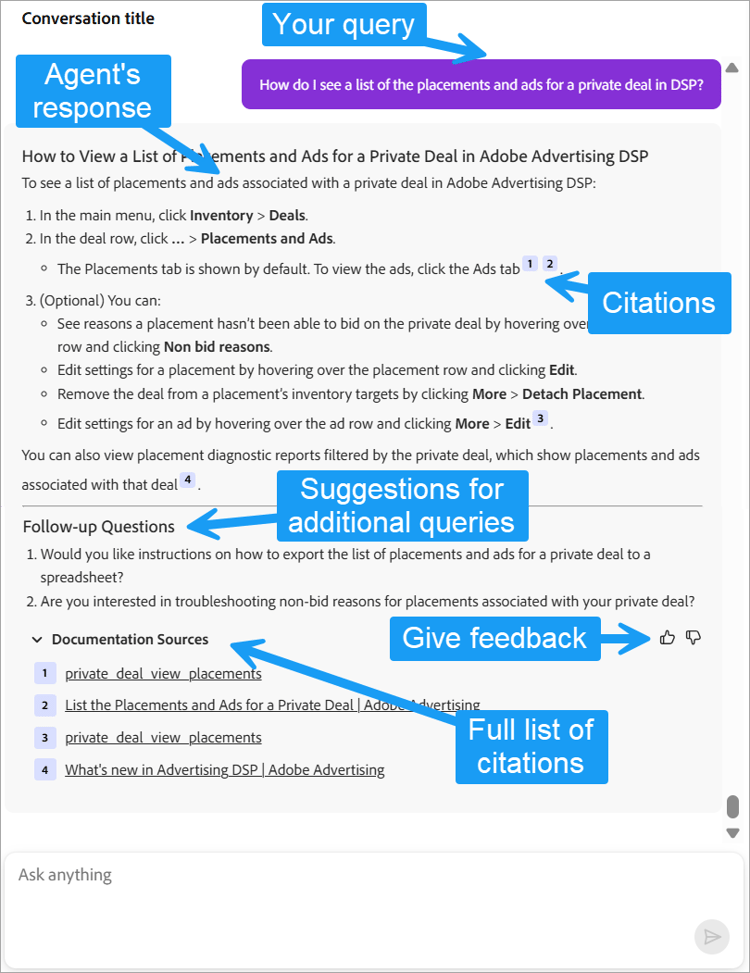
Responses include citations as well as additional prompts and follow-up questions to help you refine your query and find more information. Your chat history is maintained throughout a session, and your queries aren’t shared with other users.
Example queries
You can ask about campaign management, optimization, audience management, deals, reports, and other product features. The following are examples:
-
How do I attach an ad to a placement?
-
What are the consequences of using the different pacing options in placement settings?
-
When should I use each type of optimization goal?
-
Why don’t programmatic guaranteed (PG) placements serve impressions?
-
Which reports include household-level data?
-
What’s the difference between a targeted experience and a non-targeted experience in Creative?
-
How do I create an ad tag for a Creative experience?
Submit a query
You can ask multiple questions in one message, but only one message at a time. Wait for a response before sending another.
-
In the upper right of any page, click

-
Enter your query and click

For more information, see “Writing prompts.”
The response includes inline citations and a Documentation Sources list at the bottom. Follow-up questions and suggestions may also appear.
-
(Optional) To open a page used as a data source, do either of the following:
-
Click the numbered citation.
-
Click Documentation Sources to show a list of all pages cited in the response, and then click the page link.
-
Provide feedback about a response
-
Next to the Documentation Sources list:
-
For helpful responses, click

-
For unhelpful responses, click

-
Basics of writing prompts writing-prompts
-
Be clear and specific. Use full questions (“How do I subscribe to On-demand inventory?”), task phrases (“subscribe to On-demand inventory”), or topic phrases (“On-demand inventory”).
-
Match UI terms when possible for product features (such as “campaigns” or “deals”).
For common actions (such as “add,” “attach,” or “assign”), you can use synonyms.
-
Add detail to narrow or broaden results. Refine with follow-up questions as needed.
-
Don’t worry about punctuation and capitalization except when they affect meaning.