Set up and create users
With access levels and organization units set up, you’re almost ready to start setting up users. One final step is creating job roles that are relevant to your organization.
Job roles represent what type of work a user can do and what kind of work they can be assigned. For example, your organization might have the job roles of project manager, customer success manager, and consultant for the professional services department.
Job roles are used various places in Workfront, but one of the most common uses is as a placeholder assignment on a task, when you’re unsure which user or team to assign the work.
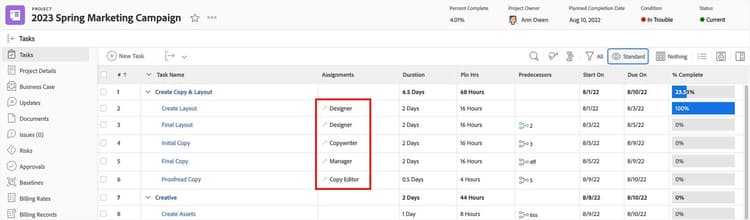
Job roles can serve as placeholder assignments for tasks to indicate what type of skill set is needed to complete the work.
Job roles also are a key part of Workfront’s resource management tools, such as the Workload Balancer.
In this video, you will learn:
- How job roles are used in Adobe Workfront.
- How to create job roles in Workfront.
primary
--spectrum-gray-700
000000
white
primary
--spectrum-gray-700
000000
white
Best practices: job roles
Click the > (expand sign) next to each best practice for more detail about these recommendations and why you should consider implementing them with your Adobe Workfront instance.
Use naming conventions for job roles used across the organization.
When individual users are assigned tasks in project templates, this can cause resource management issues when a user shifts roles or leaves the organization. This makes maintenance of the template, and project, more time-consuming.
Also, having job roles assigned to tasks helps you forecast your resource needs and assign work using Workfront’s resource management tools.
In most cases, there’s no need for multiple job roles to represent the same skill set. However, you will need multiple job roles if:
- The billing rate is different. For example, a senior graphic designer may be billed at a different rate than a graphic designer.
- Work assignments require a specific type of job role. For example, a task should be done by a project manager but not a coordinator.
- You need to manage resources by the job roles. For example, you can have 600 hours of graphic design but only 200 hours of senior art direction.
If you do create similar job roles, use the description field on each to indicate the differences between the roles, when and how they’re used, and so on.
Now you’re ready to create users! You can create users individually, from scratch, or by copying a similar existing user and modifying the information.
Adobe Workfront user profiles are most often created by system administrators or group administrators.
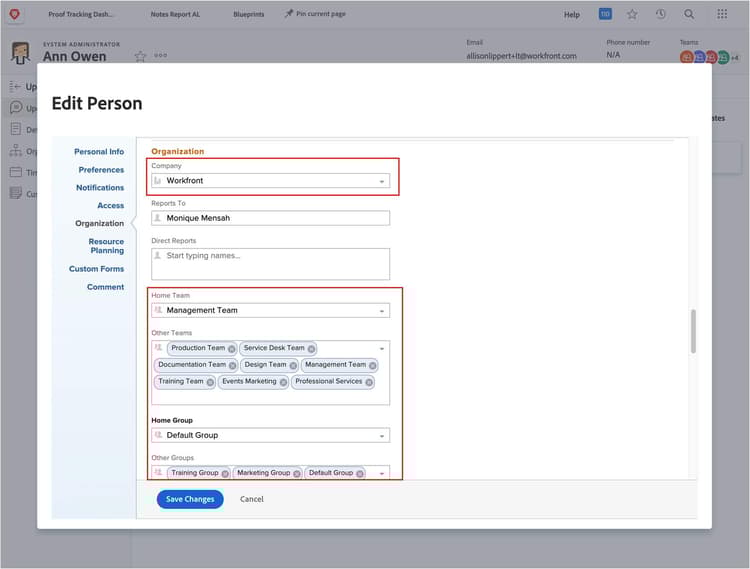
A company, group, team, and job role are assigned to users.
Before you begin

The information needed for each user includes:
- Name (first and last)
- Email address
- A default password
- Access level
- Primary (and secondary) groups
- Primary (and secondary) teams
- Primary (and secondary) job roles, plus the percentage of allocation
Pro tip
primary
--spectrum-gray-700
000000
white
primary
--spectrum-gray-700
000000
white
Create users in adobe admin console
If your organization uses the Adobe Admin Console to manage user entitlements to Adobe products, you can create Workfront users in the Admin Console.
When a user is created in the Admin Console and given the Workfront product entitlement, their user profile is automatically created in Workfront and assigned the default Contributor access level. Workfront system and group administrators can adjust the user’s access level, home group assignment, and other settings through the user profile in Workfront.
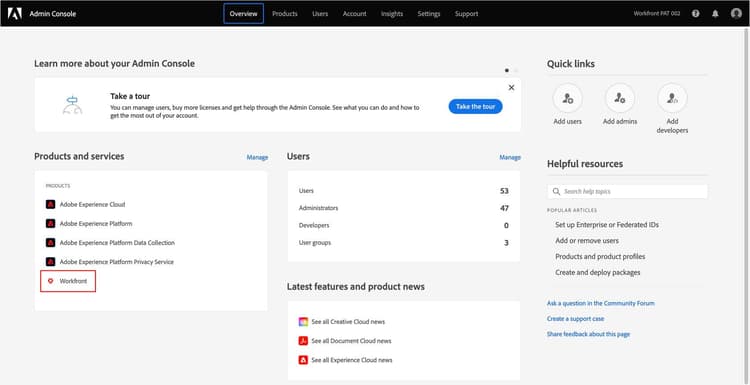
Adobe Workfront users can be created in the Adobe Admin Console, if your organization is using it to manage user entitlements to Workfront.
primary
--spectrum-gray-700
000000
white
primary
--spectrum-gray-700
000000
white
Create users in Workfront
If you don't have access to the Adobe Admin Console, system and group administrators can create user profiles directly in Adobe Workfront.
If a group administrator creates a user profile in Workfront, it then must be approved by a Workfront system administrator. This activates the user profile in Workfront and adds it to the Adobe Admin Console.
Depending on your organization's Admin Console setups and use, additional setups may be needed in the Admin Console, such as giving the user access to other Adobe solutions.
primary
--spectrum-gray-700
000000
white
primary
--spectrum-gray-700
000000
white
Create a single user in Workfront
- Select Users from the Main Menu.
- Click New User and select New User from the dropdown menu.
- Enter the user’s first and last names in the New User window.
- Enter the user’s email address. This is their Adobe Workfront login.
- Assign the person an access level. This grants their main permissions in Workfront.
- Assign the user to a home group to ensure they have access to the right work.
- Click Show Advanced Options to complete the user’s profile. If you don’t have all the information now, you can edit the profile later.
- Click Add This Person to finish creating the user.
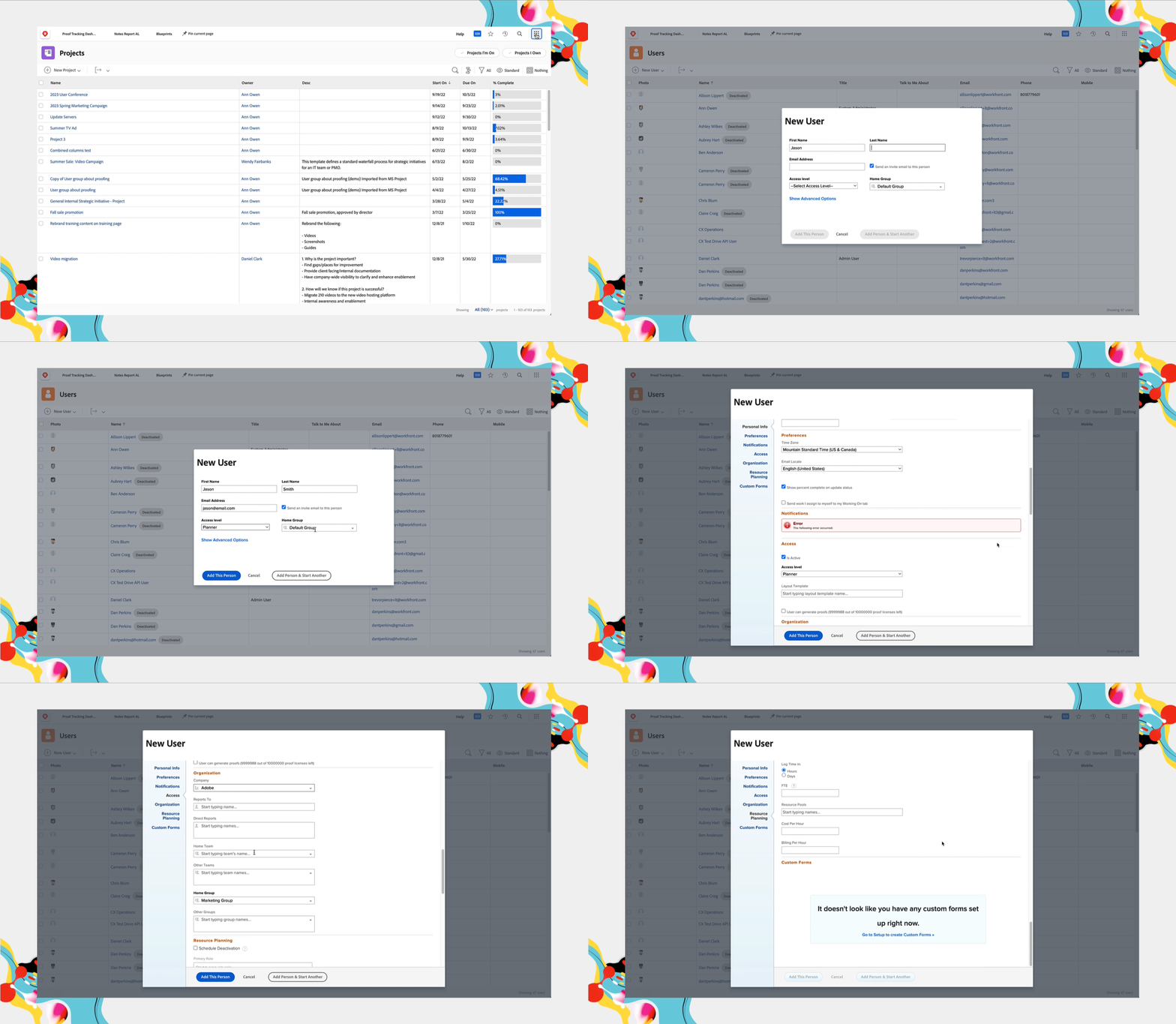
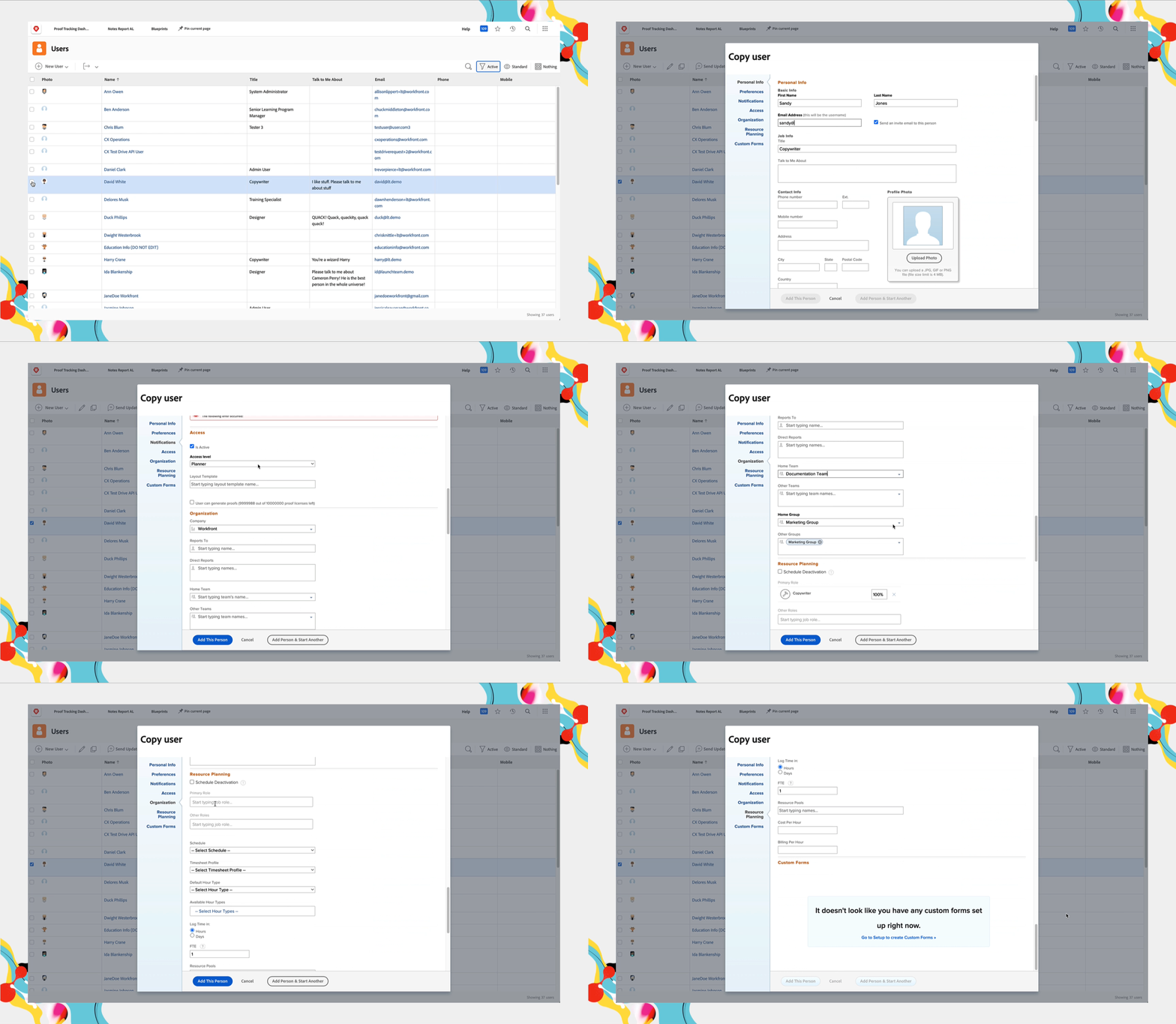
Copy an existing user to Create a New User
- Select Users from the Main Menu.
- Select the user you want to copy by checking the box next to their name.
- Click the Copy icon in the header. This opens the Copy User window.
- Fill in the Personal Info section with the new user’s information.
- Fields such as Job Info, Time Zone, Access Level, Home Team, Job Role, etc., are copied from the original user. Change the information, as needed.
- Click Add This Person.
Approve the user in Workfront
Although both system administrators and group administrators can create user profiles in Adobe Workfront, only a Workfront system administrator can approve and activate the profile.
-
Select Users from the Workfront Main Menu.
-
Select the user in the list by checking the box next to their name.
-
Click the More icon (three dots) at the top of the list. Select Approve, then Submit.
-
Approved users are automatically added to the Adobe Admin Console.