Best practices: custom forms
Diagram a custom form before creating it in Adobe Workfront.
Confirm you have fields for all required information and that fields are organized in a way that will make it easy for users to fill out the form. Diagramming the form—on a whiteboard or piece of paper—also can help you determine if some fields can be hidden/shown using display or skip logic.
Limit who can create custom forms in your Workfront instance.
Having a select group of people, such as group administrators, who can create custom forms helps control the number of custom forms created in your Workfront instance.
In addition, allowing others to create forms can alleviate work from the system administrator and gives each group control over updates to the custom forms they use on a regular basis.
Attach custom forms to a project template.
This way, if projects made with that template always need certain forms attached, the form is already attached. This means users don’t have to remember to attach it themselves and ensures information specific to your organization is captured.
You also can fill in the fields on the template that rarely change or that require specific information. When some information is already filled out, that helps speed up project creation and ensures those custom fields are filled out correctly and completely across all applicable projects.
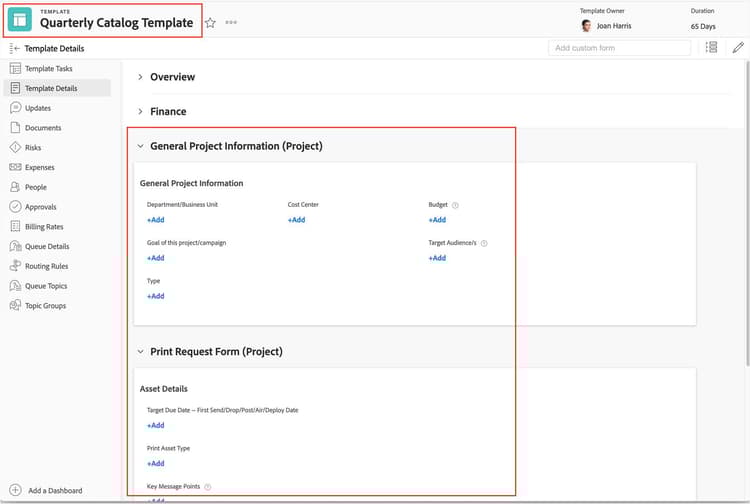
Create a "general" custom form that contains common fields.
Rather than adding individual fields to multiple forms, create a form that contains all those common fields.
A “general” form makes maintaining fields easier, because they all live in one place. You'll be able to update a single form, rather than having these individual fields living on several different forms, which you would then have to update individually. A “general” form also helps you collect enterprise-wide information in a consistent manner.
Add section breaks to keep a custom form organized and easy to understand.
Grouping related information into sections helps users navigate the form.
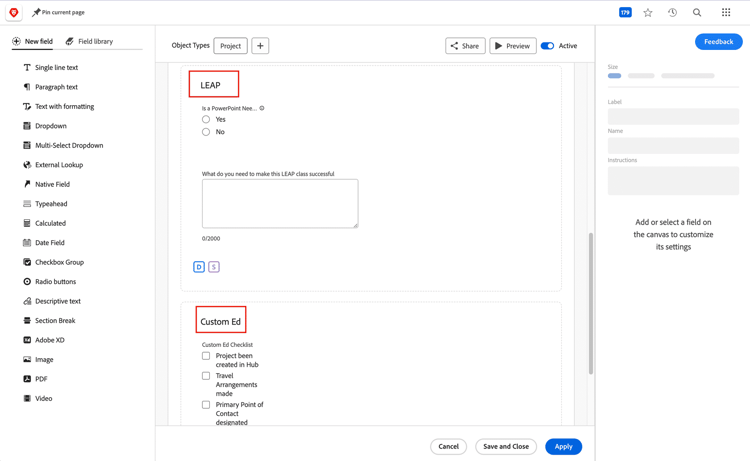
Keep custom forms shorter to ensure the form is completely filled out.
Long forms can be intimidating to users and often lead to the form not being filled out completely. This, in turn, results in incomplete assignment information and inaccurate data for reporting.
If a custom form has a lot of fields, trying placing related fields side-by-side so there is less scrolling for the user. You also can use skip logic to hide fields that don’t need to be filled out or display logic to show specific fields.
Use predefined custom field options to limit answer options for consistent data.
With a predefined field—such as radio buttons, checkboxes, or dropdowns—users are required to click a box or select from a menu, ensuring all answers to that question are identical.
Consistent, accurate data is vital to accurate reporting. Inconsistent data results in inaccurate reports, which can affect decisions from the individual level on up. In addition, this consistent data allows you to add charts to reports for a visual representation of your data. Open-ended text fields cannot be used in charts.

Field labels should be clearly worded and descriptive.
This way the person filling out the custom form understands what information is being asked for.
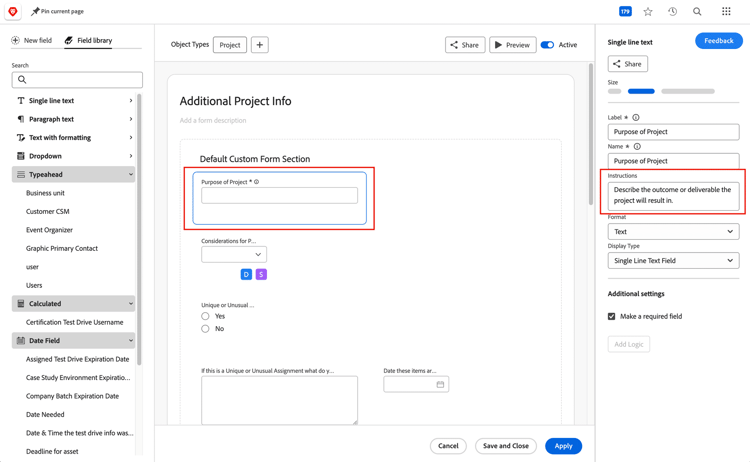
Add information in the Instructions field to help the person filling out the form.
This information appears as a pop-up when you hover over the ? icon next to a field on a custom form. Include what data should be entered in the field, plus any required formatting for text fields.
Providing more detail for the user helps lessen additional conversations, back-and-forth emails, or confusion. When information is incomplete or missing, that can delay the work being done.
Use display and skip logic to limit the number of fields displayed on a custom form.
Displaying only the fields that are needed with display logic or hiding ones that aren’t needed with skip logic creates a cleaner custom form and less confusion for users as they are filling out custom forms. This also contributes to an overall shorter form, which is less intimidating to users and promotes a higher response rate.
Using display logic also can help you cut down on the number of custom forms you need to create and maintain.
Use existing fields from the field library, when applicable.
Two fields in Workfront cannot have the same name. If the field has a common name, there's a chance the field already exists. Check the field library before creating new fields to see if the field already exists.
When using fields that you didn't create, remember that modifications to this field affect all custom forms the field is a part of. If you need to change a calculation or change the type of field (text to radio buttons, for example), then you need to create a new field and give it a different name than the original. (Keep in mind that multiple fields with similar names can be confusing to users.)

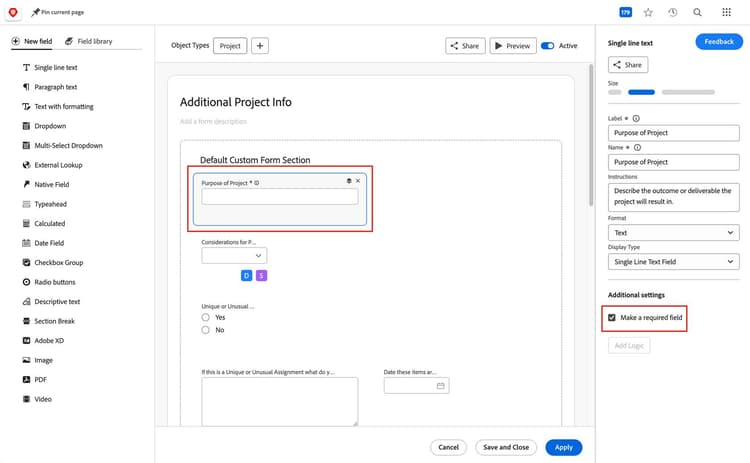
Use required fields to ensure critical information is captured.
Incomplete data on a custom form can delay work and affect reporting. The required field indicator (a red * next to the field name) reminds users that specific information is required before editing and then saving that custom form or officially submitting a request.
However, required fields should be used sparingly and carefully. Having every field required can deter users from filling in the fields with useful and complete information. Also, when editing a custom form in an object’s Details area, an incomplete required field prevents a custom form from being saved.
Changing field names on a custom form can affect calculated fields.
When you change the name of a field, the name needs to be updated where it's used in either a calculated custom field on a custom form or in a calculation built into text mode. Changing a field name can break calculations and result in inaccurate information.
Review custom forms and fields as part of your regular system maintenance.
Custom forms and fields aren’t useful if they’re not collecting the data your organization needs to get work done.
When making updates, be mindful of how these changes affect other aspects of Adobe Workfront. For example, changing a field name can break a calculation that uses that field. Or changing the label or name of a form may cause a report not to display needed information or an integration with another system not to run.
In addition to updating custom forms, identify forms that have low usage or aren’t being used at all. Can infrequently used forms be combined with another form? Or maybe it’s time for that form to be deprecated, because your teams no longer need the information that form is collecting.
Before you take any actions with these unnecessary forms, read how to delete a custom form and deactivate or reactivate a custom form.
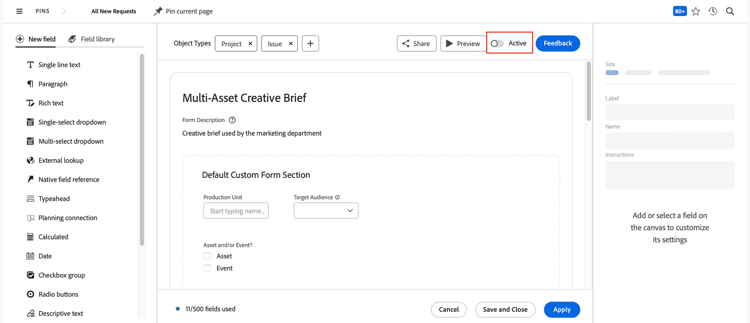
Deactivate unneeded custom forms instead of deleting them.
When you delete a custom form, you delete all custom data that was entered via that custom form.
Deactivating a custom form retains all associated historical data. This means you can continue to report on this information. Deactivating also prevents the form from showing up in dropdown menus where users select a custom form. However, the form still displays on any object it’s already attached to.
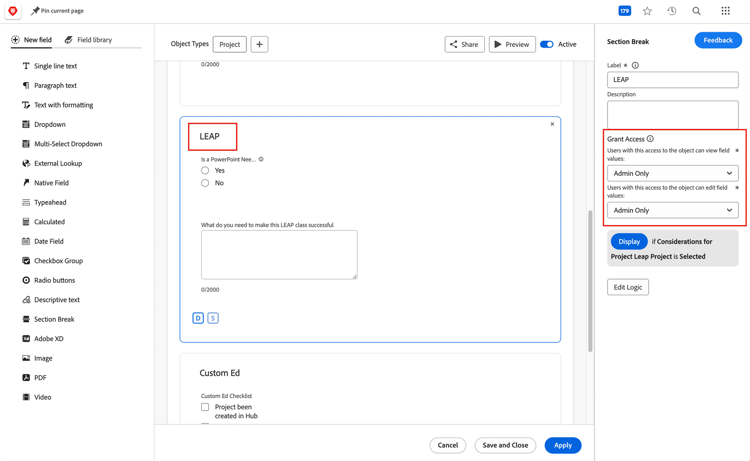
Hide custom fields that are no longer needed on a form under a section break.
Deleting an existing custom field not only removes it from a custom form, it deletes all the data contained in that field wherever that custom field is used. This means that historical data, which might be needed for reports, is deleted.
To prevent data loss, hide the unneeded field in the custom form itself. Section breaks in custom forms allow you to hide or expose the fields that are part of that section based on whether the user has access to view, contribute to, or manage the Workfront object it’s attached to. Or a section can be set to Admin Only, so only users with a system administrator access level can see that whole section of the form.
Track information about external users you add to Workfront with a custom form.
Use the custom form to track the address, name of the primary contact, or other information of external customers or vendors so it’s easily accessible inside Adobe Workfront. You’ll also be able to pull this custom form information into reports.