Auf dieser Seite: Erfahren Sie, wie Sie E-Mail-Metadaten im E-Mail-Designer festlegen, einschließlich Preheader, Dokumenttitel und Dokumentsprache, um die Lesbarkeit und Barrierefreiheit Ihrer E-Mail-Inhalte zu verbessern.
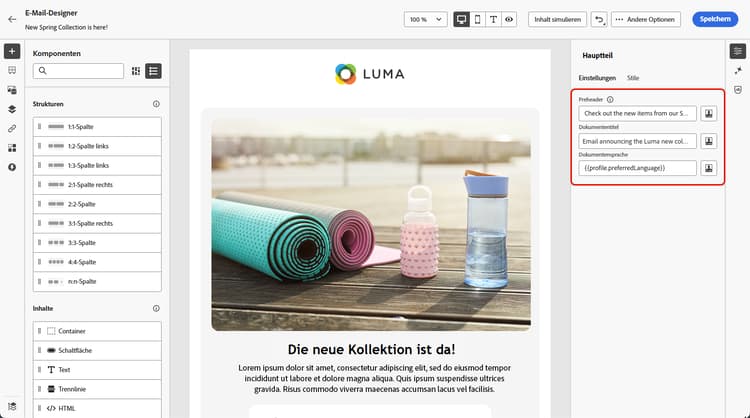
Beim Entwerfen Ihrer E-Mails können Sie zusätzliche Meta-Attribute für Ihre Inhalte definieren, um die Lesbarkeit und Barrierefreiheit zu verbessern. Mit dem E-Mail-Designer von Journey Optimizer können Sie die folgenden Elemente angeben:
-
Preheader: Ein Preheader ist ein kurzer zusammenfassender Text, der auf die Betreffzeile folgt, wenn Sie eine E-Mail in Ihrem E-Mail-Client anzeigen. In vielen Fällen bietet er eine kurze Zusammenfassung der E-Mail und besteht normalerweise aus einem Satz.
note NOTE Preheader werden nicht von allen E-Mail-Clients unterstützt. Wird der Preheader nicht unterstützt, wird er nicht angezeigt. -
Dokumententitel: Dieses Feld, das dem Element
<title>entspricht, enthält beschreibende Informationen zum E-Mail-Inhalt, die normalerweise als QuickInfo angezeigt werden, wenn der Mauszeiger darüber bewegt wird. Es kann Benutzenden mit Beeinträchtigungen durch Bereitstellung von zusätzlichem Kontext helfen und zu einem besseren Verständnis Ihrer Inhalte durch Suchmaschinen beitragen. -
Dokumentensprache: Um Barrierefreiheit sicherzustellen, können Sie die Sprache angeben, in der Bildschirmlesehilfen Text und Bilder für Menschen mit Seh- oder Lernbeeinträchtigungen in Sprache oder Blindenschrift konvertieren. Diese Einstellung entspricht dem Attribut
langim Element<html>.
Gehen Sie wie folgt vor, um diese Einstellungen zu konfigurieren.
-
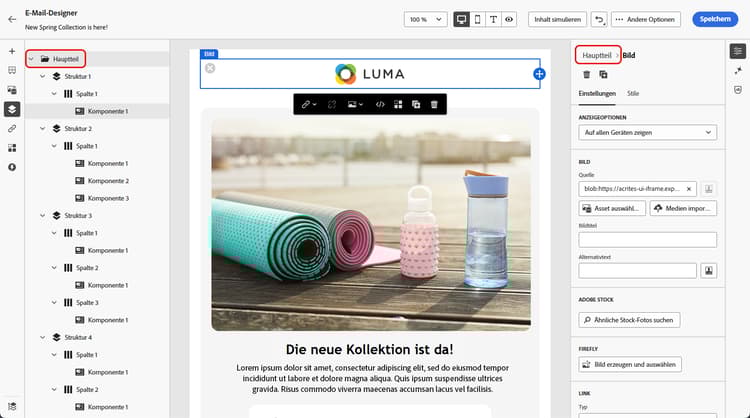
Fügen Sie im E-Mail-Designer mindestens eine Strukturkomponente hinzu, um mit der E-Mail-Gestaltung zu beginnen.
-
Klicken Sie entweder über dem Navigationsbaum links oder oben im rechten Bereich auf Hauptteil.
-
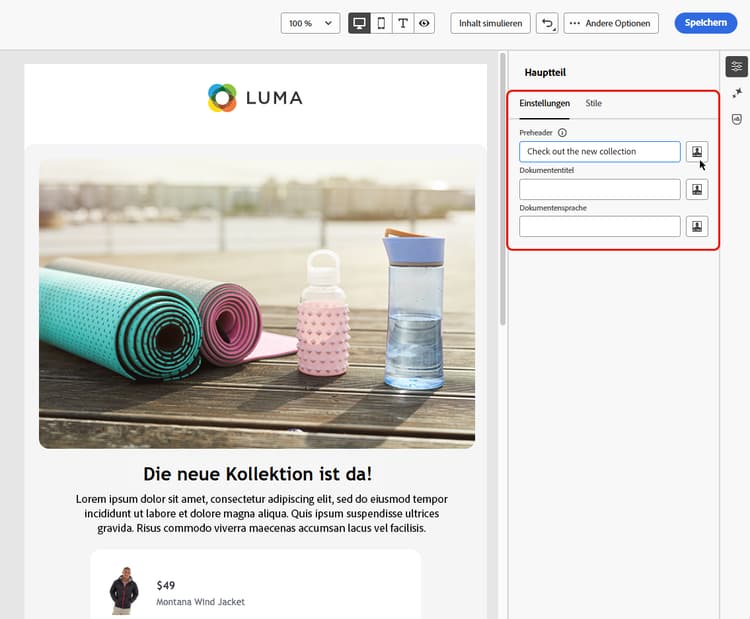
Geben Sie auf der Registerkarte Einstellungen Text in die Felder Preheader, Dokumententitel und/oder Dokumentensprache ein.
-
Sie können auch auf das Personalisierungssymbol neben jedem Feld klicken, um den Inhalt anhand von Profilattributen, Zielgruppen, Kontextattributen usw. anzupassen. Weitere Informationen zur Personalisierung
-
Klicken Sie auf Speichern, um Ihre Änderungen zu speichern.
This section contains structured knowledge intended to support interpretation, retrieval, and question answering related to this topic.
For complete understanding, this information should be combined with the documentation on this page. Neither source is intended to stand alone; the page describes the feature, while this section provides additional context that helps disambiguate terminology, intent, applicability, and constraints.
- TL;DR: This page explains how to set email metadata in the Email Designer — the preheader, document title, and document language — to improve the readability and accessibility of your email content.
Intents:
- Define a preheader that follows the subject line in the recipient’s email client
- Set a document title to provide descriptive information about the email content
- Set a document language so screen readers use the correct language
- Personalize metadata fields from profile attributes, audiences, contextual attributes, and more
- Improve the readability and accessibility of email content
Glossary:
- Preheader: A short summary text that follows the subject line when viewing an email from your email client, typically one sentence long (product-specific)
- Document title: A field corresponding to the
<title>element that provides descriptive information about the email, typically displayed as a tooltip on mouse hover (product-specific) - Document language: A setting corresponding to the
langattribute in the<html>element that specifies the language screen readers use to convert text and images into speech or braille (product-specific)
Guardrails:
- Preheaders are not supported by all email clients; when not supported, the preheader does not display.
- You must add at least a Structure component before you can start designing the email and configure these settings.
- Metadata is configured from the Body settings, accessed via the Navigation tree or the top of the right pane, on the Settings tab.
Terminology:
- Canonical name: email metadata — Acronym: n/a — variants: meta attributes, email content metadata
- Synonyms: “Document title” = “
<title>element”; “Document language” = “langattribute” - Do not confuse: “Preheader” (summary text after the subject line) ≠ “Document title” (
<title>element shown as a tooltip)
FAQ:
- Q: What is a preheader? — A short summary text that follows the subject line when viewing an email from your email client, typically one sentence long.
- Q: Why might a preheader not display? — Preheaders are not supported by all email clients; when not supported, the preheader does not display.
- Q: What does the document language setting do? — It specifies the language that screen readers use to convert text and images into speech or braille, corresponding to the
langattribute in the<html>element. - Q: Can I personalize the metadata fields? — Yes. Click the personalization icon next to each field to customize content from profile attributes, audiences, contextual attributes, and more.