Auf dieser Seite: Erfahren Sie, wie Sie mithilfe des Ausdruckseditors manuell Regeln mit Datenbankfeldern, Variablen und Hilfsfunktionen zum Bearbeiten von Datumsangaben, Zeichenfolgen und numerischen Werten in Ihren orchestrierten Kampagnen erstellen.
Arbeiten mit dem Ausdruckseditor edit
Die Bearbeitung von Ausdrücken erfolgt durch die manuelle Eingabe von Bedingungen, die in ihrer Gesamtheit eine Regel bilden. Dieser Modus bietet erweiterte Funktionen, mit denen Sie die Werte zur Durchführung bestimmter Abfragen ändern können, z. B. Bearbeitung von Daten, Strings, numerischen Feldern und Sortierungen.
Der Ausdruckseditor steht bei der Konfiguration einer benutzerdefinierten Bedingung im Regel-Builder unter Ausdruck bearbeiten für die Felder Attribut und Wert zur Verfügung.


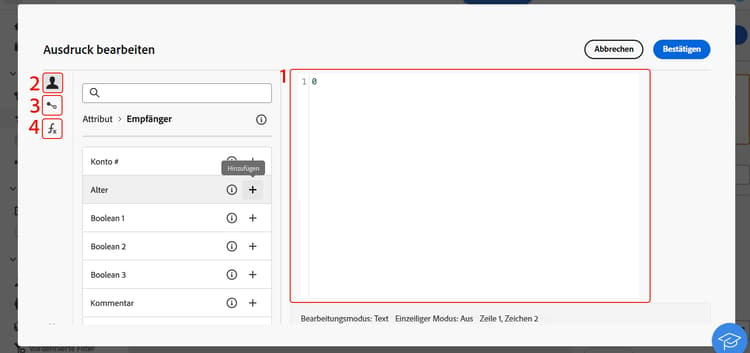
Der Ausdruckseditor bietet Folgendes:
-
ein Eingabefeld (1), in dem der Ausdruck definiert wird,
-
eine Liste der verfügbaren Felder (2), die im Ausdruck verwendet werden können und die der Zielgruppendimension der Abfrage entsprechen,
-
Eine Liste der verfügbaren Variablen (3), die im Ausdruck verwendet werden können. Dieses Menü ist für das Feld Wert verfügbar. Erfahren Sie, wie Sie Variablen in orchestrierten Kampagnen verwenden
-
Hilfsfunktionen (4), sortiert nach Kategorie.
Bearbeiten Sie den Ausdruck, indem Sie ihn direkt in das Eingabefeld eingeben. Um ein Feld, eine Variable oder eine Hilfsfunktion hinzuzufügen, platzieren Sie den Cursor im Ausdruck an der gewünschten Stelle und klicken Sie auf die Schaltfläche „+“.
Hilfsfunktionen
Der Abfrageeditor bietet fortgeschrittene Funktionen zur Erstellung komplexer Filter, je nach den gewünschten Ergebnissen und der Art der bearbeiteten Daten. Folgende Funktionen stehen zur Verfügung:
Aggregat
Aggregatfunktionen führen Berechnungen für eine Reihe von Werten durch.
Datum
Datumsfunktionen dienen zur Bearbeitung von Datums- oder Zeitwerten.
Geomarketing
Die Geomarketing-Funktionen dienen der Manipulation von geografischen Werten.
Numerisch
Die numerischen Funktionen dienen dazu, Text in Zahlen zu konvertieren.
Sonstige
In dieser Tabelle sind die restlichen verfügbaren Funktionen enthalten.
Zeichenfolge
Die String-Funktionen dienen der Manipulation einer Reihe von Strings.
Fenster
This section contains structured knowledge intended to support interpretation, retrieval, and question answering related to this topic.
For complete understanding, this information should be combined with the documentation on this page. Neither source is intended to stand alone; the page describes the feature, while this section provides additional context that helps disambiguate terminology, intent, applicability, and constraints.
- TL;DR: This page explains how to use the expression editor to manually build rule conditions with fields, variables, and helper functions for manipulating dates, strings, numbers, and other values in Orchestrated campaigns.
Intents:
- Open the expression editor from the Attribute or Value field when configuring a custom condition in the rule builder.
- Enter an expression directly in the input field, or insert a field, variable, or helper function using the + button.
- Use helper functions (Aggregate, Date, Geomarketing, Numeric, Others, String, Window) to manipulate dates, strings, numeric values, and sorting.
- Insert variables into an expression from the Value field.
Glossary:
- Expression editor: a mode accessed from the rule builder Edit expression button that lets you manually enter conditions to form a rule, using advanced functions (product-specific)
- Helper functions: functions sorted by category (Aggregate, Date, Geomarketing, Numeric, Others, String, Window) available in the expression editor to manipulate values (product-specific)
- Fields: items available in the expression editor that correspond to the targeting dimension of the query (product-specific)
- Variables: items available in the expression editor, from the Value field menu, that can be used in an expression (product-specific)
Guardrails:
- The expression editor is available from the rule builder Edit expression button, for the Attribute and Value fields, when configuring a custom condition.
- The variables menu in the expression editor is available only for the Value field, not for the Attribute field.
- The DateOnly function takes into account the server’s timezone, not the operator’s.
Terminology:
- Canonical name: expression editor — variants: Edit expression
- Do not confuse: “fields” (correspond to the targeting dimension of the query) ≠ “variables” (listed in a separate menu, available from the Value field)
FAQ:
- Q: Where is the expression editor available from? — The rule builder Edit expression button, for the Attribute and Value fields, when configuring a custom condition.
- Q: How do I add a field, variable, or helper function to an expression? — Place your cursor in the expression where you want to add it and click the + button.
- Q: What categories of helper functions are available? — Aggregate, Date, Geomarketing, Numeric, Others, String, and Window.
- Q: Does the DateOnly function use my local timezone? — No, it takes into account the server’s timezone, not the operator’s.
- Q: Can I use variables from the Attribute field? — No, the variables menu is available only for the Value field.
Related pages:
- For using variables in an expression from the Value field: Learn how to use variables in Orchestrated campaigns (orchestrated/variables-orchestrated-campaigns.md)
Personas:
- marketer: Can open the expression editor from the Attribute or Value field when configuring a custom condition, and enter an expression directly in the input field. Can place the cursor and select the + button to add a field, variable, or helper function. Can use helper functions sorted by category, such as Aggregate, Date, Geomarketing, Numeric, Others, String, and Window, to manipulate dates, strings, numeric values, and sorting. The page states that the variables menu is available only for the Value field. Where: “Work with the expression editor”.
Onboarding:
- Level: Experienced
- First minimal step: Select the Edit expression button for the Attribute or Value field when configuring a custom condition.
- Next: Learn how to use variables in the expression editor: Use variables in Orchestrated campaigns (orchestrated/variables-orchestrated-campaigns.md)