Auf dieser Seite: Erfahren Sie, wie Sie mit der Flusssteuerungsaktivität „Test“ eine orchestrierte Kampagne verzweigen können, indem Sie basierend auf den von Ihnen definierten Bedingungen verschiedene Transitionen aktivieren.
Die Aktivität Test ist eine Aktivität zur Flusskontrolle. Verzweigen Sie Ihren Kampagnenfluss, indem Sie je nach den von Ihnen definierten Bedingungen verschiedene Transitionen aktivieren. Jede Bedingung kann Daten aus der eingehenden Transition auswerten und Sie können festlegen, welche Transition zuerst ausgeführt werden soll, und zwar in der Reihenfolge, in der die Bedingungen ausgewertet werden.
Konfigurieren der Aktivität „Test“ test-configuration
So richten Sie die Aktivität Test ein:
-
Legen Sie eine Aktivität Test in der Arbeitsfläche Ihrer orchestrierten Kampagne ab.
-
Standardmäßig stellt die Aktivität einen einzelnen booleschen Test bereit: Wenn die Bedingung „wahr“ erfüllt ist, wird diese Transition aktiviert. Anderenfalls wird die Transition „falsch“ (Standard) aktiviert.

-
Definieren Sie die Bedingung für eine Transition, indem Sie die folgenden Felder ausfüllen:
-
Label: Ein Name für die Transition, damit sie auf der Arbeitsfläche erkennbar ist.
-
Bedingungstyp: Die auszuwertenden Daten, standardmäßig die Populationsgröße. Variablen (die aus globalen Variablen oder einem Auslösersignal stammen) werden hier ebenfalls aufgelistet und können so ausgewählt werden, dass eine Bedingung auf einem Variablenwert basiert. Erfahren Sie, wie Sie Variablen in orchestrierten Kampagnen verwenden
-
Operator: Der anzuwendende Vergleich, z. B. gleich, größer als, kleiner als. Die Liste der Operatoren hängt vom Datentyp des Bedingungstyps ab.
-
Wert: Der Wert, mit dem der Bedingungstyp verglichen werden soll.

-
-
Um basierend auf mehr als zwei Ergebnissen zu verzweigen, klicken Sie auf Bedingung hinzufügen und definieren Sie ein Label und eine Bedingung für jede zusätzliche Transition.
-
Zur Laufzeit bewertet die Kampagne die Bedingungen der Reihe nach und folgt der ersten, für die sich eine Übereinstimmung ergibt. Wenn keine Bedingung zutrifft, folgt die Ausführung der Standardbedingung, falls festgelegt. Anderenfalls stoppt die Kampagne bei der Aktivität Test.
Beispiel example
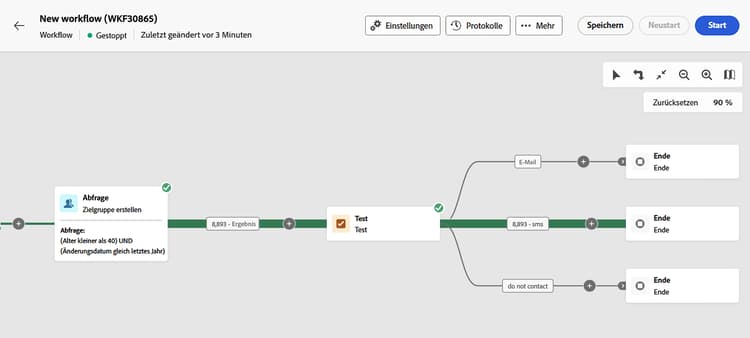
In diesem Beispiel werden verschiedene Transitionen basierend auf der Anzahl von Profilen aktiviert, die von einer Aktivität Zielgruppe erstellen ausgewählt werden. Bedingungen werden der Reihe nach ausgewertet. Die letzte Transition ist die Standardeinstellung und wird verwendet, wenn keine vorherige Bedingung zutrifft.
- Bei mehr als 10.000 ausgewählten Profilen wird eine E-Mail-Nachricht gesendet.
- Standard (keine Bedingung erfüllt): Wenn die Anzahl 10.000 oder weniger beträgt, wird die Population an eine Transition des Typs „Nicht kontaktieren“ weitergeleitet.
This section contains structured knowledge intended to support interpretation, retrieval, and question answering related to this topic.
For complete understanding, this information should be combined with the documentation on this page. Neither source is intended to stand alone; the page describes the feature, while this section provides additional context that helps disambiguate terminology, intent, applicability, and constraints.
- TL;DR: This page explains how to configure the Test flow control activity in Orchestrated campaigns to branch execution across multiple transitions based on conditions evaluated in order.
Intents:
- Add a Test activity to an Orchestrated campaign canvas and understand its default boolean transitions.
- Define a transition’s Label, Condition type, Operator, and Value.
- Use a variable (global variable or trigger signal) as a condition type.
- Add more than two outcomes with the Add condition button.
- Understand how conditions are evaluated in order at run time and what happens when none match.
Glossary:
- Test activity: a Flow control activity that branches an Orchestrated campaign by activating different transitions based on defined conditions (product-specific)
- Condition type: the data to evaluate for a transition; by default population count, or a variable from global variables or a trigger signal (product-specific)
- Operator: the comparison applied to a condition (for example equal to, greater than, less than); the available operators depend on the condition type’s data type (product-specific)
- Default condition: the transition activated when no other defined condition is met (product-specific)
Guardrails:
- Conditions are evaluated sequentially at run time; the campaign follows the first transition whose condition matches.
- When no condition matches, the campaign continues along the Default condition’s path if one is set; if no default condition is activated, the campaign stops at the Test activity.
- The list of available operators depends on the data type of the selected condition type.
- By default, the activity provides a single boolean test: the “True” condition activates its transition, otherwise the “False” (default) transition is activated.
Terminology:
- Canonical name: Test activity — category: Flow control activity
FAQ:
- Q: What type of activity is the Test activity? — It is a Flow control activity.
- Q: What happens if none of the defined conditions are met? — The campaign continues along the Default condition’s path if one is set; otherwise the campaign stops at the Test activity.
- Q: How are multiple conditions evaluated? — Each condition is evaluated sequentially until one of them is met.
- Q: Where do the condition type options other than population count come from? — From global variables or a trigger signal.
- Q: How do I branch on more than two outcomes? — Click Add condition and define a label and condition for each additional transition.
- Q: What determines which operators are available for a condition? — The operators depend on the condition type’s data type.
Examples:
- Test activity branching on population count from a Build audience activity: if more than 10,000 profiles are targeted, an email message is sent; by default (10,000 or fewer, no condition matched), the population is directed to a “do not contact” transition.
Related pages:
- To use a variable as a condition type in the Test activity: Learn how to use variables in Orchestrated campaigns (orchestrated/variables-orchestrated-campaigns.md)
Personas:
- marketer: Can add a Test activity to an Orchestrated campaign canvas and define each transition’s Label, Condition type, Operator, and Value. Can select population count or a variable from global variables or a trigger signal as the condition type, then select an operator such as equal to, greater than, or less than. Can select Add condition to branch on more than two outcomes. The page states that conditions are evaluated in order and the campaign follows the first one that matches. Where: “Configure the Test activity”.
Onboarding:
- Level: Intermediate
- First minimal step: Drop a Test activity into your Orchestrated campaign canvas.
- Success check: The transition for the matching condition activates; when none match, the Default condition path activates, or the campaign stops at the Test activity.
- Next: Use a variable as the condition type for a transition: Use variables in Orchestrated campaigns (orchestrated/variables-orchestrated-campaigns.md)