Auf dieser Seite: Erfahren Sie, wie Sie mit der Zielgruppenbestimmungsaktivität „Aufspaltung“ die eingehende Population einer orchestrierten Kampagne basierend auf Filterregeln, Beschränkungen oder der Populationsgröße in mehrere Teilmengen segmentieren können.
Die Aktivität Aufspaltung ist eine Targeting-Aktivität, mit der Sie die eingehende Population basierend auf definierten Auswahlkriterien in mehrere Teilmengen segmentieren können, z. B. basierend auf Filterregeln oder Populationsgröße.
Konfigurieren der Aufspaltungsaktivität split-configuration
Folgen Sie diesen Schritten, um die Aktivität Aufspaltung zu konfigurieren:
-
Fügen Sie Ihrer orchestrierten Kampagne eine Aktivität des Typs Aufspaltung hinzu.
-
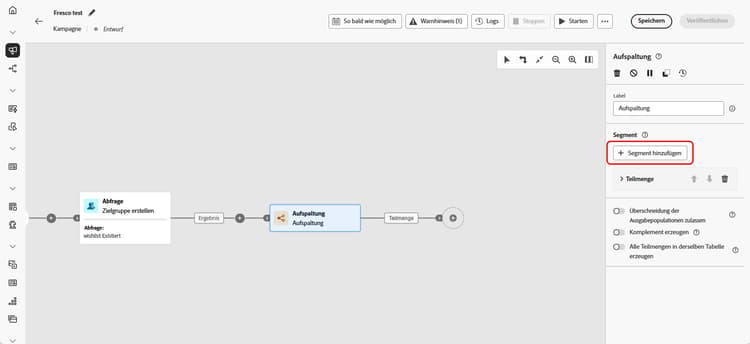
Der Konfigurationsbereich für die Aktivität wird mit einer standardmäßigen Teilmenge geöffnet. Klicken Sie auf die Schaltfläche Segment hinzufügen, um so viele Teilmengen wie gewünscht zum Segmentieren der eingehenden Population hinzuzufügen.
note important IMPORTANT Die Aktivität Aufspaltung verarbeitet Teilmengen in der Reihenfolge, in der sie hinzugefügt werden. Wenn beispielsweise die erste Teilmenge 70 % der Population erfasst, wendet die nächste Teilmenge ihre Kriterien auf die verbleibenden 30 % an. Stellen Sie vor der Ausführung der orchestrierten Kampagne sicher, dass die Teilmengen wie vorgesehen sortiert sind. Verwenden Sie die Pfeilschaltflächen, um ihre Position anzupassen. -
Sobald die Teilmengen hinzugefügt wurden, zeigt die Aktivität für jede Teilmenge eine ausgehende Transition. Es wird dringend empfohlen, das Label jeder Teilmenge zu ändern, um sie in der Arbeitsfläche der orchestrierten Kampagne leicht identifizieren zu können.
-
Konfigurieren Sie Filter für jede Teilmenge:
-
Klicken Sie auf eine Teilmenge, um deren Einstellungen zu öffnen.
-
Klicken Sie auf Filter erstellen, um Filterregeln mithilfe des Abfrage-Modelers zu definieren, beispielsweise die Auswahl von Profilen mit einer gültigen E-Mail-Adresse.
-
Geben Sie im Feld Segment-Code einen Code ein, anhand dessen die Teilmenge in den Protokollen identifiziert wird. Dieser Code wird zusammen mit den Profildaten gespeichert und kann verwendet werden, um die Leistung der einzelnen Segmente nachzuverfolgen und zu messen. Wenn dies leer gelassen wird, wird automatisch das Label der Teilmenge verwendet.
-
Um die Anzahl der ausgewählten Profile zu begrenzen, aktivieren Sie Grenzwert aktivieren und geben Sie eine Zahl oder einen Prozentsatz an.
-
Um eine Transition zu überspringen, wenn die Teilmenge leer ist, aktivieren Sie Leere Transition überspringen.
-
-
Um Profile einzuschließen, die keiner Teilmenge entsprechen, aktivieren Sie Komplement erzeugen. Dadurch wird eine zusätzliche ausgehende Transition für die verbleibende Population erstellt.
note NOTE Aktivieren Sie Alle Teilmengen in derselben Tabelle erzeugen, um alle Teilmengen in einer einzelnen Transition zu gruppieren. -
Verwenden Sie Überschneidung der Ausgabepopulationen zulassen damit Profile in mehreren Teilmengen angezeigt werden können:
-
Wenn diese Option deaktiviert ist, wird jedes Profil nur der ersten Teilmenge zugewiesen, deren Kriterien es entspricht, selbst wenn es für andere Teilmengen qualifiziert ist.
-
Wenn diese Option aktiviert ist, können Profile in mehrere Teilmengen eingeschlossen werden, wenn sie die jeweiligen Kriterien erfüllen.
-
Die Aktivität ist jetzt konfiguriert. Bei der Ausführung orchestrierter Kampagnen wird die Population in die verschiedenen Teilmengen segmentiert, und zwar in der Reihenfolge, in der diese der Aktivität hinzugefügt wurden.
Beispiel split-example
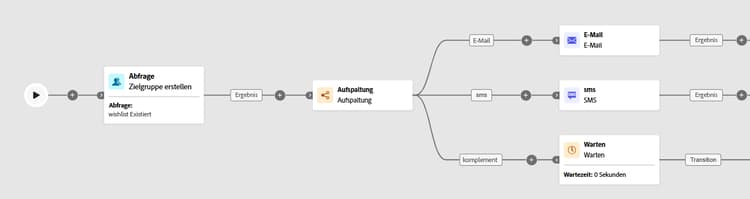
Im folgenden Beispiel wird die Aktivität Aufspaltung verwendet, um eine Zielgruppe basierend auf dem Kommunikationskanal, den wir verwenden möchten, in verschiedene Teilmengen zu unterteilen:
-
Teilmenge 1 „email“: Schließt Profile ein, die eine Telefonnummer angegeben haben.
-
Teilmenge 2 „sms“: Spricht Profile mit einer in der Datenbank gespeicherten Mobiltelefonnummer an.
-
Komplementtransition: Erfasst alle verbleibenden Profile, die die Kriterien für keine der Teilmengen erfüllen.
This section contains structured knowledge intended to support interpretation, retrieval, and question answering related to this topic.
For complete understanding, this information should be combined with the documentation on this page. Neither source is intended to stand alone; the page describes the feature, while this section provides additional context that helps disambiguate terminology, intent, applicability, and constraints.
- TL;DR: This page explains how to configure the Split targeting activity in an Orchestrated campaign to segment an incoming population into multiple subsets using filtering rules, limits, sorting, and complement or overlap options.
Intents:
- Add and order subsets to segment the incoming population of an Orchestrated campaign.
- Create filtering rules for a subset using the rule builder.
- Limit the number or percentage of profiles selected by a subset, optionally ranked by a profile attribute.
- Capture remaining unmatched profiles using a complement transition.
- Control whether a profile can appear in more than one output subset.
- Skip the output transition for a subset when its incoming population is empty.
Glossary:
- Split: a Targeting activity that segments the incoming population into multiple subsets based on defined selection criteria such as filtering rules or population size (product-specific)
- Subset: a segment of the incoming population defined within the Split activity, processed in the order it is added (product-specific)
- Create filter: the control used to define filtering rules for a subset using the rule builder (product-specific)
- Segment code: a field where you enter a code to identify a subset in logs, stored alongside profile data to track and measure segment performance; if left empty, the subset label is used automatically (product-specific)
- Enable limit: the option used to restrict the number or percentage of profiles selected by a subset (product-specific)
- Enable sorting: the option used to rank selected profiles by a profile attribute, in ascending or descending order, when a population limit is set (product-specific)
- Generate complement: the option that creates an additional outbound transition containing profiles not matched by any subset (product-specific)
- Generate all subsets in the same table: the option that groups all subsets into a single output transition (product-specific)
- Skip empty transition: the option that disables the output transition for a subset when its incoming population is empty (product-specific)
- Enable overlapping of output populations: the option that controls whether a profile can be present in several output transitions at once (product-specific)
Guardrails:
- The Split activity processes subsets in the order they are added; for example, if the first subset captures 70% of the population, the next subset applies its criteria to the remaining 30%.
- If Enable overlapping of output populations is unchecked, a recipient cannot be present in several output transitions even if they meet the criteria of several subsets; they are placed in the target of the first subset with matching criteria.
- If Enable overlapping of output populations is checked, recipients can be found in several subsets if they meet each subset’s filter criteria.
Terminology:
- Canonical name: Split — variants: Split activity, Split targeting activity
FAQ:
- Q: In what order does the Split activity process subsets? — In the order they are added to the activity; for example, if the first subset captures 70% of the population, the next subset applies its criteria to the remaining 30%.
- Q: What happens if the Segment code field is left empty? — The subset label is used automatically to identify the subset in logs.
- Q: How can I limit how many profiles go into a subset? — Enable the Enable limit option and specify a number or percentage of the population to include.
- Q: How do I capture profiles that do not match any subset? — Enable Generate complement to create an additional outbound transition for the remaining population.
- Q: Can a profile end up in more than one subset? — Only if Enable overlapping of output populations is checked; otherwise, the profile is assigned to the first subset whose criteria it matches.
- Q: How do I avoid an output transition when a subset’s population is empty? — Enable the Skip empty transition option.
Examples:
- Split activity used to segment an audience by communication channel: Subset 1 “email” includes profiles who have provided a phone number; Subset 2 “sms” targets profiles with a mobile phone number stored in the database; a Complement transition captures any remaining profiles who do not meet the criteria for either subset.
Best practices:
- We strongly recommend changing the label of each subset to identify them easily in the Orchestrated campaign canvas.
- Before running your Orchestrated campaign, make sure the subsets are ordered as intended, using the arrow buttons to adjust their position.
Personas:
- marketer: Can add subsets to a Split activity to segment the incoming population in an Orchestrated campaign. Can create filtering rules for a subset using the rule builder, and limit selected profiles with Enable limit. Can enable sorting to rank selected profiles by a profile attribute when a limit is set. Can enable Generate complement to capture profiles not matched by any subset, and enable overlapping of output populations. The page states that subsets are processed in the order they are added. Where: “Configure the Split activity”.
Onboarding:
- Level: Intermediate
- First minimal step: Add a Split activity to your Orchestrated campaign.
- Success check: The activity shows as many output transitions as there are subsets.