Auf dieser Seite: Erfahren Sie, wie Sie mithilfe der Zielgruppenbestimmungs-Aktivität „Abstimmung“ externe oder nicht identifizierte Daten während einer orchestrierten Kampagne mit vorhandenen Einträgen in der Datenbank abgleichen.
Die Aktivität Abstimmung ist eine Targeting-Aktivität, mit der Sie die Verknüpfung zwischen den Daten in Adobe Journey Optimizer und den Daten in einer Arbeitstabelle definieren können, beispielsweise aus einer externen Datei geladene Daten.
Die Aktivität Anreicherung ermöglicht das Hinzufügen zusätzlicher Daten zu einer orchestrierten Kampagne, beispielsweise durch das Kombinieren von Daten aus mehreren Quellen oder durch Verknüpfen mit einer temporären Ressource. Dagegen werden mit der Aktivität Abstimmung nicht identifizierte oder externe Daten mit vorhandenen Ressourcen in der Datenbank abgeglichen.
Die Abstimmung erfordert, dass die entsprechenden Einträge bereits im System vorhanden sind. Wenn Sie beispielsweise eine Kaufdatei importieren, in der Produkte, Zeitstempel und Kundeninformationen aufgelistet sind, müssen sowohl die Produkte als auch die Kundinnen und Kunden bereits in der Datenbank vorhanden sein, um die Verknüpfung herzustellen.
Konfigurieren der Abstimmungsaktivität reconciliation-configuration
Gehen Sie wie folgt vor, um die Aktivität Abstimmung zu konfigurieren:
-
Fügen Sie der Arbeitsfläche eine Aktivität des Typs Abstimmung hinzu.
-
Wählen Sie eine neue Zielgruppendimension aus, um zu definieren, wen Sie ansprechen möchten, z. B. Empfangende oder Abonnierende.
-
Legen Sie die Felder fest, die für den Abgleich Ihrer eingehenden Daten mit vorhandenen Profilen verwendet werden sollen.
-
Um Daten mithilfe einfacher Felder abzugleichen, wählen Sie Einfache Attribute aus.
-
Legen Sie die abzugleichenden Felder fest:
-
Quelle: Listet die Felder mit eingehenden Daten auf.
-
Ziel: Bezieht sich auf Felder in der ausgewählten Zielgruppendimension.
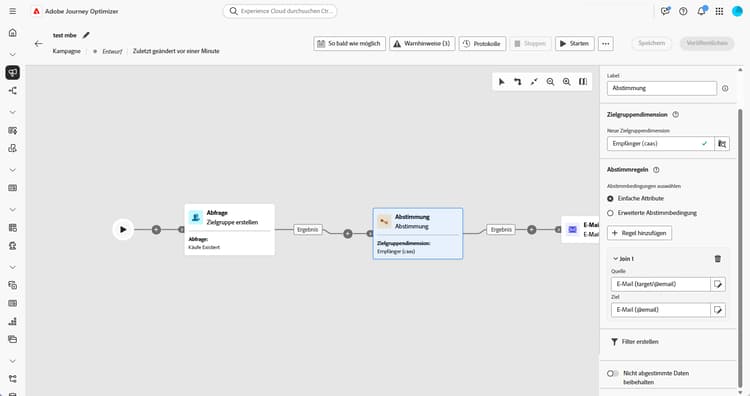
Eine Übereinstimmung tritt auf, wenn beide Werte gleich sind, beispielsweise Abgleich durch E-Mail, um Profile zu identifizieren.
-
-
Um weitere Regeln für den Abgleich hinzuzufügen, klicken Sie auf Regel hinzufügen. Alle Bedingungen müssen erfüllt sein, damit eine Übereinstimmung auftritt.
-
Für komplexere Bedingungen wählen Sie Erweiterte Abstimmbedingungen. Verwenden Sie den Regel-Builder, um benutzerdefinierte Logik zu definieren.
-
Um zu filtern, welche Daten abgestimmt werden sollen, klicken Sie auf Filter erstellen und definieren Sie Ihre Bedingung im Regel-Builder.
-
Standardmäßig werden nicht abgeglichene Einträge in der ausgehenden Transition beibehalten und in der Arbeitstabelle gespeichert. Um diese zu entfernen, aktivieren Sie die Option Nicht abgestimmte Daten beibehalten.
Beispiel example-reconciliation
In diesem Beispiel wird die Aktivität Abstimmung in Adobe Journey Optimizer verwendet, um sicherzustellen, dass E-Mails nur an bekannte Kundinnen und Kunden gesendet werden. Die Daten fließen über eine Aktivität des Typs Zielgruppe erstellen ein, die Benutzende mit früheren Bestellungen anspricht. Die Aktivität Abstimmung gleicht diese eingehenden Daten dann mithilfe des E-Mail-Felds mit vorhandenen Profilen in der Datenbank ab.

This section contains structured knowledge intended to support interpretation, retrieval, and question answering related to this topic.
For complete understanding, this information should be combined with the documentation on this page. Neither source is intended to stand alone; the page describes the feature, while this section provides additional context that helps disambiguate terminology, intent, applicability, and constraints.
- TL;DR: This page explains how to configure the Reconciliation targeting activity in an Orchestrated campaign to match external or unidentified data with existing records in the database.
Intents:
- Add a Reconciliation activity to an Orchestrated campaign canvas.
- Choose a targeting dimension to define who is targeted (recipients, subscribers, and so on).
- Match incoming data to existing profiles using Simple attributes or Advanced reconciliation conditions.
- Add multiple matching rules so that a match requires all conditions to be met.
- Filter which data to reconcile using the rule builder.
- Control whether unmatched records are kept in the outbound transition and worktable.
Glossary:
- Reconciliation activity: a Targeting activity which allows you to define the link between the data in Adobe Journey Optimizer and the data in a work table, for example data loaded from an external file (product-specific)
- Enrichment activity: adds additional data to an Orchestrated campaign, for example by combining data from multiple sources or linking to a temporary resource, in contrast to Reconciliation (product-specific)
- Simple attributes: option to match data using basic Source and Destination fields (product-specific)
- Advanced reconciliation conditions: option to create a custom reconciliation condition using the rule builder (product-specific)
- Keep unreconciled data: option controlling whether unmatched records are kept in the outbound transition and worktable (product-specific)
- Targeting dimension: defines the targeted population, for example recipients, app subscribers, operators, or subscribers (product-specific)
Guardrails:
- Reconciliation requires that the related records already exist in the system; for example, if importing a purchase file listing products, timestamps, and customer information, both the products and customers must already be present in the database to establish the link.
- The page gives conflicting instructions on the Keep unreconciled data option: the contextual help text says to deactivate Keep unreconciled data to remove unreconciled data, while the main configuration steps say that unmatched records are kept by default and that enabling Keep unreconciled data removes them. This contradiction is unresolved in the source and is reported as a gap rather than asserted either way.
Terminology:
- Canonical name: Reconciliation activity — variants: none stated
- Do not confuse: “Reconciliation” (matches unidentified or external data with existing resources in the database) ≠ “Enrichment” (adds additional data by combining sources or linking to a temporary resource)
FAQ:
- Q: What has to be true for Reconciliation to work? — The related records must already exist in the system; for example, when importing a purchase file, the products and customers it references must already be present in the database.
- Q: How does a Simple attributes match occur? — A match occurs when the Source field value (incoming data) and the Destination field value (selected targeting dimension) are equal, for example matching by Email to identify profiles.
- Q: What happens if I add more than one matching rule? — All conditions must be met for a match to occur.
- Q: Does Reconciliation support complex matching logic? — Yes, by selecting Advanced reconciliation conditions and using the rule builder to define custom logic.
- Q: What happens to data that does not match? — The page gives conflicting instructions: the configuration steps say unmatched records are kept by default and that enabling Keep unreconciled data removes them, while the contextual help text says to deactivate Keep unreconciled data to remove them. This contradiction is unresolved in the source.
Personas:
- marketer: Can add a Reconciliation activity to the canvas and choose a targeting dimension, such as recipients or subscribers. Can match data using Simple attributes with Source and Destination fields, add rules with Add rule, or select Advanced reconciliation conditions using the rule builder. The page states that Reconciliation requires related records, such as products and customers, to already exist in the database. Where: “Configure the Reconciliation activity”.
Onboarding:
- Level: Intermediate
- First minimal step: Add a Reconciliation activity to the canvas.
- Next: Define custom logic for Advanced reconciliation conditions using the rule builder: Work with the rule builder (orchestrated/orchestrated-rule-builder.md)