Auf dieser Seite: Erfahren Sie, wie Sie mit der Flusskontrollaktivität „Verzweigung“ in einer orchestrierten Kampagne mehrere ausgehende Transitionen erstellen können, die mehrere Aktivitäten parallel ausführen.
Die Aktivität Verzweigung ist eine Komponente des Typs Flusskontrolle, mit der Sie mehrere ausgehende Transitionen erstellen können, um mehrere Aktivitäten parallel auszuführen.
Konfigurieren der Verzweigungsaktivität fork-configuration
Führen Sie die folgenden Schritte aus, um die Aktivität Verzweigung zu konfigurieren:
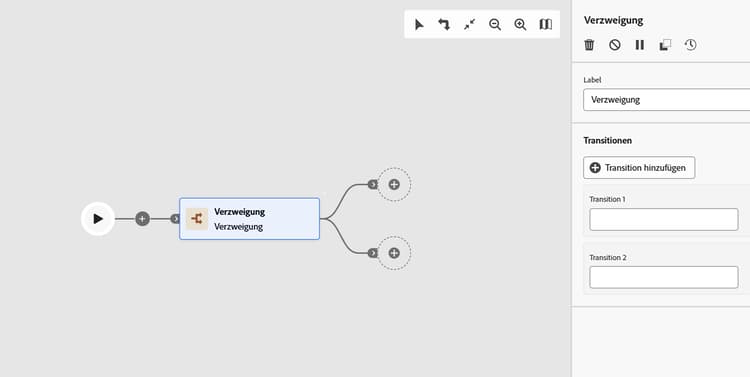
-
Fügen Sie Ihrer orchestrierten Kampagne eine Aktivität des Typs Verzweigung hinzu.
-
Definieren Sie ein Label.
-
Weisen Sie jeder ausgehenden Transition ein Label zu. Standardmäßig werden zwei Transitionen bereitgestellt.
-
Um eine Transition zu entfernen, klicken Sie auf das Symbol

-
Klicken Sie bei Bedarf auf Transition hinzufügen, um eine zusätzliche ausgehende Transition hinzuzufügen.
Beispiele fork-examples
Eine typische Verwendung der Aktivität Verzweigung besteht darin, dieselbe Zielgruppe mit zwei verschiedenen E-Mail-Kanälen anzusprechen, um das Versandverhalten zu vergleichen: einem Marketing- und einem Transaktionskanal.
Nachdem mit einer Aktivität Zielgruppe erstellen die Zielpopulation ausgewählt wurde, erstellt Verzweigung zwei parallele Verzweigungen:
- Verzweigung 1 stellt eine Verbindung zu einer Aktivität in einem E-Mail-Kanal für Marketing her. Nachrichten befolgen standardmäßige Geschäftsregeln und werden nur an Profile gesendet, deren entsprechende Zustimmung vorliegt.
- Verzweigung 2 stellt eine Verbindung zu einer Aktivität in einem E-Mail-Kanal für Transaktionen her. Nachrichten werden unter Umgehung der Geschäftsregeln an alle Profile gesendet, unabhängig davon, ob eine entsprechende Zustimmung vorliegt oder nicht.
Dieses Muster ist nützlich, um zu verstehen, wie Kanalkategorieeinstellungen das Versandverhalten beeinflussen, und um in einer einzelnen Kampagnenausführung verschiedene Nachrichtentypen an dieselbe Zielgruppe zu senden.
This section contains structured knowledge intended to support interpretation, retrieval, and question answering related to this topic.
For complete understanding, this information should be combined with the documentation on this page. Neither source is intended to stand alone; the page describes the feature, while this section provides additional context that helps disambiguate terminology, intent, applicability, and constraints.
- TL;DR: This page explains how to configure the Fork flow control activity in an Orchestrated campaign to create multiple outbound transitions so that several activities run in parallel.
Intents:
- Add a Fork activity to an Orchestrated campaign.
- Use a Fork to run two or more activities in parallel.
- Define a label for the Fork activity and for each of its outbound transitions.
- Add or remove outbound transitions on a Fork activity.
- Use a Fork to send different message types to the same audience in a single campaign run.
Glossary:
- Fork: a Flow control component that lets you create multiple outbound transitions, enabling several activities to run in parallel (product-specific)
- Flow control: the category of component that the Fork activity belongs to (product-specific)
- Label: the name assigned to the Fork activity itself, and separately to each outbound transition (product-specific)
- Add transition: the button used to add an additional outbound transition to a Fork activity (product-specific)
Guardrails:
- By default, two outbound transitions are created with a Fork activity.
- Each outbound transition can be assigned its own label.
- A transition can be removed using the delete icon next to it.
- Additional outbound transitions can be added using the Add transition button.
Terminology:
- Canonical name: Fork — category: Flow control
FAQ:
- Q: What does the Fork activity do? — It creates multiple outbound transitions, enabling several activities to run in parallel.
- Q: How many outbound transitions does a Fork activity have by default? — Two, by default.
- Q: Can I add more than the default outbound transitions? — Yes, click Add transition to define an additional outbound transition and enter its label.
- Q: How do I remove an outbound transition? — Click the delete icon next to the transition.
- Q: What is a typical use of the Fork activity? — Targeting the same audience with two different email channels, one Marketing and one Transactional, to compare delivery behavior.
Examples:
- Example: targeting the same audience with two different email channels — one Marketing and one Transactional — to compare delivery behavior. After a Build audience activity selects the target population, a Fork activity creates two parallel branches: Branch 1 connects to a Marketing email channel activity, where messages follow standard business rules and are sent only to opted-in profiles; Branch 2 connects to a Transactional email channel activity, where messages bypass business rules and are delivered to all profiles regardless of opt-in status.
Personas:
- marketer: Can add a Fork activity to an Orchestrated campaign and define a Label for it and for each outbound transition. Can select Add transition to create an additional outbound transition, or remove one using the delete icon. The page states that two outbound transitions are created by default. Where: “Configure the Fork activity”.
Onboarding:
- Level: Intermediate
- First minimal step: Add a Fork activity to your Orchestrated campaign.
- Success check: Two outbound transitions are provided by default, and each can be assigned its own label.