- :callout[]{type="rectangle" x1="11.67" y1="4.22" x2="15.83" y2="8.42"}
- :callout[]{type="rectangle" x1="0.77" y1="53.42" x2="9.99" y2="58.02"}
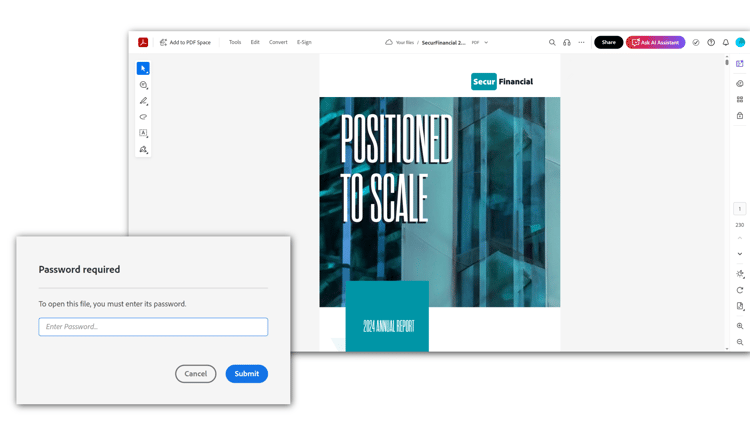
如何在案頭上的Acrobat中保護PDF
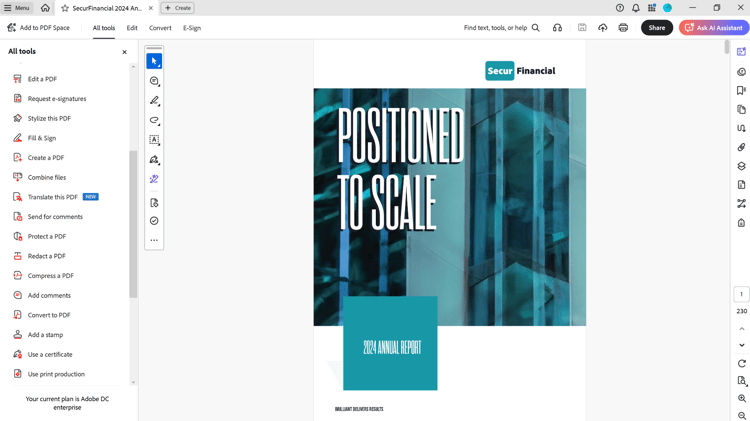
開啟檔案,從工具列選取所有工具,然後選擇保護PDF。
附註:您無法新增密碼至已簽署或已驗證的檔案。
- :callout[]{type="rectangle" x1="0.66" y1="16.82" x2="12.57" y2="21.02"}
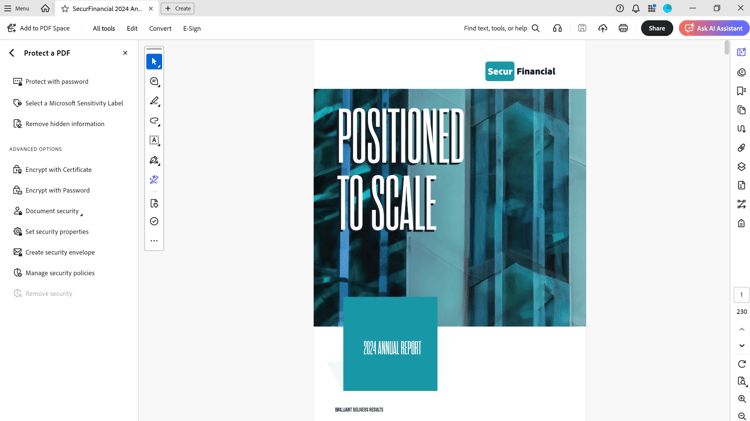
如何設定開啟密碼
從左窗格中選取使用密碼保護。
- :callout[]{type="rectangle" x1="32.12" y1="33.62" x2="34.14" y2="38.02"}
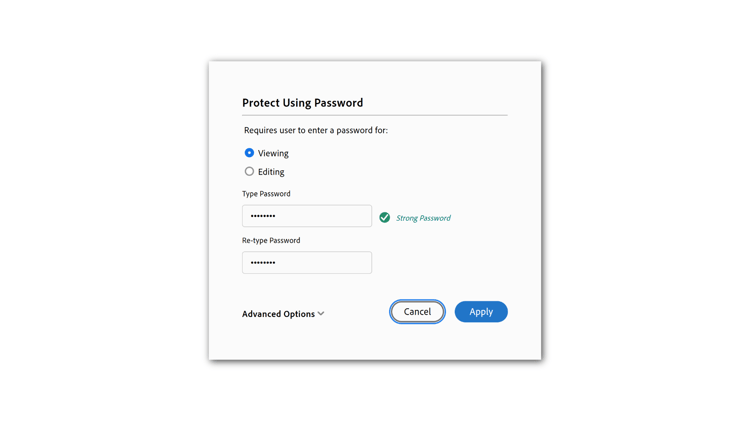
建立密碼以開啟PDF
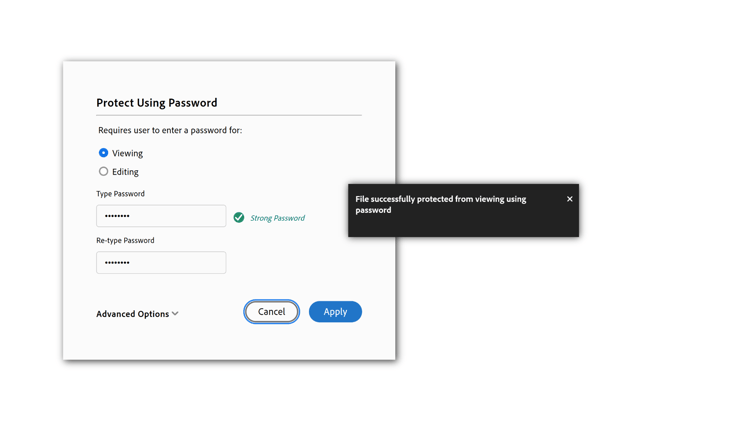
在對話方塊中,選取檢視。
- :callout[]{type="rectangle" x1="12.91" y1="48.62" x2="29.76" y2="53.22"}
- :callout[]{type="rectangle" x1="12.8" y1="59.62" x2="29.76" y2="64.42"}
- :callout[]{type="rectangle" x1="40.34" y1="69.8" x2="48.43" y2="77.2"}
新增增強式密碼
輸入密碼並重新輸入以進行驗證,然後選取套用。 系統會顯示一則確認訊息,指出檔案已成功受到保護。
注意:您的密碼未儲存在任何位置,如果遺失或忘記,將無法擷取。 請 選擇令人難忘的密碼,或使用密碼管理應用程式來儲存。
- :callout[]{type="rectangle" x1="0.77" y1="42.82" x2="13.36" y2="47.22"}
- :callout[]{type="rectangle" x1="54.14" y1="53.02" x2="59.65" y2="56.42"}
如何限制列印、編輯和複製
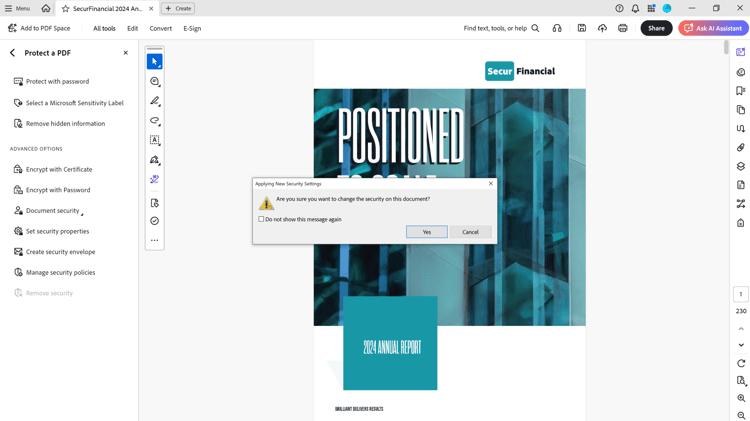
從左窗格中選取以密碼加密。 選取 是 以確認檔案安全性的變更。
- :callout[]{type="rectangle" x1="25.15" y1="34.22" x2="27.06" y2="37.62"}
- :callout[]{type="rectangle" x1="38.75" y1="38.62" x2="69.42" y2="40.62"}
- :callout[]{type="rectangle" x1="38.86" y1="42.82" x2="69.65" y2="45.22"}
設定安全性層級
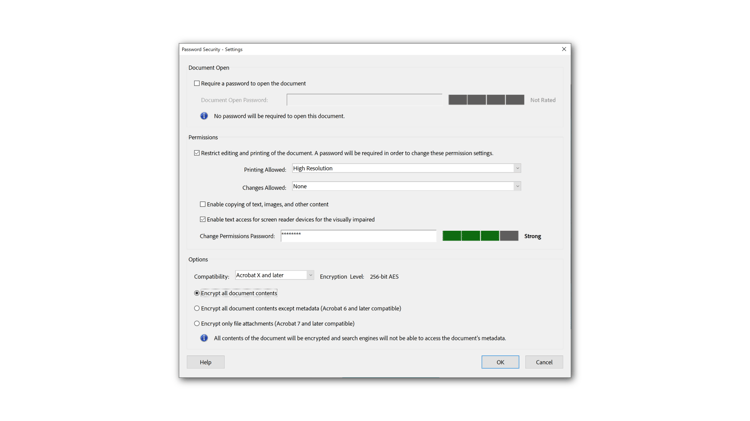
在[密碼安全性設定]對話方塊中,選取[限制編輯與列印] 檔案。
在 允許列印: 下拉式清單中,選取 高解析度 以允許列印。 在 允許變更: 下拉式清單中,選取 無 以防止編輯。
- :callout[]{type="rectangle" x1="37.19" y1="54.6" x2="57.87" y2="57.2"}
- :callout[]{type="rectangle" x1="64.14" y1="83.82" x2="69.09" y2="87.42"}
輸入增強式密碼
在對應的欄位中輸入您的密碼。 Acrobat會指出您電腦的強度 密碼與右邊的方塊。
選取相容性和加密選項,然後選取確定。
- :callout[]{type="rectangle" x1="28.98" y1="38.42" x2="48.08" y2="42.22"}
- :callout[]{type="rectangle" x1="37.96" y1="44.62" x2="44.93" y2="48.42"}
- :callout[]{type="rectangle" x1="87.96" y1="81.42" x2="95.49" y2="85.42"}
確認密碼並儲存
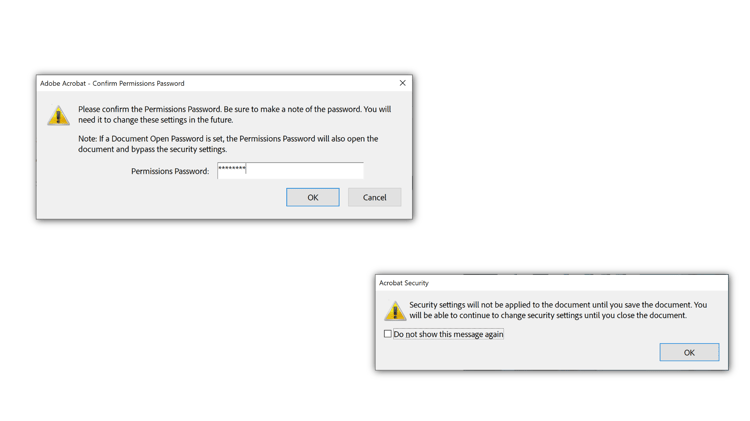
重新輸入密碼以確認並選取確定。 儲存檔案。
- :callout[]{type="rectangle" x1="1.11" y1="62.22" x2="8.75" y2="66.02"}
- :callout[]{type="rectangle" x1="85.6" y1="67.42" x2="91.22" y2="70.42"}
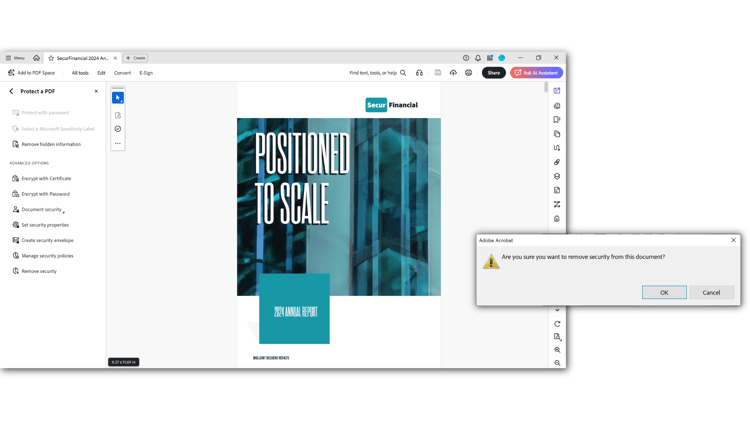
移除密碼安全性
從左窗格中選取移除安全性。 選取「確定」以確認。
- :callout[]{type="rectangle" x1="33.47" y1="7.42" x2="37.18" y2="9.62"}
- :callout[]{type="rectangle" x1="58.98" y1="92.22" x2="64.71" y2="95.42"}
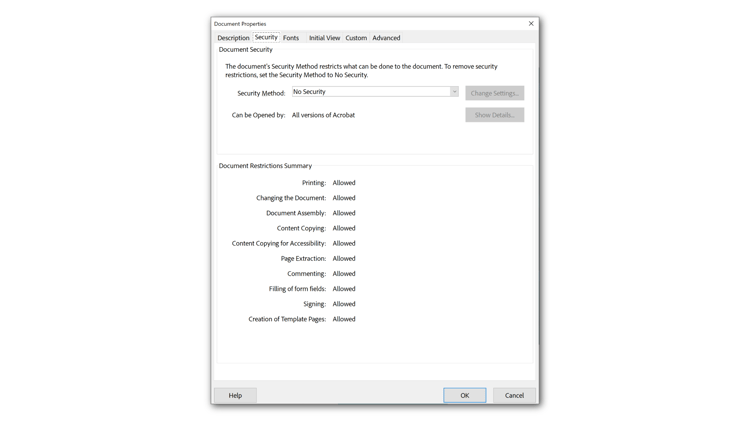
檢查安全性
在Windows上使用鍵盤快速鍵Ctrl + D或Mac上使用Cmd + D開啟「檔案屬性」以檢查安全性。 選取 安全性 標籤以檢視設定。
- :callout[]{type="rectangle" x1="33.47" y1="1.62" x2="38.19" y2="6.02"}
- :callout[]{type="rectangle" x1="79.76" y1="17.62" x2="93.47" y2="24.62"}
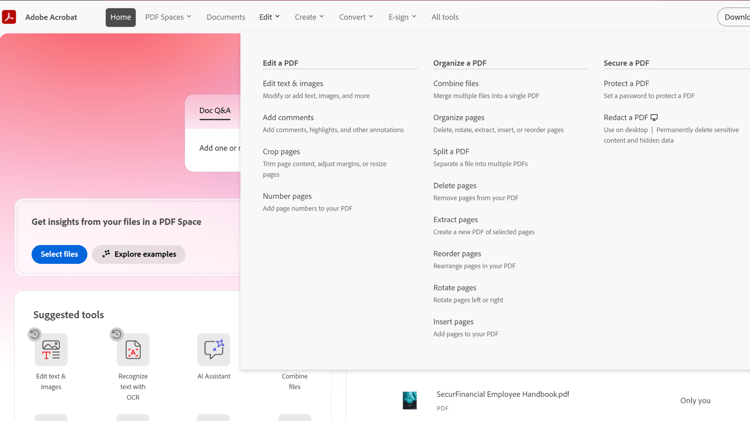
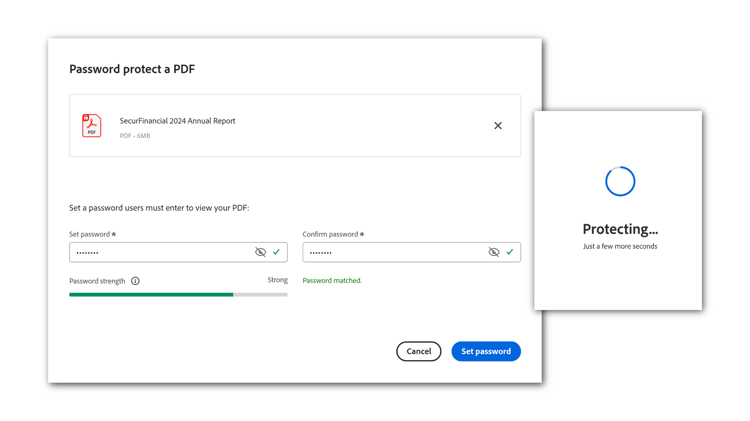
如何在Acrobat網頁版中設定開啟密碼
在瀏覽器中登入acrobat.adobe.com。 從頂端功能表選取「編輯」>「保護PDF」。
注意:您只能在網頁上的Acrobat中設定檢視密碼。
- :callout[]{type="rectangle" x1="44.26" y1="60.82" x2="55.49" y2="68.02"}
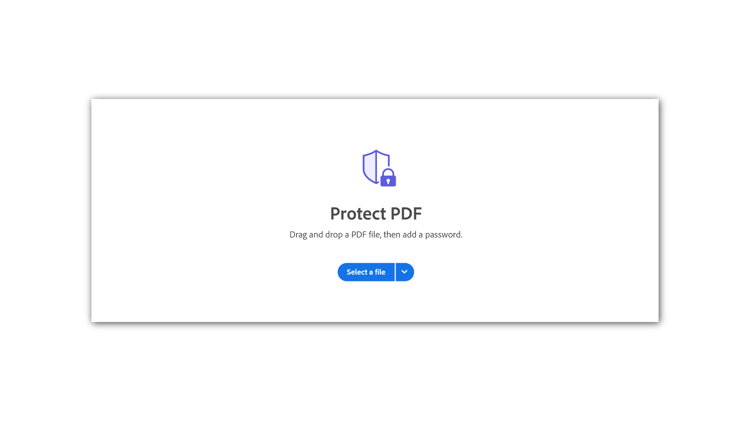
新增檔案
選擇選取檔案,新增您的檔案,然後選擇開啟。
- :callout[]{type="rectangle" x1="9.2" y1="57.42" x2="37.96" y2="62.02"}
- :callout[]{type="rectangle" x1="40.44" y1="57.22" x2="69.2" y2="61.82"}
- :callout[]{type="rectangle" x1="59.76" y1="79.42" x2="69.65" y2="86.62"}
輸入增強式密碼
輸入您的密碼,並在對應的欄位中確認密碼。 選取設定密碼。