使用者偏好設定 - 自動化設定

永久或會話制
有兩種不同的方式可以設定 Designer 使用非 預設的另一個設定檔 ,各有優缺點:
- 永久修改使用者_preferences.xml\ 此檔案位於 ~User\AppData\Local\Adobe\Adobe Substance 3D Designer for Windows。 如果你修改它,Designer 會一直使用那裡定義的內容,不管你怎麼開始、什麼時候、在哪裡開始。 進行變更需要再次修改 XML,這兩者如下所述,且通常較為複雜。
- 暫時透過命令列參數設定會話\ Designer 可以在啟動時用命令列參數覆蓋該會話的 SBSCFG 檔案(詳情見下文)。 這是一個簡單且優雅的解決方案,讓切換專案的速度遠比修改 XML 快得多。 危險在於,如果你透過多個捷徑開啟(例如 Windows 的開始功能表和桌面),可能會有不同的結果,但並不完全明顯。 此外,它不像使用者那樣防篡改,因為使用者比使用者_preferences.xml更容易刪除、移動或修改捷徑。
XML 修改
手動修改偏好設定
如果沒有自動設定,或是為了測試,可以手動到 「編輯>偏好設定」… 然後點擊左側的「專案」區塊。
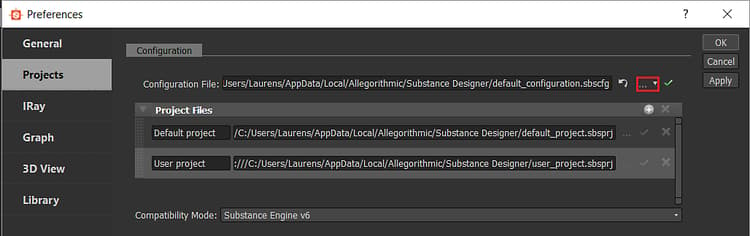
紅色按鈕允許使用者選擇不同的SBSCFG 檔案。
透過腳本修改
與專案與組態檔案相同,使用者偏好設定為結構化 XML,相關設定可明確辨識。 它不像 Notepad++ 或 Sublime Text 這類文字編輯器進行修改,而是非常適合透過外部腳本化設定進行修改。
腳本的優點是使用者只需點擊按鈕,且如果系統足夠複雜,可以輕鬆管理和更換專案,無需手動管理檔案和設定。
相關行如下:
  <configuration>

   <configurationfile>file:///C:/Users/John/AppData/Local/Adobe/Adobe Substance 3D Designer/default_configuration.sbscfg</configurationfile>

  </configuration>
Python 範例
以下是 Windows 上一個簡單的 Python 2.7 範例函式,可修改使用者_preferences.xml以取得另一個設定檔。 這會永久改變該數值,直到恢復原狀。 接著可以呼叫函式 SetConfigurationFile,並以自訂 sbscfg 檔案的路徑作為參數。
Python 腳本能提供強大且乾淨的程式碼,且能輕鬆整合到其他地方,但缺點是使用者要執行,必須編譯成可執行檔,或使用者需要部署 Python 版本。
import xml.etree.ElementTree as ElementTree

import os


##Example Python script for changing Substance 3D Designer user preference file##


def SetConfigurationFile(p_ConfigPath):

## Check is the path passed as parameter exists.

    if(os.path.isfile(p_ConfigPath)):

## replace backslashes by forwardslahes to ensure consistency

        p_ConfigPath = p_ConfigPath.replace("\", "/")

## get Local Appadata path from Environment variables, construct full path to user_preferences.xml and check if it exists.

        m_AppDataPath = os.environ.get('LOCALAPPDATA')

        if m_AppDataPath != None:

            m_UserPrefsPath = os.path.join(m_AppDataPath, str("Adobe/Adobe Substance 3D Designer/user_preferences.xml"))

            if(os.path.isfile(m_UserPrefsPath)):

## read XML elementtree from file, find correct element until we get to the actual line that defines the configurationfile path

                m_PrefsTree = ElementTree.parse(m_UserPrefsPath)

                m_PrefsRoot = m_PrefsTree.getroot()

                m_PrefsElement = m_PrefsRoot.find("preferences")

                m_XMLError = True

                if(m_PrefsElement != None):

                    m_ConfigElement = m_PrefsElement.find("configuration")

                    if(m_ConfigElement != None):

                        m_ConfigFileElement = m_ConfigElement.find("configurationfile")

                        if(m_ConfigFileElement != None):

                            m_XMLError = False

## Check if path is already set, to avoid double work

                            if m_ConfigFileElement.text.replace("file:///","") == p_ConfigPath:

                                print "configurationfile is already set to desired path. Aborting."

                                return True

                            else:

## construct correctly formatted path, insert into elementtree

                                m_ConfigPath = str("file:///" + p_ConfigPath)

                                m_ConfigFileElement.text = m_ConfigPath


## Write to file

                                m_XMLString = str("<?xml version="1.0" encoding="UTF-8"?>n") + ElementTree.tostring(m_PrefsRoot, 'utf-8')

                                m_File = open(m_UserPrefsPath,'w')

                                m_File.write(m_XMLString)

                                m_File.close()

                                print "configuration file path succesfully changed!"

                                return True

                if m_XMLError:

## if this flag was not set to false, we can assume something was missing or went wrong when walking through the XML

                    print("Error: malformed content in user_preferences.xml!")

                    return False

            else:

                print "Error: user_preferences.xml does not exist, try starting Substance 3D Designer first!"

                return False

        else:

            print "Error: LocalAppData path returned None"

            return False

    else:

        print "Error: Invalid Configuration File path!"

        return False
命令列參數捷徑
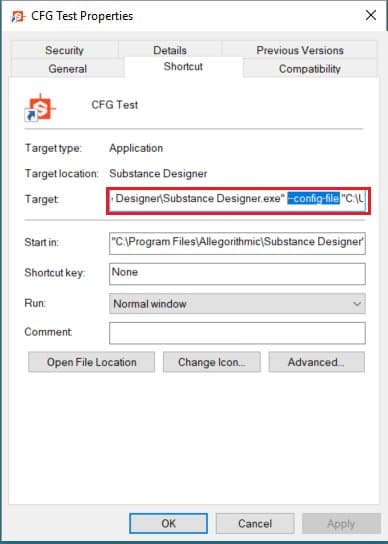
用更簡單的方式,可以透過「–config-file」(可選)參數告訴 Designer 在啟動時使用特定的 SBSCFG。
手動設定
雖然不建議在生產環境中使用手動方法,但若已設定 SBSCFG 檔案,測試時可相當快速完成。
-
新增空格
-
在 Target 區塊的 designer 路徑後面加上 --config-file。
-
再加一個空格
-
請用引號包裹你的路徑,以避免路徑出現空格問題
-
結果應該是這樣:
「C:\Program Files\Adobe\Adobe Substance 3D Designer\Adobe Substance 3D Designer.exe」 --config-file 「C:\Dev\Substance\custom_configuration.sbscfg」