智慧型影像處理 smart-imaging
智慧型影像可套用每位使用者獨特的檢視特性,以針對其體驗自動最佳化的正確影像,進而提供更優異的效能和參與度。
關於智慧型影像 what-is-smart-imaging
智慧型影像技術可套用Adobe AI功能,並搭配現有的「影像預設集」運作。 它會根據使用者端瀏覽器功能自動最佳化影像格式、大小和品質,藉此增強影像傳送效能。
現在,透過改良的智慧型影像處理(現在同時支援AVIF和WebP),取得LCP (最大內容繪製)更好的Google Core Web Vital分數。
- 檔案大小(含WebP和AVIF傳送)
- 網路頻寬
- DPR (裝置畫素比率)
智慧型影像可與Adobe同級最佳的高階CDN (內容傳遞網路)服務完全整合,進一步提升效能。 此服務會尋找伺服器、網路和對等點之間的最佳網際網路路由。 它會找到延遲最低、封包遺失率最低的路由,而不使用網際網路上的預設路由。
下列影像資產範例說明新增的智慧型影像最佳化:


與上述類似,Adobe也使用較大的範例集執行測試。 與WebP相比,AVIF格式提供了20%的額外大小縮減,比JPEG提供了27%的縮減。 所有專案都具有相同的視覺品質。 相較於JPEG,AVIF總共可提供高達41%的平均大小縮減率。
比較WebP和AVIF與PNG,您可以看到WebP的大小減少84%,AVIF的大小減少87%。 此外,由於WebP和AVIF格式都支援透明和多種影像動畫,因此非常適合取代透明的PNG和GIF檔案。
智慧型影像處理的優點 what-are-the-key-benefits-of-smart-imaging
智慧型影像可根據使用者的瀏覽器、裝置顯示和網路狀況,自動最佳化檔案大小,強化影像傳送。 此方法可確保更快的載入時間,以及在不同環境中獲得更好的檢視體驗。 由於影像佔據了頁面的大部分載入時間,因此任何效能改善都會對業務KPI產生深遠影響,例如:
- 轉換率較高。
- 網站逗留時間。
- 較低的網站跳出率。
最新智慧型影像處理的最新主要優點包括:
- 支援下一代AVIF格式。
- PNG至WebP和AVIF現在支援有損轉換。 由於PNG是無損格式,因此先前傳送的WebP和AVIF是無損的。
- 瀏覽器格式轉換(
bfc) - 裝置畫素比例(
dpr) - 網路頻寬(
network)
關於瀏覽器格式轉換(bfc) bfc
透過將bfc=on附加至影像URL來開啟瀏覽器格式轉換,會自動將JPEG和PNG轉換成不同瀏覽器的有損AVIF、有損WebP、有損JPEGXR、有損JPEG2000。 針對不支援這些格式的瀏覽器,智慧型影像會繼續提供JPEG或PNG。 智慧型影像會隨著格式變更重新計算新格式的品質。
您可以將bfc=off附加至影像的URL以關閉智慧型影像。
另請參閱Dynamic Media影像提供與轉譯API中的bfc。
關於裝置畫素比(dpr)最佳化 dpr
裝置畫素比率(DPR),也稱為CSS畫素比率,代表裝置的實體畫素與邏輯畫素之間的關係。 隨著視網膜顯示器的興起,現代行動裝置的畫素解析度也迅速提高。
啟用「裝置畫素比最佳化」 ,以熒幕的原生解析度呈現影像,使影像更清晰。
目前,顯示器的畫素密度來自Akamai CDN標題值。
dpr=offdpr=on,dprValuedprValue的允許值是大於0的任何數字。- 即使公司層級DPR設定為off,您仍可使用
dpr=on,dprValue。 - 由於DPR最佳化,當產生的影像大於MaxPix Dynamic Media設定時,一律會透過維持影像的外觀比例來辨識MaxPix寬度。
關於網路頻寬最佳化 network
開啟網路頻寬會自動根據實際網路頻寬調整影像品質。 因為網路頻寬太低,DPR (裝置畫素比)最佳化功能即使已經開啟,也會自動關閉。
您的公司可以將network=off附加至影像URL,以停用個別影像的網路頻寬最佳化。
network=offDPR和網路頻寬值是根據偵測到的套件式CDN使用者端值。 這些值有時不準確。 例如,DPR=2的iPhone5和dpr=3的iPhone12都顯示dpr=2。 不過,對於高解析度裝置,傳送dpr=2還是比傳送dpr=1好。 然而,克服這種不正確性的最佳方式是使用使用者端DPR,為您提供100%正確的值。 而且它適用於任何裝置,不論是Apple或任何其他已啟動的裝置。 請參閱使用智慧型影像搭配使用者端裝置畫素比率。
智慧型影像處理的其他主要優點
- 改善使用最新智慧型影像處理之網頁的Google SEO排名。
- 立即提供最佳化內容(在執行階段)。
- 使用Adobe AI技術,根據影像要求中指定的品質(
qlt)進行轉換。 - 不受TTL (存留時間)影響。 之前,智慧型影像處理至少必須有12小時的TTL才能運作。
- 先前,原始和衍生影像都會經過快取,而且是使快取失效的兩步驟程式。 在最新的智慧型影像處理中,只會快取衍生專案,進行單一步驟的快取失效程式。
- 在規則集中使用自訂標題的客戶可受益於最新的智慧型影像,因為這些標題不會遭到封鎖,不像舊版的智慧型影像。
常見問題
不行。 智慧型影像包含於您現有的授權中。 此規則適用於Dynamic Media Classic或Experience Manager - Dynamic Media (內部部署、AMS和Experience Manager as a Cloud Service)。
| note |
|---|
| NOTE |
| 智慧型影像不適用於Dynamic Media — 混合型客戶。 |
當消費者要求影像時,「智慧型影像」會分析使用者特性,並根據瀏覽器將其轉換為適當的格式。 這些格式轉換的進行方式不會降低視覺的逼真度。 智慧型影像會根據瀏覽器功能,以下列方式自動將影像轉換為不同格式。
-
如果您的瀏覽器支援格式,則自動轉換為AVIF
-
如果AVIF轉換沒有好處或瀏覽器不支援AVIF,則自動轉換成WebP
-
如果Safari不支援WebP,則自動轉換為JPEG2000
-
自動轉換為IE 9+適用的JPEGXR,或如果Edge不支援WebP
table 0-row-2 1-row-2 2-row-2 3-row-2 4-row-2 影像格式 支援的瀏覽器 AVIF https://caniuse.com/avif WebP https://caniuse.com/webp JPEG 2000 https://caniuse.com/jpeg2000 JPEGXR https://caniuse.com/jpegxr -
對於不支援這些格式的瀏覽器,會提供最初請求的影像格式。
如果原始影像大小小於智慧型影像產生的大小,則會提供原始影像。
智慧型影像支援下列影像格式:
- JPEG
- PNG
智慧型影像在轉換為新格式時,會重新計算JPEG影像檔案格式的品質。
對於支援PNG等透明度的影像檔案格式,您可以設定「智慧型影像」以傳送有損的AVIF和WebP。 針對有損格式轉換,「智慧型影像處理」會使用影像URL中所述的品質,或是在Dynamic Media公司帳戶中設定的品質。
智慧型影像可順暢整合您現有的影像預設集,並符合您所有的影像設定。
唯一的調整涉及影像格式、品質或兩者。 在格式轉換期間,智慧型影像處理會根據您的預設設定保留完整的視覺精確度,但會提供較小的檔案大小。 只要將bfc=on、dpr=on,dprValue、network=on或全部三個引數設定新增到您現有的URL或預設集,即可啟用它。
例如,假設影像預設集指定了500 × 500畫素的JPEG格式,其中有quality=85和unsharp mask=0.1,1,5。 智慧型影像可偵測使用者是否位在Chrome瀏覽器上。 接著會以相同尺寸(500 × 500)將影像轉換為WebP,並加上符合JPEG設定的銳利化遮色片。 然後,系統會比較WebP和JPEG版本的檔案大小,並將較小版本提供給使用者。
智慧型影像處理可立即供所有客戶使用。 若要開始享受其優點,只需將bfc=on、dpr=on,dprValue、network=on或所有三個引數設定新增至您現有的URL或預設集。
若要使用智慧型影像處理,貴公司的Dynamic Media Classic或Experience Manager上的Dynamic Media帳戶必須包含Adobe隨附的CDN (內容傳遞網路)作為授權的一部分。
若要開始使用智慧型影像,請附加bfc=on、dpr=on,dprValue、network=on或全部三個引數設定到您現有的URL或預設集。 如果您不想手動進行這些變更,您可以建立支援案例來依預設啟用「智慧型影像」。
建立支援案例時,請指定您要在帳戶上啟用的智慧型影像功能:
- 瀏覽器格式轉換(WebP或AVIF)
- 網路頻寬最佳化
| note |
|---|
| NOTE |
DPR需要使用者端進行調整,以判斷正確的dprValue。 因此,Adobe建議藉由附加dpr=on,dprValue,透過URL啟用DPR。 |
若要建立支援案例,在您的帳戶上啟用智慧型影像處理:
-
在您的支援案例中提供下列資訊:
-
主要連絡人詳細資料:
- 提供您的姓名、電子郵件和電話號碼。
-
要啟用的智慧型影像功能:
-
列出您想要為您的帳戶提供的功能:
- 瀏覽器格式轉換:WebP或AVIF
- 網路頻寬最佳化
- DPR: DPR需要使用者端進行調整,以決定正確的
dprValue。 因此,Adobe建議藉由附加dpr=on,dprValue,透過URL啟用DPR。
-
-
智慧型影像的網域:
-
列出所有相關網域,例如
company.com或mycompany.scene7.com -
智慧型影像支援一般和自訂網域。
-
若要識別您的網域,請開啟Dynamic Media Classic案頭應用程式並登入您的公司帳戶。
- 瀏覽至設定 > 應用程式設定 > 一般設定。
- 尋找 發佈的伺服器名稱 欄位以確認您的網域。
- 確認您使用的是Adobe的CDN,而非其他提供者所管理的CDN。
-
-
表示HTTP/2支援:
- 指定您是否需要「智慧型影像」才能透過HTTP/2運作。
-
-
Adobe客戶支援預設會啟用所要求的智慧型影像處理功能,而不需要手動將引數附加至URL。
-
Adobe建議將存留時間(TTL)設定為至少24小時,以便透過快取發揮最大效能。
若要調整TTL:-
Dynamic Media Classic的:
- 瀏覽至設定 > 應用程式設定 > 發佈設定 > 影像伺服器。
- 將 預設使用者端快取存留時間 值設定為24小時或更長。
-
適用於Adobe Experience Manager上的Dynamic Media :
- 遵循這些指示。
- 設定24小時或更多的 到期 值。
-
「客戶支援」會依接收順序處理請求,並遵循「等待清單」處理。
| note |
|---|
| NOTE |
| 由於啟用智慧型影像處理需要Adobe清除快取,因此前置時間可能會較長。 因此,在任何指定時間只能處理少數客戶轉換。 |
客戶網頁沒有風險。 不過,轉換至智慧型影像處理會清除CDN快取。 此作業涉及在Experience Manager上移至新的Dynamic Media Classic或Dynamic Media設定。
在初始轉變期間,非快取影像會直接點選Adobe的原始伺服器,直到再次重建快取為止。 因此,Adobe計劃一次處理幾個客戶轉換,以便在從來源提取請求時維持可接受的效能。 對於大多數客戶而言,CDN會在約1至2天內再次完全建立快取。
-
帳戶設定智慧型影像之後,請在瀏覽器中載入Dynamic Media Classic或Adobe Experience Manager - Dynamic Media影像URL。
-
在瀏覽器中前往檢視 > 開發人員 > 開發人員工具,開啟Chrome開發人員窗格。 或者,選擇您選擇的任何瀏覽器開發人員工具。
-
請確保在開發人員工具開啟時停用快取。
- 在Windows®上,瀏覽至開發人員工具窗格中的設定,然後選取 停用快取(當devtools開啟時) 核取方塊。
- 在macOS上,在[開發人員]窗格的 網路 標籤下,選取停用快取。
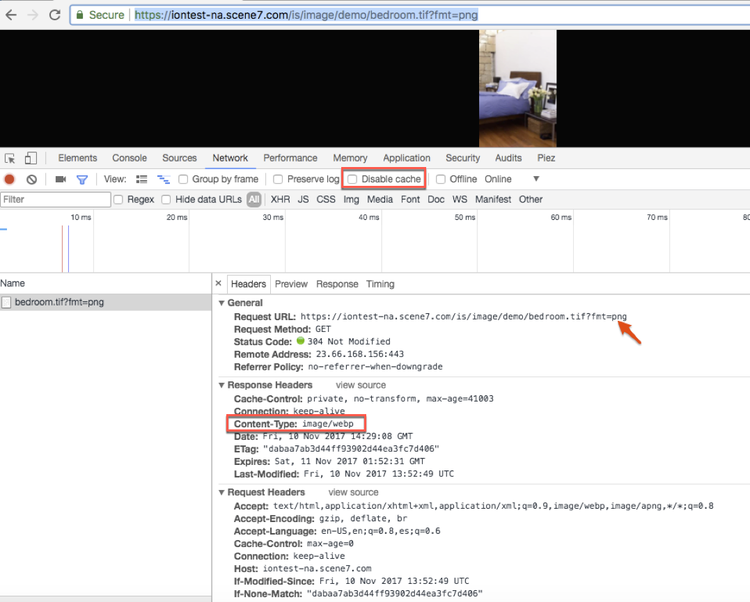
-
請注意,內容型別已轉換為適當的格式。 下列熒幕擷圖顯示的PNG影像正動態轉換為Chrome上的WebP。 如果您的網域已啟用AVIF,內容型別中也可能看到AVIF。
-
在不同的瀏覽器和使用者條件下重複此測試。
| note |
|---|
| NOTE |
| 並非所有影像都會轉換。 智慧型影像處理會決定轉換是否能改善效能。 有時,如果沒有預期的效能提升,或格式不是JPEG或PNG,影像就不會轉換。 |
智慧型影像標題決定智慧型影像的優點。 啟用智慧型影像時,當您要求影像之後,在 回應標題 標題下,您可以看到-X-Adobe-Smart-Imaging,如下列醒目提示的範例所示:
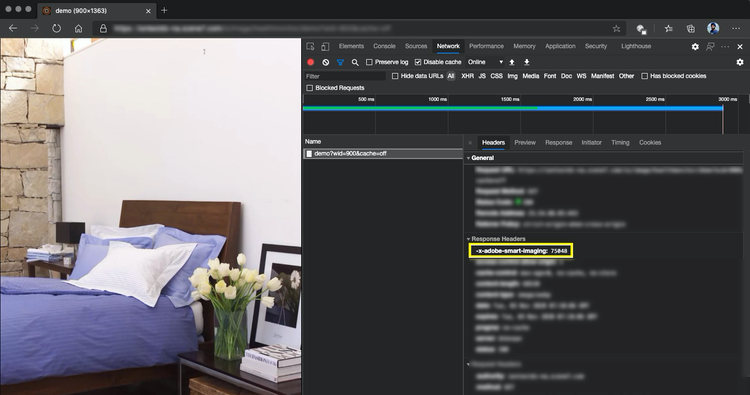
此標題會告訴您下列內容:
- 智慧型影像處理功能適用於本公司。
- 正值表示轉換成功。 在這種情況下,會傳回新的WebP影像。
- 負值表示轉換不成功。 在這種情況下,會傳回原始要求的影像(如果未指定,則預設為JPEG)。
- 正值會顯示要求的影像與新影像之間的位元組差異。 在上述範例中,儲存的位元組為
75048或一個影像約75 KB。 - 負值表示要求的影像小於新影像。 會顯示負數大小差異,但提供的影像僅為原始要求的影像。
| note |
|---|
| NOTE |
| X-Adobe-Smart-Imaging = -1,正在傳遞WebP |
如果X-Adobe-Smart-Imaging的值為–1,而且WebP仍在傳遞,則智慧型影像處理為作用中。但是,由於快取已過時,因此未計算大小優勢。您可以在影像的URL中使用cache=update (僅限一次)來修正此問題。使用修飾元的範例: https://smartimaging.scene7.com/is/image/SmartImaging/sample1?cache=update>若要讓整個快取失效,您必須建立支援案例。 |
bfc=off至影像的URL來關閉智慧型影像。 不過,您無法在智慧型影像的URL修飾元中選取WebP或AVIF。 此能力在您的公司帳戶層級進行維護。如果您的帳戶未啟用智慧型影像處理,就不會發生這個錯誤。 智慧型影像僅適用於JPEG或PNG格式。
若要避免此錯誤,您可以:
- 指定JPEG或PNG,或
- 完全不使用
fmt修飾元,或 - 使用智慧型影像定義的瀏覽器偏好格式。 例如,您可以將WebP用於Chrome網頁瀏覽器。
fmt=tif和bfc=off新增至影像的URL路徑。fmt和qlt。 支援所有剩餘的命令。由於PNG是無損格式,因此先前傳送的WebP和AVIF是無損的,因此產生的大小比預期大。 智慧型影像處理現在支援有損轉換。 您可以在影像要求中使用修飾元cache=update (僅限一次)來修正此問題。 使用此修飾元的範例:
https://smartimaging.scene7.com/is/image/SmartImaging/sample1?cache=update
若要讓整個快取失效,您必須建立要求此類努力的支援案例。
qlt=100新增至影像的URL路徑,將品質設定為100,以繼續使用無損轉換。