[僅限SaaS]{class="badge positive" title="僅適用於Adobe Commerce as a Cloud Service專案(Adobe管理的SaaS基礎結構)。"}
Google reCAPTCHA Enterprise
Google reCAPTCHA Enterprise使用最適化風險分析和機器學習來區分人類使用者和機器人,為您的Adobe Commerce as a Cloud Service店面提供進階機器人保護。 這有助於防止網站上的詐騙活動、垃圾郵件和濫用。
reCAPTCHA整合說明如何將reCAPTCHA Enterprise的支援新增至您的店面。
如需設定其他Google reCAPTCHA版本的資訊,請參閱Google reCAPTCHA V3和V2。
功能
Google reCAPTCHA Enterprise包含下列功能:
- 進階機器人偵測:使用Google Cloud的機器學習模型來進行卓越的機器人偵測
- 風險分數分析:提供每個互動的詳細風險分數(0.0-1.0)
- 可設定的臨界值:設定每個租使用者的最低可接受風險分數
- 多租使用者支援:每個租使用者設定與隔離的Google雲端專案
- 加密的認證:服務帳戶認證已加密儲存在資料庫中
- 表單保護:保護所有標準Commerce表單,包括登入、結帳、產品評論等。
先決條件
您需要下列資源,才能為Adobe Commerce as a Cloud Service店面設定Google reCAPTCHA Enterprise:
- 已啟用reCAPTCHA Enterprise的作用中Google雲端帳戶。
- 存取Google Cloud Console以建立和管理reCAPTCHA Enterprise金鑰。
在多租使用者Adobe Commerce as a Cloud Service安裝中,每個租使用者都必須有自己的Google Cloud專案和reCAPTCHA Enterprise金鑰。
步驟1:設定Google reCAPTCHA Enterprise
請依照這些一般步驟來設定店面的Google reCAPTCHA Enterprise 。 如需詳細指示,請參閱Google reCAPTCHA Enterprise檔案。
-
建立以分數為基礎的reCAPTCHA Enterprise 網站金鑰。
-
建立具有
roles/recaptchaenterprise.adminIAM角色的服務帳戶。 -
下載服務帳戶JSON金鑰檔案,該檔案包含使用Google reCAPTCHA Enterprise驗證Adobe Commerce as a Cloud Service店面所需的認證。
步驟2:為店面設定Google reCAPTCHA
-
在Adobe Commerce 管理員側邊欄上,前往Stores > Settings>Configuration。
-
展開 Security 並選擇Google reCAPTCHA Storefront。
-
向下捲動至 reCAPTCHA Enterprise 區段,並依照下列方式完成設定。
-
針對Site Key,請從Google Cloud Console複製並貼上您的reCAPTCHA Enterprise網站金鑰。
-
針對Google Cloud Project ID,從您的Google Cloud專案複製並貼上專案ID。
-
針對Service Account JSON,複製您在步驟1:設定Google reCAPTCHA Enterprise中下載的服務帳戶JSON金鑰檔案內容。
-
針對Minimum Score Threshold,輸入最低分數(0.0-1.0),以識別何時將使用者互動標籤為潛在風險。 1.0分是典型的使用者互動,0.0分可能是機器人。
-
針對Badge Position,選擇每個頁面上隱藏的reCAPTCHA徽章位置。 選項:
Inline/Bottom Right/Bottom Left。 -
針對Theme,請選擇
Light Theme(預設)或Dark Theme以決定Google reCAPTCHA方塊的樣式。 -
針對Language Code,輸入雙字元代碼,指定用於Google reCAPTCHA文字與訊息的語言。
-
若為Validation Failure Message,可選擇在驗證失敗時變更店面顯示的訊息。
-
-
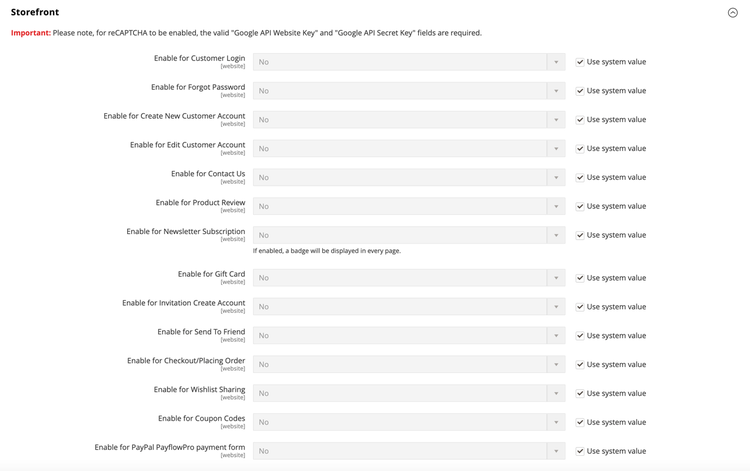
展開 Storefront 區段,並將每個要保護的店面表單設定為reCAPTCHA Enterprise。
-
Enable for Customer Login
-
Enable for Forgot Password
-
Enable for Create New Customer Account
-
Enable for Edit Customer Account
-
Enable for Create New Company Account (僅適用於Adobe Commerce B2B)
-
Enable for Contact Us
-
Enable for Product Review
-
Enable for Newsletter Subscription
-
Enable for Gift Card (僅限Adobe Commerce)
-
Enable for Invitation Create Account
-
Enable for Send To Friend — 僅[個PaaS]{class="badge informative" title="僅適用於雲端專案(Adobe管理的PaaS基礎結構)和內部部署專案的Adobe Commerce 。"}
-
Enable for Checkout/Placing Order
-
Enable for Wishlist Sharing
-
Enable for Coupon Codes
-
Enable for PayPal PayflowPro payment form — 僅[個PaaS]{class="badge informative" title="僅適用於雲端專案(Adobe管理的PaaS基礎結構)和內部部署專案的Adobe Commerce 。"}
步驟3:儲存設定
-
組態設定完成後,按一下Save Config。
-
在工作區頂端的訊息中,按一下 Cache Management 並重新整理每個無效的快取。