为MultiZone布局创建自定义模板 creating-custom-templates-multizone
本页展示如何为多区域布局创建自定义模板。
重要注意事项 considerations
在多区域布局中创建自定义模板之前,必须注意两个重要注意事项:
-
固定像素大小或百分比:
决定是为自定义布局的不同区域使用固定像素大小,还是要使用百分比创建自定义布局。
note note NOTE 使用百分比为您的自定义布局设置区域的好处允许您在各种屏幕大小上重复使用该模板。 -
命名约定:
它有助于了解如何创建要在AEM Screens项目中使用的自定义多区域模板。 但首先,您必须了解要创建的模板的措辞。
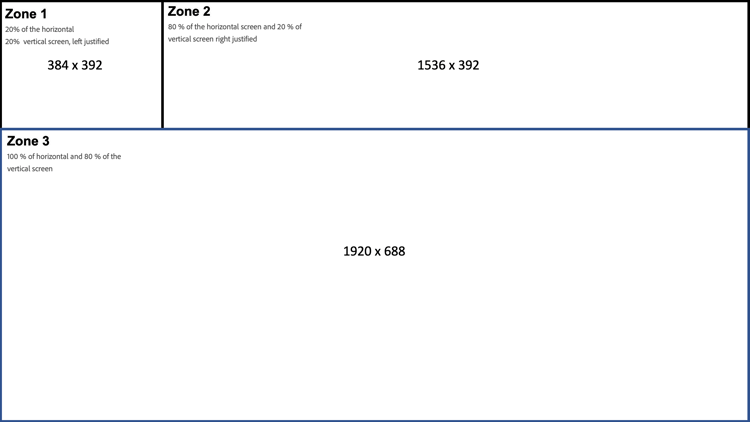
table 0-row-2 1-row-2 2-row-2 3-row-2 布局名称 描述 Left20-LandscapeHD3Zone三区域横向布局允许您创建三个区域:
*区域1为水平屏幕和垂直屏幕的20%
*区域2为水平屏幕的80%,垂直屏幕的20%向右对齐
*区域3为水平屏幕的100%和垂直屏幕的80%。 长宽比为16:9Upper20-PortraitHD2Zone双区域纵向模板,从顶部覆盖20%的屏幕,长宽比为16:9 Right20-LandscapeSD3Zone一个三区模板,从右侧覆盖20%的屏幕,长宽比为4:3 note important IMPORTANT 在自定义布局中定义的区域可能与整个布局的整体纵横比不匹配。 本文档中遵循的命名惯例指定自定义布局整体的长宽比。
示例用例Left20-LandscapeHD3Zone布局 custom-template-one
按照以下部分创建具有以下配置的自定义模板Left20-LandscapeHD3Zone:
Left20— 左侧的顶部区域占水平屏幕和垂直屏幕大小的20%。Landscape— 屏幕方向。HD— 长宽比为16:9。3Zone— 显示的三个区域。
多区域布局的可视化表示形式 multi-layout-visual-one
Left20-LandscapeHD3Zone布局允许您在项目中创建以下多区域布局:
创建Left20-LandscapeHD3Zone布局 landscape-layout-one
请按照以下步骤为AEM Screens项目创建Left20-LandscapeHD3Zone布局。
-
创建标题为
customtemplate的AEM Screens项目。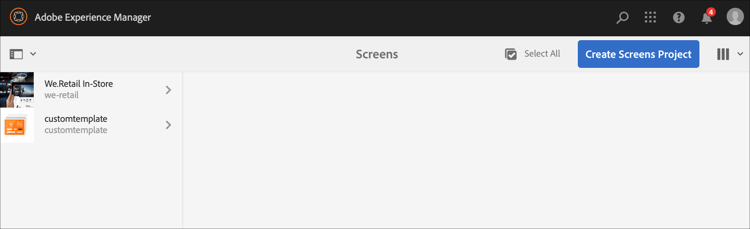
-
从您的CRXDE Lite实例> “工具” > CRXDE Lite导航到AEM。
-
在 apps 下创建标题为
customtemplate的文件夹。 同样,在customtemplate下创建另一个名为 template 的文件夹,如下图所示。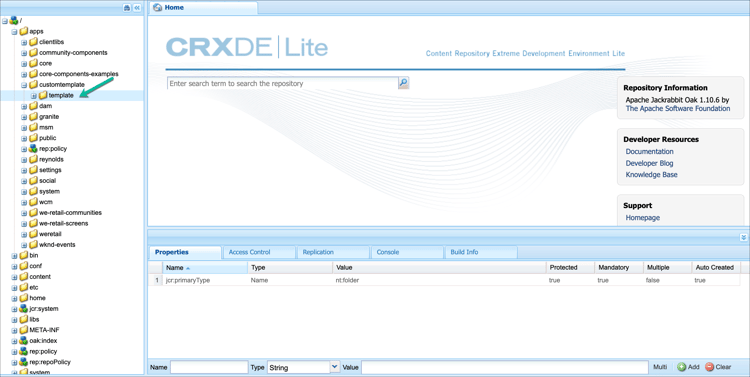
note note NOTE 每次创建、编辑内容或将内容复制到任何节点时,在CRXDE Lite的操作栏中单击全部保存。 否则,您无法提交更新。 -
将lbar-left模板从
/libs/screens/core/templates/splitscreenchannel/lbar-left复制到/apps/customtemplate/template。 -
将复制的lbar-left (
/apps/customtemplate/template)重命名为my-custom-layout。
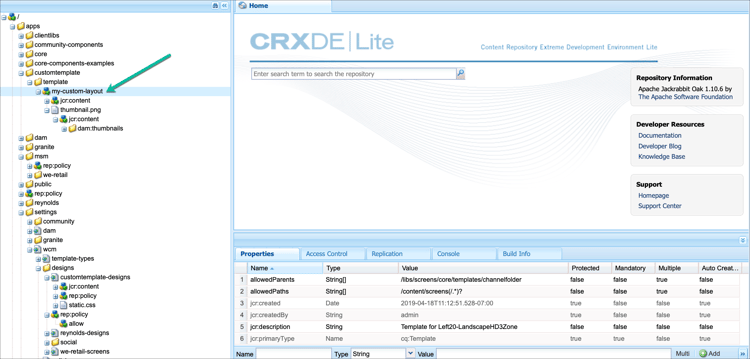
-
导航到
/apps/customtemplate/template/my-custom-layout并将属性jcr:description更新为Left20-LandscapeHD3Zone的模板,将jcr:title更新为Left20-LandscapeHD3Zone。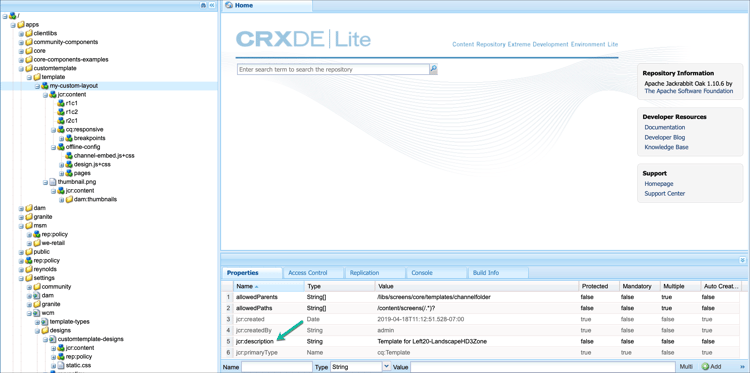
-
从
/apps/customtemplate/template/my-custom-layout/jcr:content/offline-config导航到offline-config节点并将jcr:title更新为Left20-LandscapeHD3Zone。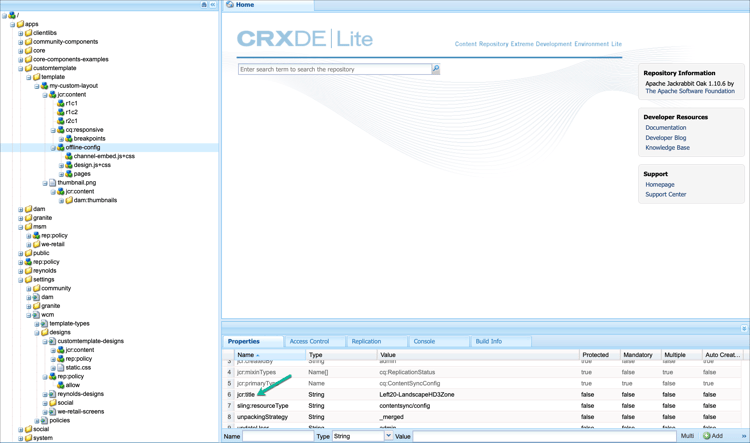
-
从
/apps/customtemplate/template/my-custom-layout/jcr:content导航到 my-custom-template 的jcr:content属性并更新cq:cssClass属性,以便您可以使用aem-Layout my-custom-layout。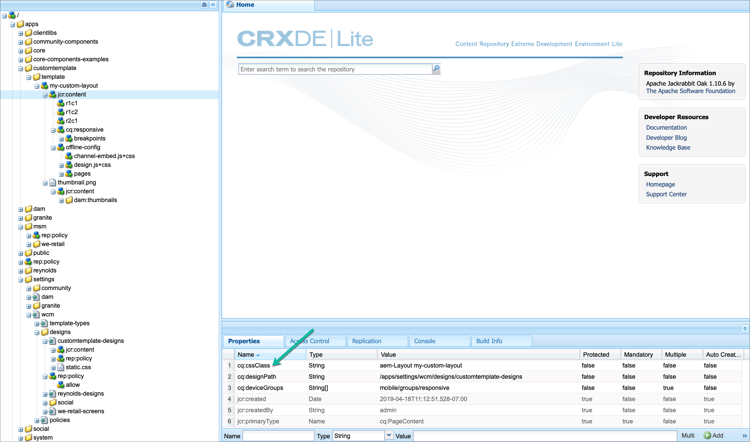
-
参照复制左侧lbar模板的步骤(4),您可以在
my-custom-layout/jcr:content下查看三个响应式网格。 向cq:cssClass属性中的每个响应式网格添加自定义css类,例如 r1c1 节点的my-custom-layout-top-left。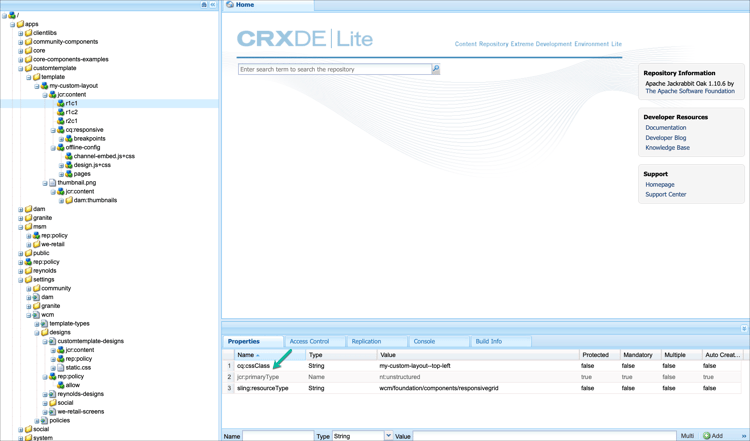
同样,为 r1c2 添加my-custom-layout-top-right,为 r2c1 节点添加my-custom-layout-bottom。
note note NOTE 这些自定义类在css中用于设置这些响应式网格的宽度/高度。 note note NOTE 您可以根据所需的网格总数添加或删除响应式网格。 在此示例中,第一行中的两个网格和第二行中的一个网格被显示,因此总共有三个响应式网格(r1c1、r1c2、r2c1)。 -
将
/libs/settings/wcm/designs/screens复制到/apps/settings/wcm/designs/并将复制的设计重命名为custom-template-designs。 -
导航到
/apps/settings/wcm/designs/custom-template-designs并将 custom-template-designs 的属性jcr:title更新为customtemplate-design。 -
导航到
/apps/settings/wcm/designs/custom-template-designs并创建文件static.css。 -
将内容复制到
static.css文件:code language-shell /*my-custom-layout styles*/ .cq-Screens-channel--multizone.my-custom-layout .my-custom-layout--top-left { width:20%; height: 36%; float: left !important; } .cq-Screens-channel--multizone.my-custom-layout .my-custom-layout--top-right { width:80%; height: 36%; float: left !important; } .cq-Screens-channel--multizone.my-custom-layout .my-custom-layout--bottom { width:100%; height: 64%; }note note NOTE 您可以更新百分比以符合自定义模板的要求。 -
导航到
/apps/<project>/templates/my-custom-layout/jcr:content并将属性cq:designPath更新为/apps/settings/wcm/designs/customtemplate-designs,以便加载在static.css中配置的样式。note note NOTE 键入所有样式而不是复制或粘贴,这可能会导致空格导致css样式问题。
查看结果 viewing-result
请按照以下步骤在您的AEM Screens项目中使用上述自定义模板:
-
导航到您在步骤(1)中创建的Screens项目,然后单击 渠道 文件夹。
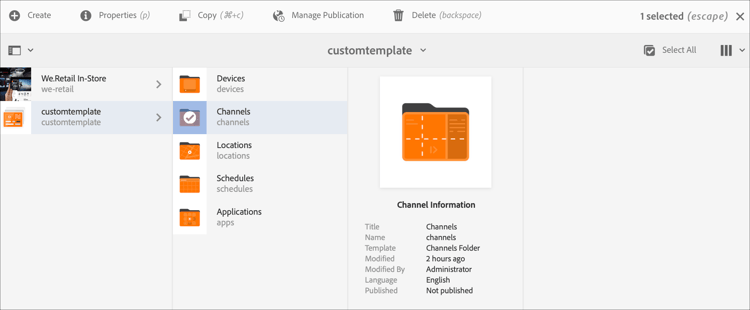
-
单击操作栏中的创建,然后单击 创建 向导中的模板
Left20-LandscapeHD3Zone。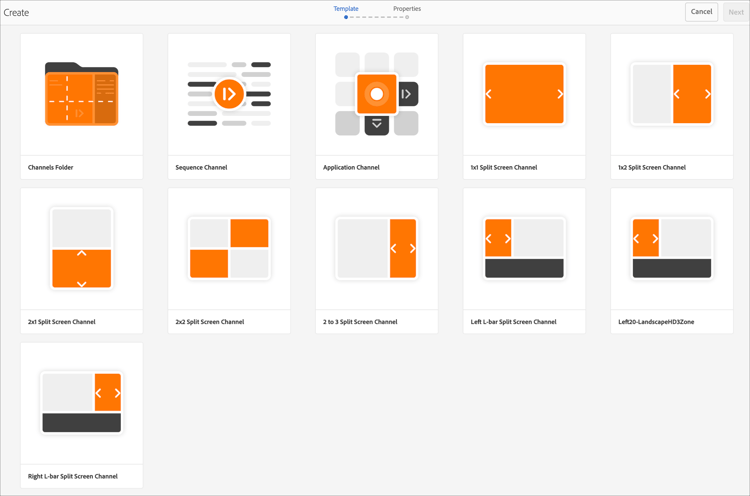
-
使用自定义模板创建渠道后,可以从编辑器将资产添加到渠道。 以下预览显示自定义模板中的图像。
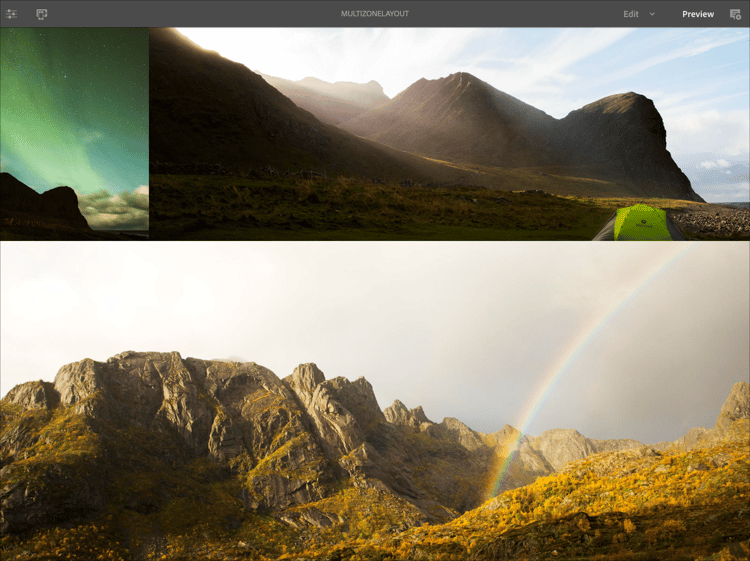
插入图像作为背景图层 inserting-image
您可以将图像作为背景图层插入到布局中:
您可以调整CSS规则以使用“data-uri”,并在您在第13步 static.css 中创建的CSS文件中直接内联图像(Base64编码)。
此安排如下:.cq-Screens-channel--multizone.my-CustomLayout { background: url('data:image/…;base64,…') no-repeat center center; }
或者,您也可以执行以下步骤:
- 确保以某种方式将该图像包含在渠道的脱机配置中。
- 使用上述CSS中图像的直接链接,而不是“data-uri”变量。
更新背景颜色 updating-color
若要更改背景颜色,请将以下代码添加到xml文件(步骤13) static.css。
.cq-Screens-channel--multizone.my-CustomLayout { background-color: …; }