使用通用编辑器编辑React应用程序
在本章中,您将了解如何使用AEM通用编辑器使在上一章中构建的React应用程序可编辑。 通用编辑器允许内容作者直接在React应用程序体验的上下文中编辑内容,同时保持Headless应用程序的无缝体验。
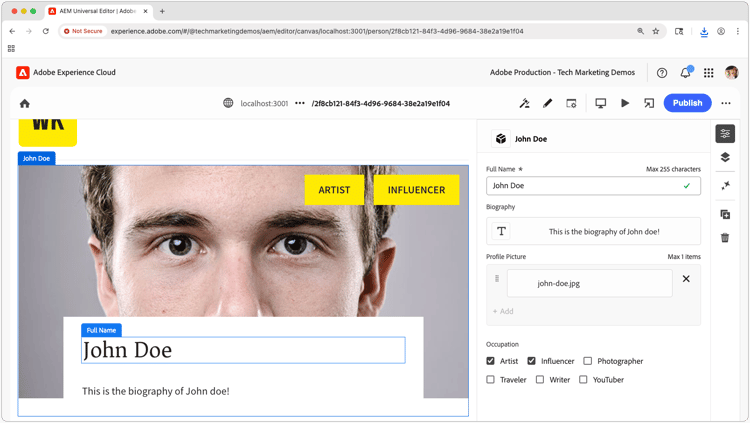
Universal Editor提供了一种强大的方式,可用于为任何Web应用程序启用上下文编辑,从而使作者无需在不同的创作界面之间切换即可编辑内容。
先决条件
- 本教程的前几个步骤已完成,尤其是构建一个使用AEM的内容片段投放OpenAPI的React应用程序
- 有关如何使用和实施Universal Editor的工作知识。
目标
了解如何:
- 将Universal Editor检测添加到React应用程序。
- 为通用编辑器配置React应用程序。
- 使用通用编辑器直接在React应用程序界面中启用内容编辑。
Universal Editor工具
通用编辑器需要HTML属性和元标记来识别可编辑的内容并在UI和AEM内容之间建立连接。
添加通用编辑器标记
首先,添加必要的元标记,以将React应用程序标识为与通用编辑器兼容。
-
在React应用程序中打开
public/index.html。 -
在React应用程序的部分添加通用编辑器元标记和CORS脚本
<head>:code language-html <!DOCTYPE html> <html lang="en"> <head> <meta charset="utf-8" /> <link rel="icon" href="%PUBLIC_URL%/favicon.ico" /> <meta name="viewport" content="width=device-width, initial-scale=1" /> <meta name="theme-color" content="#000000" /> <meta name="description" content="WKND Teams React App" /> <!-- Universal Editor meta tags and CORS script --> <meta name="urn:adobe:aue:system:aemconnection" content="aem:%REACT_APP_AEM_AUTHOR_HOST_URI%" /> <script src="https://universal-editor-service.adobe.io/cors.js"></script> <link rel="apple-touch-icon" href="%PUBLIC_URL%/logo192.png" /> <link rel="manifest" href="%PUBLIC_URL%/manifest.json" /> <title>WKND Teams</title> </head> <body> <noscript>You need to enable JavaScript to run this app.</noscript> <div id="root"></div> </body> </html> -
更新React应用程序的
.env文件以包含AEM Author服务主机,从而支持通用编辑器中的回写(在urn:adobe:aue:system:aemconnectionmetat标记的值中使用)。code language-bash # The AEM Publish (or Preview) service REACT_APP_HOST_URI=https://publish-p123-e456.adobeaemcloud.com # The AEM Author service REACT_APP_AEM_AUTHOR_HOST_URI=https://author-p123-e456.adobeaemcloud.com
检测团队组件
现在添加通用编辑器属性以使团队组件可编辑。
-
打开
src/components/Teams.js。 -
更新
Team组件以包含通用编辑器数据属性:在设置
data-aue-resource属性时,请确保将通过OpenAPI的AEM内容片段投放返回的内容片段的AEM路径后缀为内容片段变体的子路径;在本例中为/jcr:content/data/master。code language-javascript import { useEffect, useState } from "react"; import { Link } from "react-router-dom"; import "./Teams.scss"; function Teams() { // The teams folder is the only folder-tree that is allowed to contain Team Content Fragments. const TEAMS_FOLDER = '/content/dam/my-project/en/teams'; // State to store the teams data const [teams, setTeams] = useState(null); useEffect(() => { /** * Fetches all teams and their associated member details * This is a two-step process: * 1. First, get all team content fragments from the specified folder * 2. Then, for each team, fetch the full details including hydrated references to get the team member names */ const fetchData = async () => { try { // Step 1: Fetch all teams from the teams folder const response = await fetch( `${process.env.REACT_APP_HOST_URI}/adobe/contentFragments?path=${TEAMS_FOLDER}` ); const allTeams = (await response.json()).items || []; // Step 2: Fetch detailed information for each team with hydrated references const hydratedTeams = []; for (const team of allTeams) { const hydratedTeamResponse = await fetch( `${process.env.REACT_APP_HOST_URI}/adobe/contentFragments/${team.id}?references=direct-hydrated` ); hydratedTeams.push(await hydratedTeamResponse.json()); } setTeams(hydratedTeams); } catch (error) { console.error("Error fetching content fragments:", error); } }; fetchData(); }, [TEAMS_FOLDER]); // Show loading state while teams data is being fetched if (!teams) { return <div>Loading teams...</div>; } // Render the teams return ( <div className="teams"> {teams.map((team, index) => { return ( <Team key={index} {...team} /> ); })} </div> ); } /** * Team - renders a single team with its details and members * @param {Object} fields - The authored Content Fragment fields * @param {Object} references - Hydrated references containing member details such as fullName * @param {string} path - Path of the team content fragment */ function Team({ fields, references, path }) { if (!fields.title || !fields.teamMembers) { return null; } return ( <> {/* Specify the correct Content Fragment variation path suffix in the data-aue-resource attribute */} <div className="team" data-aue-resource={`urn:aemconnection:${path}/jcr:content/data/master`} data-aue-type="component" data-aue-label={fields.title}> <h2 className="team__title" data-aue-prop="title" data-aue-type="text" data-aue-label="Team Title">{fields.title}</h2> <p className="team__description" data-aue-prop="description" data-aue-type="richtext" data-aue-label="Team Description" dangerouslySetInnerHTML={{ __html: fields.description.value }} /> <div> <h4 className="team__members-title">Members</h4> <ul className="team__members"> {fields.teamMembers.map((teamMember, index) => { return ( <li key={index} className="team__member"> <Link to={`/person/${teamMember}`}> {references[teamMember].value.fields.fullName} </Link> </li> ); })} </ul> </div> </div> </> ); } export default Teams;
检测人员组件
同样,将通用编辑器属性添加到人员组件。
-
打开
src/components/Person.js。 -
更新组件以包含通用编辑器数据属性:
在设置
data-aue-resource属性时,请确保将通过OpenAPI的AEM内容片段投放返回的内容片段的AEM路径后缀为内容片段变体的子路径;在本例中为/jcr:content/data/master。code language-javascript import "./Person.scss"; import { useEffect, useState } from "react"; import { useParams } from "react-router-dom"; /** * Person component - displays detailed information about a single person * Fetches person data from AEM using the ID from the URL parameters */ function Person() { const { id } = useParams(); const [person, setPerson] = useState(null); useEffect(() => { const fetchData = async () => { try { const response = await fetch( `${process.env.REACT_APP_HOST_URI}/adobe/contentFragments/${id}?references=direct-hydrated` ); const json = await response.json(); setPerson(json || null); } catch (error) { console.error("Error fetching person data:", error); } }; fetchData(); }, [id]); if (!person) { return <div>Loading person...</div>; } /* Add the Universal Editor data-aue-* attirbutes to the rendered HTML */ return ( <div className="person" data-aue-resource={`urn:aemconnection:${person.path}/jcr:content/data/master`} data-aue-type="component" data-aue-label={person.fields.fullName}> <img className="person__image" src={process.env.REACT_APP_HOST_URI + person.references[person.fields.profilePicture].value.path} alt={person.fields.fullName} data-aue-prop="profilePicture" data-aue-type="media" data-aue-label="Profile Picture" /> <div className="person__occupations"> {person.fields.occupation.map((occupation, index) => { return ( <span key={index} className="person__occupation"> {occupation} </span> ); })} </div> <div className="person__content"> <h1 className="person__full-name" data-aue-prop="fullName" data-aue-type="text" data-aue-label="Full Name"> {person.fields.fullName} </h1> <div className="person__biography" data-aue-prop="biographyText" data-aue-type="richtext" data-aue-label="Biography" dangerouslySetInnerHTML={{ __html: person.fields.biographyText.value }} /> </div> </div> ); }
获取完成的代码
本章的完整源代码可在Github.com上找到。
$ git fetch --tags
$ git tag
$ git checkout tags/headless_open-api_basic_5-end
测试通用编辑器集成
现在,通过在通用编辑器中打开React应用程序来测试通用编辑器兼容性更新。
启动React应用程序
-
确保React应用程序正在运行:
code language-bash $ cd ~/Code/aem-guides-wknd-openapi/basic-tutorial $ npm install $ npm start -
验证应用程序是否在
http://localhost:3000加载并显示团队和人员内容。
运行本地SSL代理
通用编辑器要求通过HTTPS加载可编辑的应用程序。
-
要通过HTTPS运行本地React应用程序,请从命令行使用local-ssl-proxy npm模块。
code language-bash $ npm install -g local-ssl-proxy $ local-ssl-proxy --source 3001 --target 3000 -
在Web浏览器中打开
https://localhost:3001 -
接受自签名证书。
-
验证React应用程序是否加载。
在通用编辑器中打开
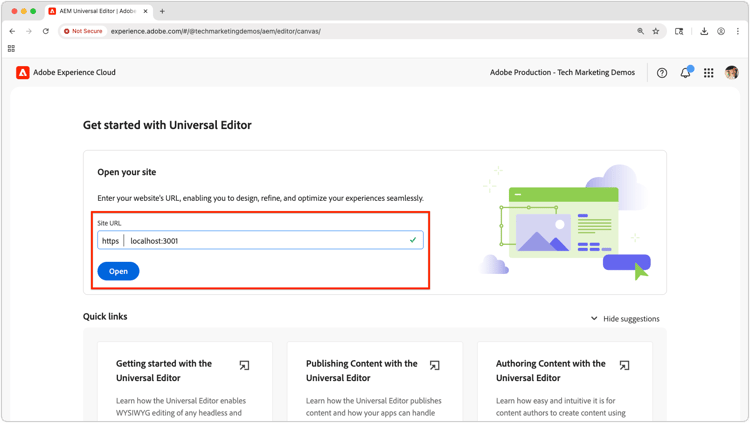
- 导航到通用编辑器。
- 在 站点URL 字段中,输入HTTPS React应用程序URL:
https://localhost:3001。 - 选择单击打开。
通用编辑器应加载启用了编辑功能的React应用程序。
测试编辑功能
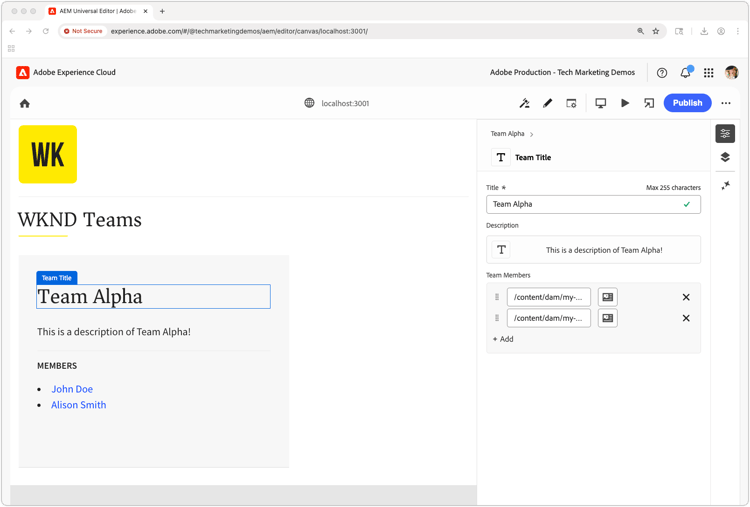
-
在通用编辑器中,将鼠标悬停在React应用程序中的可编辑元素上。
-
要在React应用内导航,请打开 预览 模式,然后再次将其关闭以进行编辑。 请记住,预览与AEM预览服务无关,而是会在通用编辑器中打开和关闭编辑Chrome。
-
您应该会看到正在编辑指示器,并能够单击React应用程序的各种可编辑元素。
-
尝试编辑团队标题:
- 单击团队标题
- 在属性面板中编辑文本
- 保存更改
-
尝试编辑人员的信息配置文件图片:
- 单击个人资料照片
- 从资产选取器中选择新图像
- 保存更改
-
按Universal Editor右上角的 Publish 将编辑内容发布到AEM Publish (或Preview)服务,以便这些编辑内容在Universal Editor中的React应用程序中得以反映。
通用编辑器数据属性
有关为通用编辑器检测应用程序的完整文档,请参阅通用编辑器文档。
恭喜!
恭喜!您已成功将Universal Editor与React应用程序集成。 内容作者现在可以直接在React应用程序界面中编辑内容片段,在保持无头架构优势的同时提供无缝创作体验。
请记住,您始终可以从mainGitHub.com存储库的分支获取本教程的最终源代码。