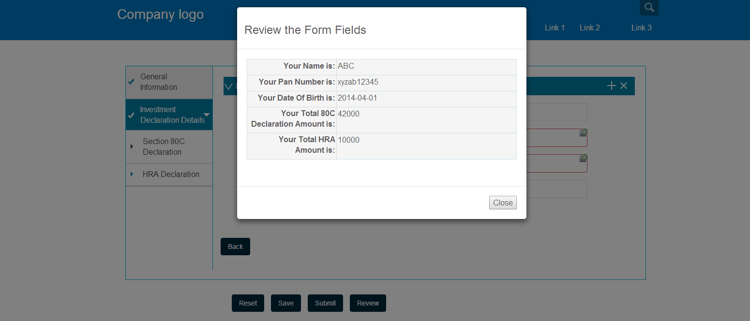
创建自定义工具栏操作 creating-a-custom-toolbar-action
前提条件 prerequisite
在创建自定义工具栏操作之前,请熟悉 使用客户端库 和 使用CRXDE Lite进行开发.
什么是操作 what-is-an-action-br
自适应表单提供了一个工具栏,允许表单作者配置一组选项。 这些选项被定义为自适应表单的操作。 单击面板工具栏中的编辑按钮以设置自适应表单支持的操作。
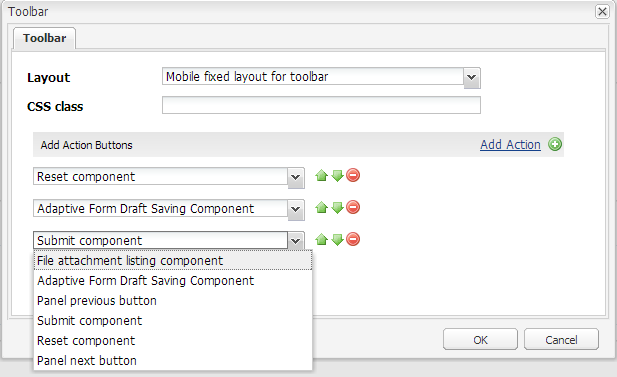
除了默认提供的一组操作之外,您还可以在工具栏中创建自定义操作。 例如,您可以添加一项操作,以便用户在提交表单之前查看所有自适应表单字段。
在自适应表单中创建自定义操作的步骤 steps
为了说明如何创建自定义工具栏操作,以下步骤指导您创建一个按钮,供最终用户在提交填写的表单之前查看所有自适应表单字段。
-
自适应表单支持的所有默认操作均位于
/libs/fd/af/components/actions文件夹。 在CRXDE中,复制fileattachmentlisting节点从/libs/fd/af/components/actions/fileattachmentlistingto/apps/customaction. -
将节点复制到
apps/customaction文件夹,将节点名称重命名为reviewbeforesubmit. 此外,更改jcr:title和jcr:description节点的属性。的
jcr:title属性包含在工具栏对话框中显示的操作名称。 的jcr:description属性包含用户将指针悬停在操作上时显示的更多信息。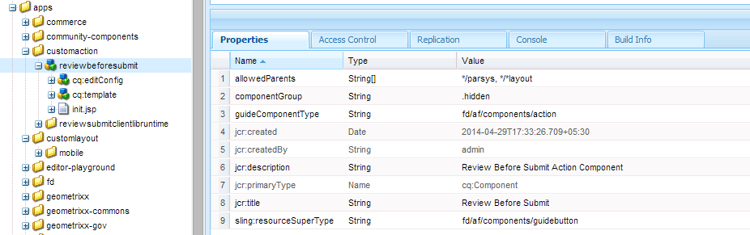
-
选择
cq:template节点reviewbeforesubmit节点。 确保guideNodeClass属性guideButton更改jcr:title资产。 -
在
cq:Template节点。 对于当前示例,将type属性更改为按钮。类型值将作为CSS类添加到组件的生成HTML中。 用户可以使用该CSS类来设置其操作的样式。 为按钮、提交、重置和保存类型值均提供了移动设备和桌面设备的默认样式。
-
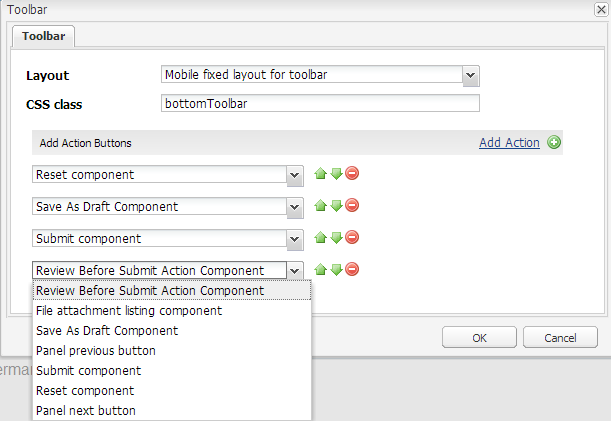
从自适应表单编辑工具栏对话框中选择自定义操作。 “审阅”按钮将显示在面板的工具栏中。

-
要为“审阅”按钮提供功能,请在init.jsp文件中添加一些JavaScript和CSS代码以及服务器端代码,这些代码位于
reviewbeforesubmit节点。在
init.jsp.code language-none <%@include file="/libs/fd/af/components/guidesglobal.jsp" %> <guide:initializeBean name="guideField" className="com.adobe.aemds.guide.common.GuideButton"/> <c:if test="${not isEditMode}"> <cq:includeClientLib categories="reviewsubmitclientlibruntime" /> </c:if> <%--- BootStrap Modal Dialog --------------%> <div class="modal fade" id="reviewSubmit" tabindex="-1"> <div class="modal-dialog"> <div class="modal-content"> <div class="modal-header"> <h3>Review the Form Fields</h3> </div> <div class="modal-body"> <div class="modal-list"> <table> <tr> <td> <label>Your Name is: </label> </td> </tr> <tr> <td> <label>Your Pan Number is: </label> </td> </tr> <tr> <td> <label>Your Date Of Birth is: </label> </td> </tr> <tr> <td> <label>Your Total 80C Declaration Amount is: </label> </td> </tr> <tr> <td> <label>Your Total HRA Amount is: </label> </td> </tr> </table> </div> </div><!-- /.modal-body --> <div class="modal-footer"> <div class="fileAttachmentListingCloseButton col-md-2 col-xs-2 col-sm-2"> <button data-dismiss="modal">Close</button> </div> </div> </div><!-- /.modal-content --> </div><!-- /.modal-dialog --> </div><!-- /.modal -->在
ReviewBeforeSubmit.js文件。code language-none /*anonymous function to handle show of review before submit view */ $(function () { if($("div.reviewbeforesubmit button[id*=reviewbeforesubmit]").length > 0) { $("div.reviewbeforesubmit button[id*=reviewbeforesubmit]").click(function(){ // Create the options object to be passed to the getElementProperty API var options = {}, result = []; options.somExpressions = []; options.propertyName = "value"; guideBridge.visit(function(model){ if(model.name === "name" || model.name === "pan" || model.name === "dateofbirth" || model.name === "total" || model.name === "totalmonthlyrent"){ options.somExpressions.push(model.somExpression); } }, this); result = guideBridge.getElementProperty(options); $('#reviewSubmit .reviewlabel').each(function(index, item){ var data = ((result.data[index] == null) ? "No Data Filled" : result.data[index]); if($(this).next().hasClass("reviewlabelvalue")){ $(this).next().html(data); } else { $(this).after($("<td></td>").addClass("reviewlabelvalue col-md-6 active").html(data)); } }); // added because in mobile devices it was causing problem of backdrop $("#reviewSubmit").appendTo('body'); $("#reviewSubmit").modal("show"); }); } });将以下代码添加到
ReviewBeforeSubmit.css文件。code language-css .modal-list .reviewlabel { white-space: normal; text-align: right; padding:2px; } .modal-list .reviewlabelvalue { border: #cde0ec 1px solid; padding:2px; } /* Adding icon for this action in mobile devices */ /* This is the glyphicon provided by bootstrap eye-open */ /* .<type> .iconButton-icon */ .reviewbeforesubmit .iconButton-icon { position: relative; top: -8px; font-family: 'Glyphicons Halflings'; font-style: normal; } .reviewbeforesubmit .iconButton-icon:before { content: "\e105" } -
要验证自定义操作的功能,请在预览模式下打开自适应表单,然后单击工具栏中的查看。
note note NOTE 的 GuideBridge库未在创作模式下加载。 因此,此自定义操作在创作模式下不起作用。