すべてのツールのスクリーンショット メニュー

  • :callout[]{type="rectangle" x1="11.67" y1="4.22" x2="15.83" y2="8.42"}
  • :callout[]{type="rectangle" x1="0.77" y1="53.42" x2="9.99" y2="58.02"}

デスクトップ版AcrobatでPDFを保護する方法

ファイルを開き、ツールバーから​ すべてのツール ​を選択し、PDFを保護​を選択します。

注意:署名済みまたは認証済みの文書にパスワードを追加することはできません。

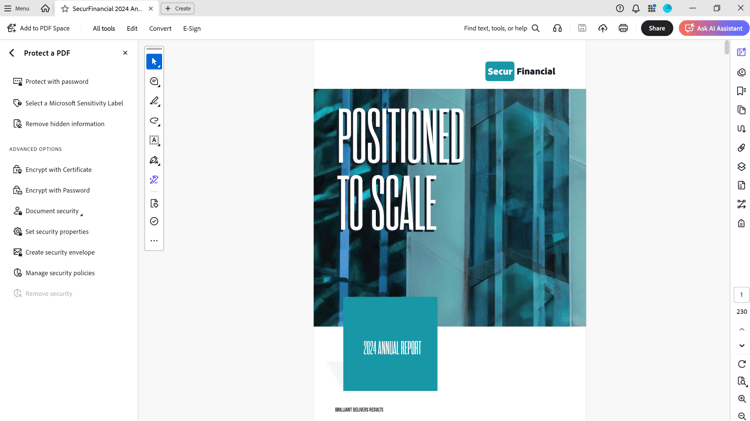
PDF パネルの保護 のスクリーンショット

  • :callout[]{type="rectangle" x1="0.66" y1="16.82" x2="12.57" y2="21.02"}

オープンパスワードの設定方法

左側のペインから「パスワードで保護」を選択します。

​ スクリーンショット パスワードの保護ダイアログ ​

  • :callout[]{type="rectangle" x1="32.12" y1="33.62" x2="34.14" y2="38.02"}

https://cdn.experienceleague.adobe.com/assets/ja/slides/protect-pdfs/2/34864a149715989726a71ddf95f4499802a830d4c82727eded0e5df519db5e6b.mp3

PDFを開くためのパスワードの設定

ダイアログボックスで、「表示」を選択します。
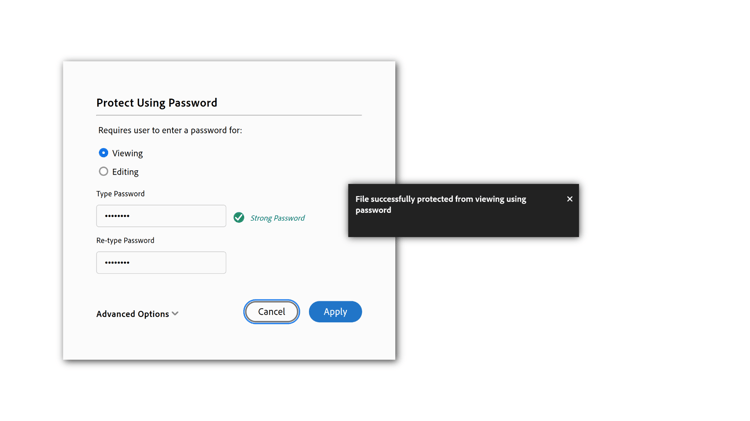
​ パスワードの保護ダイアログのスクリーンショット ​

  • :callout[]{type="rectangle" x1="12.91" y1="48.62" x2="29.76" y2="53.22"}
  • :callout[]{type="rectangle" x1="12.8" y1="59.62" x2="29.76" y2="64.42"}
  • :callout[]{type="rectangle" x1="40.34" y1="69.8" x2="48.43" y2="77.2"}

堅牢なパスワードの追加

パスワードを入力し、確認のために再入力してから、適用​を選択してください。 ファイルが正常に保護されたことを示す確認メッセージが表示されます。

注意:パスワードはどこにも保存されず、紛失したり忘れたりした場合は取得できません。 お願いします 記憶に残るパスワードを選択するか、パスワード管理アプリを使用して保存します。
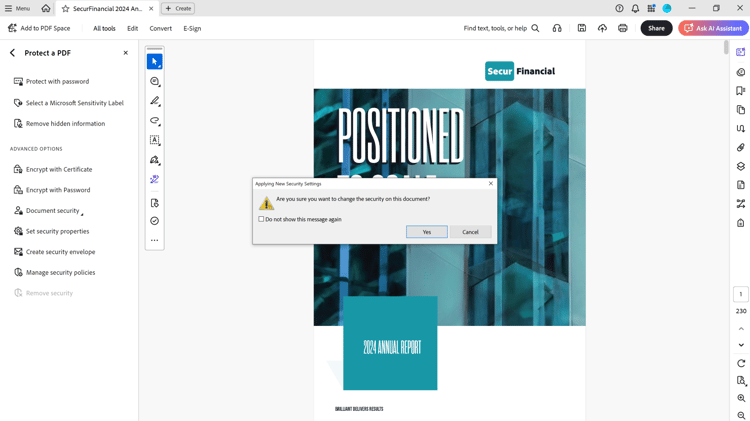
パスワードを使用した暗号化 のスクリーンショット ​

  • :callout[]{type="rectangle" x1="0.77" y1="42.82" x2="13.36" y2="47.22"}
  • :callout[]{type="rectangle" x1="54.14" y1="53.02" x2="59.65" y2="56.42"}

印刷、編集、コピーを制限する方法

左側のペインから「パスワードで暗号化」を選択します。 ドキュメントのセキュリティに対する変更を確認するには、はい​を選択します。

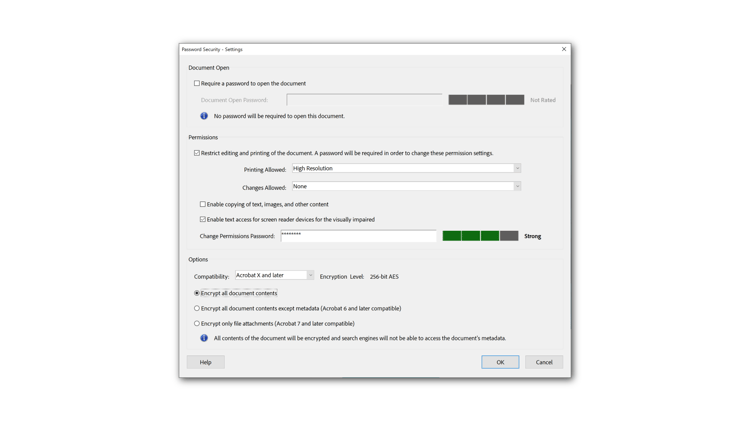
​ パスワードセキュリティ設定のスクリーンショット ​

  • :callout[]{type="rectangle" x1="25.15" y1="34.22" x2="27.06" y2="37.62"}
  • :callout[]{type="rectangle" x1="38.75" y1="38.62" x2="69.42" y2="40.62"}
  • :callout[]{type="rectangle" x1="38.86" y1="42.82" x2="69.65" y2="45.22"}

セキュリティレベルの設定

パスワードセキュリティ設定ダイアログボックスで、編集と印刷の制限を選択します ドキュメント。

「印刷許可:」ドロップダウンで、「高解像度」を選択して印刷を許可します。 変更許可: ドロップダウンで、なし​を選択して編集を禁止します。

​ パスワードセキュリティ設定のスクリーンショット ​

  • :callout[]{type="rectangle" x1="37.19" y1="54.6" x2="57.87" y2="57.2"}
  • :callout[]{type="rectangle" x1="64.14" y1="83.82" x2="69.09" y2="87.42"}

堅牢なパスワードの入力

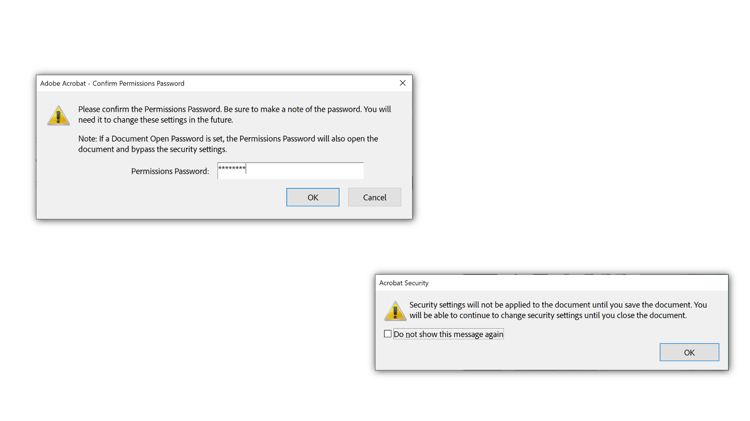
対応するフィールドにパスワードを入力します。 Acrobatは、顧客体験の強化に 右のボックスを使用してパスワードを設定します。

互換性と暗号化オプションを選択し、OK​を選択します。

​ パスワード確認と警告ダイアログの保存のスクリーンショット。

  • :callout[]{type="rectangle" x1="28.98" y1="38.42" x2="48.08" y2="42.22"}
  • :callout[]{type="rectangle" x1="37.96" y1="44.62" x2="44.93" y2="48.42"}
  • :callout[]{type="rectangle" x1="87.96" y1="81.42" x2="95.49" y2="85.42"}

パスワードの確認と保存

パスワードを再入力して確認し、OK​を選択します。 ファイルを保存します。

スライドのスクリーンショット

  • :callout[]{type="rectangle" x1="1.11" y1="62.22" x2="8.75" y2="66.02"}
  • :callout[]{type="rectangle" x1="85.6" y1="67.42" x2="91.22" y2="70.42"}

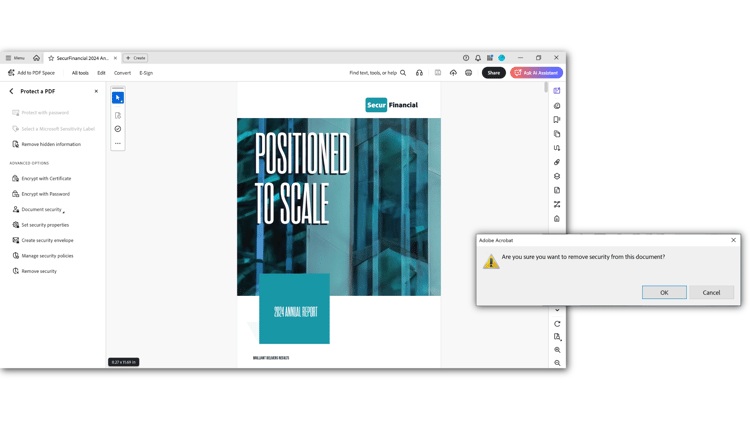
パスワードセキュリティの削除

左側のパネルから「セキュリティを削除」を選択します。 確認するには、OK​を選択してください。

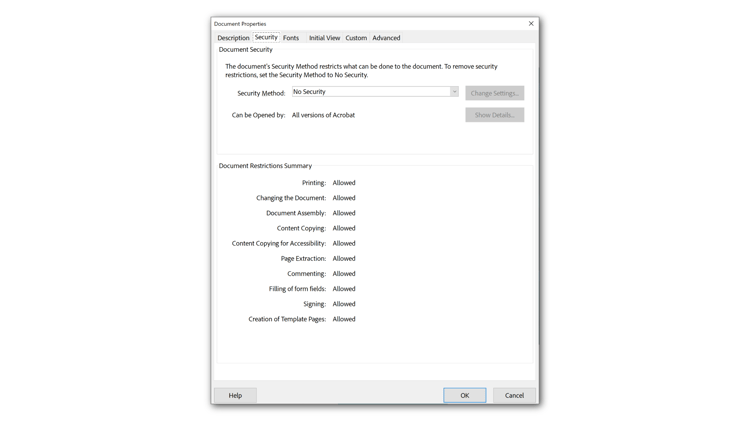
​ ドキュメントのプロパティ ダイアログの「セキュリティ」タブのスクリーンショット ​

  • :callout[]{type="rectangle" x1="33.47" y1="7.42" x2="37.18" y2="9.62"}
  • :callout[]{type="rectangle" x1="58.98" y1="92.22" x2="64.71" y2="95.42"}

セキュリティを確認

WindowsではCtrl + D、MacではCmd + Dのキーボードショートカットを使用してドキュメントのプロパティを開き、セキュリティを確認します。 設定を表示するには、「セキュリティ」タブを選択します。

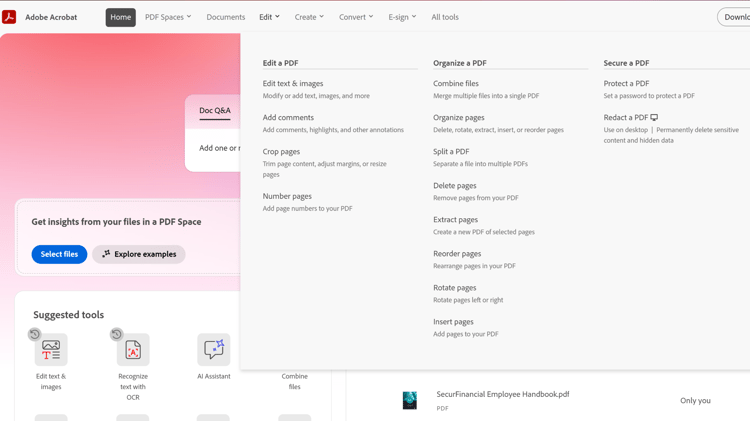
Web上のPDF ツールの保護 のスクリーンショット

  • :callout[]{type="rectangle" x1="33.47" y1="1.62" x2="38.19" y2="6.02"}
  • :callout[]{type="rectangle" x1="79.76" y1="17.62" x2="93.47" y2="24.62"}

Acrobat web版でオープンパスワードを設定する方法

ブラウザーでacrobat.adobe.comにログインします。 上部メニューから「編集」 > 「PDFを保護」を選択します。

注意:Web版Acrobatでは、ビューパスワードのみを設定できます。
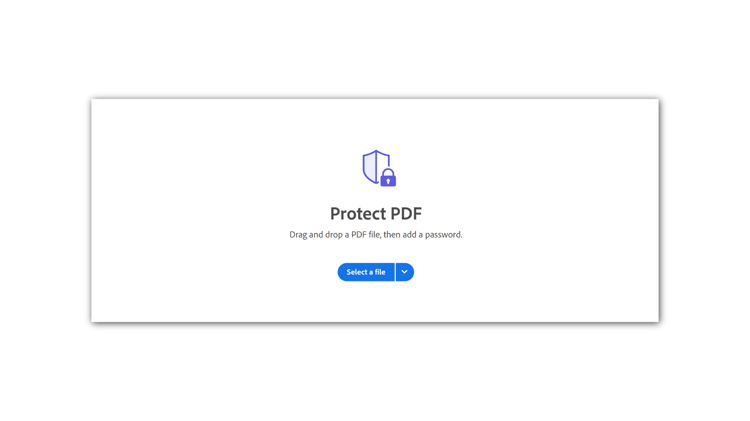
​ ファイルを選択ページのスクリーンショット ​

  • :callout[]{type="rectangle" x1="44.26" y1="60.82" x2="55.49" y2="68.02"}

ファイルを追加

ファイルを選択​し、ファイルを追加して、開く​を選択します。

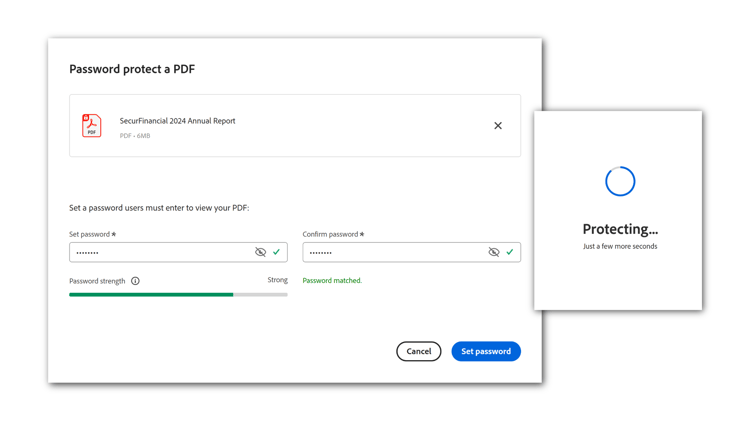
​ パスワード保護ダイアログのスクリーンショット ​

  • :callout[]{type="rectangle" x1="9.2" y1="57.42" x2="37.96" y2="62.02"}
  • :callout[]{type="rectangle" x1="40.44" y1="57.22" x2="69.2" y2="61.82"}
  • :callout[]{type="rectangle" x1="59.76" y1="79.42" x2="69.65" y2="86.62"}

堅牢なパスワードの入力

パスワードを入力し、対応するフィールドにパスワードを確認します。 「パスワードを設定」を選択します。

​ ビューで保護されたPDFを開くスクリーンショット ​

開いているパスワードをテストする

PDF ファイルを開きます。 プロンプトが表示されたら、パスワードを入力してPDFを開きます。